
Neve Options Not Saving or Reverting After Update
If the settings in the Neve Options sidebar snap back to their previous values every time you update a page, this guide explains what causes it and how to fix it.
📝 Note: Neve now prevents a conflict with WordPress's built-in Custom fields panel that could revert these settings. Update Neve first. Use the legacy workaround below only if you cannot update yet.
In this article
Symptoms this guide covers
Work through this guide if most of the following apply:
- You change a setting in the Neve Options sidebar — such as Container, Custom Content Width, Sidebar, Title alignment, or Disable Title — and click Update.
- The page saves with a success notice and no error message.
- When you reload or reopen the editor, the setting has returned to its previous value, and the change never appears on the front end.
- Everything else on the same page — content, page title, featured image — saves normally.
A common variation is that the first change you make to a page sticks, and every change after that reverts. This is the same problem, and the same fix applies.
For a description of each of these settings, see Neve Page Options.
📝 Note: If your Neve Options stay saved in the editor but the front end still looks unchanged, this is a different problem. Start with your caching setup instead — see How to clear the cache in WordPress.
Legacy workaround for older Neve releases
On older Neve releases, WordPress's built-in Custom fields panel can overwrite the Neve settings you just saved. If you cannot update Neve yet, turn off that panel:
- Open any page or post in the block editor.
- Click the three-dots menu in the top-right corner of the screen and select Preferences.
- Select Advanced.
- Switch Custom fields off.
- Click Hide & Reload Page. The editor reloads without the Custom fields panel.
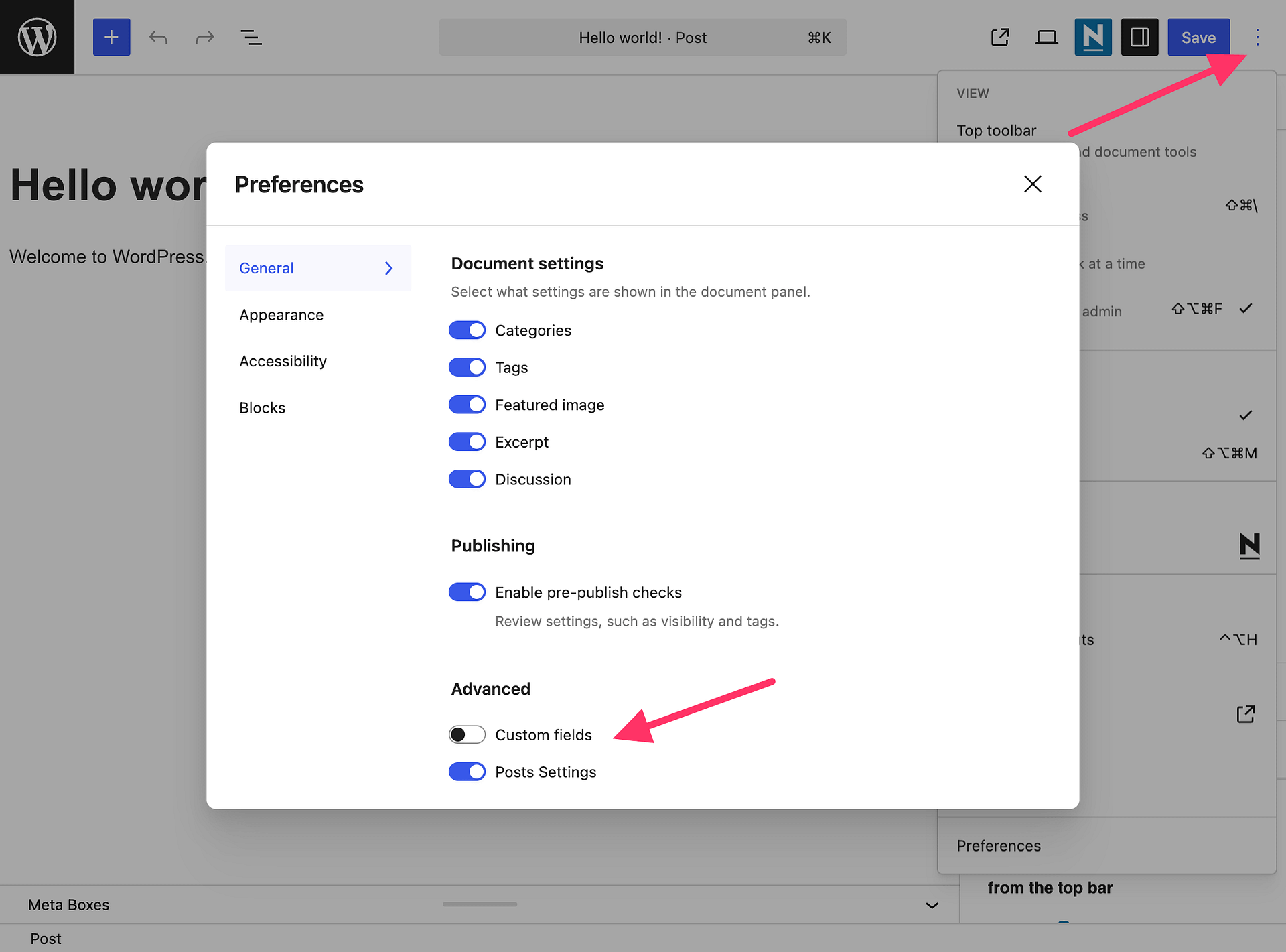
⚠️ Important: Custom fields is a per-user setting, not a site-wide one. It stays switched on for the account that enabled it, on every browser and computer that account uses, and it does not affect anyone else. If several people edit pages on your site, each affected account has to switch it off separately.
Confirm the settings now save
- Open the affected page in the block editor.
- Press Shift+Alt+S, or click the Neve icon in the top toolbar, to open the Neve Options sidebar.
- Change the setting that was reverting, then click Update.
- Reload the editor and check that the setting kept its new value.
- Open the page on the front end to confirm the change is applied.
Why settings reverted on older Neve releases
On older Neve releases, when the Custom fields panel is active, updating a page saves it in two steps instead of one:
- Your new Neve Options are saved correctly.
- Immediately afterwards, the Custom fields panel sends back the values it read when you first opened the editor, and those older values replace the ones that were just saved.
Nothing fails along the way, so no error appears. The page really is updated, and then overwritten a moment later.
This also explains why the first change to a page often works. A page that has never had Neve Options set has no stored values for the Custom fields panel to send back, so that first save survives. Once the values exist, every later change is overwritten.
Check for other plugins that manage the same fields
Neve now protects its registered page-option fields from the built-in WordPress panel. A third-party custom field or field group that manages the same fields in the editor can still cause a conflict — for example a field group built with a custom fields plugin, or custom code that adds its own fields box to the editor.
Neve stores its per-page settings in fields whose names begin with neve_meta_. If one of your field groups includes any of them:
- Remove those fields from the field group, and
- Use the Neve Options sidebar to change the settings instead.
If the settings still do not save
Before contacting support, check that:
- You have updated Neve to the latest available version.
- If you are still on an older Neve release, Custom fields is switched off for the specific user account that sees the problem, not only for one of your other accounts.
- No other field group or plugin manages fields starting with
neve_meta_, as described above.
📝 Note: Clearing caches, deactivating plugins, or testing in a private browsing window does not rule this out. Custom fields is a WordPress user preference rather than a plugin or a cached file, so it stays active through all of those tests.
If the settings still revert, contact support and include your WordPress version, your Neve and Neve Pro versions, a list of active plugins, and which Neve Options are affected.