
Neve Header and Footer Missing from Website
If your site's header or footer has suddenly disappeared, this guide walks you through the most common causes and shows you how to restore them. Work through each section in order until the header or footer reappears.
In this article
Check Page-Level Settings
Neve lets you disable the header and footer on a per-page basis. If only one page is affected, this is the first place to look.
- Go to Dashboard > Pages and open the affected page for editing.
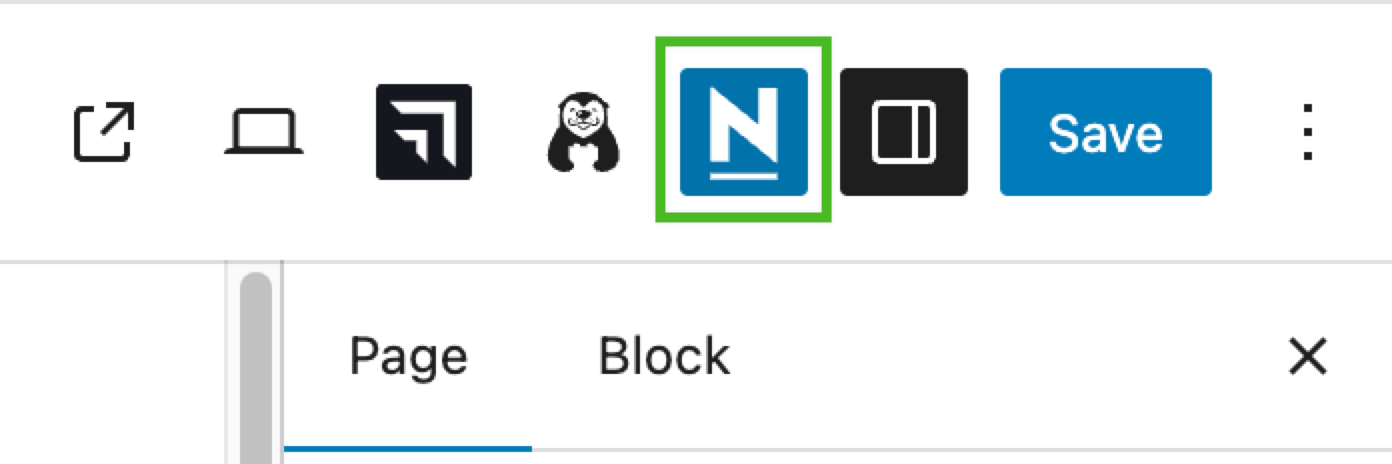
- Click the Neve icon in the top toolbar to open the Neve Options sidebar on the right.
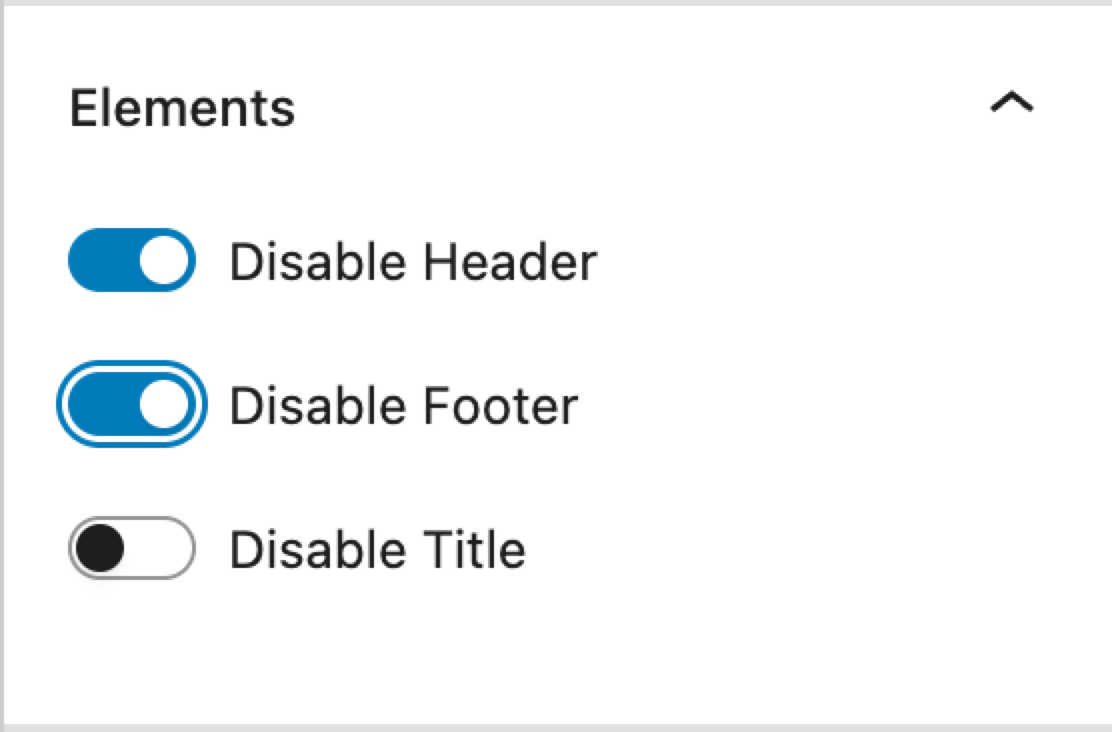
- Find the Elements panel — it contains toggles for Disable Header and Disable Footer that apply to the current page only.
- If either toggle is enabled (checked), turn it off and click Update to save the page.
📝 Note: Page-level settings override the global Customizer settings. If the header is disabled here, the Customizer setting has no effect on that page.
Check the Customizer Display Conditions (Neve Pro)
If you are using Neve Pro with multiple headers, each header can be assigned conditions that control where it appears. A misconfigured condition can result in no header showing on certain pages.
- Go to Appearance > Customize > Header.
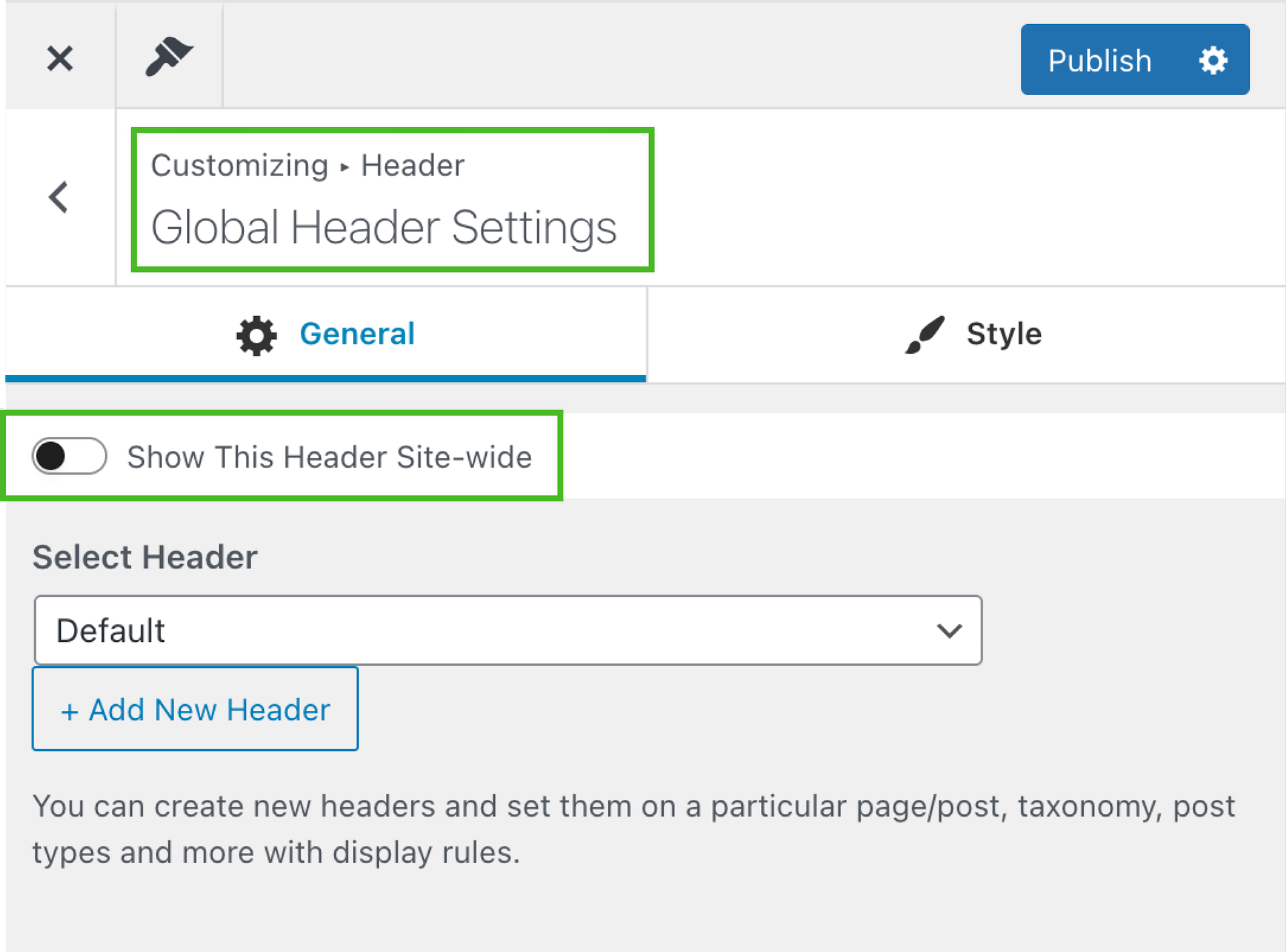
- If you have more than one header, click through each one and check its Global Header Settings.
- Look for the Show This Header Site-wide toggle. If it is off, verify that the display conditions cover the pages where the header should appear.
- To restore a simple site-wide header, turn on Show This Header Site-wide for your main header and publish the changes.
📝 Note: If no header has site-wide display or conditions that match a given page, the header will be blank on that page. The same logic applies to the footer.
For more details on setting up conditional headers, see Conditional/Multiple Headers (PRO).
Check the Page Template
Certain page templates remove the header and footer entirely by design. If a page was accidentally set to one of these templates, restoring the correct template will bring the elements back.
In the WordPress Block Editor (Gutenberg):
- Open the affected page for editing.
- Click the Page tab in the right-hand sidebar (or open the Document settings panel).
- Under Template, check the selected value. Templates named Canvas, Blank, or similar full-width layouts typically hide the header and footer.
- Change the template to Default Template (or Neve Page) and update the page.
In Elementor:
- Open the page in Elementor.
- Click the hamburger menu icon (top-left) and choose Page Settings.
- Under the Page Layout or Canvas setting, switch from Elementor Canvas or Elementor Full Width to Default or Neve Page.
- Save the page.
⚠️ Warning: The Elementor Canvas template removes all theme elements (header, footer, sidebars). Use it only for standalone landing pages where that behavior is intentional.
Rule Out Plugin or Theme Builder Conflicts
A third-party plugin or theme builder may be overriding Neve's header or footer output. To identify whether a conflict is causing the issue:
- Temporarily deactivate plugins one by one — start with any page-builder, header-builder, or caching plugins — and check whether the header or footer reappears after each deactivation.
- Check for a Divi Theme Builder layout — if you use Divi, a Divi header or footer layout assigned to the page can suppress the Neve header or footer. See Neve compatibility with Divi Header/Footer for guidance.
- Switch to the default Neve header temporarily — in Appearance > Customize > Header, reset to the default header layout to confirm whether a customized header configuration is causing the problem.
Additional Troubleshooting Steps
If the header or footer is still missing after the steps above, try the following:
- Clear all caches — clear your caching plugin, server-side cache, and CDN cache, then reload the page in a private/incognito browser window to rule out cached output. If Neve Pro conditional headers disappear in both the Customizer and frontend, also follow How to clear the Cache in WordPress to flush persistent object cache layers.
- Regenerate CSS — go to Appearance > Customize, make a minor cosmetic change (such as adjusting a color), publish it, and revert the change. This forces Neve to regenerate its CSS files.
- Check for JavaScript errors — open your browser's developer tools (F12), go to the Console tab, and look for JavaScript errors that could be preventing the header or footer from rendering.
- Test with all plugins disabled — if possible, temporarily disable all plugins and check whether the header or footer returns. Re-enable plugins one by one to identify the conflicting plugin.
💡 Tip: Always test in an incognito or private browser window after making changes so you see the live site without browser cache.
Related articles: