How to Manage Template Page in Neve FSE?
The templates might be handy if you want to create a standard appearance for the pages/elements of your website. These can be easily added and designed from the FSE Editor.
Edit Template
1. Navigate to Dashboard > Appearance > Editor ( beta ) > Templates.
2. Click on Add New and select the template you want to insert.
In this example, we picked a Single item: Post template.
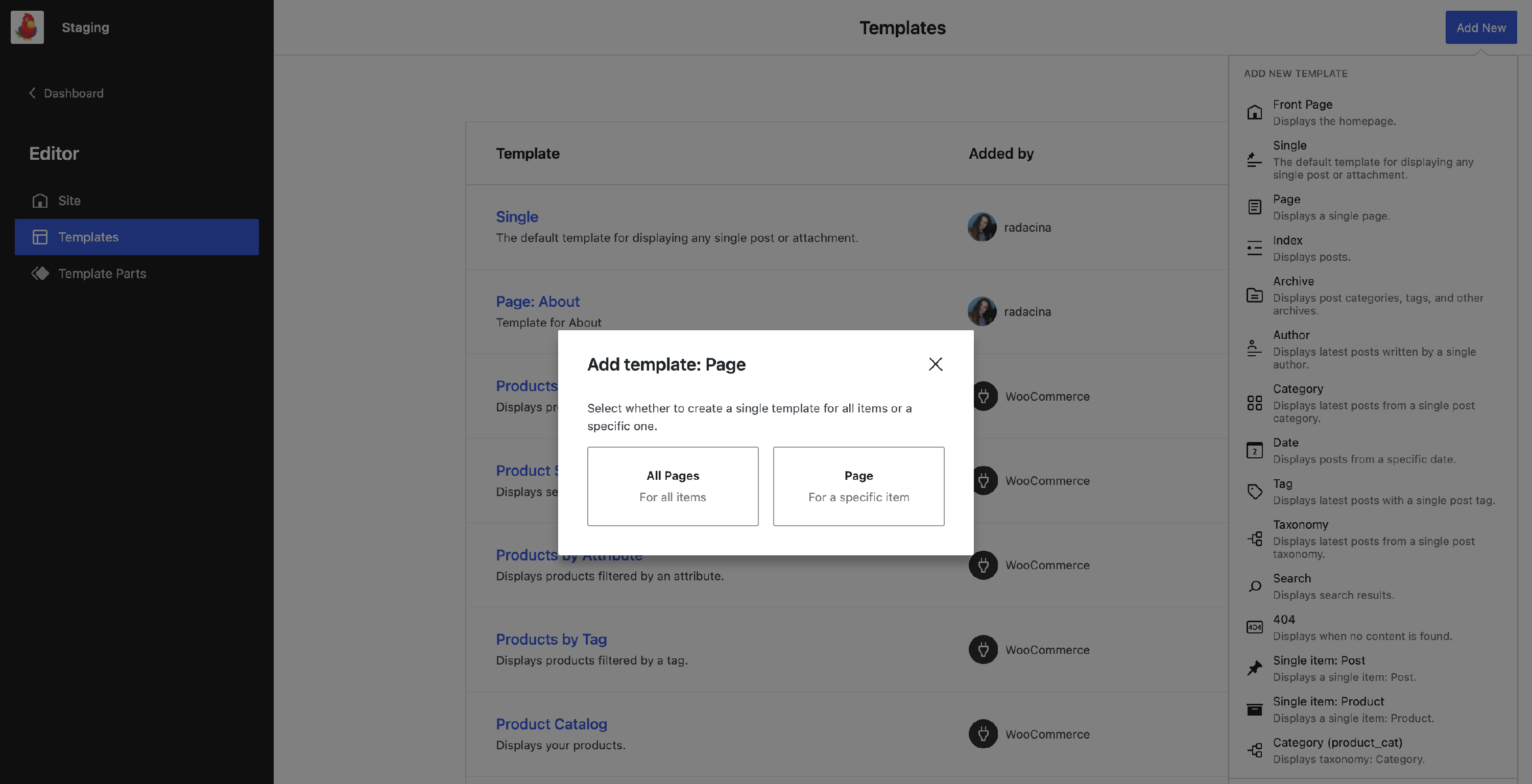
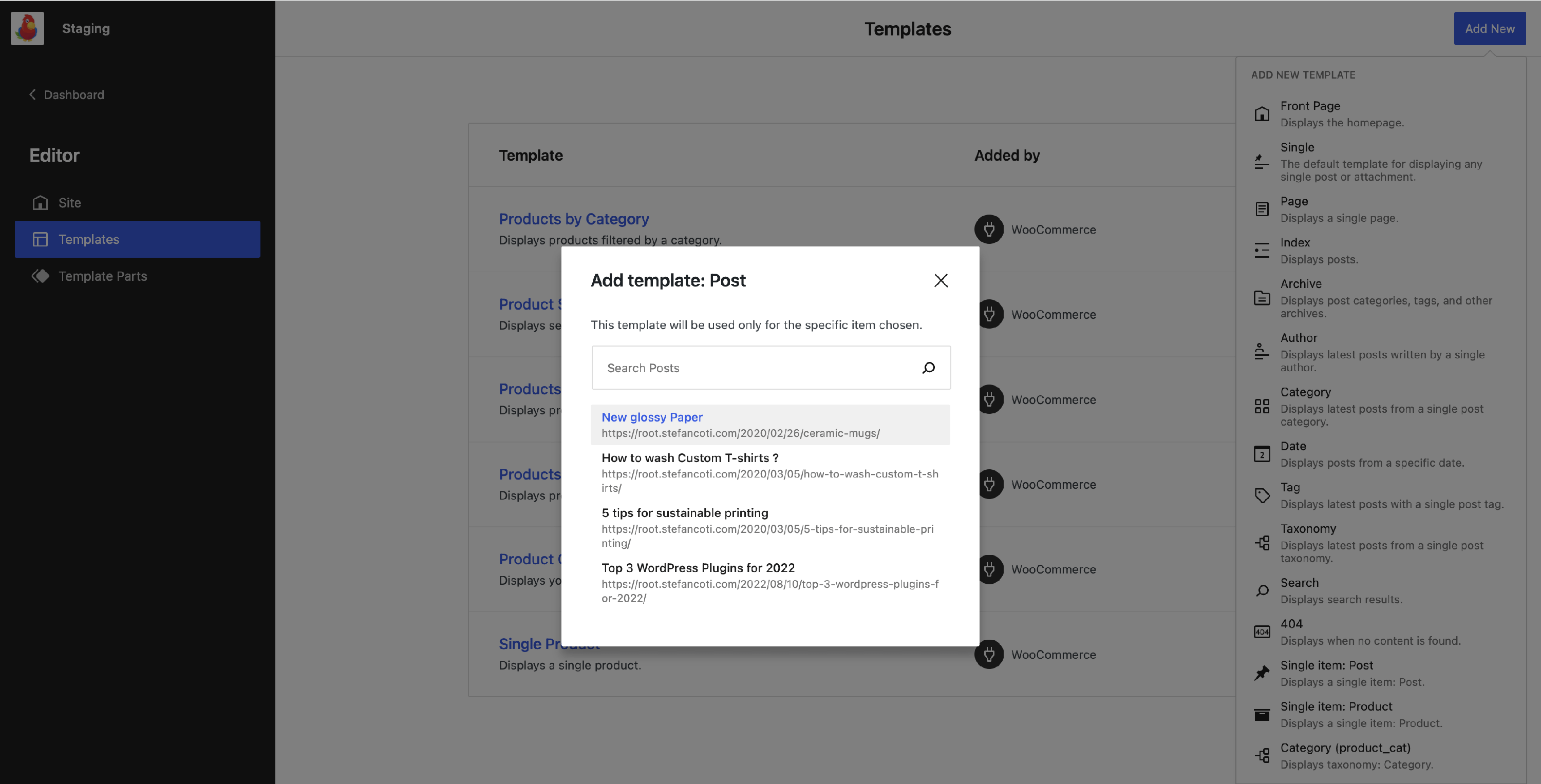
Using this template, you can apply it to a specific post. A modal with the available items will appear. The posts that already have specific templates will not be displayed there.
3. Type in the name of the post for which you want to create a template and select it from the list.
4. Now you can prepare the template as you wish. To ensure the changes are suitable for any post/page, you can use dynamic content from Otter.
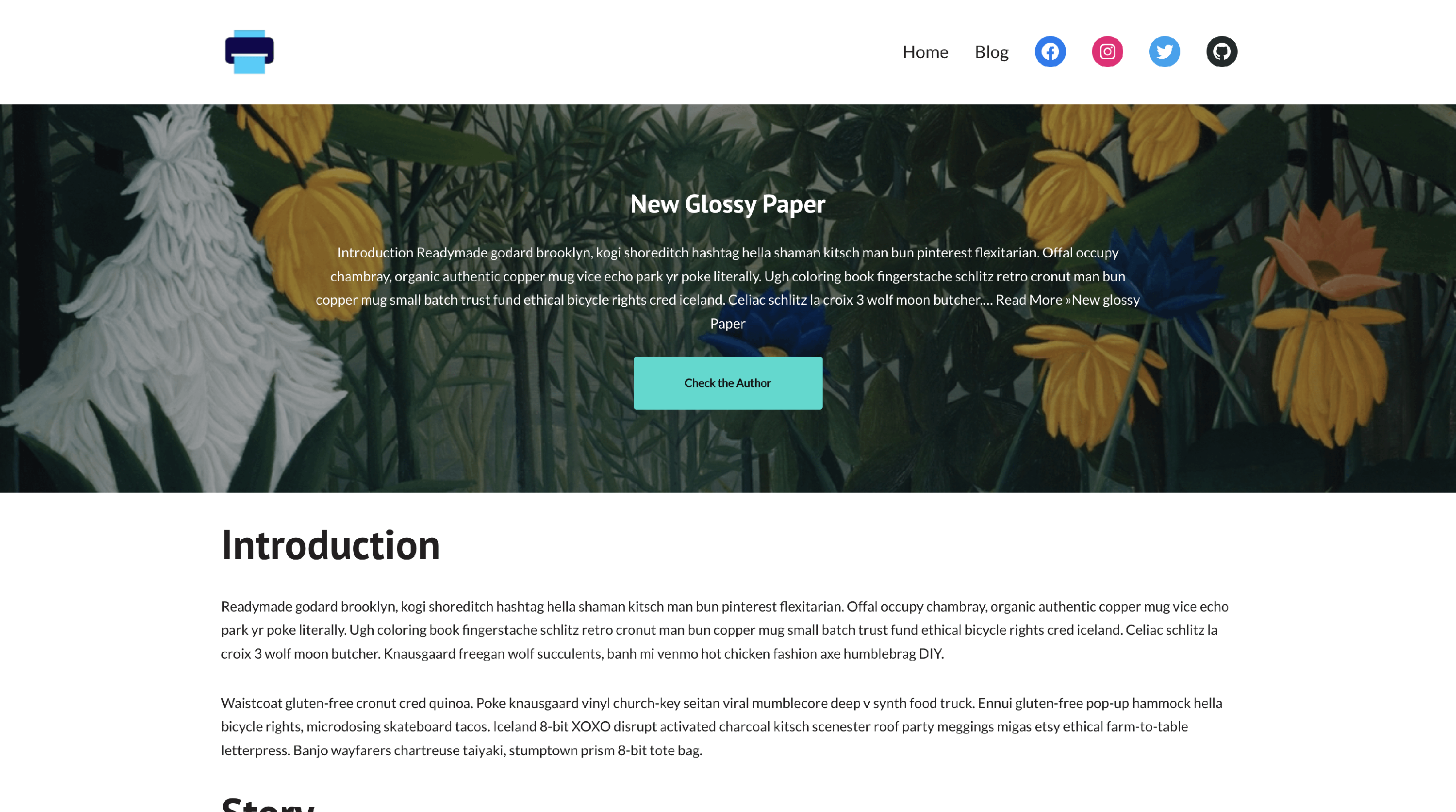
In the below example, we have used the Otter Blocks patterns to insert the section and dynamic values to display information:
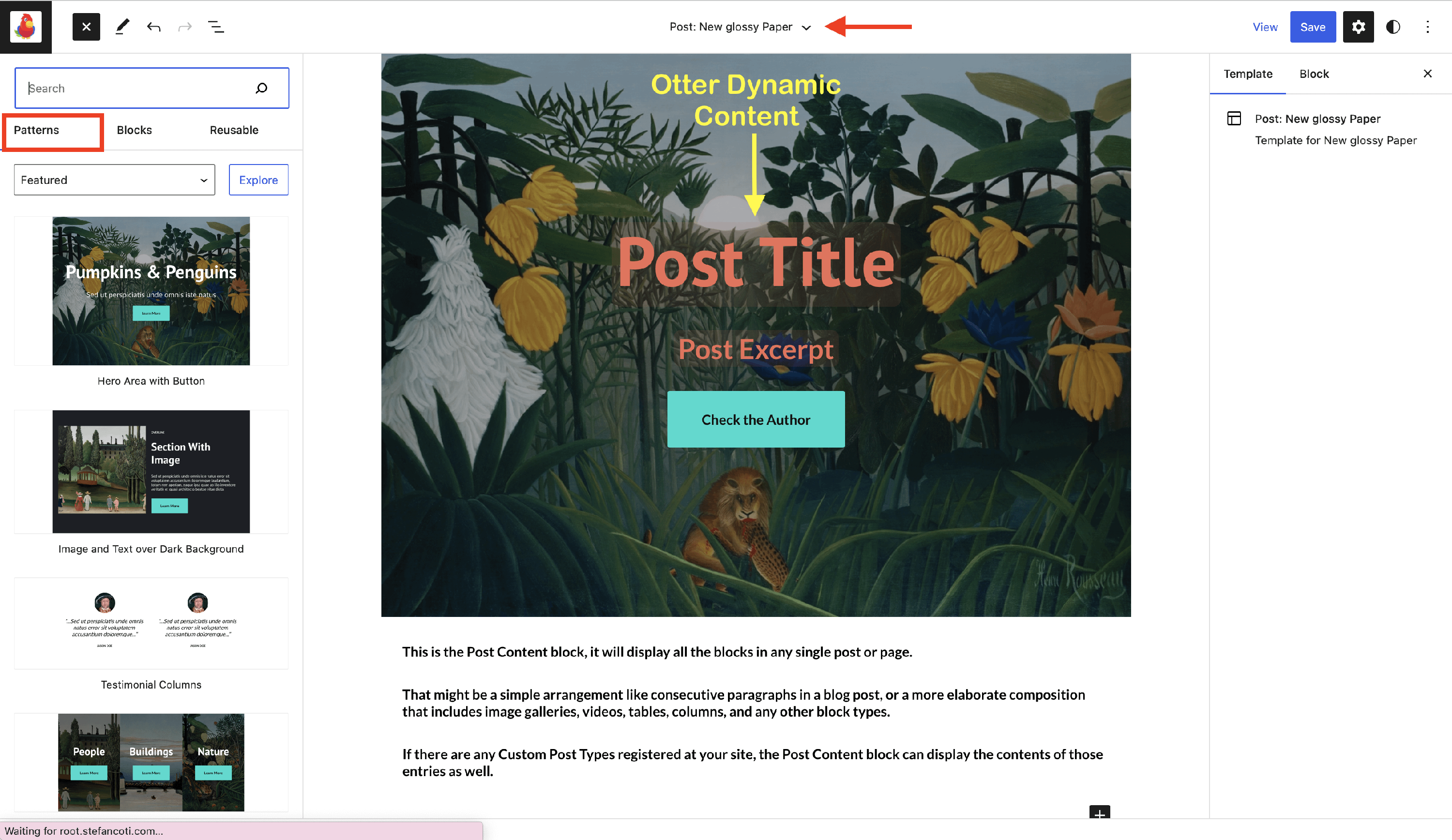
Result
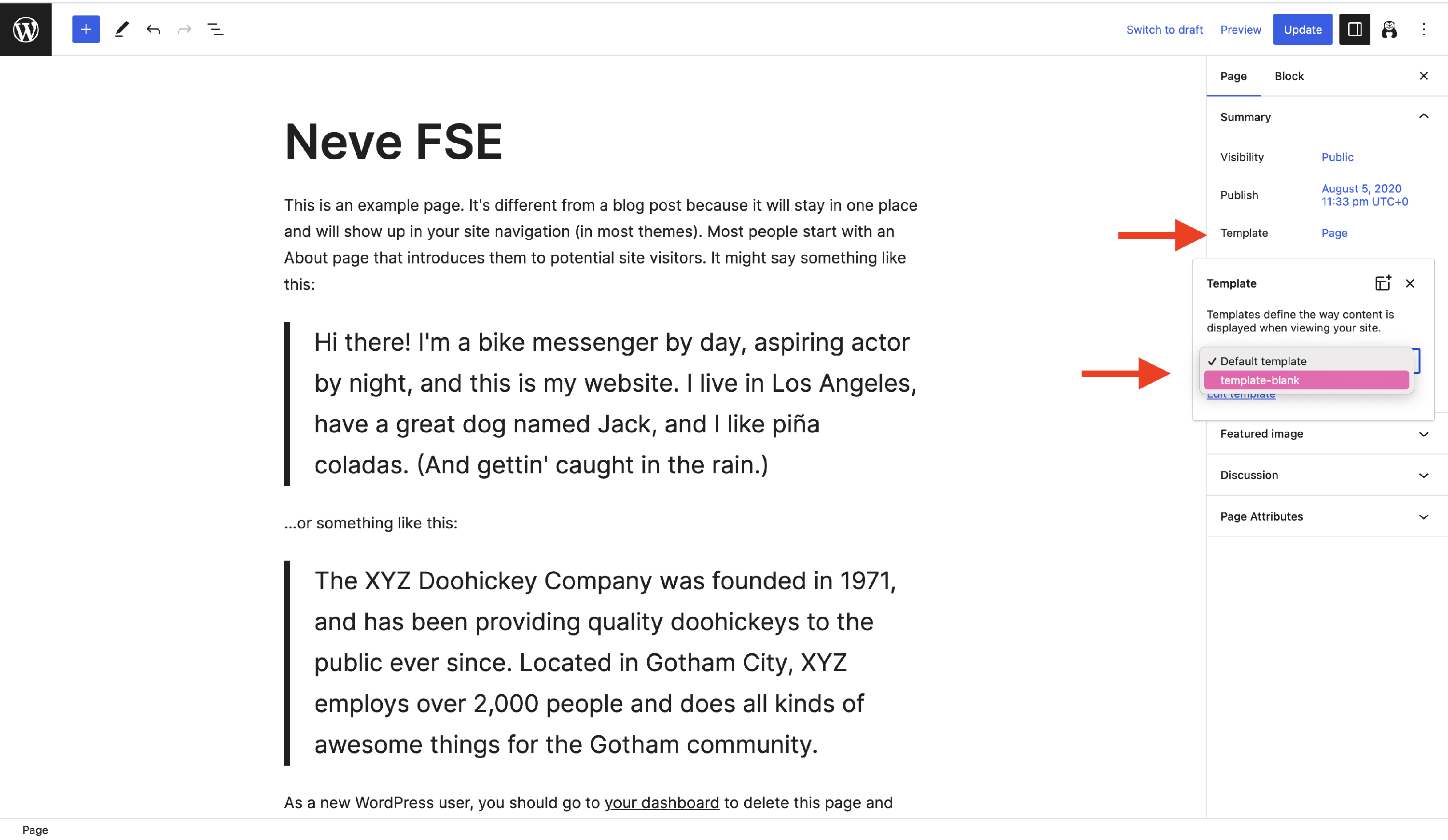
Change Template
To change the template of an existing or new page, follow these steps:
1. Navigate to Posts/Pages and open an existing one.
2. In the right sidebar, click on the Page tab.
3. Next to Template, click on the template name (here, Page).
4. Select a different template from the dropdown.