
How to refresh the Neve Pro license status after an upgrade or renewal
If your Neve Pro license shows an incorrect expiration date or a suspended notice after renewing, upgrading, or reactivating your Themeisle subscription, you can refresh its status from your WordPress dashboard.
In this article
If the Neve Pro Addon will not update
Neve Pro Addon updates are only available while your Themeisle subscription is active. If your subscription has been canceled, expired, or if a renewal payment has failed, WordPress will block the update and may show an error such as "download failed" or "update unavailable."
⚠️ Important: Reactivating the license key on your site alone will not restore update access if your subscription is no longer active. You must first restore an active subscription in your Themeisle account.
Check your subscription status first
Before troubleshooting WordPress, log in to your Themeisle account and check the status of your Neve Pro subscription:
- Active — your subscription is in good standing. If WordPress still shows an update error, proceed to refresh the license on your site.
- Canceled or Expired — renew or reactivate your subscription from your Themeisle account before attempting any license steps on your site.
- Payment pending — wait for the payment to clear before proceeding. Renewing again while a payment is still pending can result in a duplicate charge.
After renewing or reactivating your subscription
Once your Themeisle subscription is active, follow these steps to sync the license status on your WordPress site:
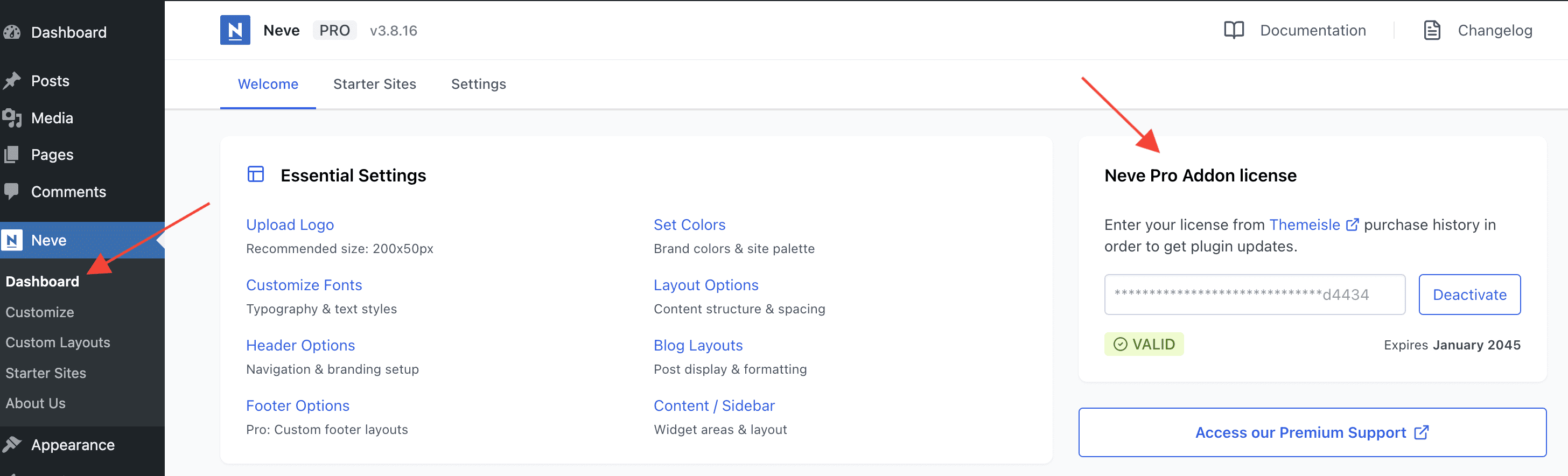
- Deactivate the license key on your website in Neve > Dashboard.
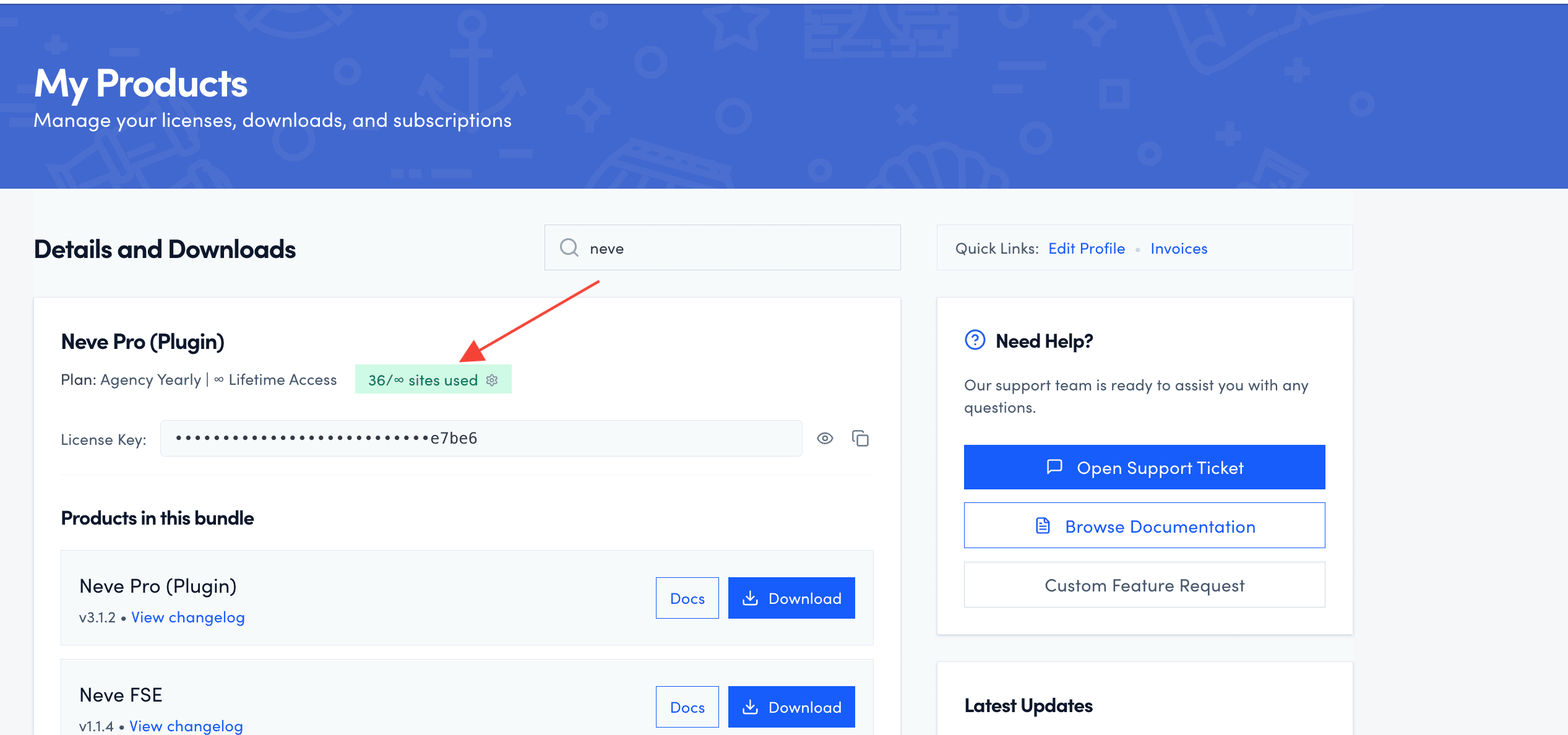
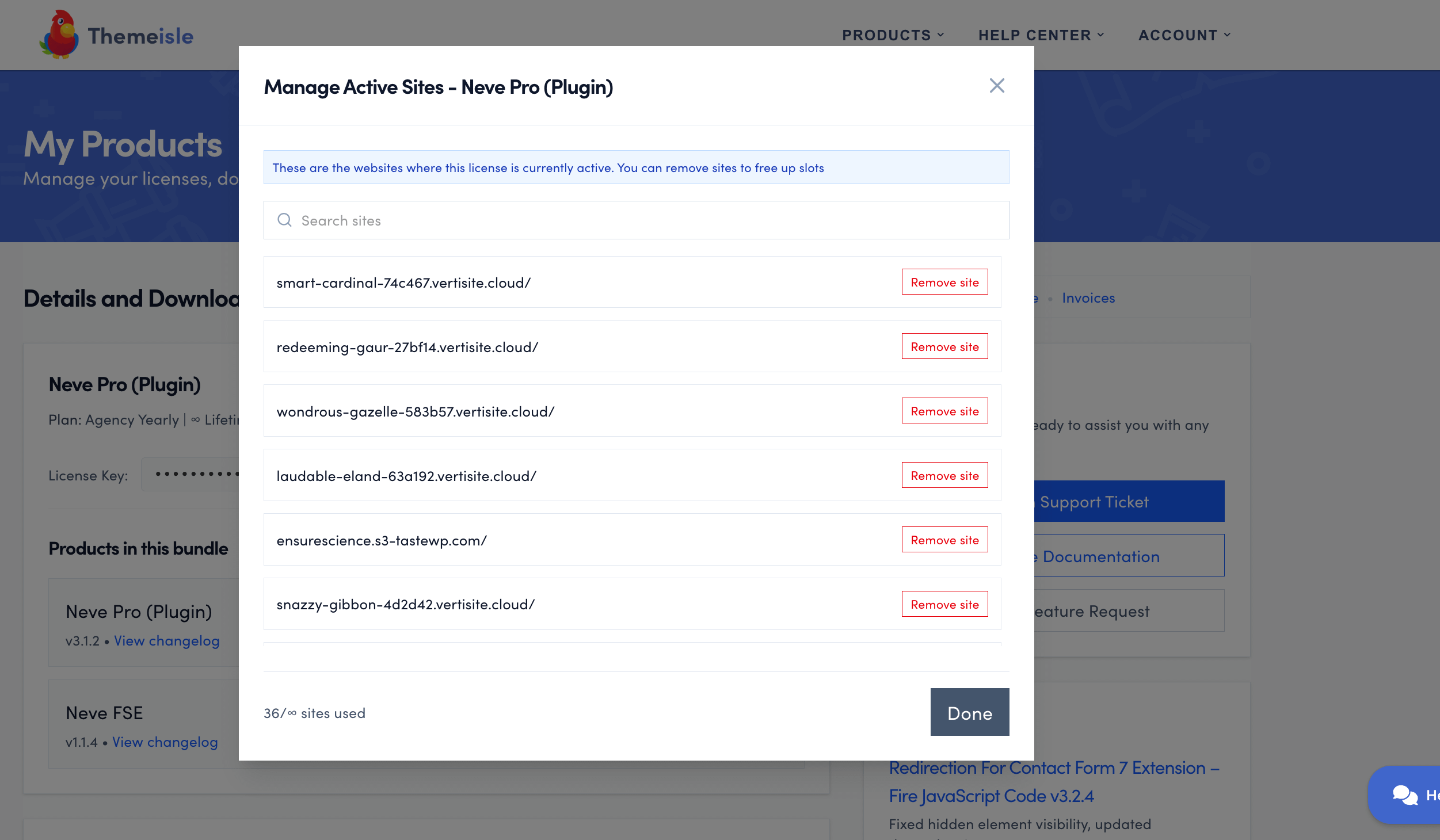
- Remove the website URL from your Themeisle account in Manage your domains.
- Activate the license key again on your website in Neve > Dashboard.
After completing these steps, check for Neve Pro Addon updates in your WordPress dashboard. For detailed screenshots of each step, see Deactivate and reactivate the license key below.
When to contact support
Contact Themeisle support if:
- Your Themeisle account shows the wrong subscription status even though you have renewed or reactivated.
- A renewal payment has been pending for an unusually long time.
- No renewal or reactivation option is available in your Themeisle account.
If Neve Pro shows an incorrect expiration date or suspended status
If Neve Pro shows an incorrect expiration date, an expired status, or a suspended license notice in your WordPress dashboard after your subscription has renewed or been updated, you can resolve this by reactivating the license key. This forces Neve Pro to fetch the current license data from the Themeisle license server.
⚠️ Before you start: Log in to your Themeisle account and confirm that your subscription is active and that any recent payment has been processed. If your payment is still pending — for example, with SEPA or another bank-based method — wait for it to clear first. Reactivating the license will not resolve a pending payment, and renewing again while a payment is still pending can result in a duplicate charge. See How to manually renew your plan or subscription if you are unsure about your payment status.
1. Deactivate the license key on your website, in Neve > Dashboard.
2. Remove the website URL from your Themeisle account > Manage your domains.
3. Activate the license key again on your website, in Neve > Dashboard.
Make sure that the website URL appeared back in your Themeisle account.
If the expiration date still does not update
If the license status or expiration date still appears incorrect after completing the steps above:
- Log in to your Themeisle account and check whether the subscription expiration date shown there is correct.
- If your Themeisle account itself shows the wrong date, contact support with your license key and order number. Support can correct the license record on the backend.
- Once support confirms the account record has been updated, repeat steps 1–3 above to resync the date on your site.