
How To Update or Remove Payment Details
Thank you for using our products!
If you want to update or remove your saved payment details, this can be done directly in the payment processor portal — either Stripe or FastSpring, depending on which platform was used when you purchased your subscription.
📝 Note: ThemeIsle does not store your card details directly. Payment information is securely held by the payment processor (Stripe or FastSpring) on your behalf. To update or remove a saved payment method, you need to do so through the respective portal.
⚠️ Important: Cancelling a subscription or disabling auto-renewal stops future charges, but it does not automatically remove your saved payment method from the payment processor's system. If you want your card details deleted, you need to remove them separately through the Stripe or FastSpring portal.
In this article
Removing a saved payment method
Cancelling a subscription and removing a saved payment method are two separate actions:
- Cancelling / disabling auto-renewal — stops future renewals. You can do this from your ThemeIsle account or by following the steps in How to cancel my subscription.
- Removing a saved card — deletes your payment details from the payment processor's records. You need to do this in the Stripe or FastSpring portal, as described in the sections below.
If you only cancel auto-renewal but do not remove the card, the payment method remains on file with the processor.
⚠️ Important: Cancelling auto-renewal does not immediately end your subscription — it stays active until the end of the current billing period. While the subscription remains active, Stripe requires a valid payment method to be on file and may not allow you to remove your saved card until the subscription fully expires.
Stripe Integration
1. First, please navigate to your ThemeIsle account.
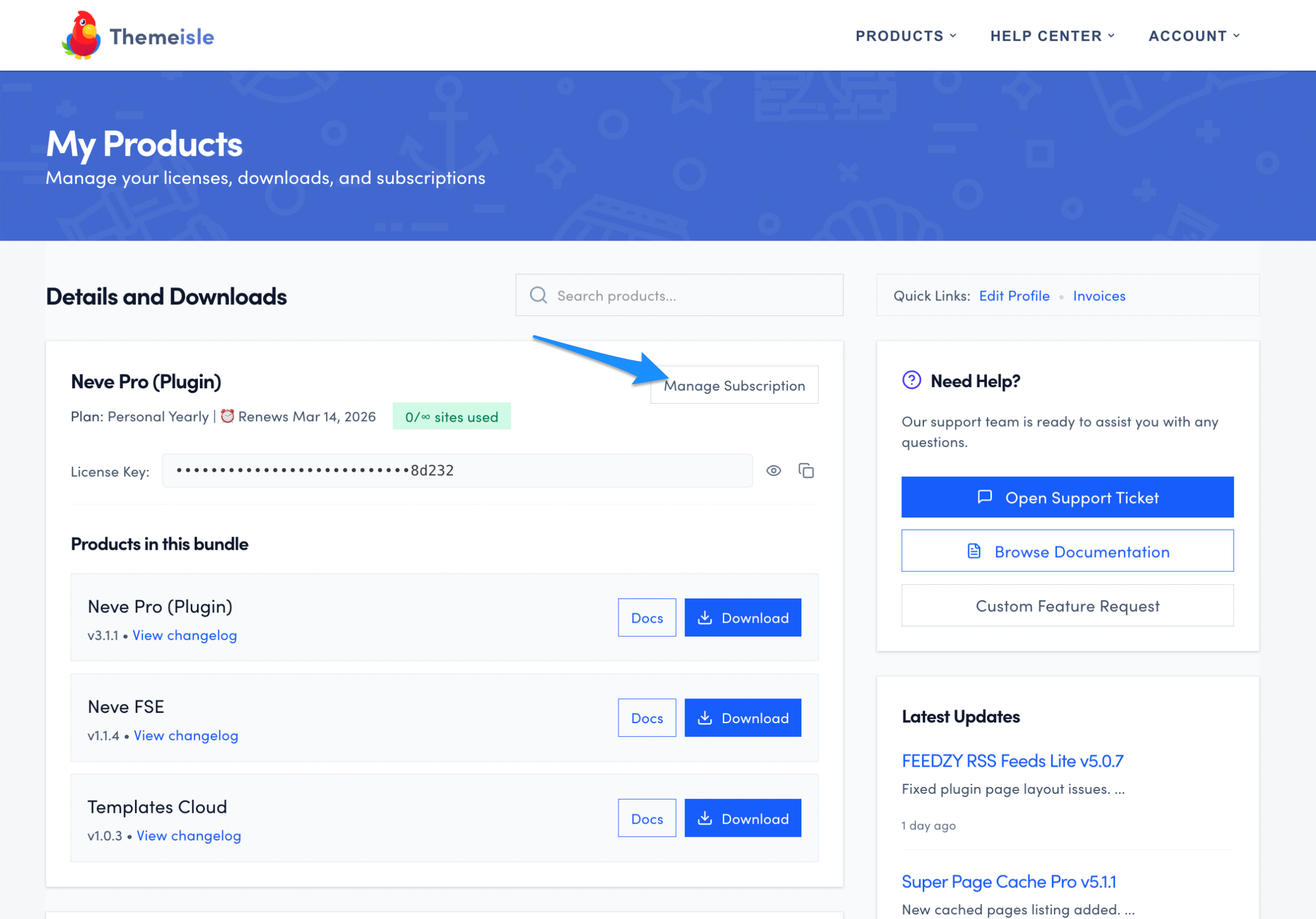
2. Click on the Manage Subscription button.
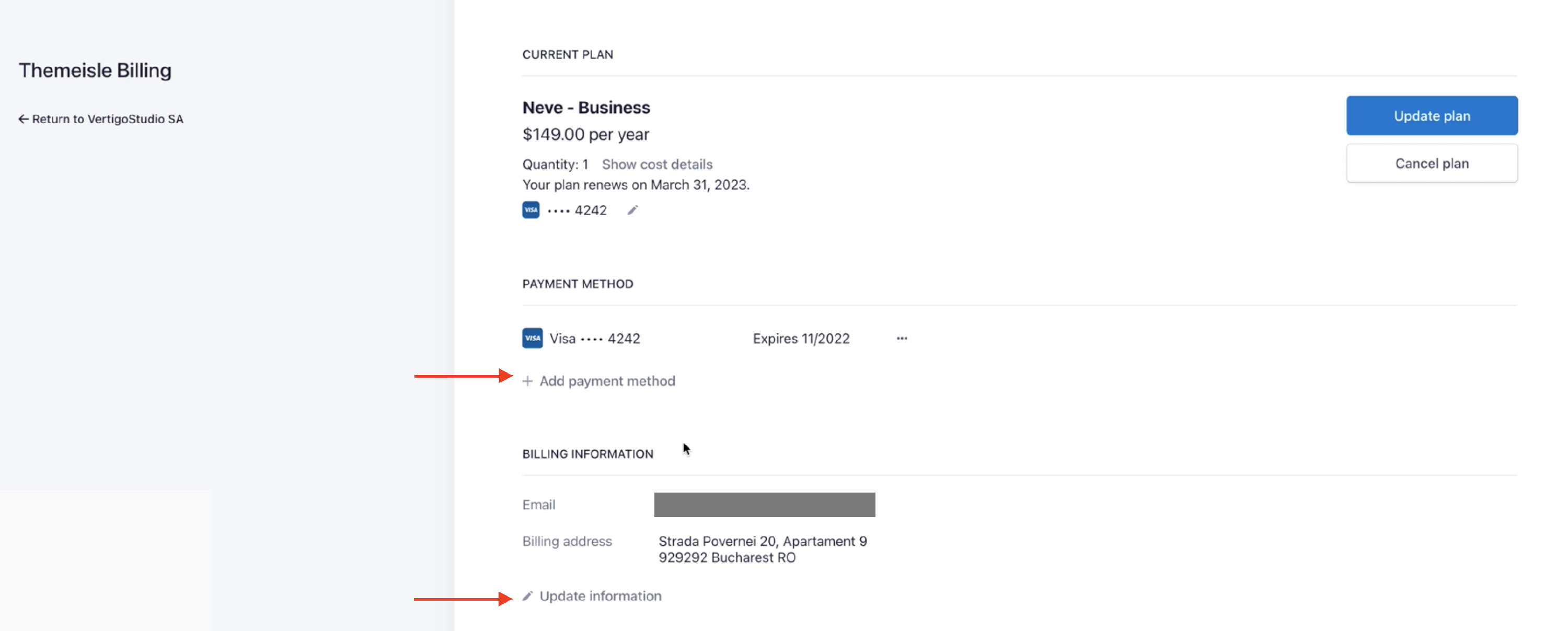
3. You will be redirected to the Stripe portal, from where you can update payment details.
If Stripe does not let you remove a card
If the Stripe billing portal does not show a remove option for your saved card, this is typically because your subscription is still active. Stripe requires a valid payment method to remain on file while a subscription is active — this applies even when auto-renewal has been cancelled and the subscription is only set to expire at the end of the current billing period.
In other words, disabling auto-renewal schedules the subscription to end on its expiration date, but it does not immediately terminate it. Until the subscription fully expires, Stripe may block card removal.
Options before the subscription expires
If you need your payment method removed before the subscription expiration date, you have two options:
- Wait until the subscription expires — Once the subscription fully ends, Stripe will no longer require a payment method to remain on file. You can then return to the Stripe portal and remove the saved card.
- Contact ThemeIsle support to request immediate cancellation — If you need the card removed sooner, contact the support team and ask for the subscription to be cancelled immediately. Note that immediate cancellation may end your access to the product before the original expiration date.
📝 Note: To request immediate cancellation, contact support with the product name (for example, Feedzy), the email address associated with your purchase, and a note that you need the subscription terminated so the payment method can be removed.
FastSpring Integration
1. First, please navigate to your ThemeIsle account.
2. Click on the Manage Subscription button.
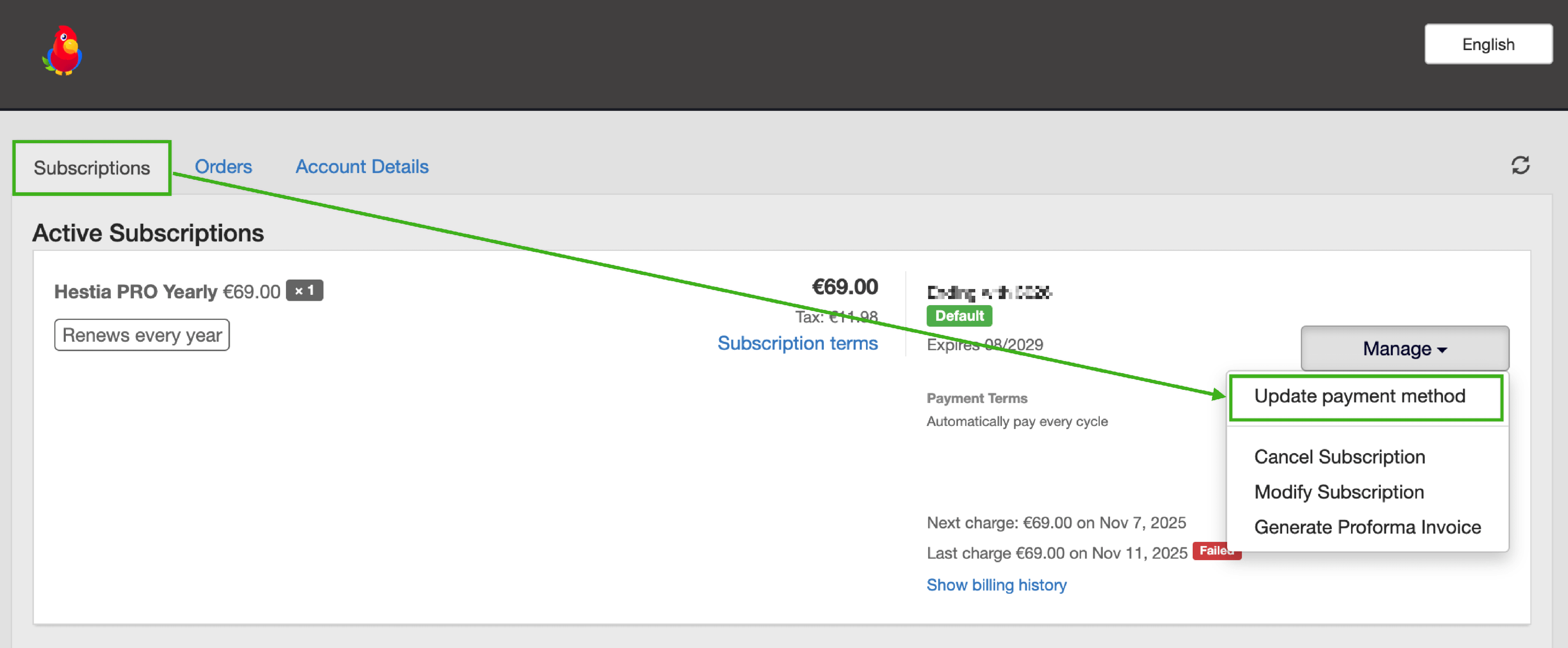
3. You will be redirected to the FastSpring account portal.
Account Details and Payment Methods
4. In the FastSpring portal, open the Account Details section and navigate to Payment Methods.
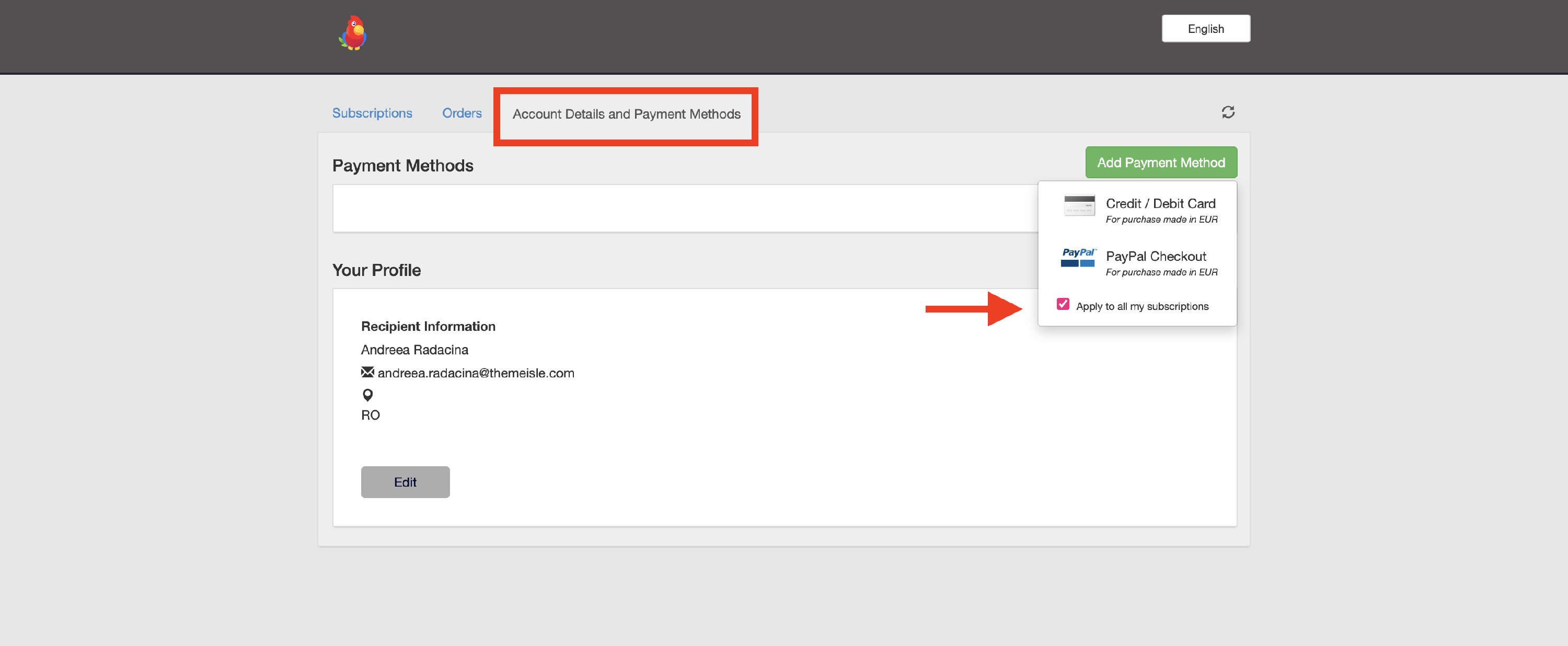
📝 Note: Please make sure that you check the box next to Apply to all my subscriptions when updating your payment method.
5. To remove a saved card, select the payment method you want to delete and use the Remove or Edit option. If no remove option is visible, you can replace the existing card with a new one or contact support to request removal.
If the Manage Subscription button is not available
If the Manage Subscription button does not appear in your ThemeIsle account, you can access your FastSpring account directly:
- Go to https://themeisle.onfastspring.com/account/.
- Log in using the same email address you used when purchasing your subscription.
- Once logged in, navigate to Account Details > Payment Methods to update or remove your saved card.
📝 Note: If you are unsure which email address was used at checkout, check your original purchase confirmation email.
If you cannot access the FastSpring portal
If you are unable to log in to the FastSpring portal or cannot locate your account, contact ThemeIsle support with the following details:
- The product name (for example, Neve Pro)
- The email address associated with your purchase
- A brief description of what you need (for example, "remove saved payment method")
The support team can verify your account and assist with removing payment details on your behalf.