
How to Add Pagination to Category Archives in Neve Custom Layouts
📝 Note: This article covers a Neve Pro feature. Custom Layouts are available in all Neve Pro plans.
When building a category archive page using Neve's Custom Layouts, pagination requires a specific setup: the Pagination block must be placed inside a Query Loop block. Without this structure, the Pagination block is not available in the editor, which is a common source of confusion.
This guide walks you through setting up a Query Loop for category posts, adding pagination, and fixing a common post title alignment issue in the post grid.
In this article
Prerequisites
Before you begin, make sure:
- The Custom Layouts module is active. Navigate to Neve > Dashboard > Settings > Manage Modules and enable Custom Layouts.
- You have Neve Pro installed and activated. See How to install and activate Neve Pro for instructions.
Setting Up the Custom Layout for Category Archives
1. Navigate to Neve > Custom Layouts > Add New.
2. In the dialog, select Archives as the layout type, then click Add Layout to open the block editor. Once the editor loads, set the layout name in the post title field at the top of the editor (for example, Category Archive).
3. In the Custom Layout Settings panel on the right, locate the Conditional Logic section and set the condition so this layout applies to category archive pages:
- Set the rule to Archive Taxonomy > is equal to > Categories (post - category).
If you want the layout to apply to only one specific category, use Archive Term > is equal to > (your category name) instead.
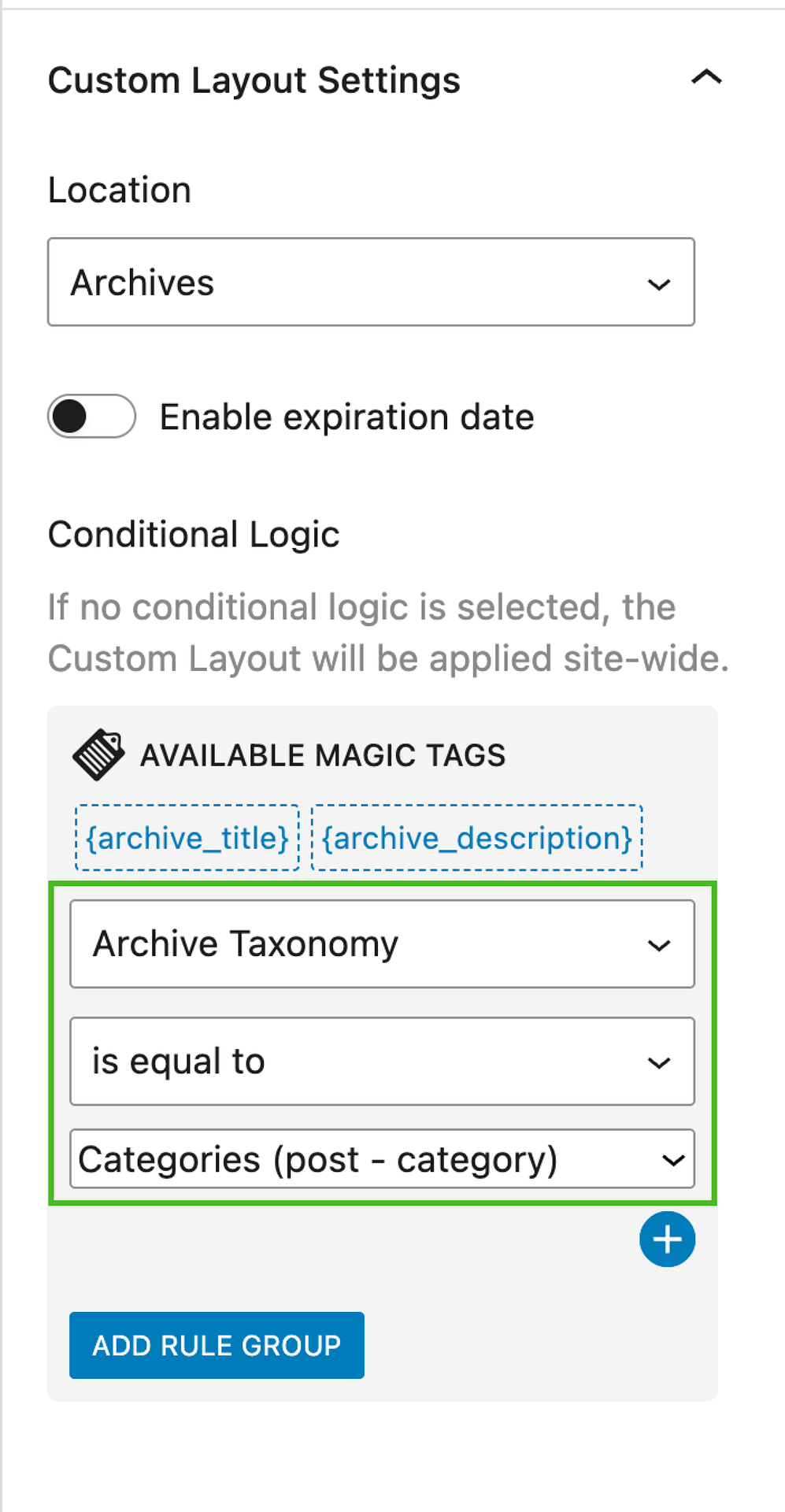
📝 Note: If no conditional logic is set, the layout will apply to all archive pages on the site.
Adding the Query Loop Block
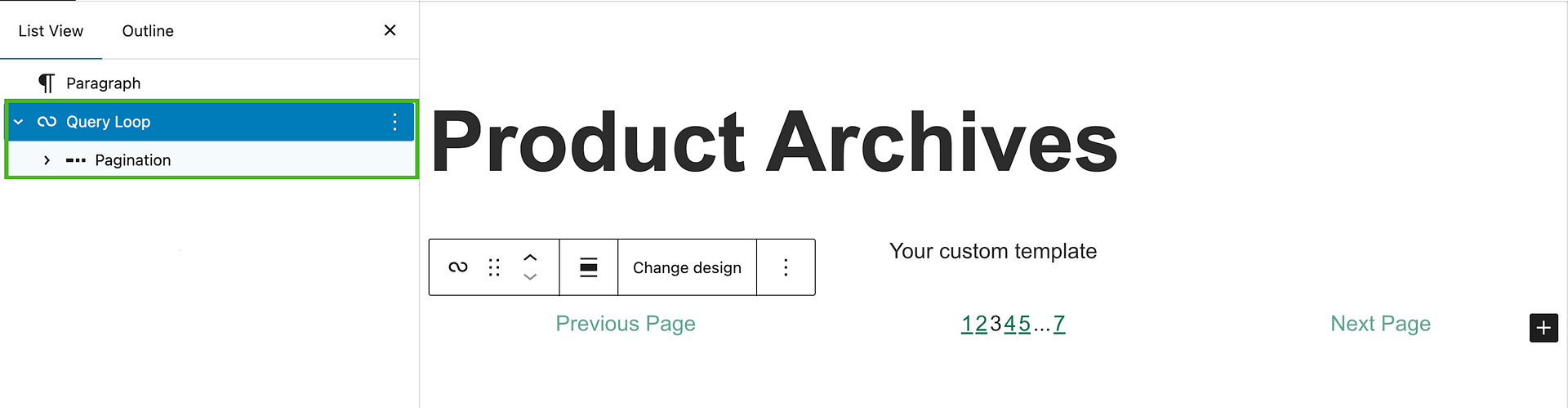
The Query Loop block is what makes your custom archive layout dynamic — it automatically fetches posts that belong to the current category. Pagination only works when it is a direct child of this block.
1. In the block editor canvas, click the + button to add a block.
2. Search for Query Loop and insert it.
3. When prompted, choose Start blank to build the layout from scratch.
4. Inside the Query Loop block, add a Post Template block. This is the repeating container for each post card.
5. Inside the Post Template, add the blocks you want to display for each post, such as:
- Post Title
- Post Excerpt (optional)
📝 Note: The Query Loop block on an archive page automatically inherits the current category context. You do not need to manually filter it to a specific category — it will display the posts for whichever category the visitor is browsing.
Adding Pagination
1. Click outside the Post Template block but while the Query Loop block is still selected (click directly on the Query Loop wrapper).
2. Click the + button at the bottom of the Query Loop block to add a block inside the Query Loop.
3. Search for Pagination and insert it.
⚠️ Important: The Pagination block will only appear in the search results when you are inserting a block inside a Query Loop block. If you search for Pagination outside the Query Loop, it will not show up. Make sure you are adding it as a child of the Query Loop.
4. With the Pagination block selected, use the block settings in the right sidebar to choose the display style:
- Numbers — displays page numbers (e.g. 1, 2, 3).
- Links — displays Previous / Next links.
5. Click Publish (or Update) to save the custom layout.
Fixing Post Title Alignment
When post titles in the grid have different lengths, they can cause cards to misalign vertically. To make all post title blocks the same height regardless of content length, add this CSS snippet to your site.
1. Navigate to Appearance > Customize > Additional CSS.
2. Paste the following snippet:
.category ul.wp-block-post-template li.wp-block-post .wp-block-post-title {
  display: flex !important;
  align-items: stretch !important;
}
3. Click Publish to save.
💡 Tip: You can adjust this selector to target a specific category by replacing .category with the specific body class WordPress adds for that category (for example, .category-news).
Testing and Troubleshooting
After publishing the custom layout, visit a category archive page on the frontend to verify:
- Posts display in the grid as expected.
- Pagination links appear at the bottom of the post list.
- Navigating between pages works correctly.
Common issues
Pagination block is missing in the editor
The Pagination block is only available inside a Query Loop block. If you cannot find it, make sure you are inserting it while the Query Loop block (or a block nested inside it) is selected — not on the top-level canvas outside the Query Loop.
Pagination appears but does not change pages
Check that your Query Loop block has Inherit Query from Template enabled in its block settings. This setting allows the block to pick up the current category context and pass it to the pagination links correctly.
The custom layout is not showing on the category archive
Review the Conditional Logic section in the Custom Layout Settings panel. Confirm that the rule is set to Archive Taxonomy is equal to Categories (post - category) (or the specific term you want to target). If the layout is set to a different condition, it will not appear on category pages.
Post titles are still misaligned after adding CSS
Make sure the Additional CSS was saved and your caching plugin or server cache has been cleared. If you are using a page caching plugin, purge the cache after making changes.