
Neve and Neve Pro Addon Version Numbers Explained
This guide explains why the Neve theme and Neve Pro Addon show different version numbers and where you can check the correct version for each.
In this article
Neve Products and Versioning
Neve consists of two separate products: the Neve theme (the core theme) and the Neve Pro Addon (a plugin that unlocks premium features). Because they are independent products, they are developed and released on separate schedules — which means they each carry their own version number.
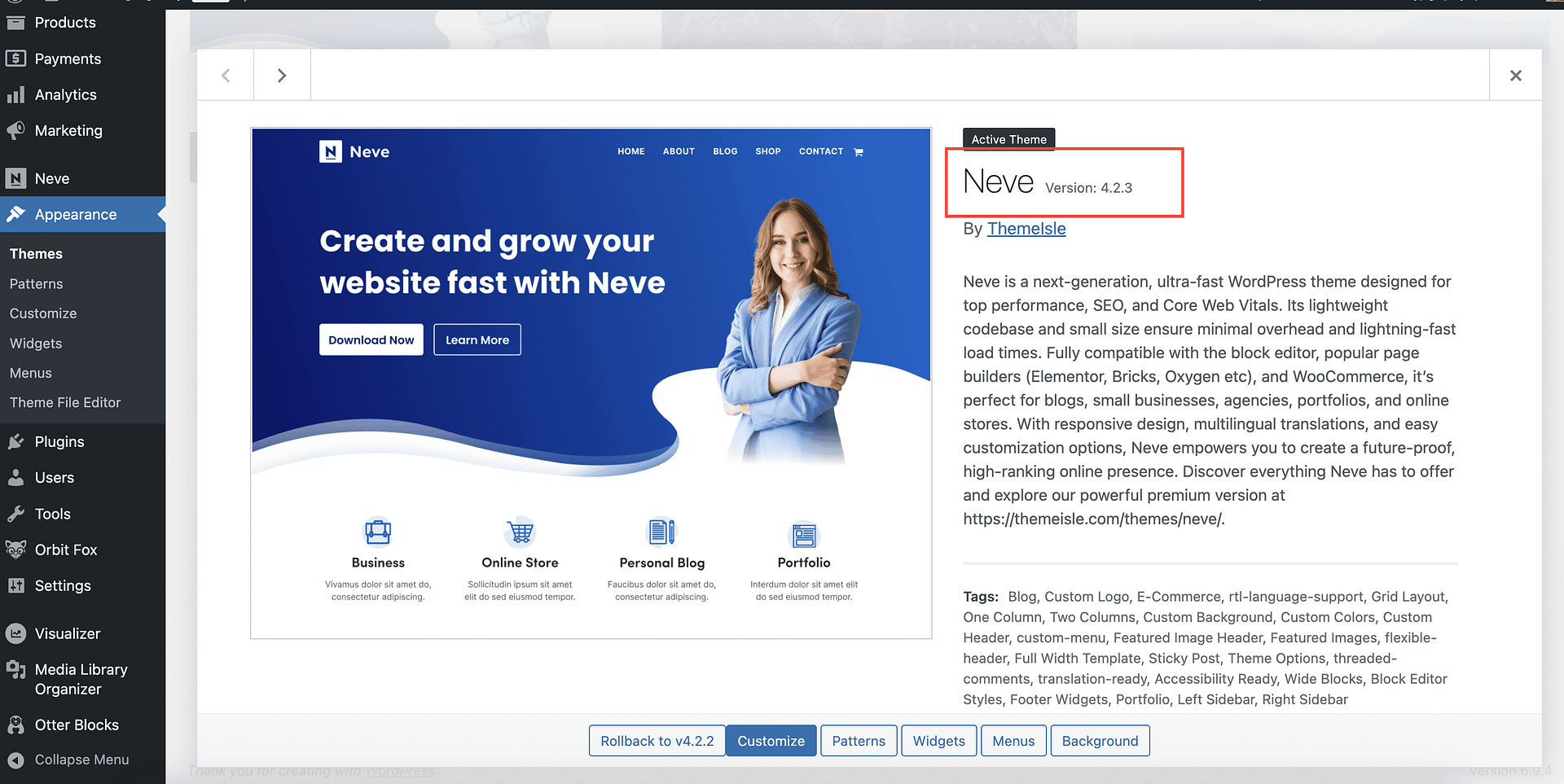
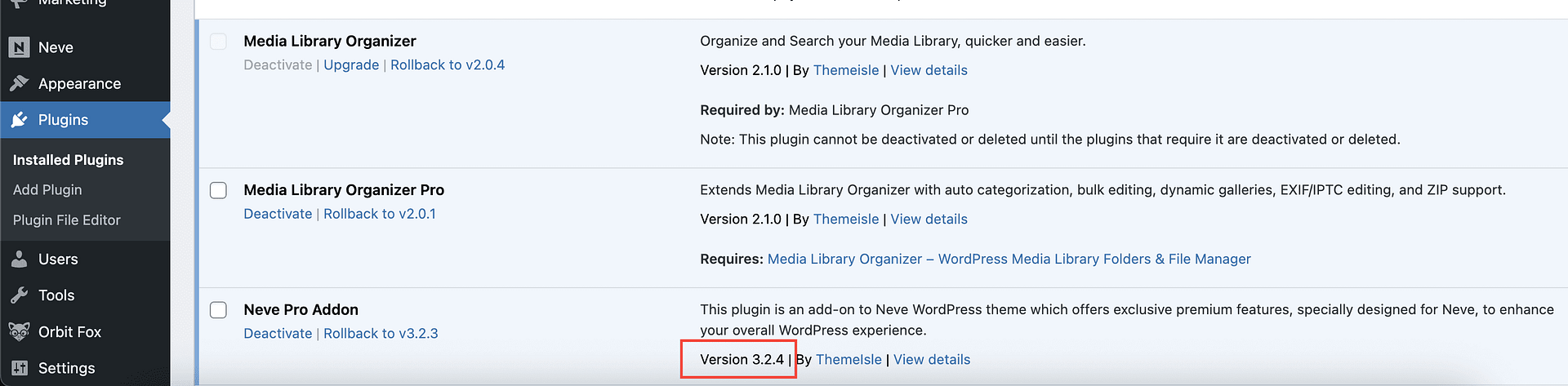
It is completely normal to see, for example, version 4.2.3 for the Neve theme and version 3.2.4 for the Neve Pro Addon at the same time. These numbers do not need to match, and a difference between them does not indicate a problem.
📝 Note: The Neve theme and Neve Pro Addon will never share the same version number. They follow independent release cycles, so the numbers will always differ. This is expected behavior.
Matching Numbers vs. Compatibility
Although the two version numbers never need to match, the products are not completely independent of each other. The Neve Pro Addon is built on top of the Neve theme and relies on it to work, so a recent version of the addon can depend on functionality that was added to the theme.
This means a recent Neve Pro Addon combined with an outdated Neve theme is not always a supported combination. Features may not behave as expected, and in some cases parts of your site may fail to load.
What keeps the two products compatible is keeping the Neve theme up to date — not aligning the version numbers.
Where to Check Each Version
Neve Theme Version
You can find the Neve theme version by navigating to Appearance > Themes in your WordPress dashboard and clicking on the Neve theme thumbnail.
Neve Pro Addon Version
The Neve Pro Addon is a plugin, so its version is listed alongside your other plugins:
- Navigate to Plugins > Installed Plugins in your WordPress dashboard and locate Neve Pro Addon in the list. The version number appears directly below the plugin name.
What to Do if You See Different Version Numbers
If the version numbers for the Neve theme and Neve Pro Addon do not match, no corrective action is required — this is expected and normal.
The only thing worth checking is that both products are running their latest available versions. Keeping both up to date ensures you have the most recent features, compatibility improvements, and security fixes.
When updates are available for both products, update the Neve theme first and the Neve Pro Addon second:
- Go to Dashboard > Updates in your WordPress dashboard.
- Select the Neve theme and apply the update.
- Visit your site and confirm that your pages load correctly.
- Return to Dashboard > Updates, select the Neve Pro Addon, and apply the update.
☝️ Best Practice: Because the Neve Pro Addon builds on the Neve theme, updating the theme first makes sure the addon has everything it needs. If an update is available for only one of the two, you can apply it on its own.
Once both are on their latest versions, no further action is needed — even if the version numbers still differ from each other.
Recovering From a Critical Error After Updating the Neve Pro Addon
If your site shows "There has been a critical error on this website" immediately after you update the Neve Pro Addon, an outdated Neve theme is a likely cause. The error may affect only some of your pages rather than the whole site.
To restore your site:
- Go to Plugins > Installed Plugins and click Deactivate under Neve Pro Addon. Your site should become accessible again.
- Go to Dashboard > Updates and update the Neve theme to the latest version.
- Return to Plugins > Installed Plugins and click Activate under Neve Pro Addon.
- Visit your site and confirm that your pages load correctly.
If the critical error prevents you from reaching your WordPress dashboard, use your hosting file manager or an SFTP client to deactivate the addon first:
- Navigate to
wp-content/plugins/. - Rename the
neve-pro-addonfolder — for example, toneve-pro-addon-disabled. WordPress deactivates the plugin automatically and your site becomes accessible again. - Rename the folder back to
neve-pro-addononce you have updated the Neve theme, then reactivate the addon from Plugins > Installed Plugins.
If your pages still do not load after the Neve theme is up to date, contact our support team with the details of the error.
Related articles: