
How to Customize a Tag Archive Header in Neve
📝 Note: The Custom Layouts module is part of the Neve PRO Addon. Learn more in the Neve Pro Addon documentation.
This guide shows you how to replace the tag archive pages with a Custom Layout with a banner that displays the current tag's title and description.
In this article
Create the tag archive header
- Navigate to Neve > Custom Layouts and click Add Layout.
- Select the Hooks layout type.
- From the hook dropdown, select Before Posts Loop (
neve_before_posts_loop), listed under Blog. This places the banner directly above the list of posts. - In Conditional Logic, choose one of these rules:
- To show the header on every tag archive: Archive Taxonomy is equal to Tags (post - post_tag).
- To show the header on one tag only: Archive Term is equal to the tag you want.
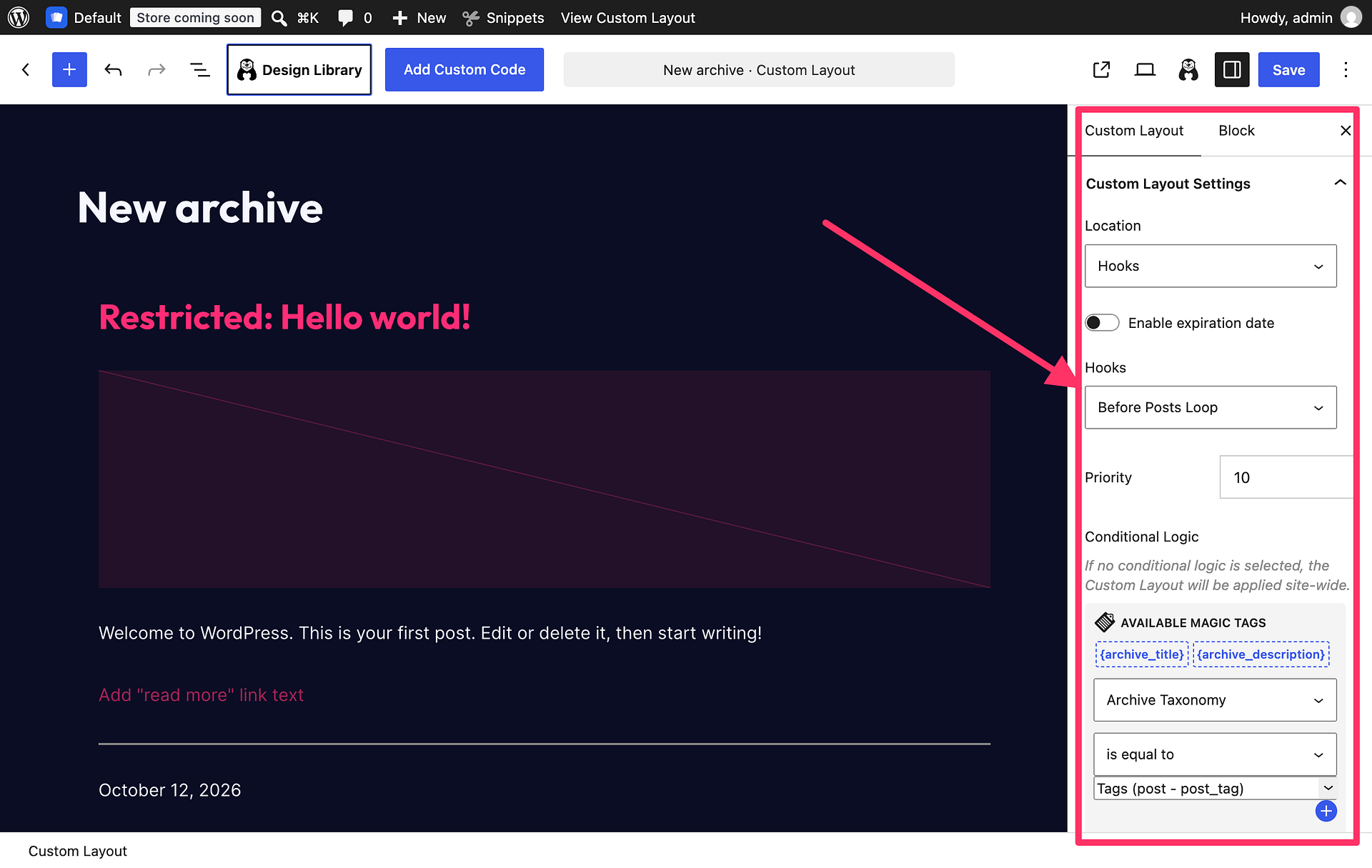
📝 Info: To see where each hook appears on the page, open the Customizer and click Show Hooks in the top admin bar. The Custom Layouts module article covers all layout types and options.
Add the background and dynamic tag details
- In the layout editor, add a Cover block.
- Set a background color or upload a background image in the Cover block settings.
- Inside the Cover block, add a Heading block with the
{archive_title}magic tag and a Paragraph block with the{archive_description}magic tag. - Publish the layout.
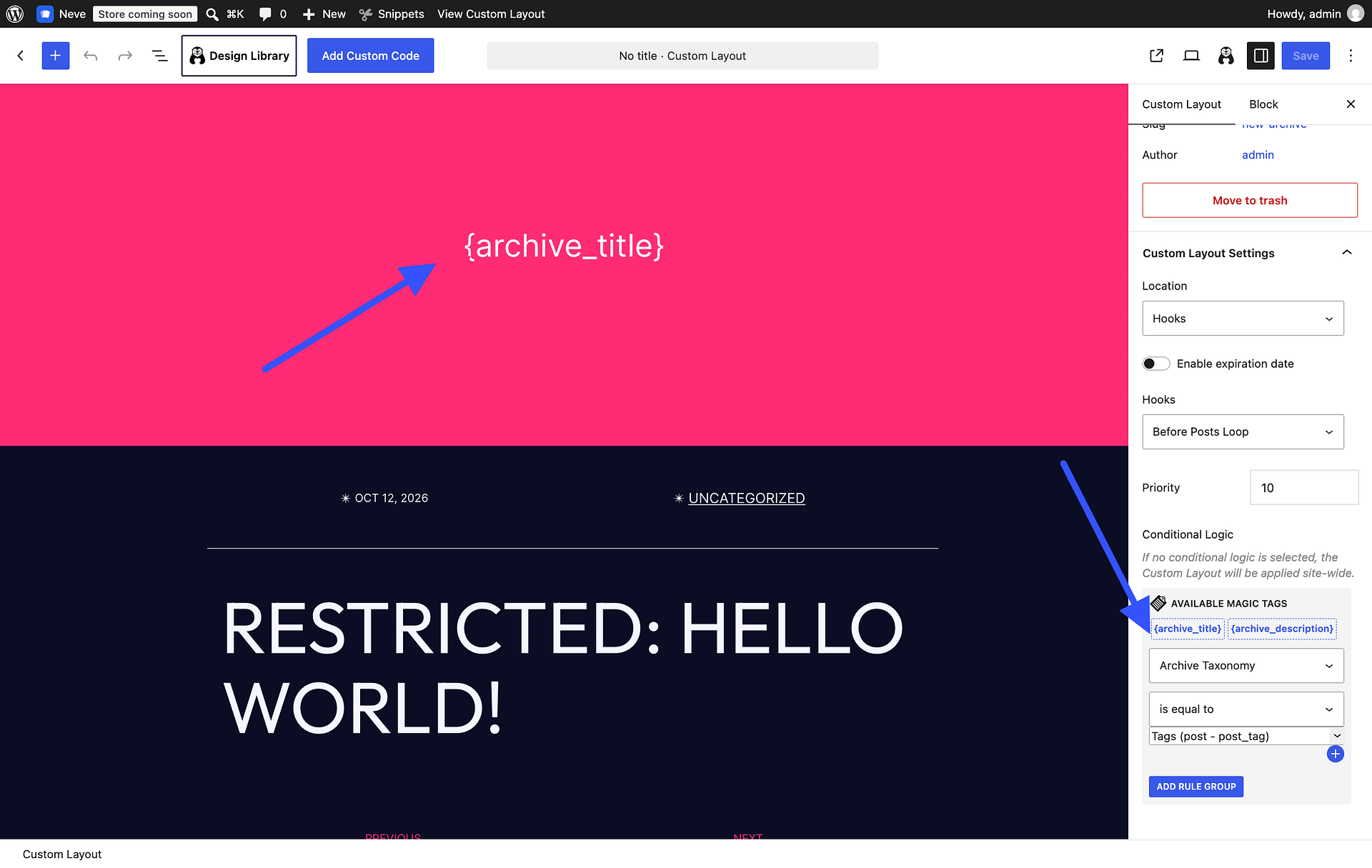
The magic tags are replaced with the title and description of the tag being viewed, so one layout works for every tag. See Magic Tags in Custom Layouts for the other available values.
Check the result