Neve Shop
For more details check out the full Neve documentation and Neve PRO documentation.
📝Note: These options are part of both Neve and Neve PRO.
Need more advanced options for your E-commerce site? Take a look at all the options available in Neve PRO's WooCommerce Booster module.
Neve is compatible with the WooCommerce plugin and can be used to create a good-looking e-commerce site. You can even try one of our dedicated starter sites for e-commerce.
Once WooCommerce is installed and activated, navigate to Appearance > Customize > WooCommerce to configure the product catalog and product pages. Sidebar position and content width are configured separately under Appearance > Customize > Global > Content / Sidebar.
Add filters to the Shop Sidebar
To display product filters on your WooCommerce Shop and product archive pages:
- Navigate to Appearance > Widgets, open Shop Sidebar, and add your filtering widget or block.
- If your filtering plugin uses filter sets, configure its filter set to target WooCommerce products and the Shop page. The exact labels vary by plugin.
- Navigate to Appearance > Customize > Global > Content / Sidebar. When Enable Advanced Options is enabled, open the Shop / Archive controls.
- Select a left or right sidebar layout, then set Content Width (%) below 95% so that space remains for the sidebar. At 95% or higher, Neve collapses the shop sidebar and widgets assigned to it stay hidden. A value such as 70% leaves room for the sidebar.
- Save your changes and open your storefront to confirm that the sidebar and its filters are visible.
For a general explanation of Neve sidebar settings, see the Neve documentation.
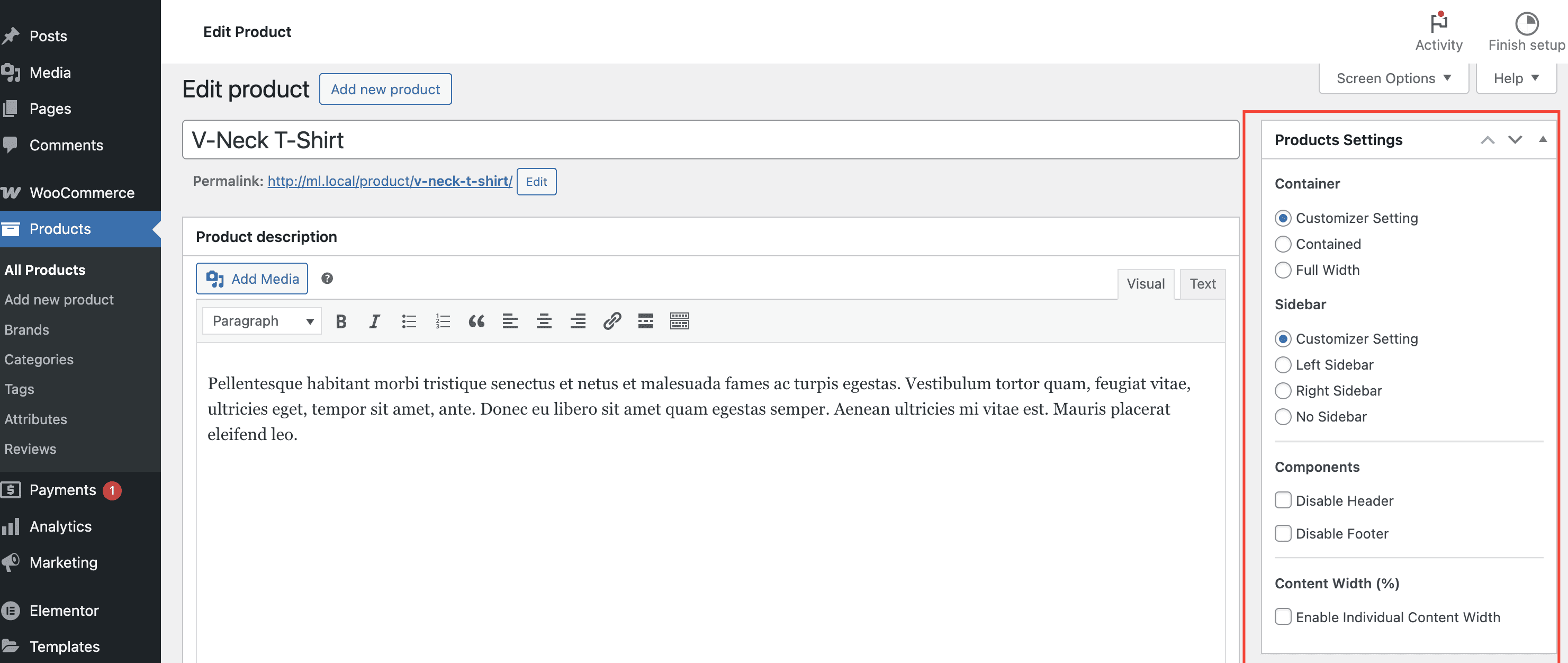
Besides the general options, each product has its own dedicated options (for sidebar, content width, enable/disable header and footer), in the product editor. If used, these options override the ones from Customize.