How to clear the Cache in WordPress
A webpage that doesn't render properly, or a plugin or theme that doesn't function correctly, is often caused by caching. By the end of this article, you'll learn the most important things about caching and how to handle the most common issues.
In this article
What is caching?
A cache is a temporary storage location where static files are stored in order to be served faster and with ease to the user requesting the content. These static files are CSS, JavaScript, media files, and HTML that the website requires in order to look and run in the desired way.
All of a website's files are usually stored on the hosting server so they can be delivered to a visitor whenever they access your website. When the visitor enters your website URL in the browser, the browser sends requests to the origin server asking to download the website files so that it can display them on the visitor's device. Those requests can take from a few seconds up to entire minutes depending on how many files there are, how fast the internet connection is, and other factors.
Websites usually use multiple cache layers, and each layer stores a different kind of data:
- Browser cache (client-side cache): static files are stored by your browser on your device, so revisiting the same website is faster.
- Page/server/CDN cache: previously generated HTML pages and static assets are stored by your caching plugin, hosting stack, or CDN, so visitors can be served cached output quickly.
- Persistent WordPress object cache: WordPress objects and transients (for example, options, rewrite data, and computed results) are stored in a persistent backend such as Redis or APCu. This is separate from page caching.
- PHP OPcache: compiled PHP code is stored in memory to speed up PHP execution. This is not the same as a WordPress object cache.
How to clear browser cache
Start here, as a lot of websites are only cached by the browser and don't use any server-side caching. The steps vary a bit depending on the browser you are using. You can search Google for "How to clear browser cache" to find the exact answer for your browser, or use this list of the most popular browsers and how to clear their cache.
How to clear cache in Super Page Cache and Optimole
How to clear cache in Super Page Cache
Super Page Cache for Cloudflare comes with a lot of settings that you can use to ensure the fastest speeds for your website. It also automatically purges your cache from the Cloudflare account, so you don't need to do it manually.
To purge the cache in this plugin:
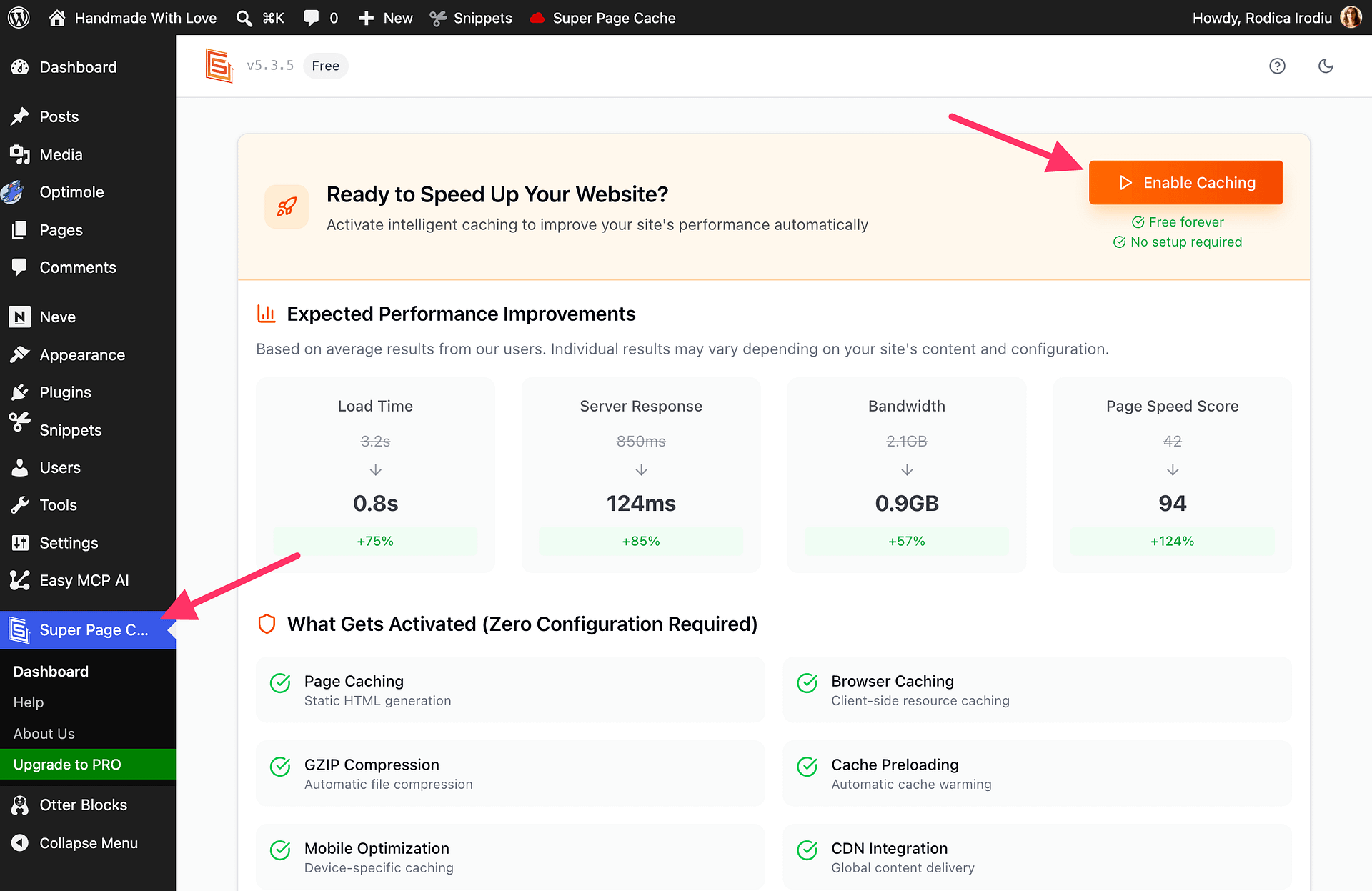
Go to Dashboard > Super Page Cache and click Enable Caching.
Click Purge Cache.
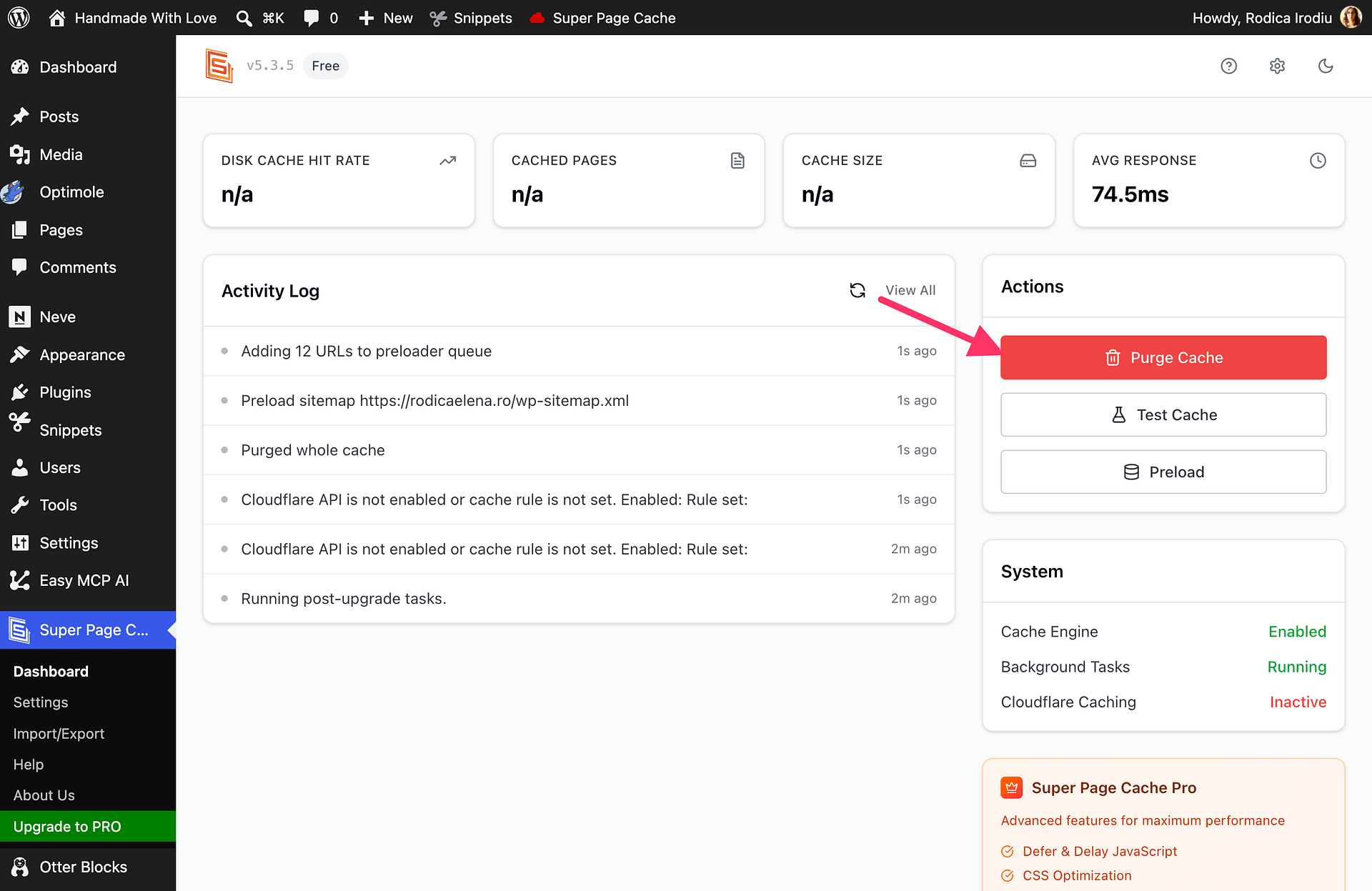
This plugin works perfectly out of the box. If you have made some changes and wish to revert them to the initial settings, click RESET ALL.
How to clear cache in Optimole
To clear the cache in Optimole, follow these steps:
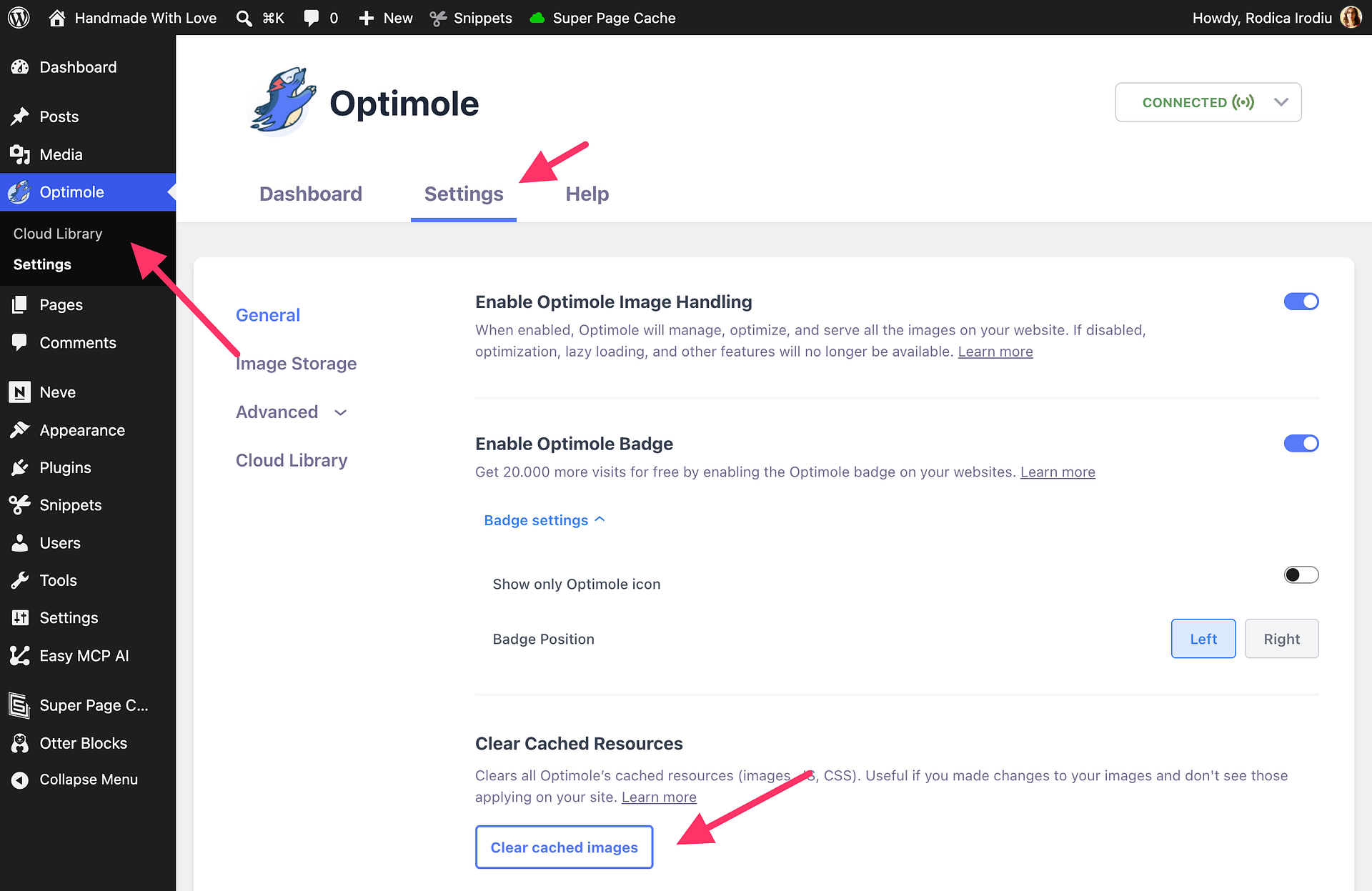
Go to Optimole > Settings.
Go to General and click the Clear Cached Images button.
How to clear cache in WordPress
Whenever you are working on a website, you will probably make multiple changes and tweaks to get your desired look and feel. If you have been using caching in this period, you might see that your changes are not showing on the front end. That might be happening because you're seeing cached content (an old version of the website) instead of the newly updated one.
Clearing cache is quite easy with the help of plugins, and depending on the plugin you use, it's as easy as clicking a button. This section covers only the top 3 caching plugins at the moment, based on their WP.ORG ratings and number of downloads.
If stale or missing content appears in both WordPress admin screens (for example, the Customizer) and on the frontend, clear the persistent object cache first, then purge your page/server/CDN caches and test again. Otherwise, page-cache purges can appear to fix the issue only temporarily because old object-cache data can still be reused.
Use this quick order:
Flush the persistent object cache from your host's object-cache controls, or ask your hosting provider to flush it for you.
Purge your page cache (plugin or host cache) and CDN cache.
Reload the affected admin screen and frontend page in a private/incognito window and confirm whether the stale data is gone.
If the issue returns when APCu rebuilds, ask your host to inspect APCu cache-full events, allocated memory via
apc.shm_size, and whether WordPress cache invalidations are reaching APCu. If APCu remains unreliable for persistent WordPress object caching, use a different object-cache backend and keep PHP OPcache enabled.
WP Fastest Cache
This plugin comes with a lot of features for clearing cache, minification, and much more. To clear the cache with this plugin:
After installing the plugin, go to Dashboard > WP Fastest Cache. The settings panel opens.
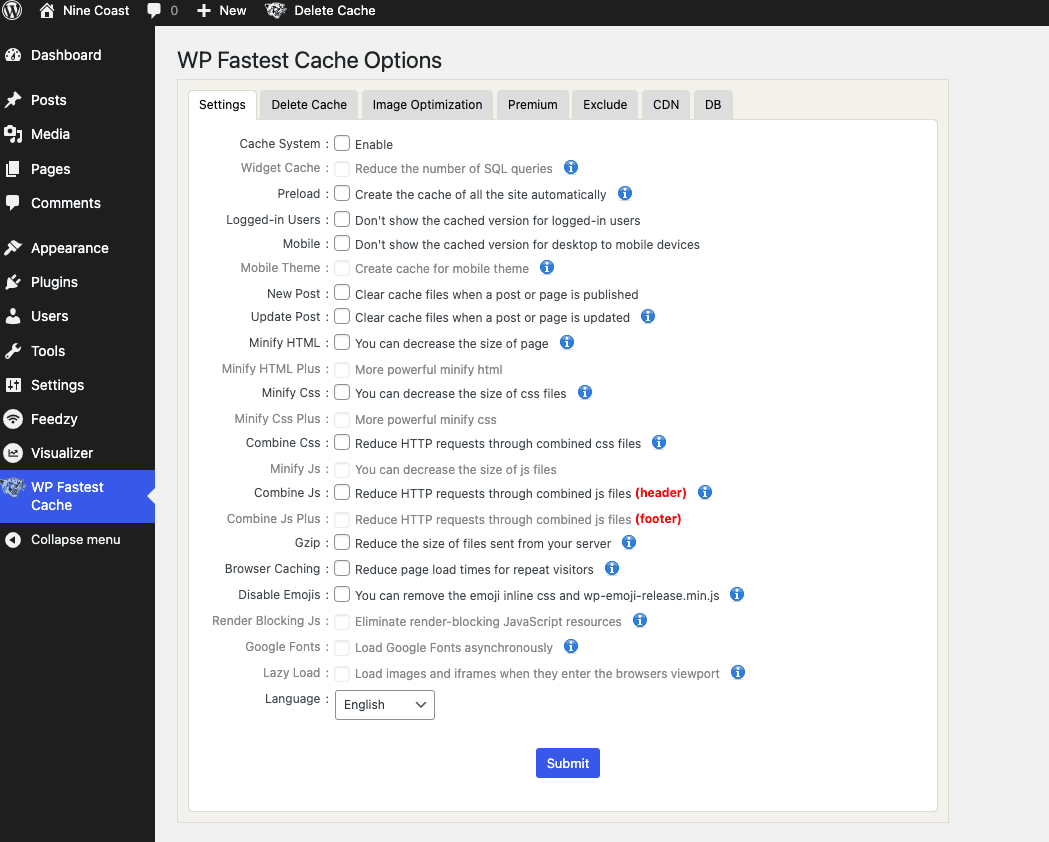
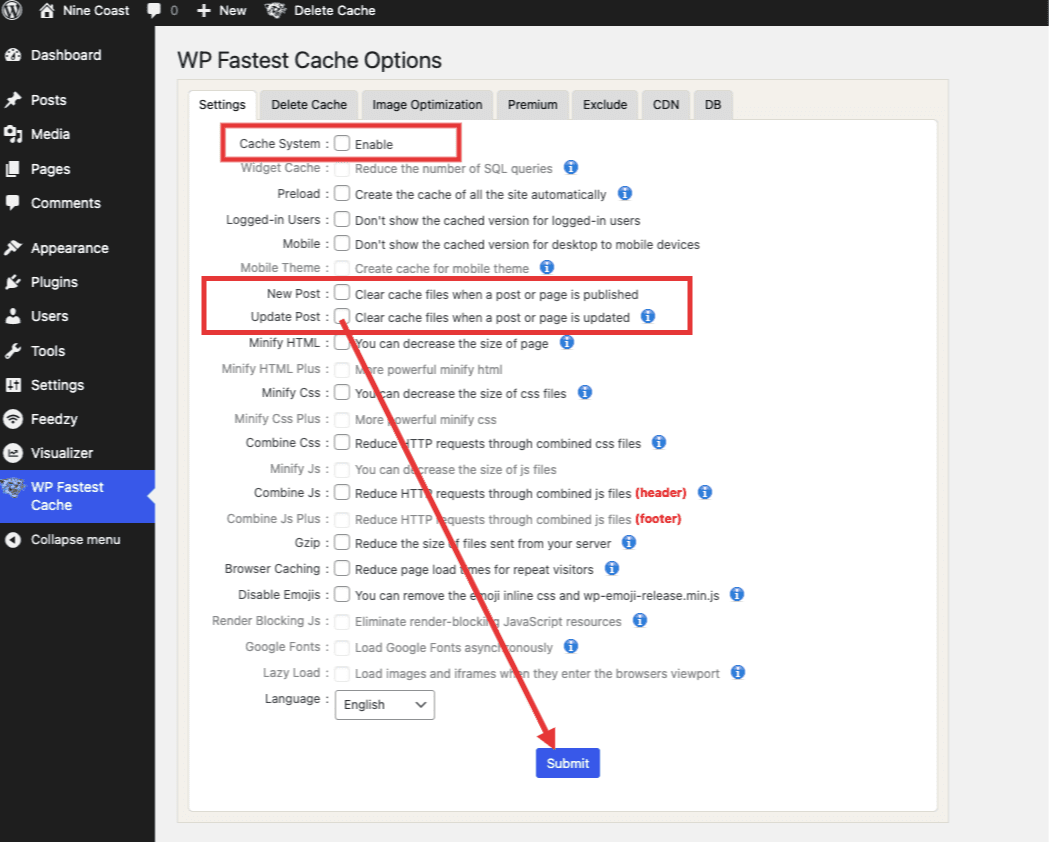
Select the Cache System tick box. Once you do that, the plugin clears your cache on a regular basis.
If you also want to clear the cache whenever you add or update a post, select the respective tick boxes as well. Click Submit once you are done setting up the plugin for the changes to take effect.
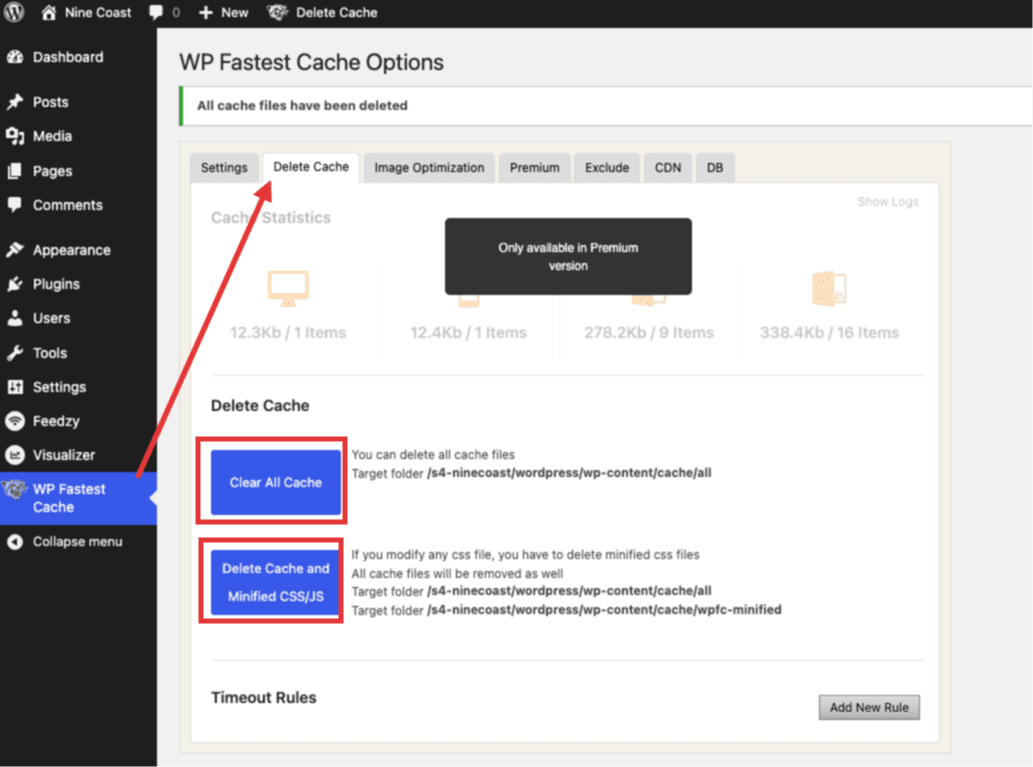
To delete your cache manually, go to the Delete Cache tab and click Clear All Cache or Delete Cache and Minified CSS/JS.
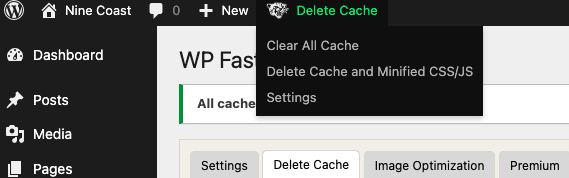
Once you have set up your settings, you can also delete the cache manually by using the options in the Admin Bar of your WordPress dashboard.
LiteSpeed Cache
This plugin is one of the most popular ones as it is quite versatile, offers a lot of ways to clear your cache, and comes pre-installed on all Hostinger plans as their hosting is LiteSpeed Server based. If you are using a different host, you can download the plugin from the WordPress Plugins directory.
There are multiple ways of clearing cache in LiteSpeed Cache, and the easiest one is to use the options located in the WP Admin Bar.
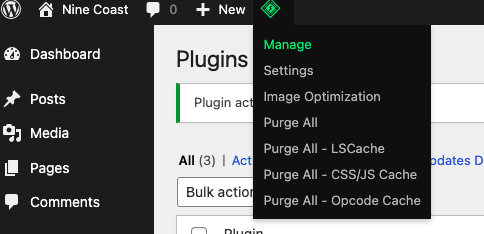
For more control, follow these steps:
Go to WP Dashboard > LiteSpeed Cache > Toolbox.
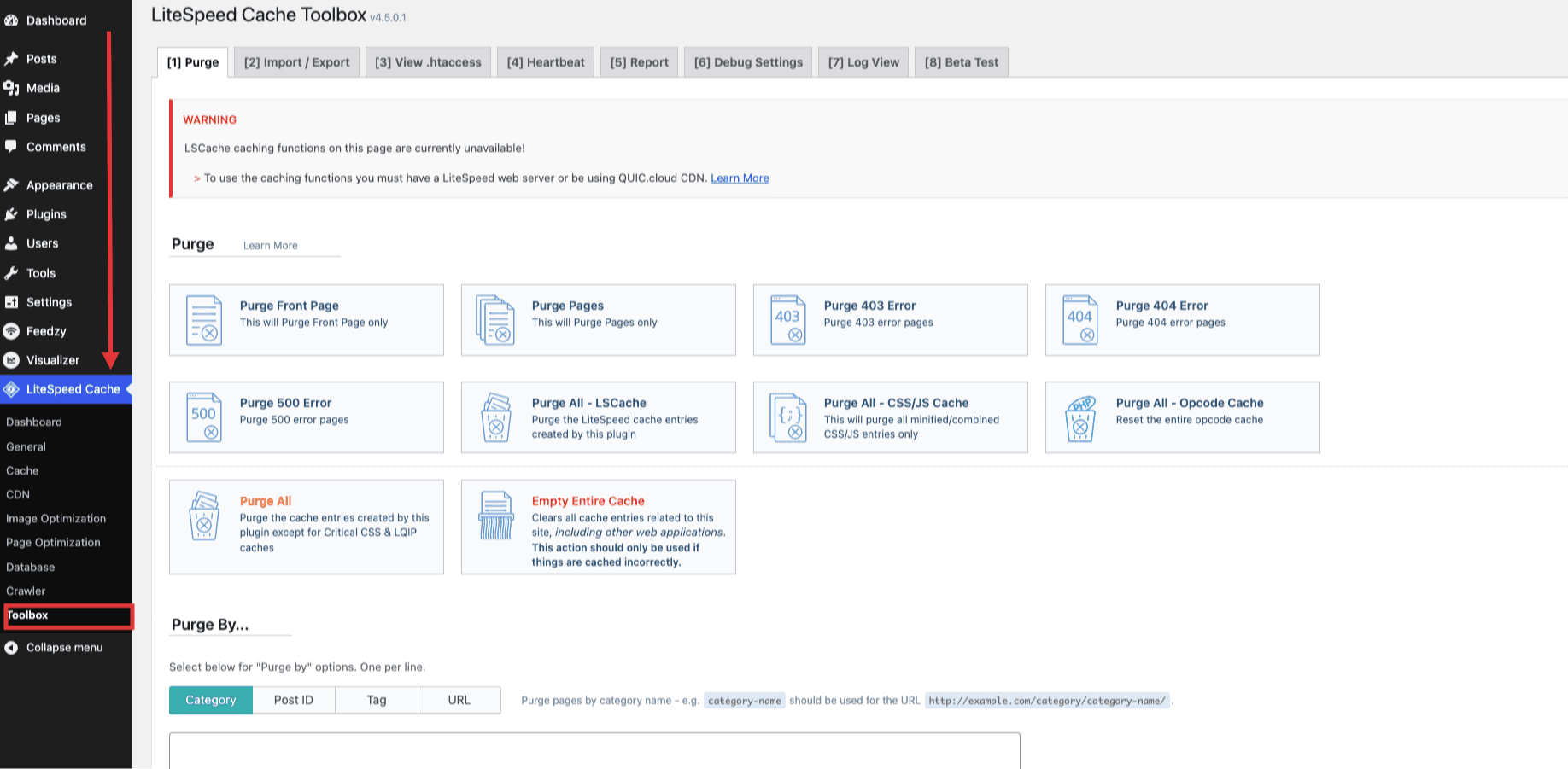
Here you have multiple options to purge specific pages. To purge all cache, click Purge All.
To purge cache based on a specific rule (Category, Post ID, etc.), scroll down to the Purge By section and enter the URL or Rule that you want to purge the cache for.
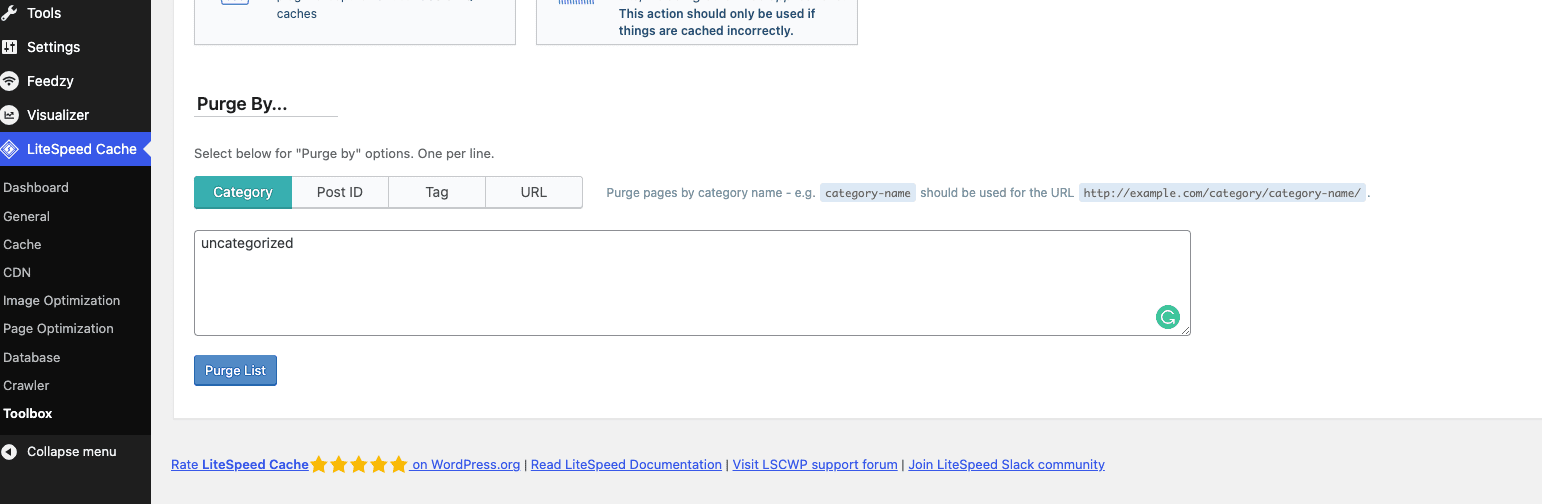
In addition to this method, you can purge the cache of a specific page if you are logged in as an Administrator: visit the page and use the Purge this Page option in the Admin Bar.

W3 Total Cache
This is again one of the most used caching plugins on the platform with over 1 million active users. It is well known for its bandwidth-saving features, AMP support and many more.
Clearing the cache with this plugin offers possibilities similar to the ones above. To empty all cache:
Install the plugin.
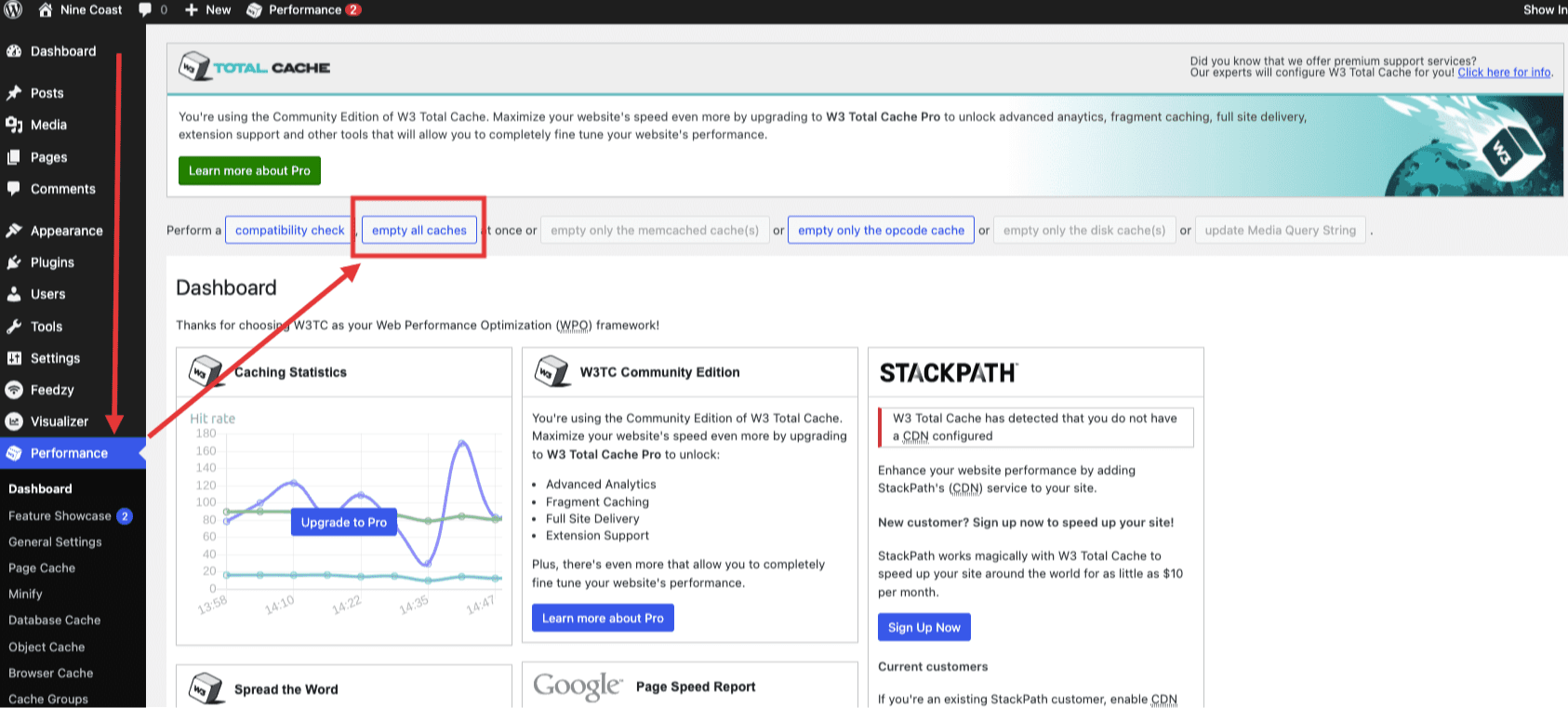
Go to Dashboard > Performance > Dashboard > Empty All Cache.