
How to manage your website licenses
Learn how to check which sites your Themeisle license key is currently active on, how to remove it from one domain and move it to another, and what to do if all activation slots are already used.
In this article
Every license key / account operation is done in your Purchase History.
First things first -> Login to Purchase History.
1. Check on which sites your license key is active
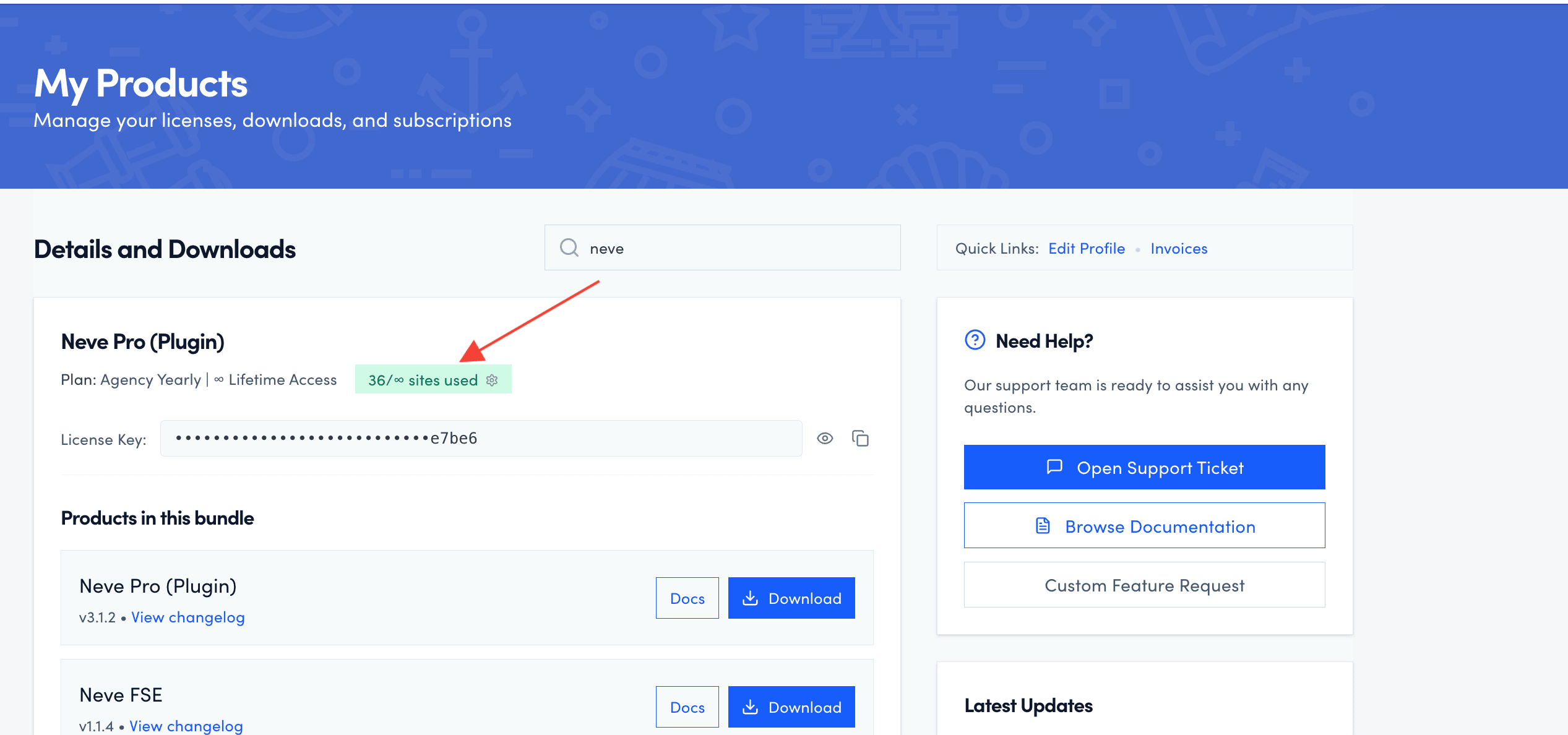
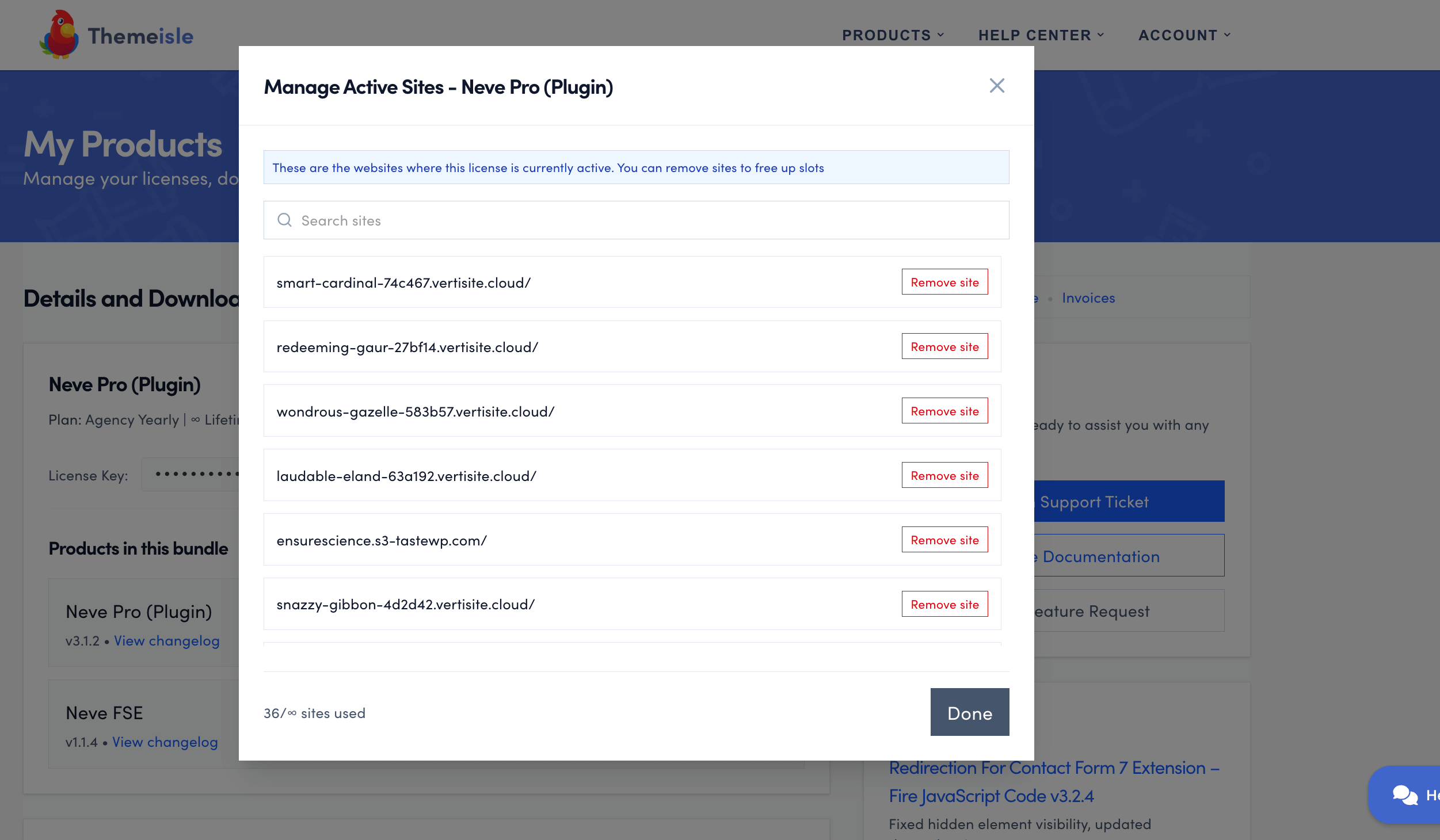
Once you are logged in, search for the product of your choice, and click on the number of sites used. The list of all of the websites / domains where your license keys are currently active is available for you there, as you can see below:
2. Removing your license key from one domain & moving it to another
This section allows you to:
- Search for a specific website that you own
- Remove the websites that don't need your license key anymore
Note: If you activate your license key on a new domain, it will take some time until the domain is visible in the list above.
From the list above, if you would want to remove the localhost/test/ website and activate another one instead, follow the steps below:
- Click on Remove Site for the localhost/test/
- Go to your new site and activate your license key according to this guide.
📝 Note: Removing a domain from this list only removes it from the license activation record. It does not cancel, downgrade, or change your subscription plan or renewal price. If you want to reduce your renewal cost, see Understanding Renewal Pricing for available plan options.
3. If all activation slots are used
If your account shows that all available sites are already in use (for example, 3/3 sites used), you have three options:
- Move the license to another website — if the old site no longer needs the license, remove that domain from the list and activate the key on the new website.
- Upgrade your current plan — if several websites must stay licensed at the same time, or you want features from a higher plan, review your current plan and available upgrade options in your Themeisle account or on the product's pricing page. See How to upgrade my subscription for the steps and for how the upgrade price is calculated.
- Buy a separate subscription for the additional website — if you only need one more site and your current plan's features are already enough, you can keep your current subscription and purchase a second one for that site. The new subscription comes with its own license key, its own renewal date, and its own renewal charge, and you activate that key on the additional website. Check the site limit and included features on the product's pricing page before you buy.
⚠️ Pay attention: Buy a separate subscription only to cover an additional website. Do not buy one as a way to change or renew the plan you already have — that leaves you with two subscriptions instead of one. To change your plan, use Manage Subscription in your account as described in How to upgrade my subscription. To renew, follow How to manually renew your plan or subscription. If you end up with two subscriptions covering the same websites, see Managing Multiple Subscriptions to work out which one to keep.
For details about what can consume an activation (including separate installs, subdomains, staging sites, and multisite sub-sites), see How domains are counted by our license checking system.