
How to Fix Neve Pro License Activation Errors
This article covers the most common Neve Pro license activation errors, including the "License Already Active" message, a blank Neve Dashboard, and activation failures after a server migration or domain change.
In this article
"License Already Active" error on a new site
If you see a License Already Active error when activating Neve Pro on a new site, the most common cause is a corrupted or outdated plugin ZIP file downloaded previously.
📝 Note: Neve Pro licenses support unlimited activations, so you do not need to deactivate the license on other sites before activating it on a new one.
To fix this error, follow these steps:
- Log in to the Themeisle store with your credentials.
- Go to Purchase history, find Neve Pro (Plugin), and click Download to get a fresh copy of the plugin ZIP.
- In your WordPress dashboard, go to Plugins > Installed Plugins, deactivate Neve Pro, then click Delete to remove it.
- Go to Plugins > Add New, upload the freshly downloaded Neve Pro ZIP, and click Activate.
- Go to Neve > Dashboard > Welcome and re-enter your license key if prompted.
After completing these steps, the activation error should be resolved. If the issue persists after a server migration or domain change, see the section below.
The Neve menu or Dashboard is missing
The Neve menu and dashboard come from the Neve theme. The Neve Pro license field appears only when Neve Pro Addon is installed and active. If the Neve menu is missing from your WordPress admin sidebar, or you cannot open Neve > Dashboard at all, the Neve theme is not active.
This is different from a dashboard that opens but stays blank, which is usually a REST API problem — see License activation after server migration or domain change below.
To restore the Neve menu:
- Go to Appearance > Themes.
- If a different theme is active, activate the Neve theme.
- If Neve is not listed, install it first — see How to install WordPress themes.
- Reload your WordPress dashboard. The Neve menu, including Neve > Dashboard > Welcome, reappears once the theme is active.
📝 Note: The Neve Pro Addon plugin adds its features on top of the active Neve theme. Keeping only the plugin active, without the Neve theme active, is not enough to show the dashboard. To show the license field inside Neve > Dashboard > Welcome, Neve Pro Addon must also be active.
If your Neve theme or Neve Pro Addon has not been updated for a long time and WordPress cannot update it, your Themeisle subscription may be inactive. Updates are only available while the subscription is active — see How to refresh the Neve Pro license status after an upgrade or renewal to restore updates, and How to install and activate Neve Pro for the steps to replace the plugin from a downloaded ZIP. Replacing the plugin or theme through WordPress keeps your existing settings, which are stored in the database.
License activation after server migration or domain change
If you have recently migrated your site to a new server, or changed your domain, you might see one of these two situations:
- Neve > Dashboard is blank or does not finish loading.
- The dashboard loads, but license activation fails.
If Neve Dashboard is blank after migration
The Neve > Dashboard screen depends on the WordPress REST API. If your REST API endpoint returns a 404 error after migration, dashboard data and license controls might not load.
To check this, open https://yourdomain.com/wp-json/ in your browser (replace yourdomain.com with your real domain).
- If it loads JSON data, the REST API is reachable.
- If it returns a 404 error, follow the permalink refresh steps below.
Fix REST API 404 errors by refreshing permalinks
- In your WordPress dashboard, go to Settings > Permalinks.
- Click Save Changes once.
- If
https://yourdomain.com/wp-json/still returns 404, select a different permalink structure and click Save Changes. - Switch back to your preferred structure (for example, Post name) and click Save Changes again.
- Recheck
https://yourdomain.com/wp-json/and then reload Neve > Dashboard.
If /wp-json/ still returns 404
After saving permalinks, a persistent 404 usually means URL rewriting is still not working on the server.
- On Apache, make sure your site is using the standard WordPress
.htaccessrewrite rules. - On Nginx, make sure WordPress rewrite rules are configured correctly for pretty permalinks.
- Contact your hosting provider and ask them to verify URL rewriting and REST API routing after the migration.
If the dashboard loads but activation still fails
If Neve > Dashboard loads correctly, continue with the old-domain unlinking flow below to remove the previous domain from your Themeisle account and activate on the new site.
To remove the old domain and activate on your new site:
- Log in to the Themeisle store with your credentials.
- Go to Purchase history, find Neve Pro (Plugin), and click sites used.
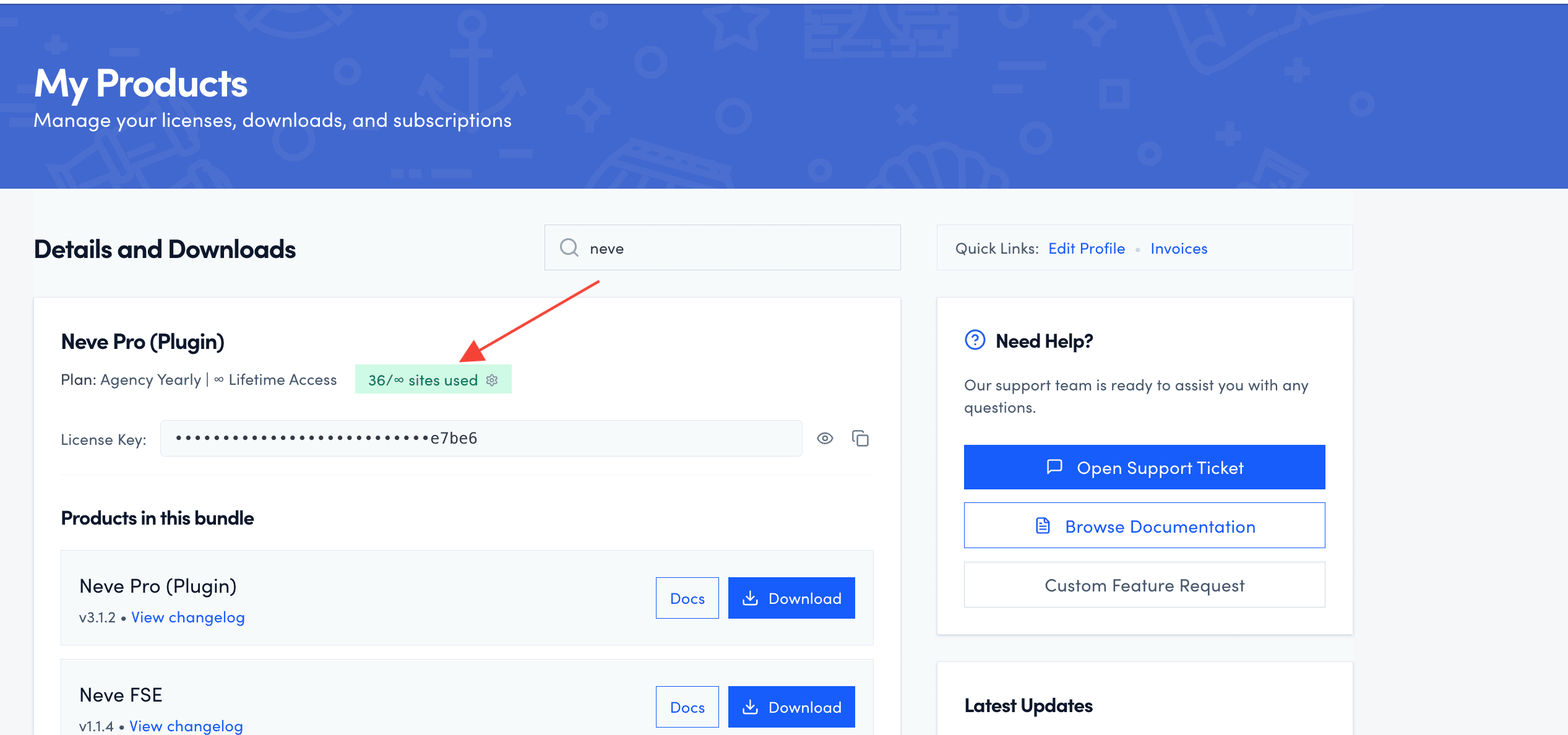
- Locate the old server or domain in the list and click the remove icon next to it to unlink it from your license.
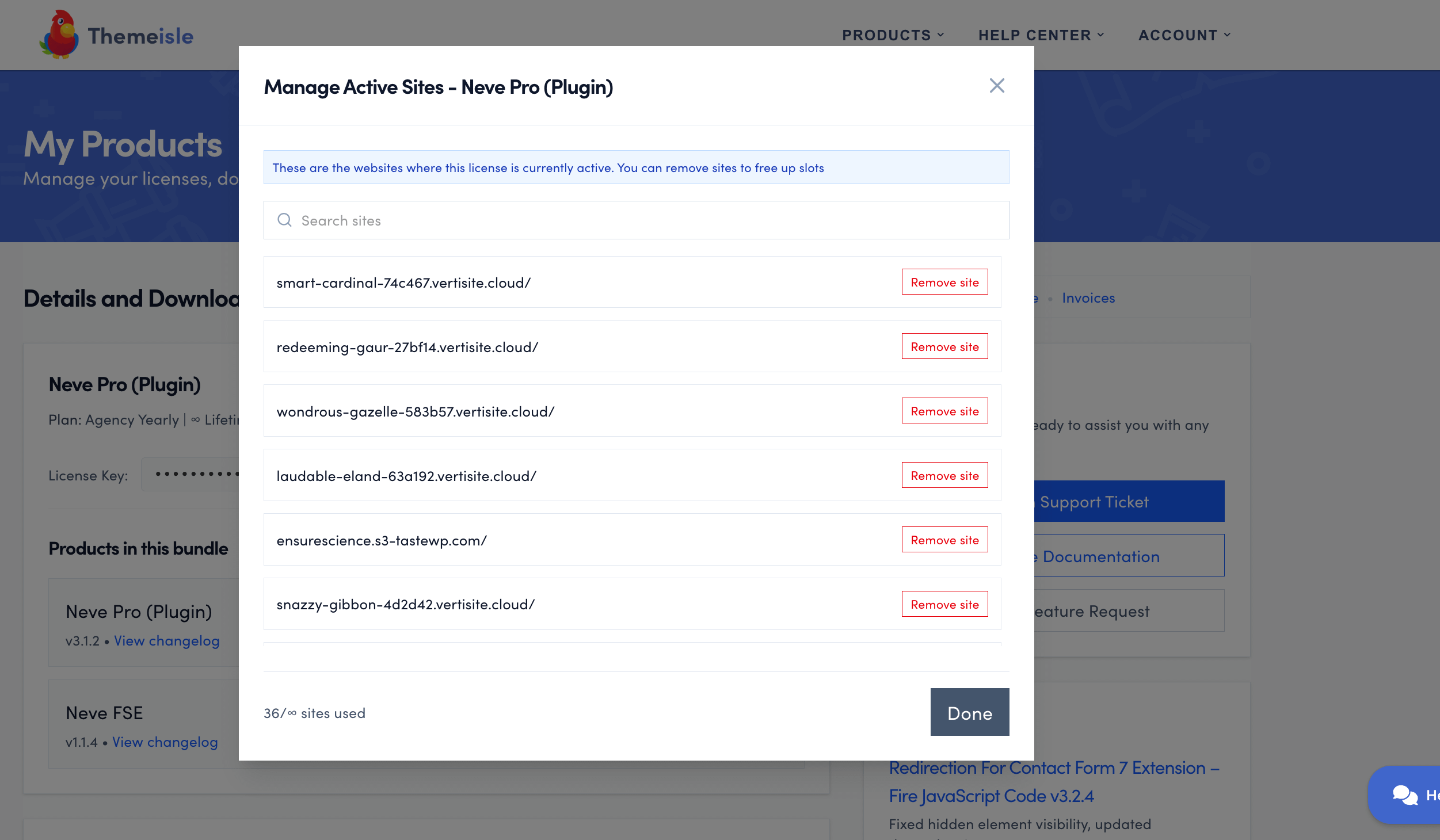
- Go to your new site's WordPress dashboard, navigate to Neve > Dashboard > Welcome, and paste your license key to activate it.
Once activation completes, your new site should appear in the Manage your domains list in your Themeisle account, confirming the license is active on the new site.
📝 Note: If you no longer have access to the old server, you can skip deactivating the license there — removing the domain from your Themeisle account is sufficient.
If the issue persists after following these steps, contact support for further assistance.