
The Language Switcher Component- Neve Header / Footer Builder
For more details check out the full Neve documentation and Neve PRO documentation.
📝Note: This component is part of just Neve PRO.
The component is visible in the list of components only if a translation plugin is installed and activated (Polylang, TranslatePress, WPML, or Weglot).
In this article
Using the Component
1. Start by adding the component into the rows, by clicking on the ➕ button and selecting the component.
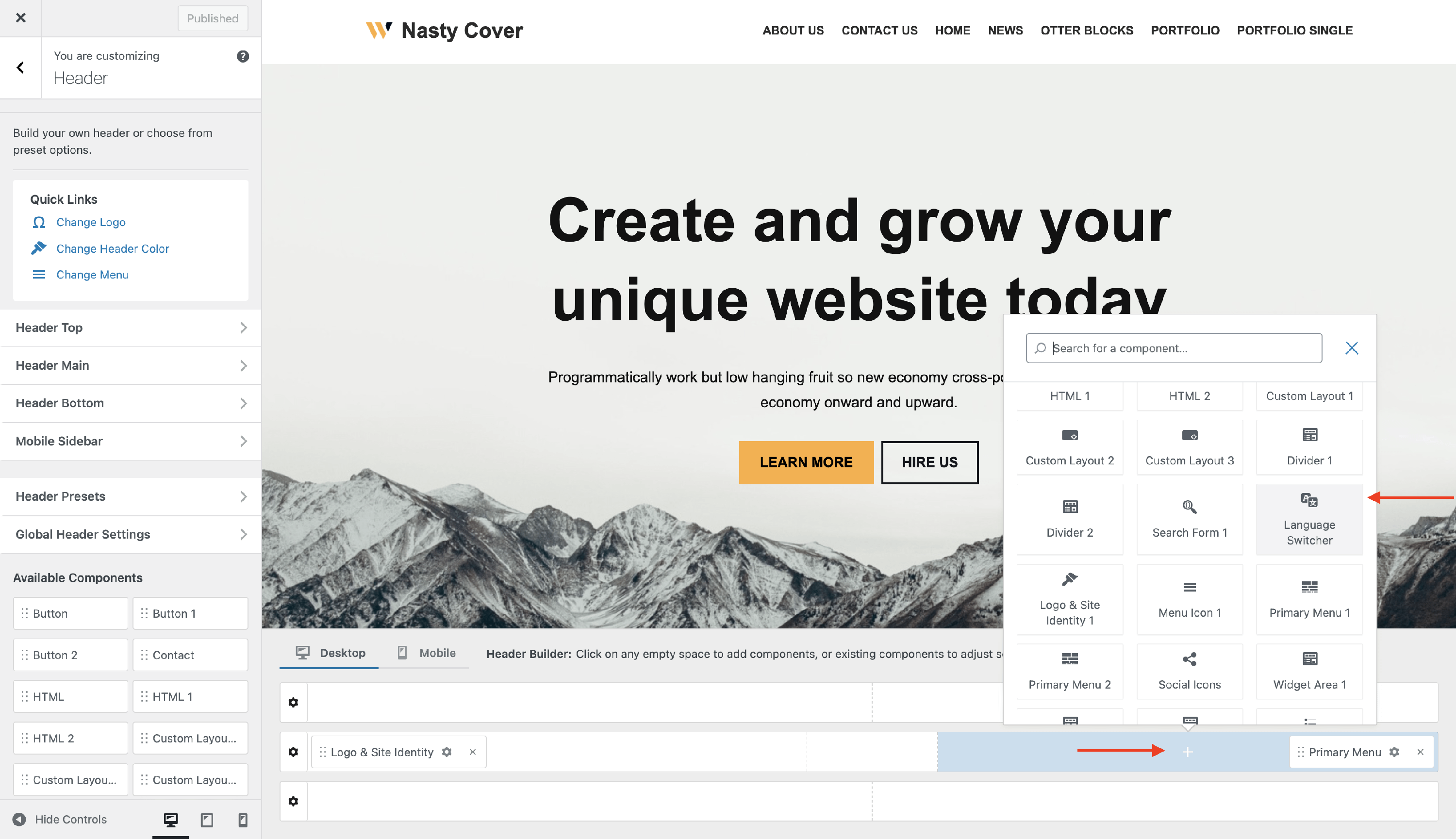
2. Open the component's settings to customize it by clicking on the ⚙️icon.
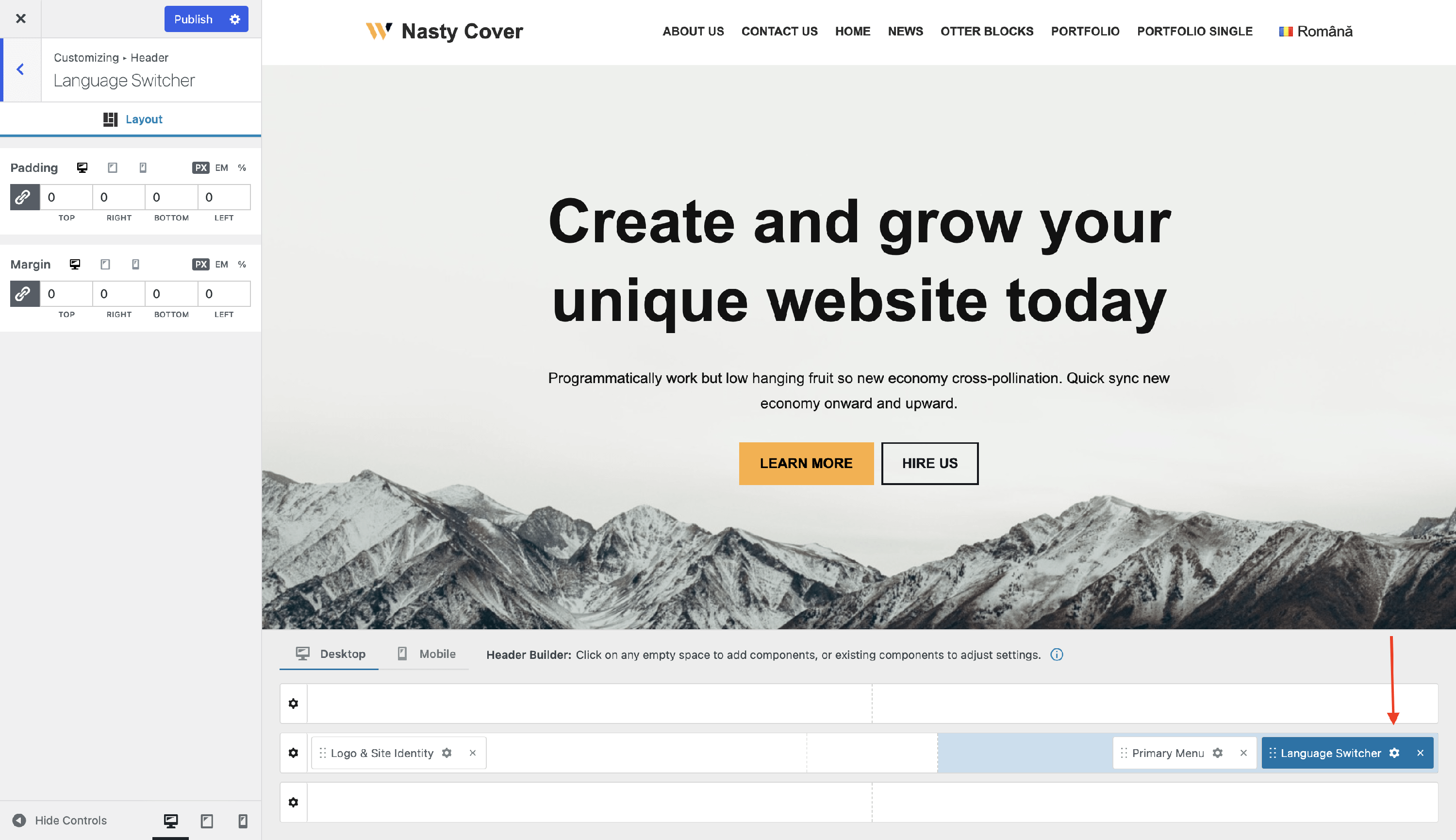
📝 Note: This component will be visible in the list of components only if a translation plugin is activated on your website.
Customizing the Component
There are two panels with customizing options for this component, which allow you to create the desired header / footer:
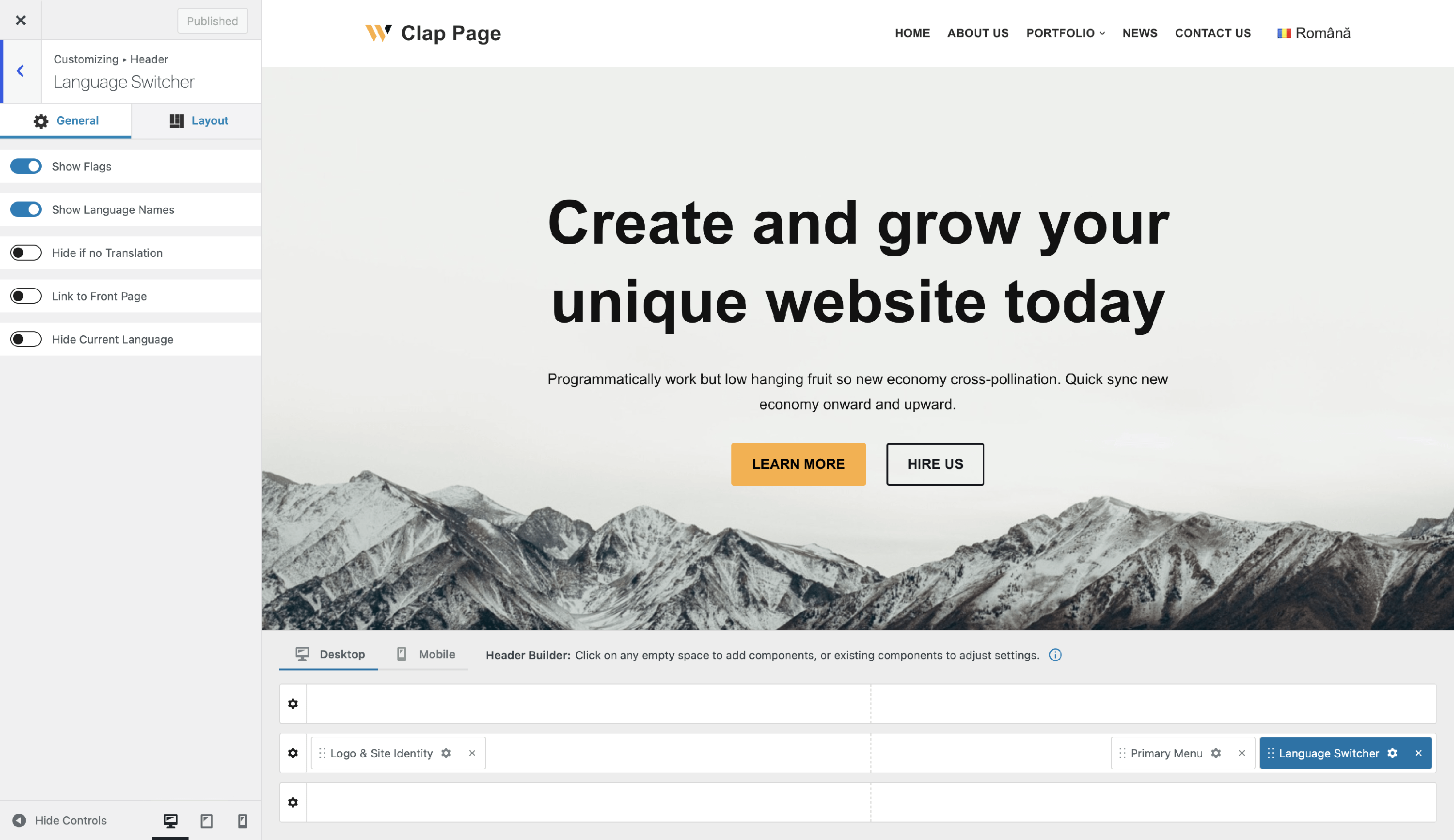
General Panel
📝 Note: The General panel allows for multiple customizations of this component. It is available only for the Polylang plugin. This panel will not appear if you use Weglot, WPML, or TranslatePress.
- Show Flags - enable / disable the flag that appears next to the language.
- Show Language Names - enable / disable the name of the available language.
- Hide if no Translation - disable the flag / name if no translations are available to avoid confusion.
- Link to Front Page - once the flag / name is clicked, the visitor will be redirected to the home page to start reading the translated website.
- Hide Current Language - disable the current language flag / name.
Layout Panel
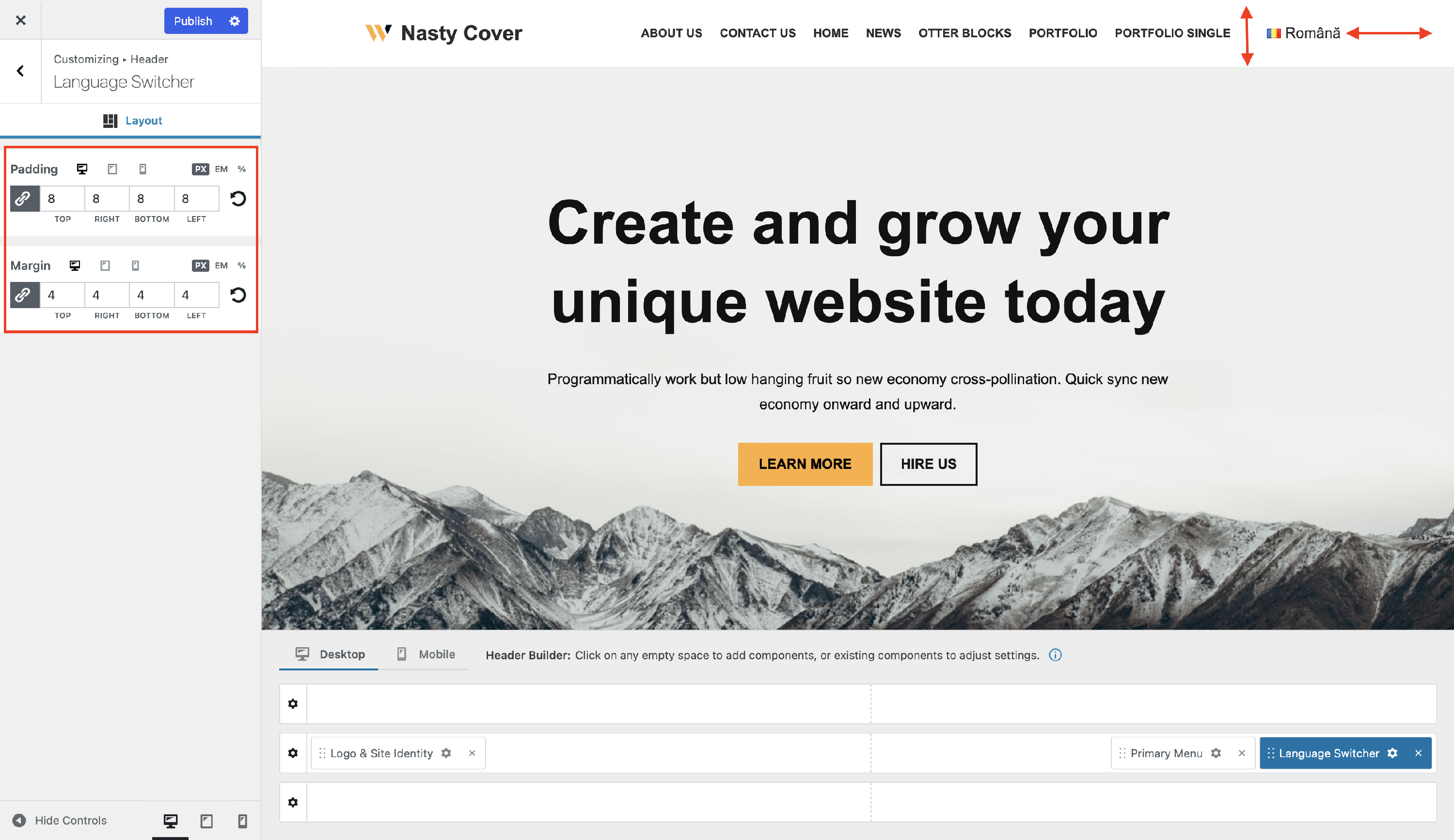
In the Layout tab, you also have access to advanced positioning options like:
- Padding and Margin - available in PX, EM, REM, and %, with a link button that helps establish the same dimension for all the directions ( Desktop | Tablet | Mobile ).
Useful Resources
How to translate a theme or a plugin