
Block Patterns - Otter Features Library
📝 Note: This is part of the Otter Blocks plugin, which you can get from here.
The Block Patterns are a powerful feature of Otter, that can ease your life with stunning predefined blocks that can be added with just a few clicks. These can be customized according to your needs and you can see how the blocks are combined to obtain a more practical section.
- 🎨 theme independent
- ✨ built by professional designers
- ⏰ time savers
- 🖌 easy customizable
In this article
Using the Patterns
1. Open the page or post where you want to add patterns.
2. In the editor toolbar at the top, click the Design Library button (marked with the Otter icon). The Design Library opens in a full-screen window.
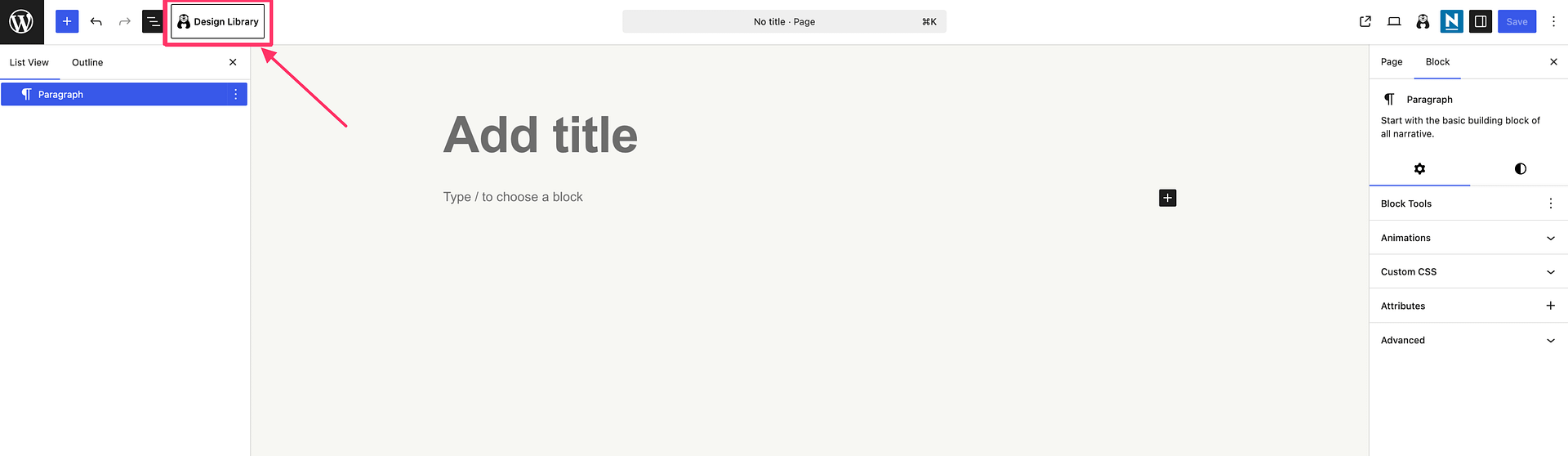
3. Use the search field to describe what you need — for example pricing, hero, or testimonials. Search checks each pattern's title, description, categories, and visible text, so descriptive phrases such as hero with email signup also return relevant results.
4. Use the left sidebar to browse by category. Switch between Sections and Pages at the top, then choose a group such as Layout & Structure, Content, Conversion, Social Proof, or Media.
5. Use the Refine tags above the grid to narrow the results further — for example by light or dark tone, style, column count, or Free and Pro availability.
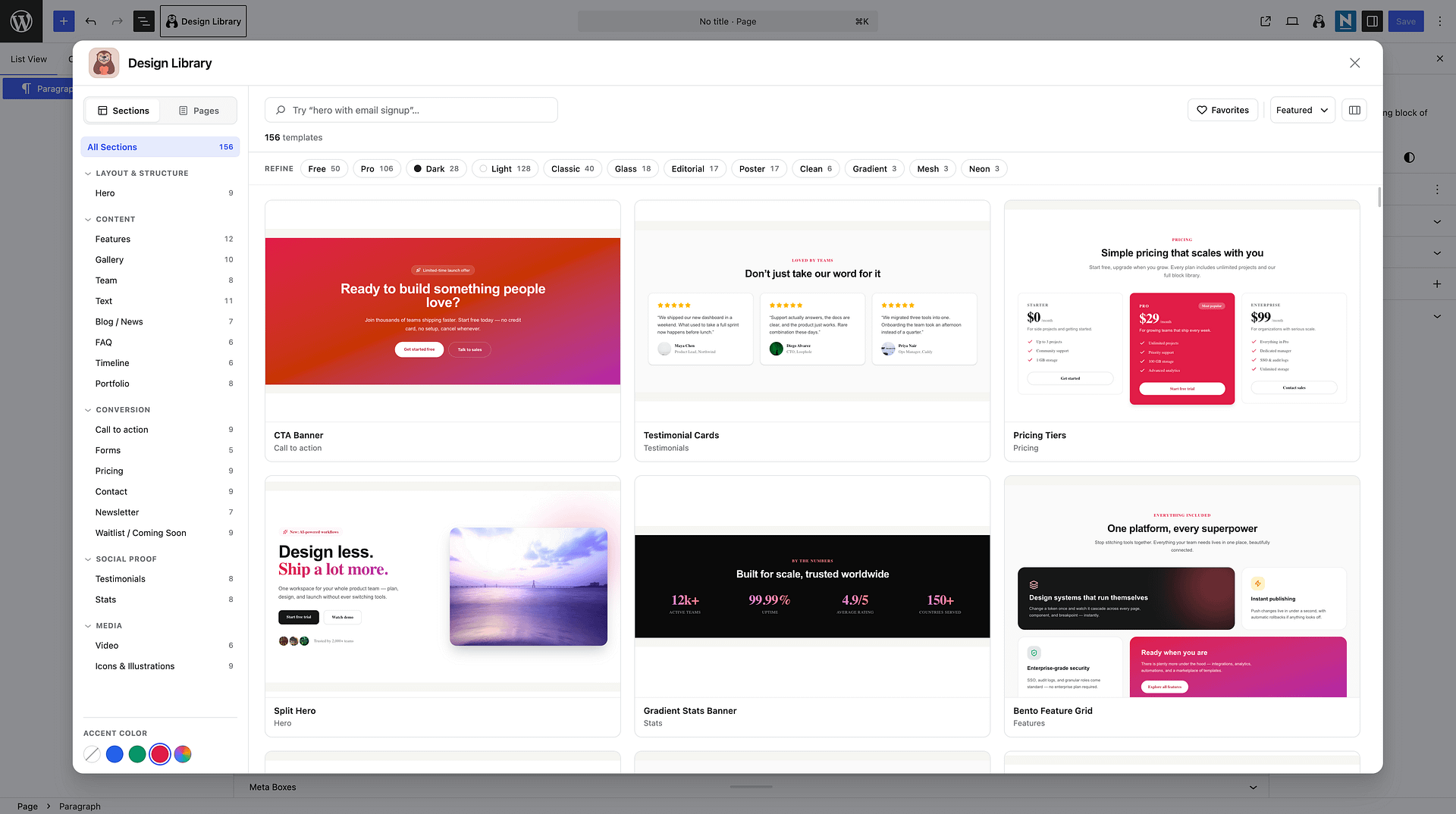
6. Click a pattern to insert it, or open its preview first to see a larger view and More like this suggestions.
The library includes both free and premium patterns and page-template packages. Premium patterns, page templates, and Collections are marked with a lock icon and require Otter Pro.
💡 Tip: Use the Accent color panel in the sidebar to preview patterns in your brand color before inserting them. Pick one of the preset swatches or set a custom color, and choose Original colors to return to a pattern's default palette.
To reset your browsing, clear the search field with the ✕ icon. When no patterns match your current filters, a Clear filters button appears so you can reset the search, category, and tags at once.
📝 Note: Please note that the Otter Blocks extended the patterns library, including specially designed Pricing sections, Testimonials, and Services. These standalone blocks will not be available anymore. Instead, feel free to customize the patterns.
Customizing the Patterns
The patterns are blocks combined to create a more appealing and functional section. To customize a pattern with your own content, you have to click on each element and replace it using the right sidebar or the available options.
When you insert a pattern, you are adding a group of nested blocks (such as a Section, Section Column, and child blocks like Heading or Paragraph). If a child block already has its own text or background color, it keeps that local value instead of inheriting the color you set on the parent section or column.
To update colors in the correct place, open List View, expand the nested blocks, and select the exact Section, Section Column, or child block you want to edit. Then:
- Select the Section or Section Column and use Style > Background & Content to set parent colors.
- If a child block does not adopt that color, select that child block, open its Color panel, and click the minus (–) control to clear the local color so it inherits from the parent (or set a different color directly on that child block).
For the full walkthrough with screenshots, see Where each color setting applies.
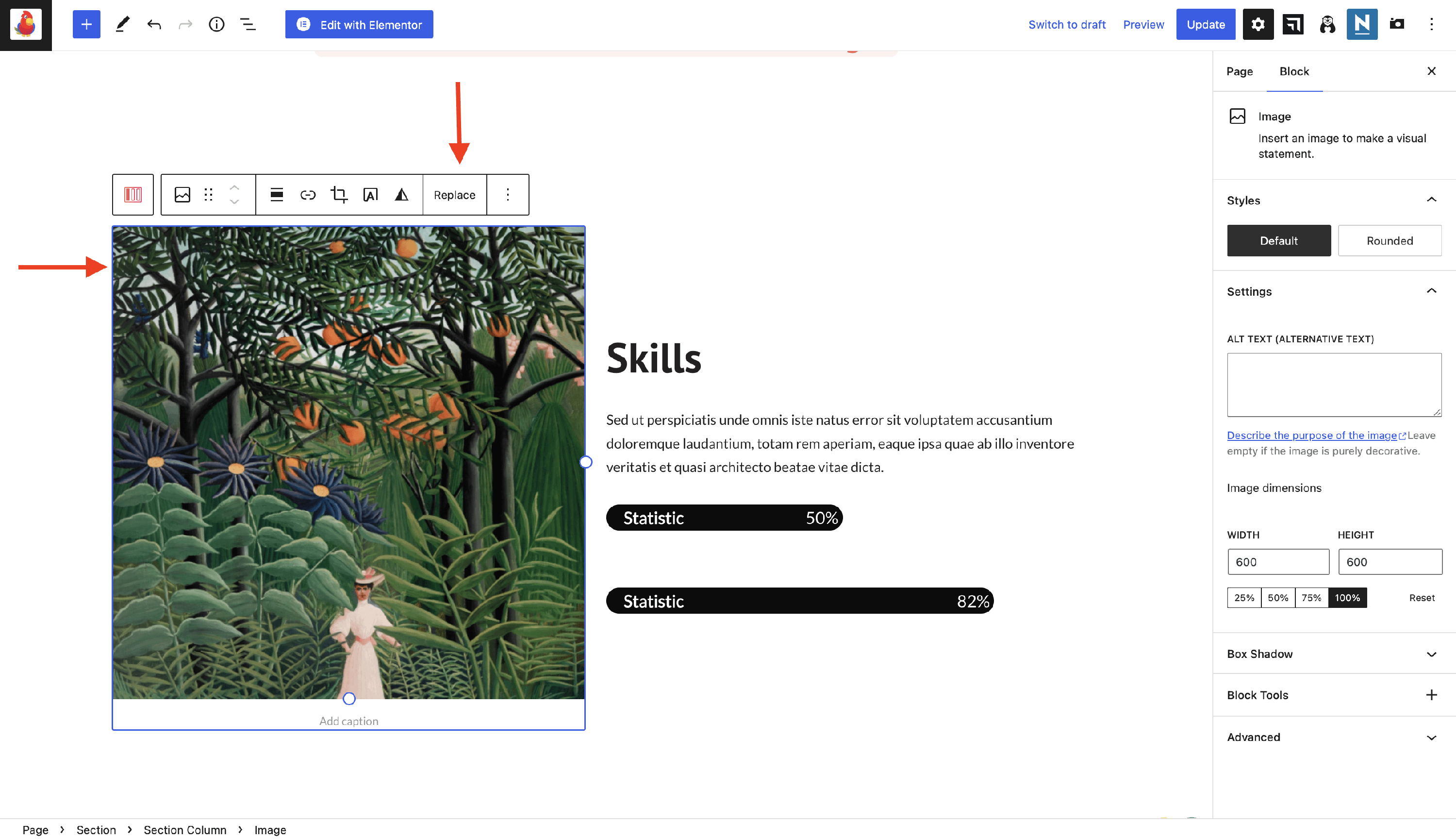
For example, in the screenshot below we have added a section from the Otter Blocks category. To change the image, click on it and then on replace:
Cross-Theme Compatibility
You can open the Design Library and insert patterns no matter which theme you are using. Patterns are theme-independent, and they adapt to the style of your active theme.