
How to Link Menu to Sections in Hestia?
In this article, we will present to you how to link the menu to the front page's sections.
In this article
Creating the Anchors
1. Navigate to Appearance > Menus in your WordPress Dashboard.
2. From the " Add menu items" area, from the left side, and select " Custom Links ".
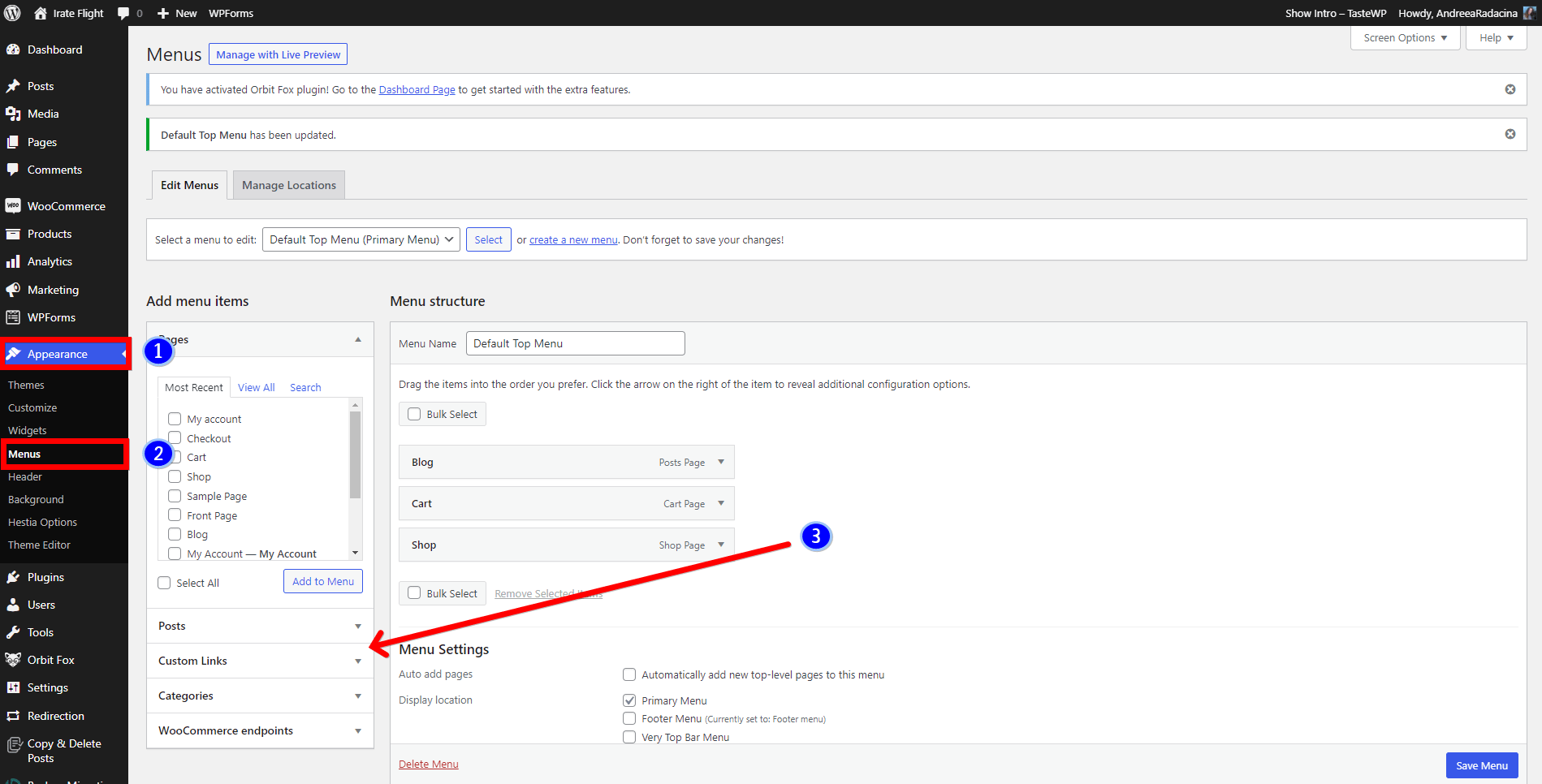
3. Insert the URL of your website ( **https://yourwebsite.com/**#blog ), mentioning the anchor of the section ( such as #blog ) and the link text ( the name that you want to be displayed in the menu ).
- click on Add to Menu.
- after finishing, click on Save Menu.
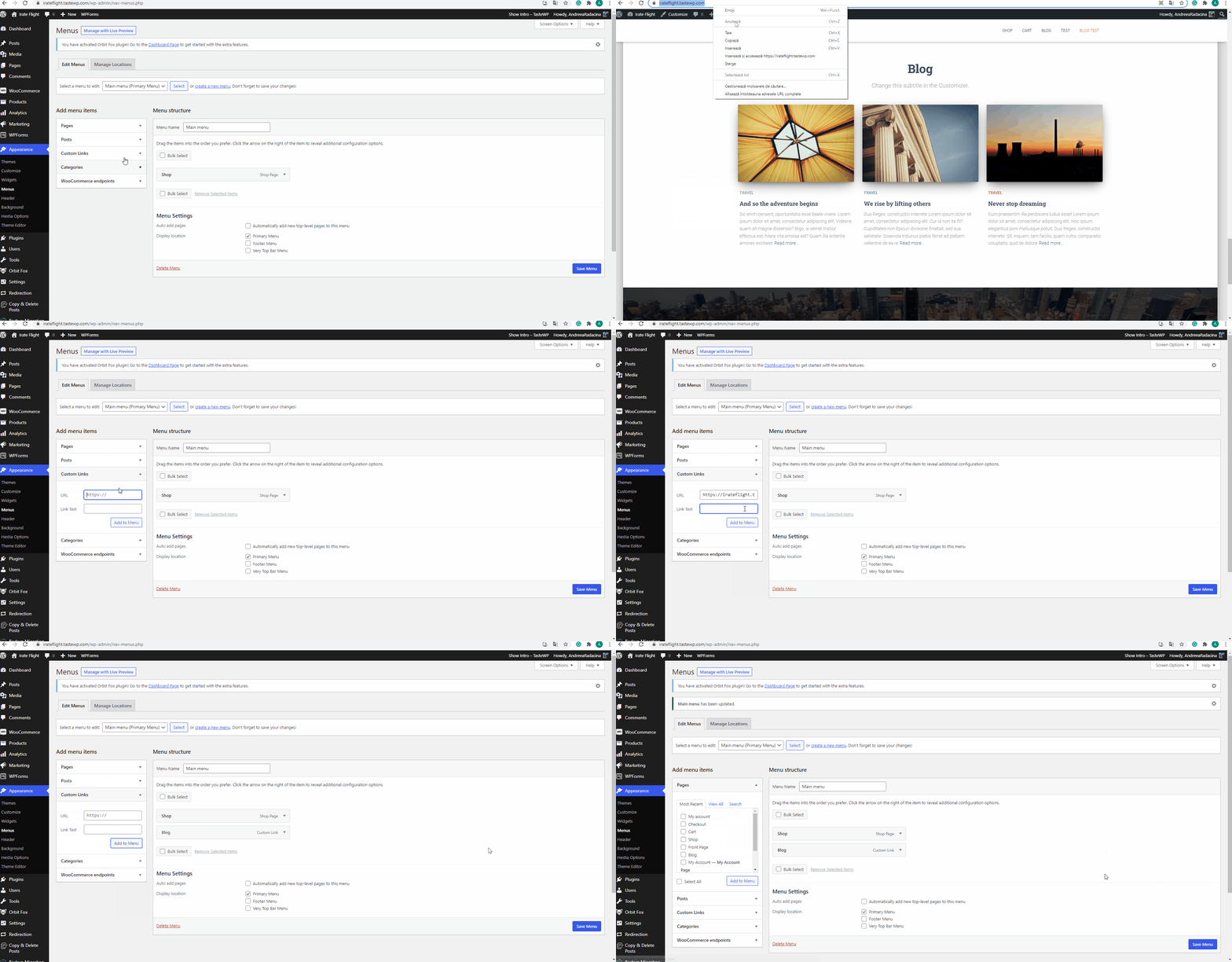
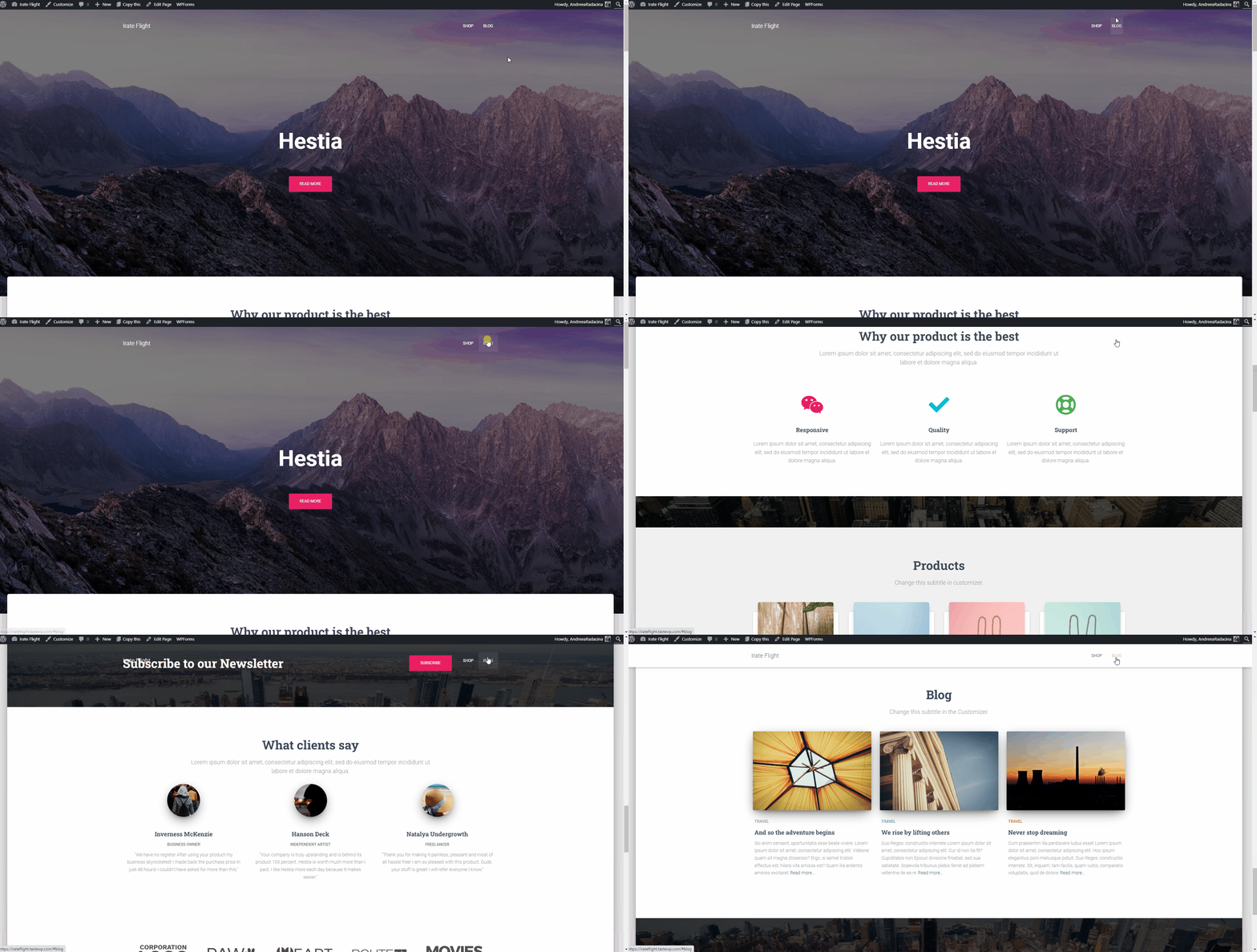
4. Navigate to the front page of the website, click on the previously mentioned name, and see the effect:
📝 Note: This doc explains how to link the menu to front page sections. If you want to add an anchor to a page, check this doc.
Hestia (Pro) frontpage anchors
- Features - #features
- Shop - #products
- Portfolio - #portfolio
- About - #about
- Team - #team
- Ribbon - #ribbon
- Testimonials - #testimonials
- Pricing - #pricing
- Clients Bar - #clients
- Subscribe - #subscribe
- Blog - #blog
- Contact - #contact
📝 Note: Be sure only to include the www. if your website shows a www. in the address bar.