
How to Fix Uneven Product Grid and Inconsistent Thumbnails in Hestia PRO
If your WooCommerce shop page shows uneven gaps between products or thumbnails that vary in size, the most common causes are multi-line product titles pushing card heights out of alignment, and images uploaded at different aspect ratios. This guide walks you through the steps to correct both issues.
In this article
1. Enable Uniform Product Image Sizing in the Customizer
Hestia PRO includes a thumbnail cropping option that forces all product images to share the same aspect ratio. Enabling it removes the most common source of size inconsistency.
- In your WordPress dashboard, go to Appearance > Customize.
- Open the WooCommerce panel, then select Product Images.
- Under Thumbnail cropping, choose one of the fixed options:
- 1:1 — crops every image into a square.
- Custom — crops to a specific aspect ratio that you define.
- Click Publish to save the change.
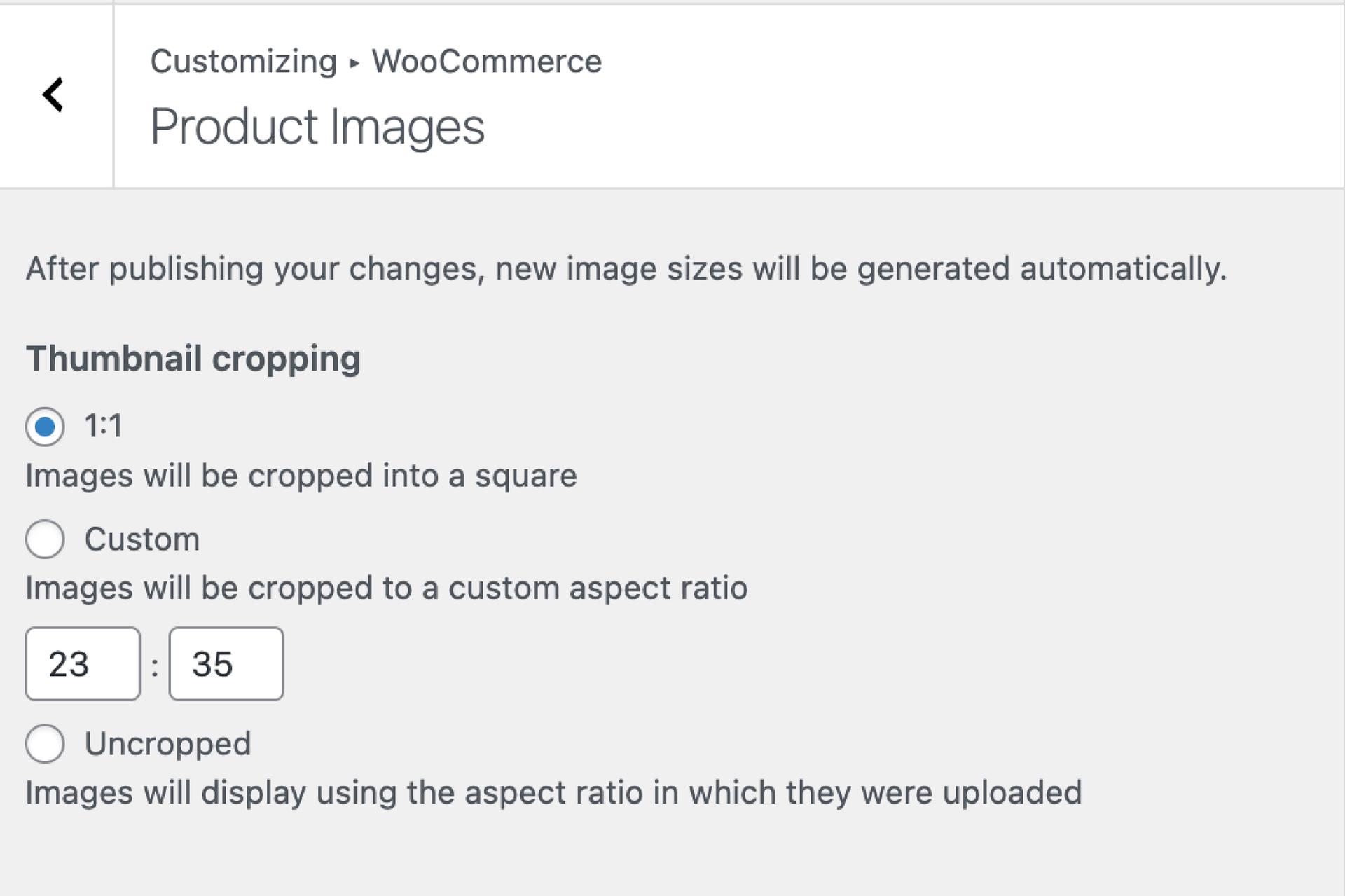
📝 Note: If you choose Uncropped, images display at the aspect ratio they were uploaded with, which will produce uneven thumbnails if your product photos have different dimensions.
2. Regenerate Thumbnails
After changing the cropping setting, existing uploaded images need to be regenerated to match the new dimensions. Use a plugin such as Regenerate Thumbnails to update all previously uploaded product images.
- Install and activate the Regenerate Thumbnails plugin.
- Go to Tools > Regenerate Thumbnails.
- Click Regenerate All Thumbnails and wait for the process to finish.
3. Add Custom CSS for Consistent Card Heights
Even with uniform thumbnails, product titles or category labels that wrap onto multiple lines can still cause uneven card heights. Adding a min-height rule via the Customizer prevents short titles from leaving extra white space between rows.
- Go to Appearance > Customize > Additional CSS.
- Paste the following snippet:
.woocommerce ul.products li.product h4.card-title,
.woocommerce ul.products li.product .category {
    min-height: 3em;
}- Adjust the
3emvalue to match the typical height of your product titles, then click Publish.
💡 Tip: If you want this change to survive future theme updates, add the CSS to a child theme's stylesheet instead. See How to create a child theme for Hestia for instructions.
4. Fix Size Differences Caused by Lazy Loading
If only the first few images on the shop page look correct while the rest appear at a different size, lazy loading may be interfering with how the browser calculates image dimensions before they are loaded.
Add the following PHP snippet to the functions.php file of your child theme to disable the automatic sizes attribute that WordPress adds to lazy-loaded images:
add_filter( 'wp_img_tag_add_auto_sizes', '__return_false' );📝 Note: Use this step only if your WordPress installation supports the wp_img_tag_add_auto_sizes filter. If that filter is unavailable, you can skip this step.
5. Check Image Optimization Plugins
Image optimization plugins can override thumbnail dimensions or serve resized images that differ from what WooCommerce expects. If the grid still looks uneven after the steps above, check any active image optimization plugin.
If you are using Optimole, verify that it is not applying aggressive resizing or cropping rules that conflict with your WooCommerce thumbnail settings. You can review Optimole's compression and resize settings from your WordPress dashboard under Optimole > Settings.
⚠️ Important: Disable or temporarily deactivate your image optimization plugin and reload the shop page to confirm whether it is the source of the inconsistency before making permanent changes.
6. Recommended Image Practices
Following consistent upload practices prevents thumbnail inconsistencies from reappearing:
- Upload all product images at the same aspect ratio (for example, all square at 800×800 px).
- Refer to Hestia Recommended Image Sizes for guidance on image dimensions across the theme.
- Avoid mixing portrait and landscape images in the same product category.