How to make Hestia navbar transparent for other pages
Hestia theme provides a transparent navbar option, but it works only on the homepage. This article shows you how to create a transparent header on other pages as well. Hestia Free supports this action using a custom code, whereas Hestia Pro has a dedicated toggle.
Hestia Free
Before
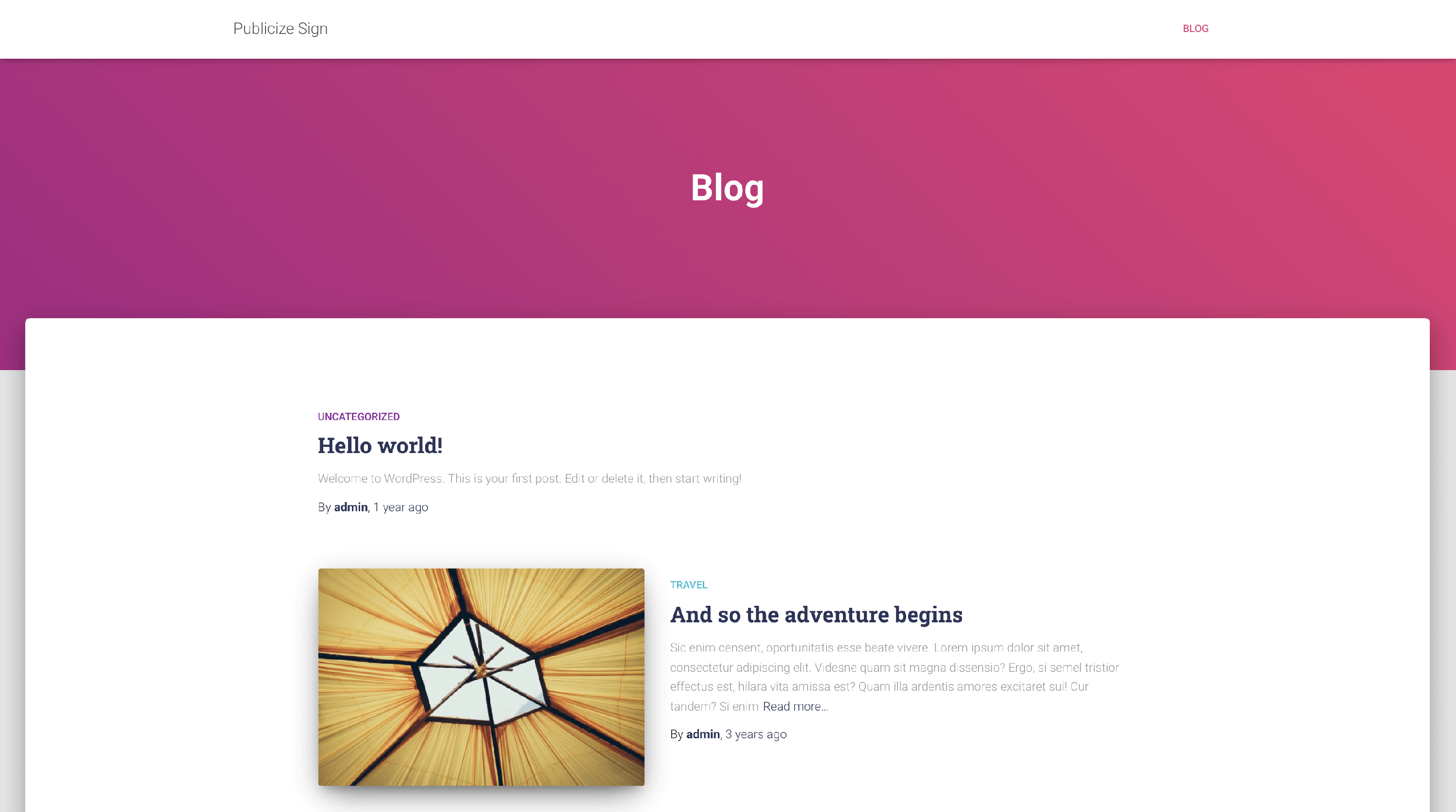
On a regular page, the navbar appears with a certain color, as you can see in the screenshot below.
After
If you want to show the transparent navbar on other pages, we can achieve this with a custom jQuery function.
To add this function, we recommend you use our plugin Orbit Fox. This plugin enables a Header Footer Scripts module under the customizer that allows you to add custom scripts to the header and footer of your website.
📝 Note: For more details about the Orbit Fox, please check this guide.
Navigate to Appearance > Customize > Header / Footer scripts and add this code:
<script>
jQuery( document ).ready(function() {
 transparentHeader ();
});

jQuery(window).on('scroll', function() {
 transparentHeader ();
});

function transparentHeader () {
     if (jQuery(window).scrollTop() === 0) {
        jQuery('body:not(.home) .navbar-default').removeClass('navbar-not-transparent').addClass('navbar-transparent');
    } else {
        jQuery('body:not(.home) .navbar-default').removeClass('navbar-transparent').addClass('navbar-not-transparent');
    }
}
</script>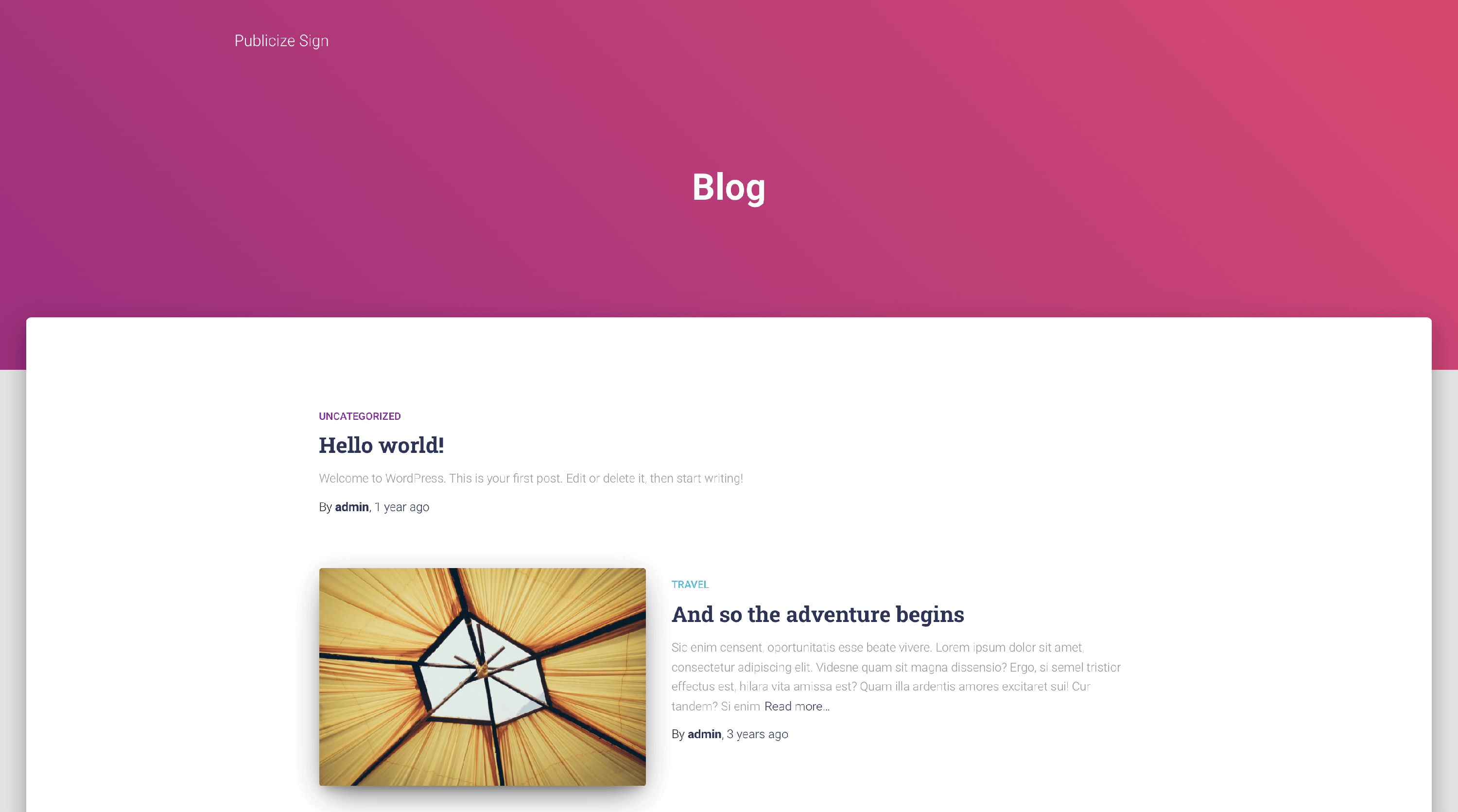
📝 Note: The checkbox in the customizer that controls whether you have a transparent header enabled or disabled will still affect only the homepage. If you decide to stop using a transparent header on all pages, you should remove this script.
Hestia Pro
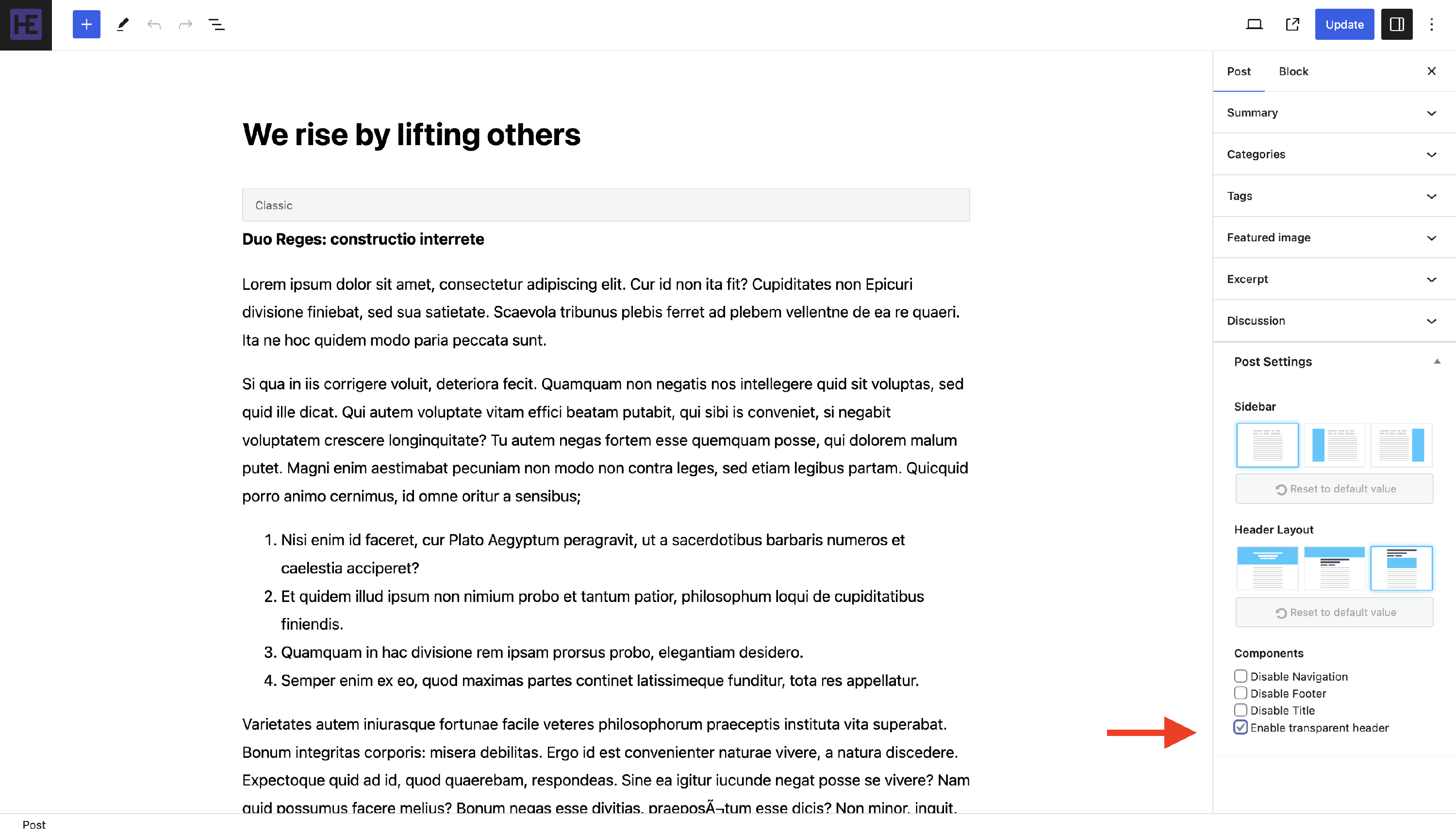
Hestia Pro allows you to enable transparent header on other pages/posts using a dedicated toggle.
1. Navigate to the desired post/page and open it in the editor.
2. Open the Post (or Page) panel from the right sidebar.
3. Expand the Post Settings (or Page Settings) accordion and check the Enable transparent header option.