
How to add a second logo in Hestia
Hestia comes with a navigation menu with two different variations: a transparent state ( on the front page, before scrolling ) and a white state ( on the front page, after scrolling and on internal pages ).
This is why, in some cases, the Logo image you are using may not be very suited for both menus variations.
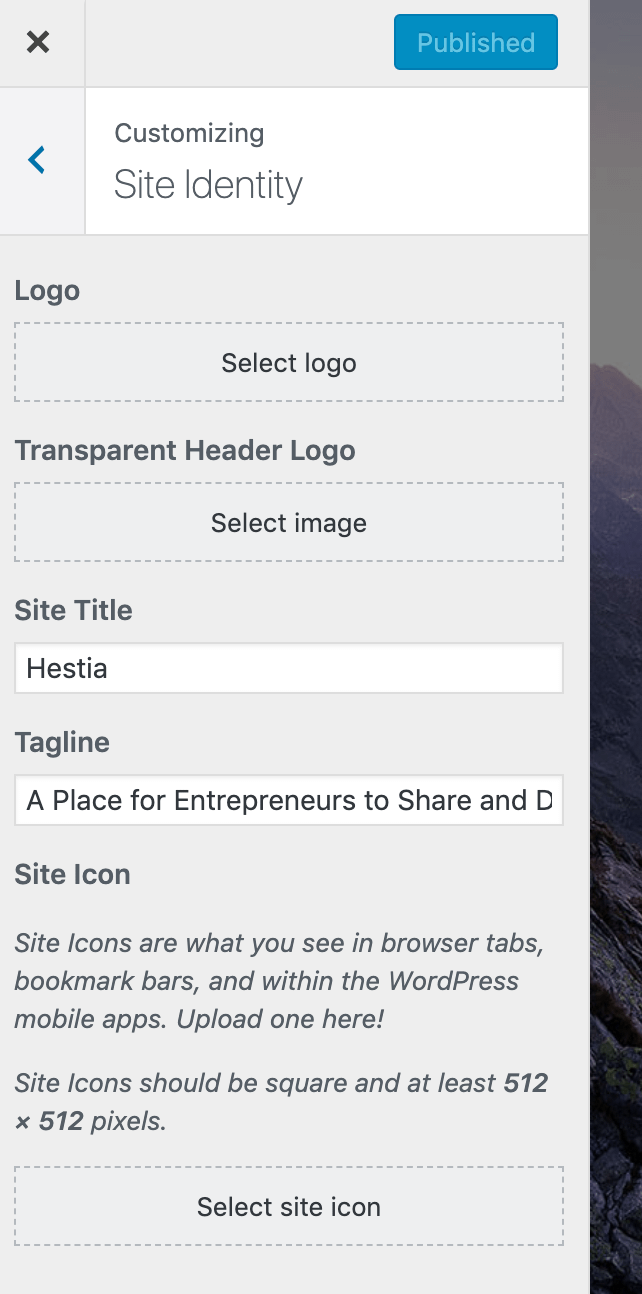
For those cases, you can add a second logo just for the transparent state.
The second logo can be added in the same place as the default logo, by navigating to Appearance > Customize > Header Options > Site Identity.
If you want to disable the transparent header, and use just the main logo, you can do that by going to Appearance > Customize > Header Options > Website - Header and uncheck the Transparent Navbar option.
That's it! Interested in Hestia Pro? Click here to see Hestia vs Hestia Pro