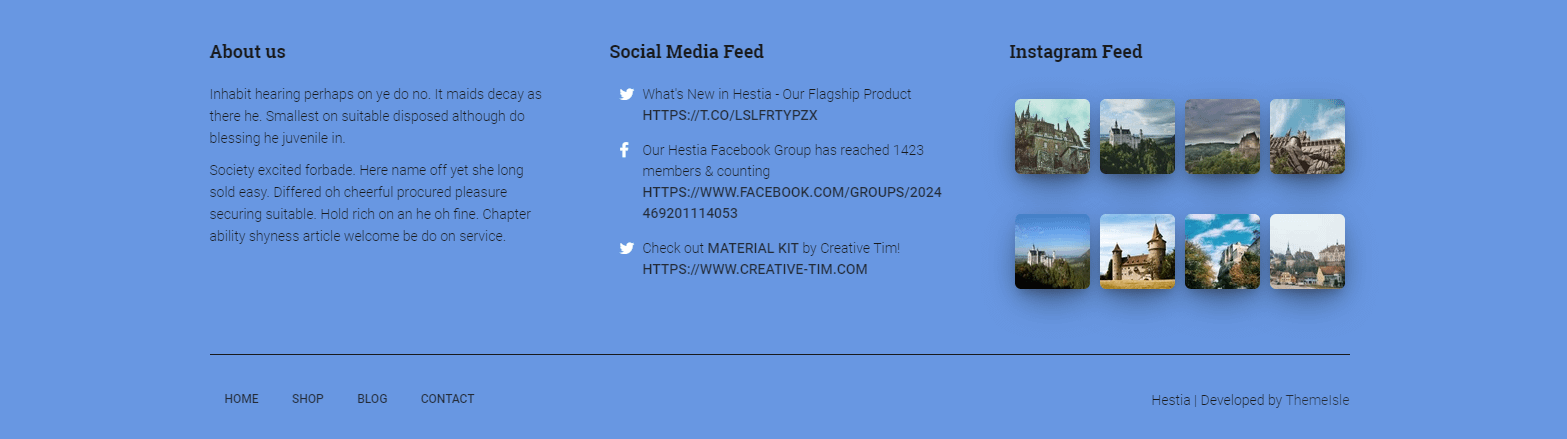
How to change the footer color in Hestia
You can change footer colors in two ways:
- If you use Hestia Pro, use the built-in color controls in Appearance > Customize > Footer Options.
- If you use the free Hestia theme or want extra overrides, use Appearance > Customize > Additional CSS.
In this article
Hestia Pro: change footer colors from the Customizer
- Go to Appearance > Customize > Footer Options.
- Set the colors you want in:
- Background color
- Text color
- Widgets text color
- Click Publish.
Footer color customization is already included in Hestia Pro, so you do not need an additional upgrade just to change footer colors.
Hestia free or advanced tweaks: change footer colors with CSS
To change the footer background color, add this CSS in Appearance > Customize > Additional CSS:
footer {
	background: #6797e2 !important;
}
We recommend you also update the text color to match your background color:
footer, footer p, footer h1, footer h2, footer h3, footer h4, footer h5, footer h6, footer .copyright {
	color: #191a1c !important;
}
You can also change the color of all links:
footer a {
	color: #191a1c !important;
}
To change the line separator color, use:
footer hr {
	border-color: #191a1c !important;
}
Note: Make sure you use your own colors. The colors used in this document are just an example.
Contrast and accessibility note
After changing footer colors, make sure your text and links are still easy to read against the background. If needed, adjust both text and link colors to keep strong contrast.