How to change image size in Hestia's Features section?
The features section displays key functionalities of your website, and you can use images or icons to showcase this.
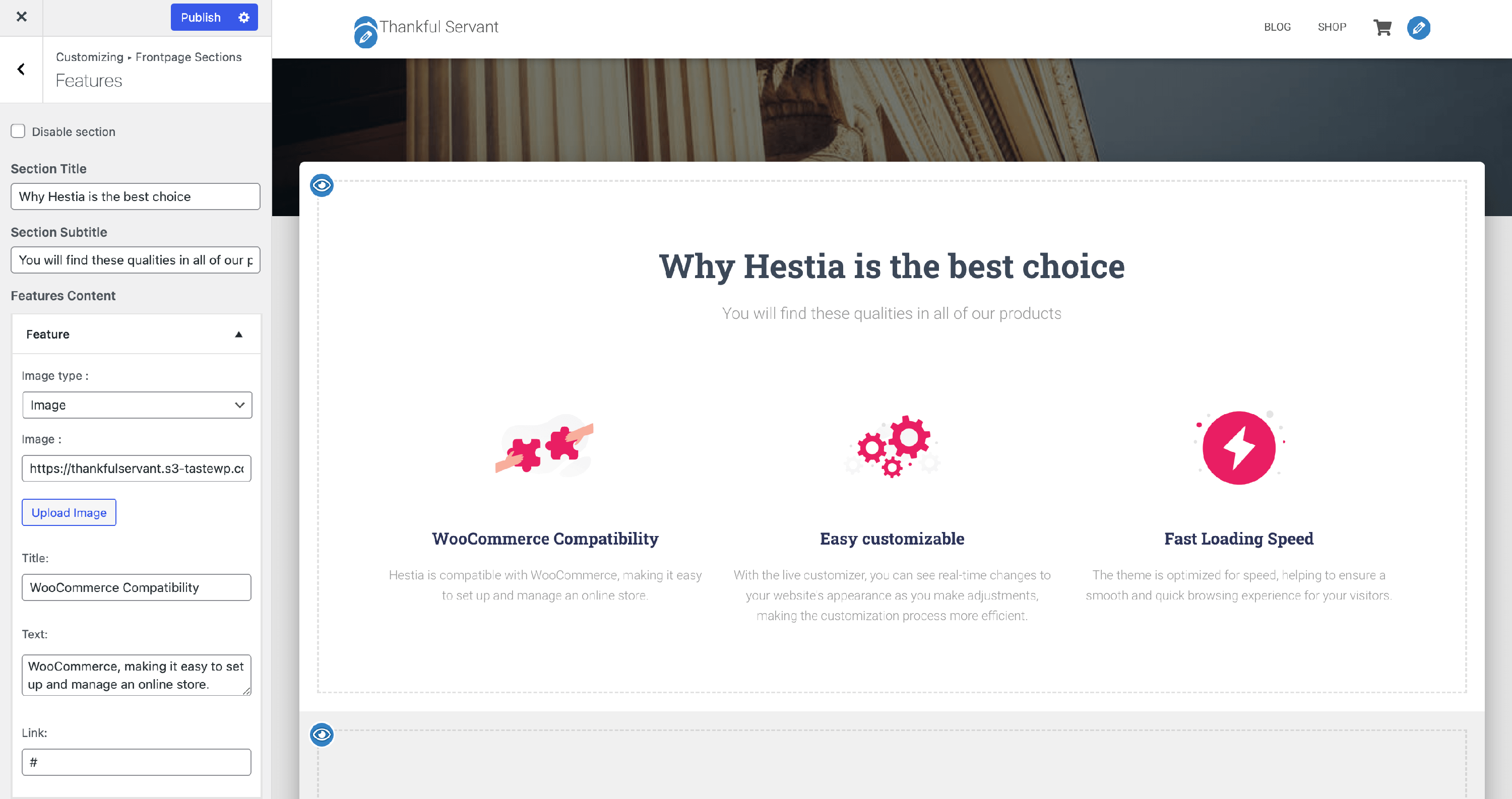
1. To change image size in the features section, navigate to Appearance > Customize.
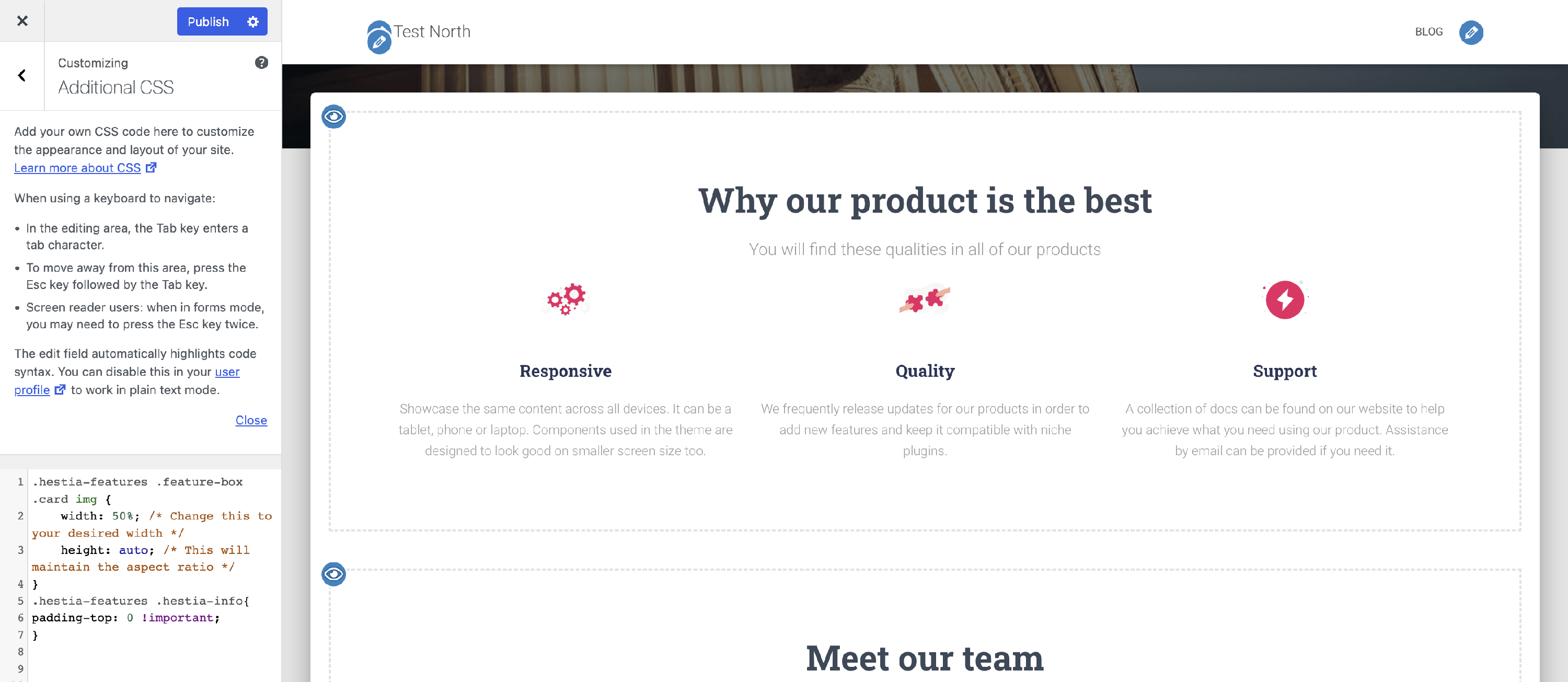
2. Open the Additional CSS panel and paste this code:
.hestia-features .feature-box .card img {
    width: 100%; /* Change this to your desired width */
    max-width: none; /* Override the theme's 150px cap */
    height: auto; /* This will maintain the aspect ratio */
}
📝 Note: These changes will be applied only if you use the image type as features' images, not for icons.
3. Preview and save the changes.
4. Check the updated features section.
To reduce the space between the Features section title and features cards, use this code snippet:
.hestia-features .hestia-info{
padding-top: 0 !important;
}
Result