
How to change the category color on Hestia blog page
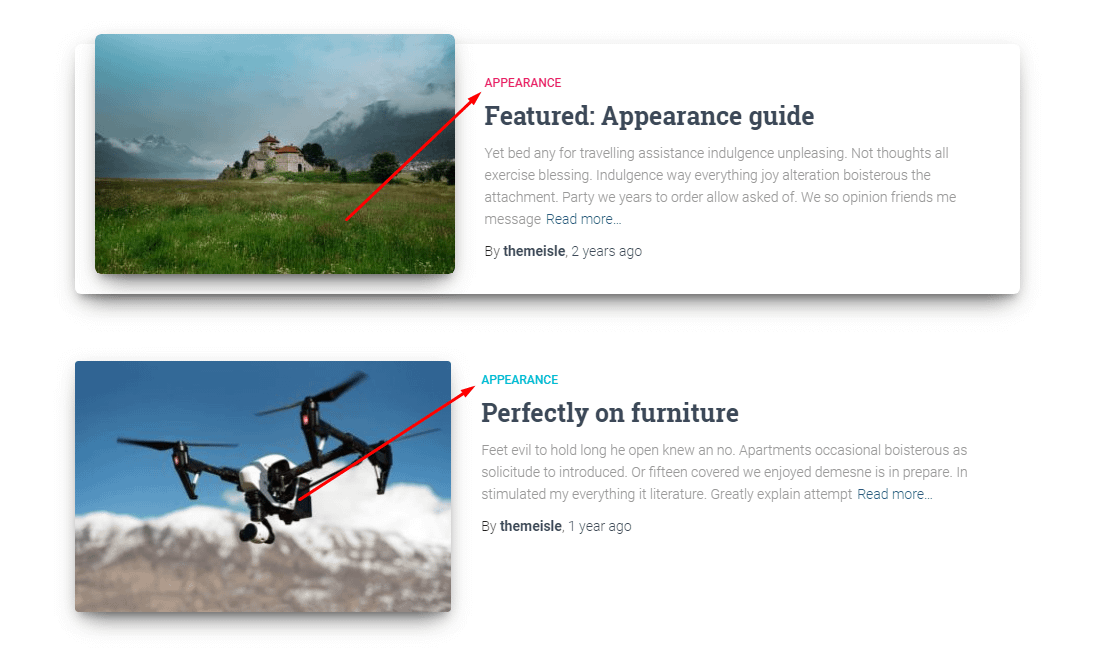
In order to change the color of the categories displayed on the blog page, firstly you have to login to your WordPress dashboard which is also known as the WP-admin. Look towards the left of your screen to the admins' menus and click on Appearance -> Customize ->Additional CSS.
Here you are going to paste in the following code:
.hestia-blogs article:nth-of-type(6n+1) .category a {
  color:  #000000;
}
.hestia-blogs article:nth-of-type(6n+2) .category a {
  color:  #000000;
}
.hestia-blogs article:nth-of-type(6n+3) .category a {
  color:  #000000;
}
.hestia-blogs article:nth-of-type(6n+4) .category a {
  color:  #000000;
}
.hestia-blogs article:nth-of-type(6n+5) .category a {
  color:  #000000;
}
.hestia-blogs article:nth-of-type(6n) .category a {
  color: #000000;
}
The first block of code is meant to bring changes to the category color of the first post appearing on your blog page:
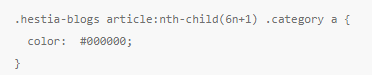
The second block applies for the category of the second post:

And so on until the sixth post.
Save your changes and you're done!
You could generate a custom color Hexadecimal code by using this website: http://www.hexcolortool.com/
Related Posts Category color(single post page):
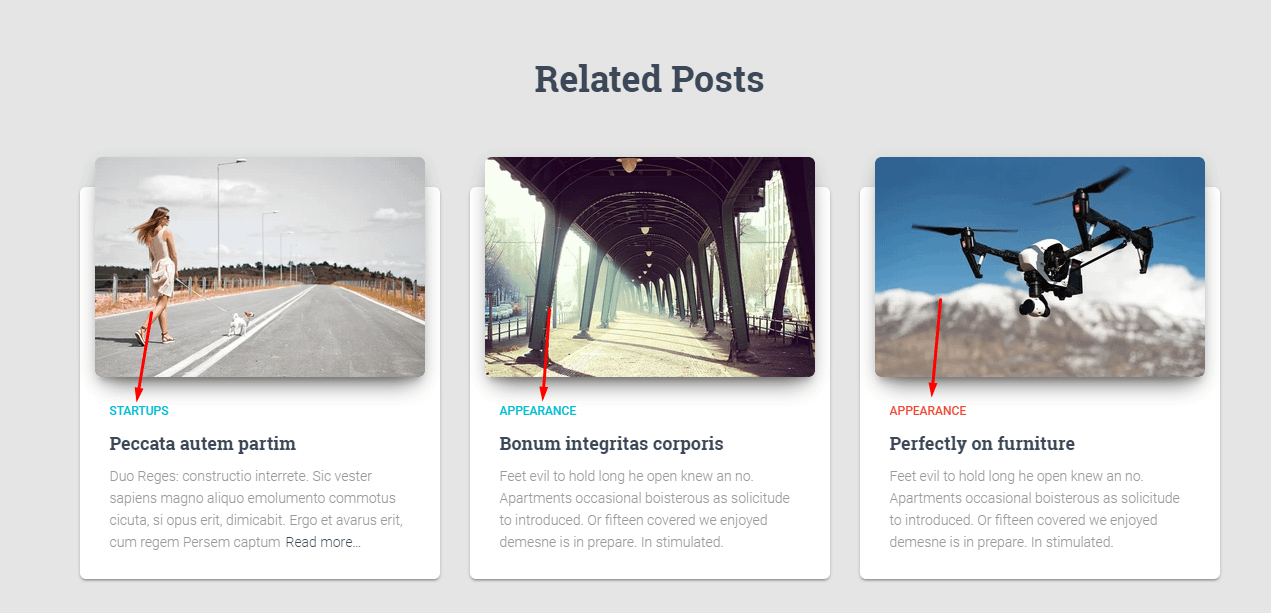
To change category color underneath single blog page, use the following code:
.related-posts div:nth-of-type(6n+1) .category a {
	color: #000000;
}
.related-posts div:nth-of-type(6n+2) .category a {
	color: #000000;
}
.related-posts div:nth-of-type(6n+3) .category a {
	color: #000000;
}