
How to Customize the Big Title Subtitle Font Size in Hestia Pro
If you have tried adjusting the subtitle font size directly inside the Big Title section of the Customizer and noticed that nothing changes, this article explains why and how to fix it.
In this article
Why the subtitle size doesn't change in the Big Title section
The Big Title section's subtitle font size is controlled by the global typography settings, not by the section-specific options. If you adjust a font size inside the Big Title section panel, those changes may be overridden by the global Big Title Section font size slider under Appearance Settings > Typography.
To reliably resize the subtitle, use the global typography controls described below.
Adjust the subtitle font size via global typography settings
- Go to Appearance > Customize in your WordPress dashboard.
- Open Appearance Settings > Typography.
- Click the font size tab.
- Locate the Frontpage Sections group and find the Big Title Section slider.
- Drag the slider to increase or decrease the font size. This adjusts the title, subtitle, and button text proportionally.
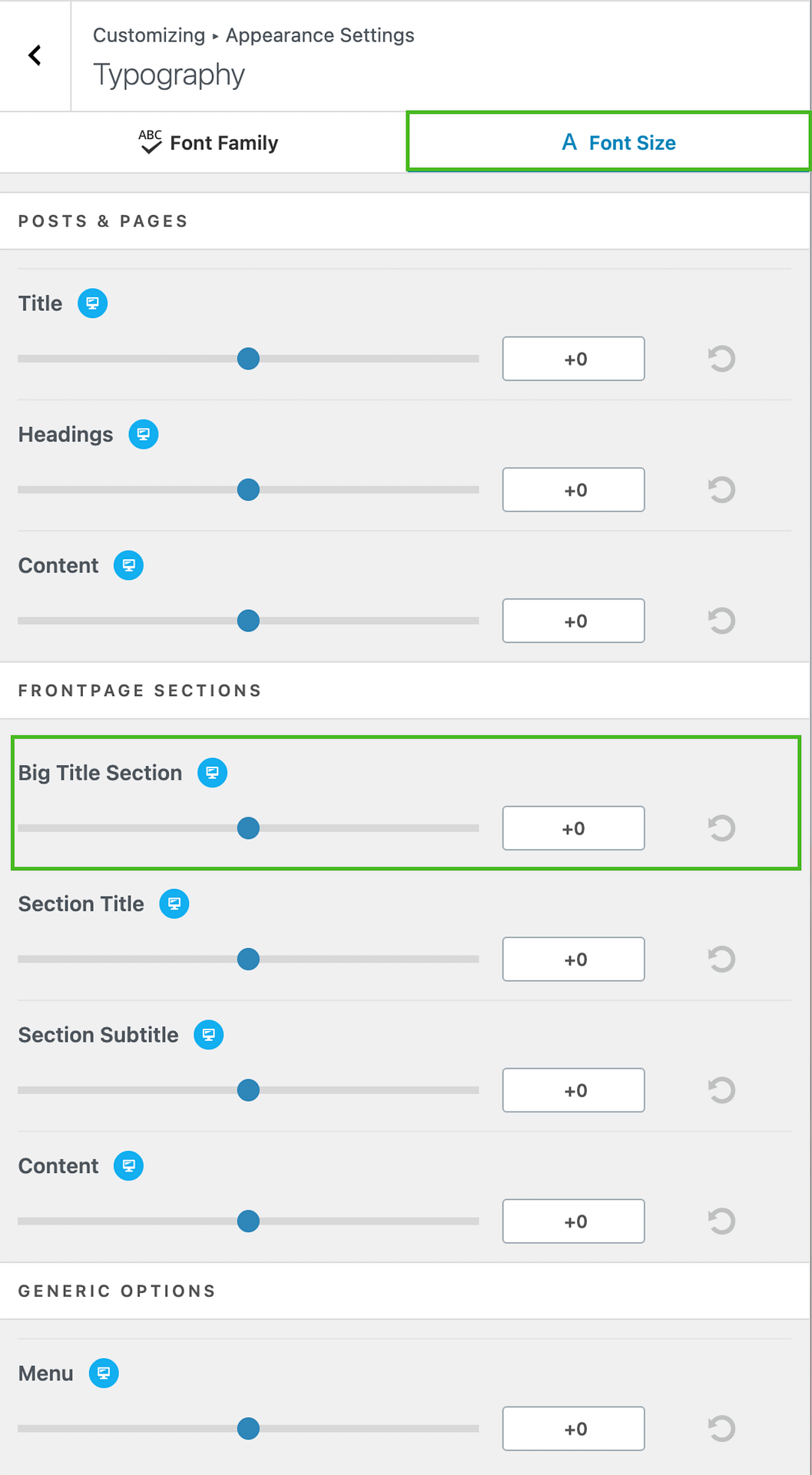
💡 Tip: In Hestia Pro you can set separate values for Desktop, Tablet, and Mobile. Click the device icon next to the slider before adjusting the value to target a specific screen size.
- Click Publish to save your changes.
For more information on responsive font size controls, see Typography Options in Hestia Pro.
CSS workaround for precise subtitle sizing
If you need to set an exact font size for the subtitle only — without affecting the title or button — add custom CSS via Appearance > Customize > Additional CSS:
#carousel-hestia-generic span.sub-title {
    font-size: 24px !important;
}
Adjust the 24px value to match the size you want. You can also add responsive overrides using media queries:
@media (max-width: 768px) {
    #carousel-hestia-generic span.sub-title {
        font-size: 18px !important;
    }
}
For more CSS targeting options specific to the Big Title slider, see How to customize colors, font-size and padding in Hestia.
⚠️ Warning: CSS added in Appearance > Customize > Additional CSS is meant to override theme controls. If you keep a custom Big Title font-size rule, future changes in Appearance Settings > Typography > Font Size > Frontpage Sections > Big Title Section might not affect that same element until you remove or update the CSS.
Troubleshooting: Typography slider changes still do not apply
If the slider value changes in the Customizer preview but not on your live front page, check for conflicting CSS before troubleshooting cache.
- Go to Appearance > Customize > Additional CSS.
- Look for rules that target the Big Title area and set
font-size, especially rules with!important. - Check common conflicting selectors such as:
#carousel-hestia-generic .hestia-title.carousel .hestia-title.carousel span.sub-title#carousel-hestia-generic span.sub-title- Big Title button selectors (for example,
.carousel .buttons .btn)
- Temporarily comment out or remove those conflicting rules, then click Publish.
- Hard refresh your browser with Ctrl + F5 (Windows) or Cmd + Shift + R (Mac).
- Go back to Appearance Settings > Typography > Font Size > Frontpage Sections > Big Title Section and adjust the slider again.
- If needed, clear your site cache and purge your CDN cache.
Verify your changes
After publishing, preview your homepage to confirm the subtitle size has updated. If needed, follow the troubleshooting steps above to remove CSS conflicts and clear cache layers.
📝 Note: The Big Title section covers background images, parallax, video, and slider layouts. For help with those options, see How to Customize Big Title Background Options in Hestia?.