
How to Remove Opacity/Overlay in Hestia Header and Sections
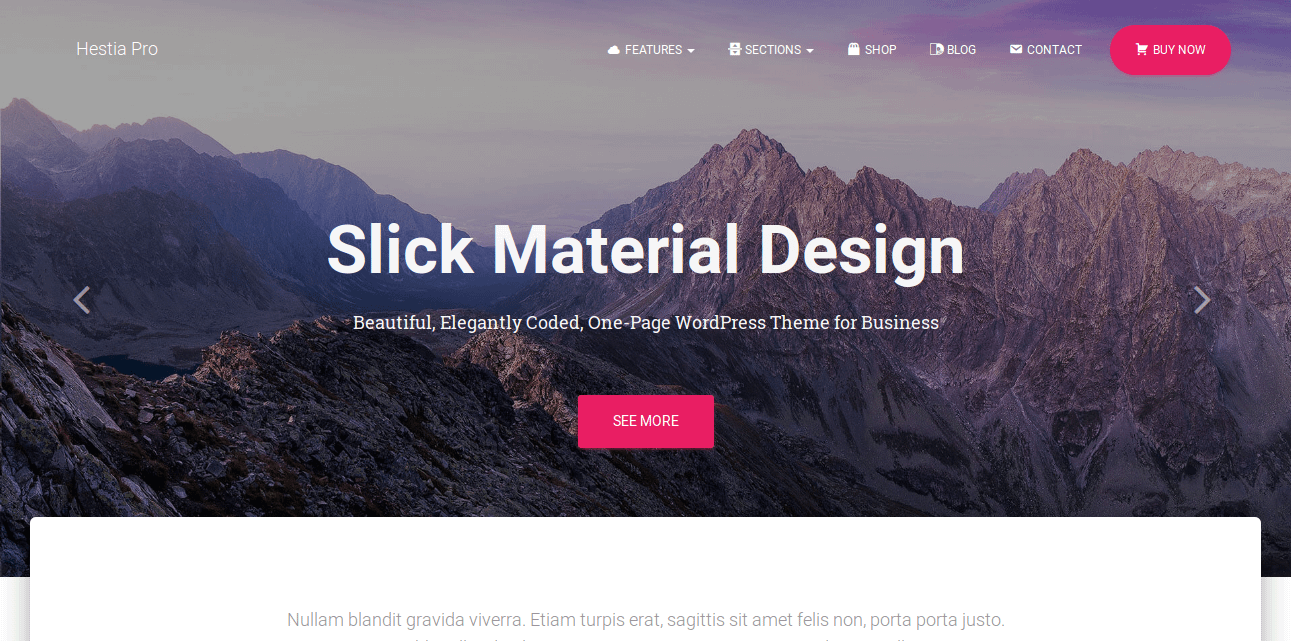
Some of the images in Hestia theme have a dark overlay. In order to edit it, just choose the desired section and follow the instructions.
In this article
Big Title section and Header of the other pages
Please navigate to Appearance > Customize > Appearance Settings > Colors > Header Overlay Color & Opacity.
Move the horizontal slider to zero to remove the overlay totally. And, that's it!
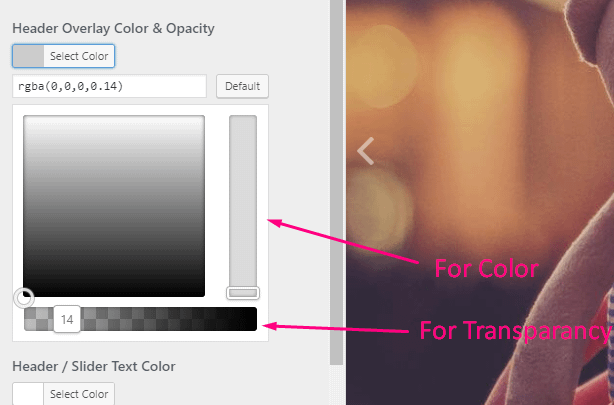
Note: This option is available in the Hestia Pro.
If you are a Hestia Lite user, add the following CSS code to Dashboard -> Appearance -> Customize -> Additional CSS.
.header-filter::before { background-color: rgba(0, 0, 0, 0) !important; }A custom opacity can be set by changing the last parameter. The value should be between 0 and 1. The default was 0.5.
Ribbon section
Add the following CSS code to Dashboard -> Appearance -> Customize -> Additional CSS.
.hestia-ribbon.section-image:after { background-color: rgba(0, 0, 0, 0) !important; }A custom opacity can be set by changing the last parameter. The value should be between 0 and 1. The default is 0.7.
About section
Add the following CSS code to Dashboard -> Appearance -> Customize -> Additional CSS.
.section-image.hestia-about:after { background-color: rgba(0, 0, 0, 0) !important; }A custom opacity can be set by changing the last parameter. The value should be between 0 and 1. The default is 0.7.
Subscribe section
Add the following CSS code to Dashboard -> Appearance -> Customize -> Additional CSS.
.subscribe-line.subscribe-line-image:after { background-color: rgba(0, 0, 0, 0) !important; }A custom opacity can be set by changing the last parameter. The value should be between 0 and 1. The default is 0.66.
Contact section
Add the following CSS code to Dashboard -> Appearance -> Customize -> Additional CSS.
.section-image.hestia-contact:after { background-color: rgba(0, 0, 0, 0) !important; }A custom opacity can be set by changing the last parameter. The value should be between 0 and 1. The default is 0.7.
All over the theme
Add the following CSS code to Dashboard -> Appearance -> Customize -> Additional CSS.
.header-filter::before,
.hestia-ribbon.section-image:after,
.section-image.hestia-about:after,
.subscribe-line.subscribe-line-image:after,
.section-image.hestia-contact:after {
  background-color: rgba(0, 0, 0, 0) !important;
}
A custom opacity can be set by changing the last parameter. The value should be between 0 and 1. The defaults vary by section (see the values noted for each section above).