How to add a custom section to Hestia
Hestia is a flexible theme that lets you add custom sections to the homepage. This article shows how to add a new section, text, image, and content to the homepage in both versions of the theme.
In this article
Using Hestia Pro
Adding a section with Custom Layouts
Custom Layouts let you add blocks, embeds, and plugin shortcodes to specific positions on the homepage without writing any code. This is the recommended method if you want to add visual content such as a gallery, form, or block-based section.
If your content requires a shortcode (for example, a video gallery shortcode generated by a gallery plugin), install the plugin, create the content, and copy the shortcode it provides.
Navigate to Hestia PRO > Custom Layouts and click Add New.
Edit the layout using the WordPress editor. To insert a shortcode, add a Shortcode block and paste your shortcode into it. You can add a Spacer block above or below the content to adjust spacing.
In the layout settings panel, set the location to Hooks and choose the hook position where you want the section to appear. To add content below the Big Title section, select After Big Title Section Hook.
⚠️ Important: Hook positions tied to a specific section (for example, Before Feature Section) only appear if that section is enabled in Appearance > Customize > Frontpage Sections. If the layout is not showing, verify that the target section is active.
Under Conditional Display, add a condition to limit the layout to the front page if needed — for example, use the Front Page condition. If no condition is set, the layout appears on all pages.
Click Publish. The layout must be Published (not saved as a draft) to appear on the site.
📝 Custom Layouts vs Hestia Pro Hooks: Use Hestia PRO > Custom Layouts for visual editor content — blocks, embeds, and shortcodes. Use Hestia Pro > Hestia Pro Hooks (described below) for raw HTML or PHP code snippets. Do not enter shortcodes or layout names directly in the Hestia Pro Hooks text fields.
For more details on layout locations, conditional rules, and troubleshooting visibility, see Custom Layouts in Hestia Pro.
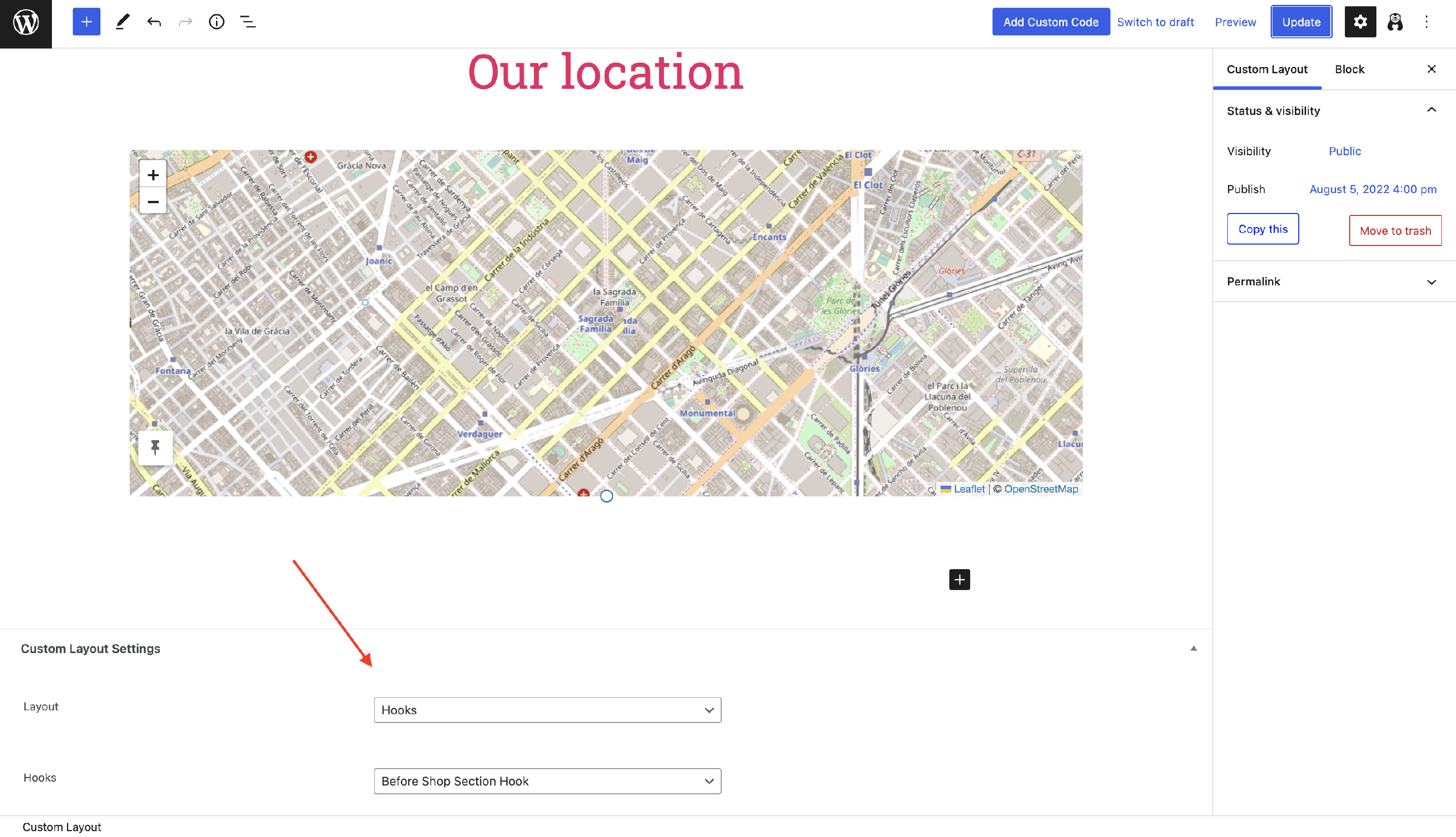
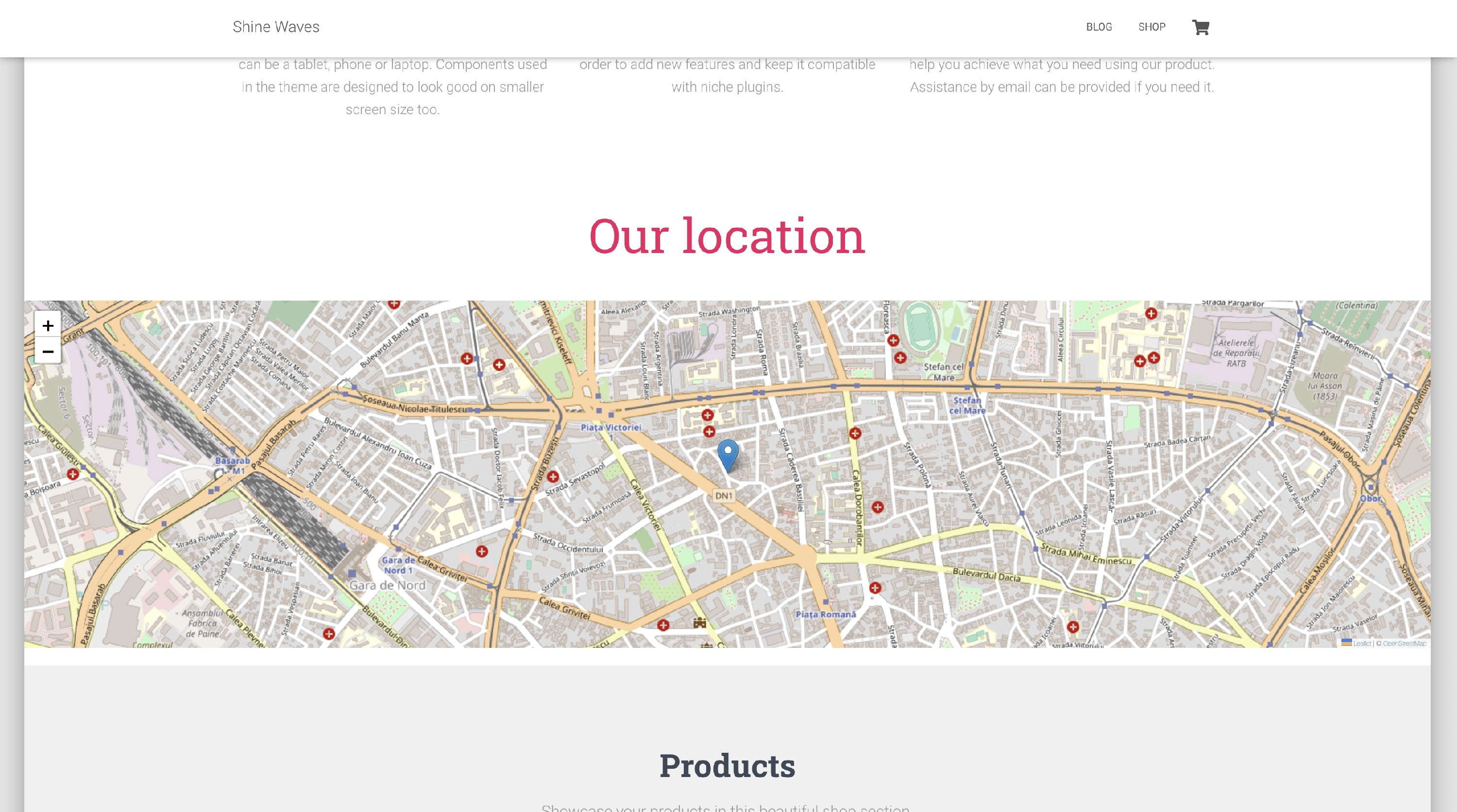
Example: Add a location map before the Shop section
This example adds a location using the Otter Blocks Maps block and the Before Shop Section Hook:
Adding a section with Hestia Pro Hooks
Use Hestia Pro > Hestia Pro Hooks to inject raw HTML or PHP code into a hook position. This is the appropriate method when you need to add code-based content without editing theme files directly.
Create the section you want to add to the homepage, either with a plugin or by writing your own HTML / PHP code.
Navigate to Hestia Pro > Hestia Pro Hooks and find the hook you need.
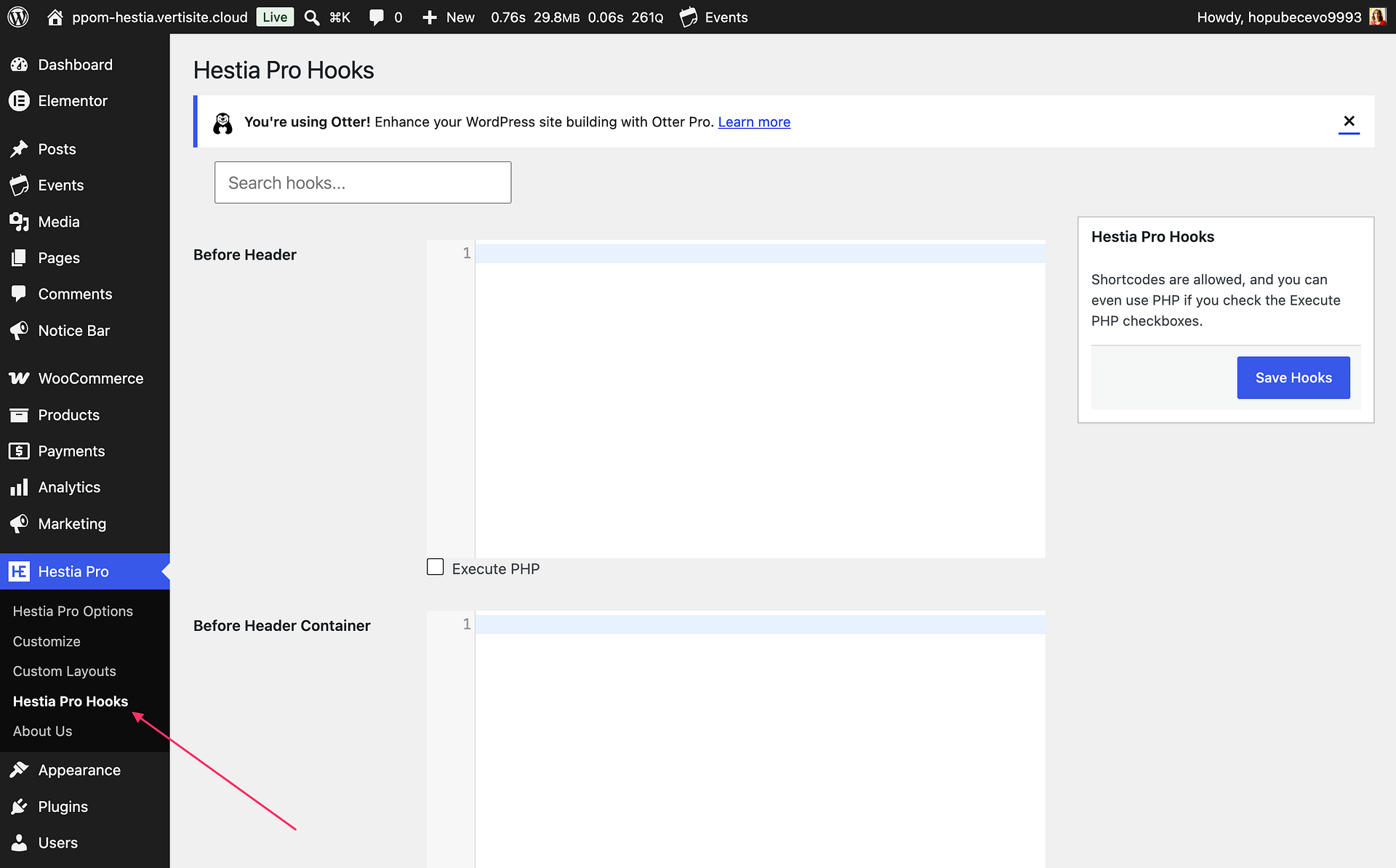
📝 Note: For a better overview of where the hooks are, visit your site's front end while logged in as an admin and click the Show Hooks button in the admin bar, or see the Hestia PRO hook locations.
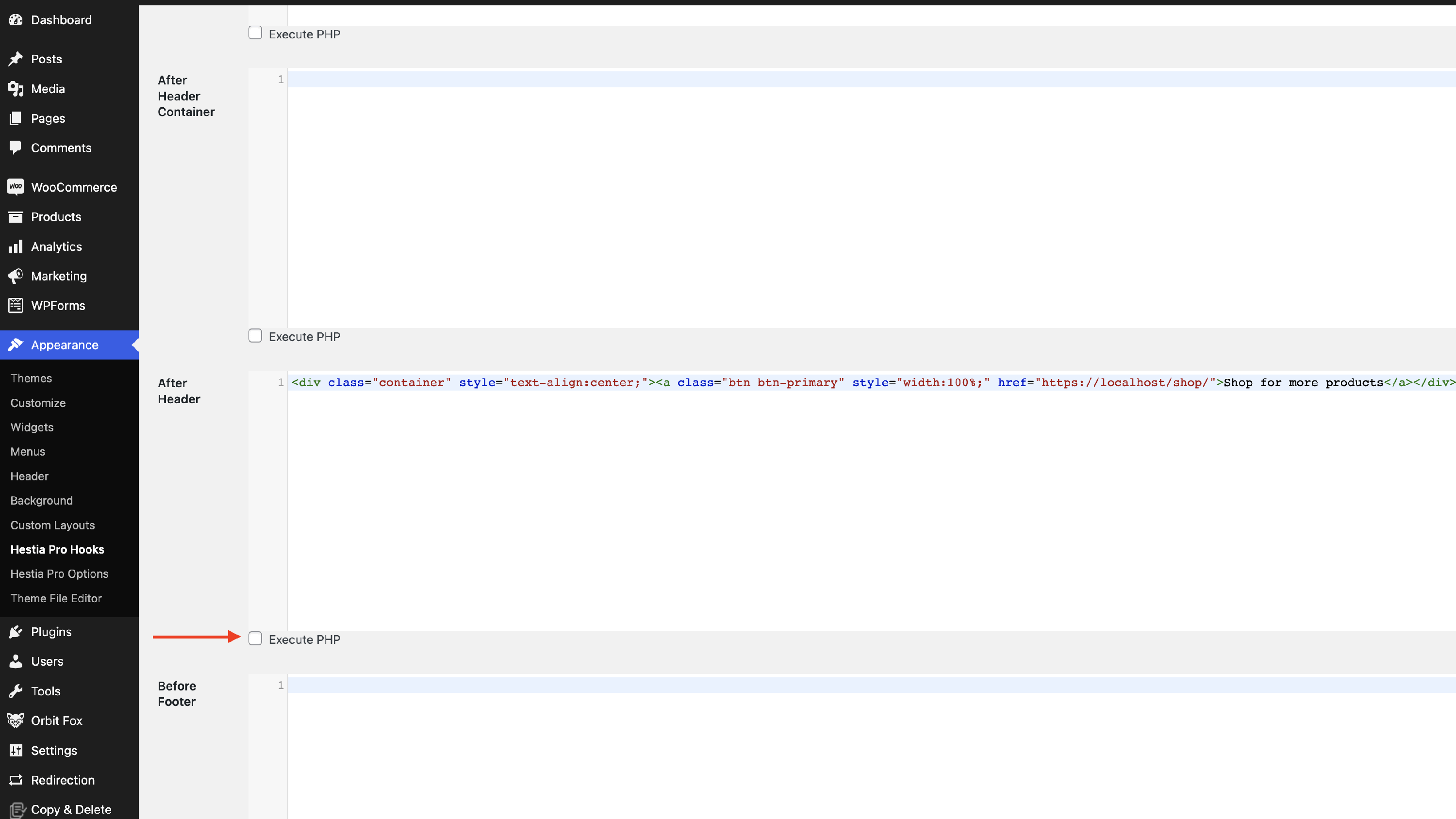
Add the new section's code to the text field and check the Execute PHP checkbox.
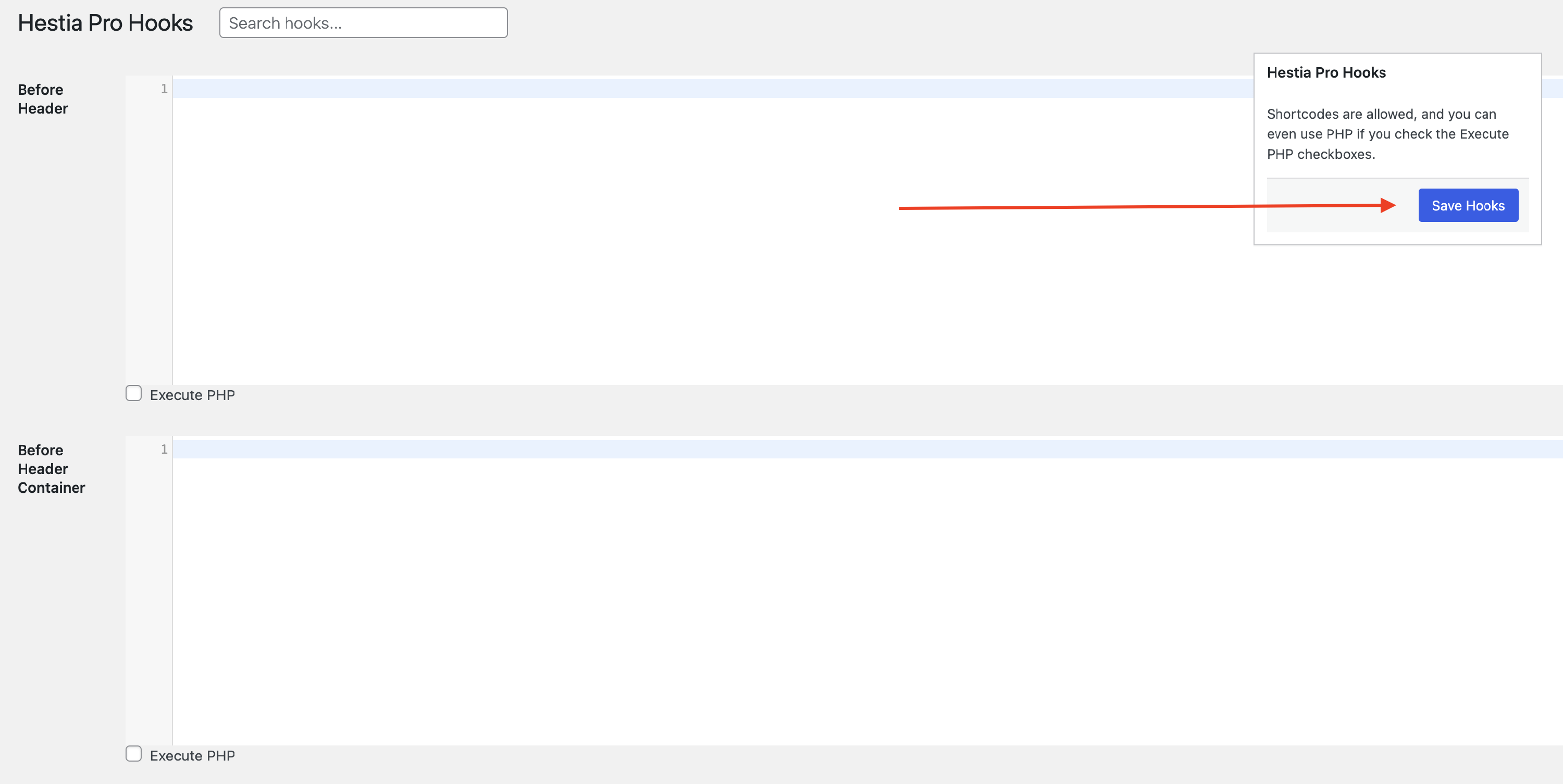
Go to the top of the page and click the Save Hooks button.
Example: Add a "Shop for more products" button after the Shop section
- Create the HTML / PHP code for the section. For this button, the HTML code is:
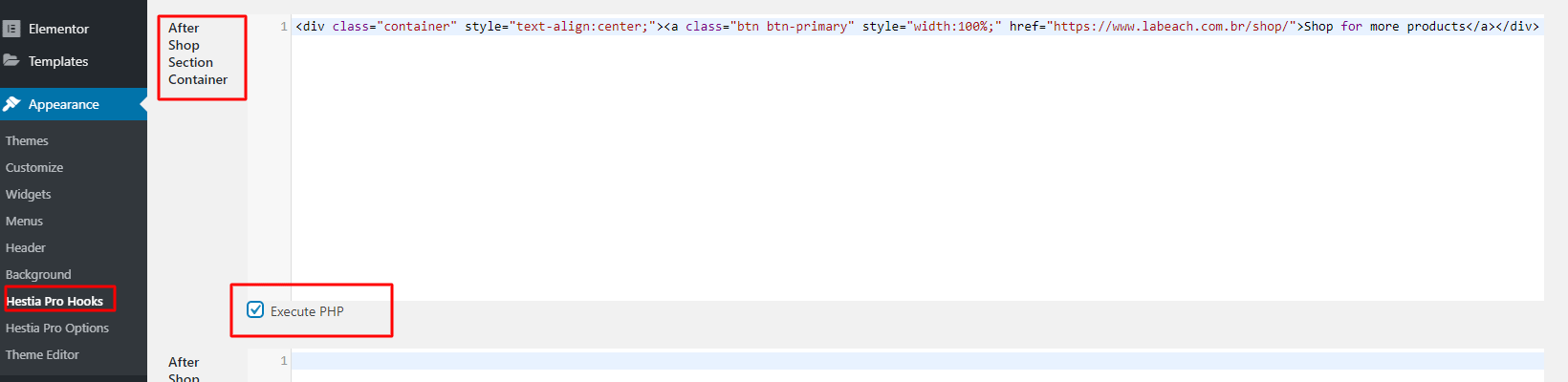
<div class="container"><a class="btn btn-primary" href="https://localhost/shop/">Shop for more products</a></div>📝 Note: Make sure to replace https://localhost/shop/ with the link to your shop page.
Add it to the After Shop Section Container hook.
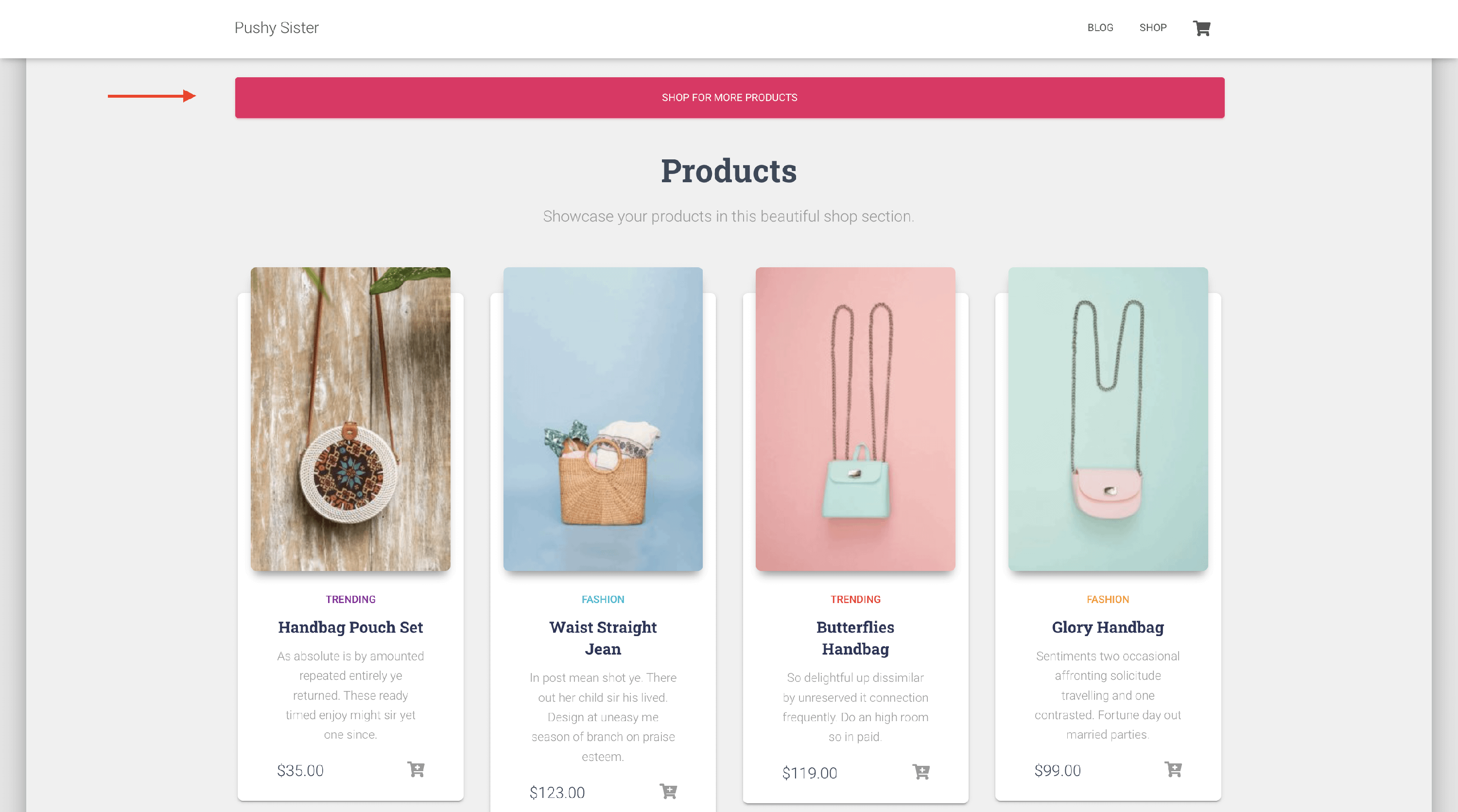
The result looks like this:
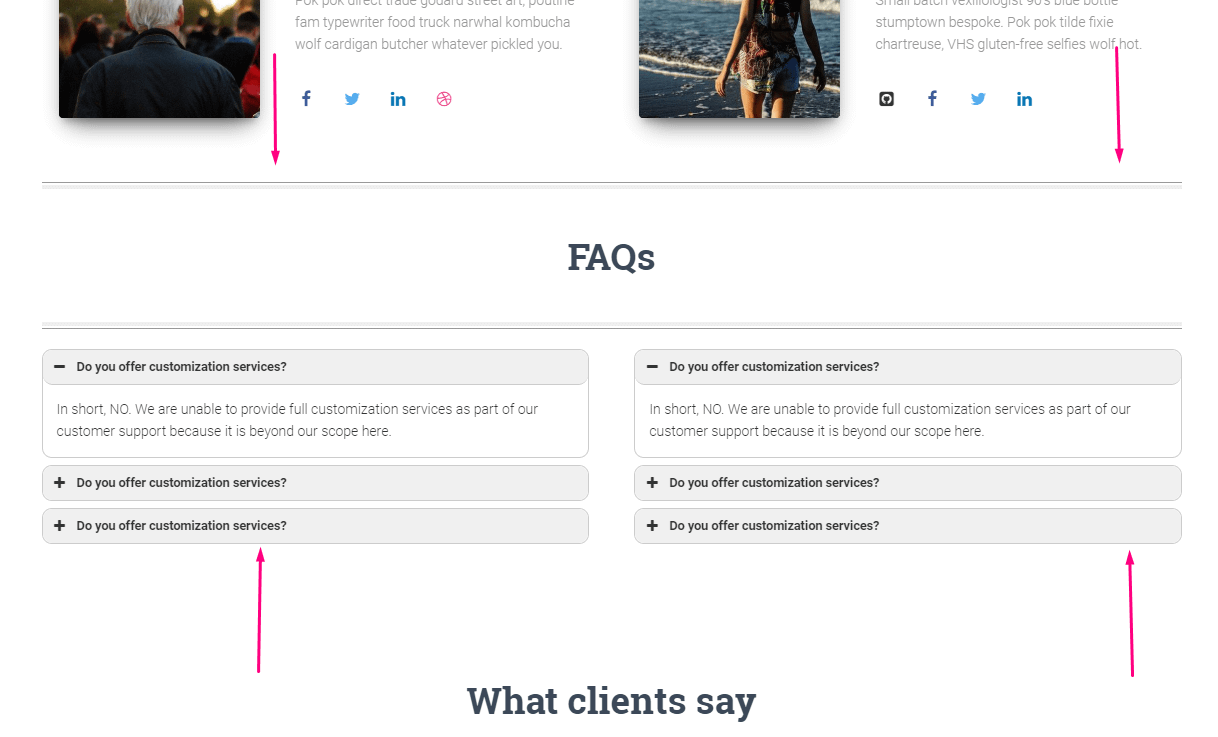
Example: Add a FAQs accordion section after the Team section
- Using a plugin like Shortcodes Ultimate Plugin, create a new section by going to Shortcodes > Available Shortcodes.
- Copy the shortcode you want, and paste it in Hestia Pro > Hestia Pro Hooks, in the hook that best fits your needs.
This example uses the After Team Section hook:
Using Hestia Free
📝Note: This Hestia Lite guide assumes you know how to use FTP and edit your website's files. It only adds a few types of sections using the Hestia hooks and provides the code to center them. If you add your own shortcodes and they are not centered, you need to add your own CSS/HTML to fix the issue, or contact a freelancer for assistance.
Small setup
- Create a child theme for Hestia.
- If your site is already up and running, create a site-specific plugin. See how to create a site-specific plugin. When creating the plugin file, the only text required is:
<?php
/*
Plugin Name: Hestia Custom Sections
Description: Adds custom sections to Hestia's front page.
*/- Save your plugin file changes and then activate the plugin. You are now ready to add custom sections.
Adding the section code
In the functions.php file of your Hestia child theme, or in the plugin file you created for your site-specific plugin, you need to create a function and then attach that function to the Hestia hook you want to use.
📝 Note: You can see all the available Hestia hooks on the Hestia PRO hook locations page.
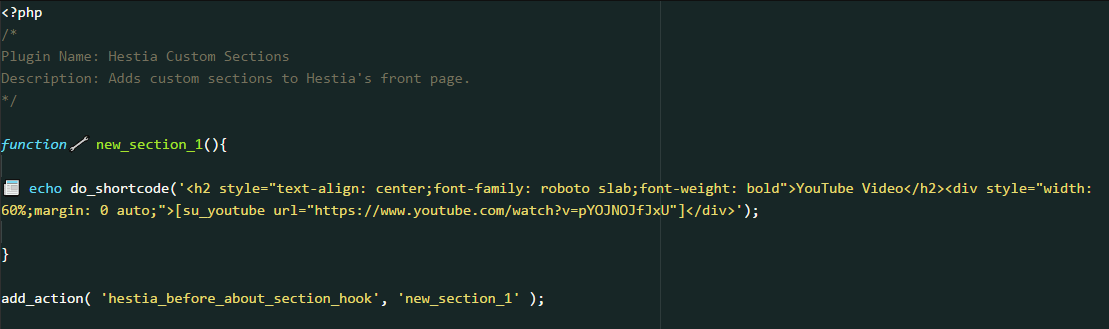
- Paste the following code into the file. It already includes some CSS to center the video and format the text to suit the theme:
function new_section_1(){

echo do_shortcode('<h2>YouTube Video</h2><div>[su_youtube url="https://www.youtube.com/watch?v=pYOJNOJfJxU"]</div>');

}

add_action( 'hestia_before_about_section_hook', 'new_section_1' );
You should have something that looks like this:
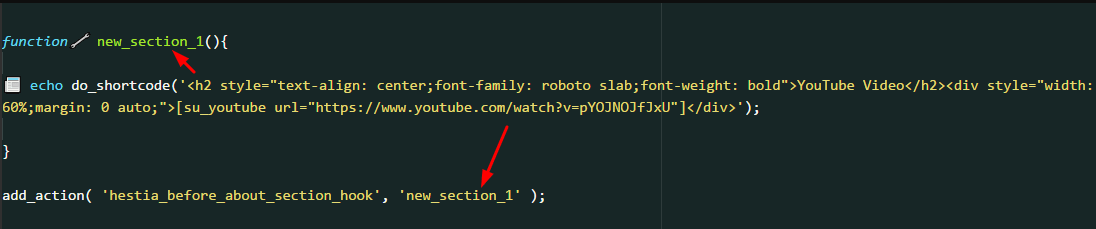
You can change the name "new_section_1" in the code above to any name you like, but be sure to change it in both locations:
📝 Note: The code above adds a YouTube video before the About section in Hestia. You can change the video by changing the YouTube link in the code. To change the location of the video on the front page, change the hook.
The hook used above is:
hestia_before_about_section_hookUseful Resources
Adding two different videos
To show two different videos in two different sections, add two similar blocks of code with a different hook and function name. The example below adds different videos before the About section and before the Shop section:
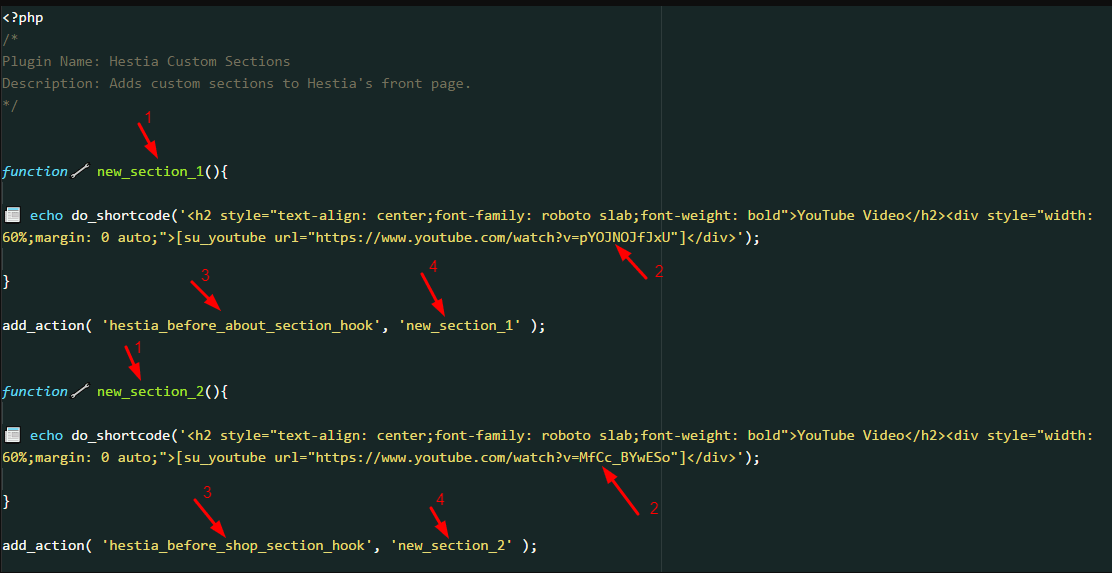
📝 Note: Follow the numbered arrows to identify the changes. You can repeat this step to add as many video sections as you like in different parts of the front page.
Adding buttons
The steps are the same as above; only the CSS and the shortcode change. To add a button and center it, use this code with your function and hook of choice:
do_shortcode('<div>[su_button radius="square" url="http://google.com"] Click me [/su_button]</div>');📝 Note: In this example, the button links to google.com, but you can change it to any link you like.
To add a button below the video in one of your custom sections, add the new block of code beneath the existing one. Your code would look like this:
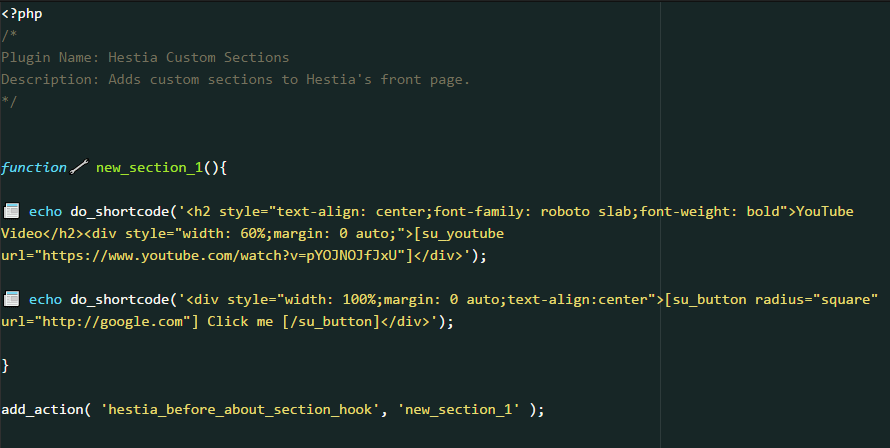
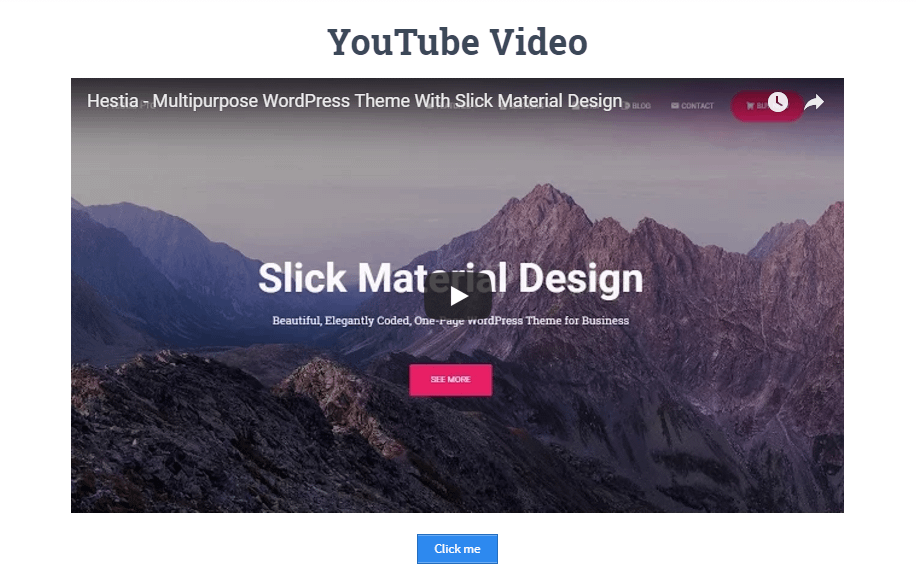
The outcome is: