
How to Customize Big Title Background Options in Hestia?
The Big Title section is the main front page section where you can showcase your hero image. In Hestia, you have two options, either to display a simple image or to use the Parallax effect, which is combining two images and overlapping them to create a nice moving effect.
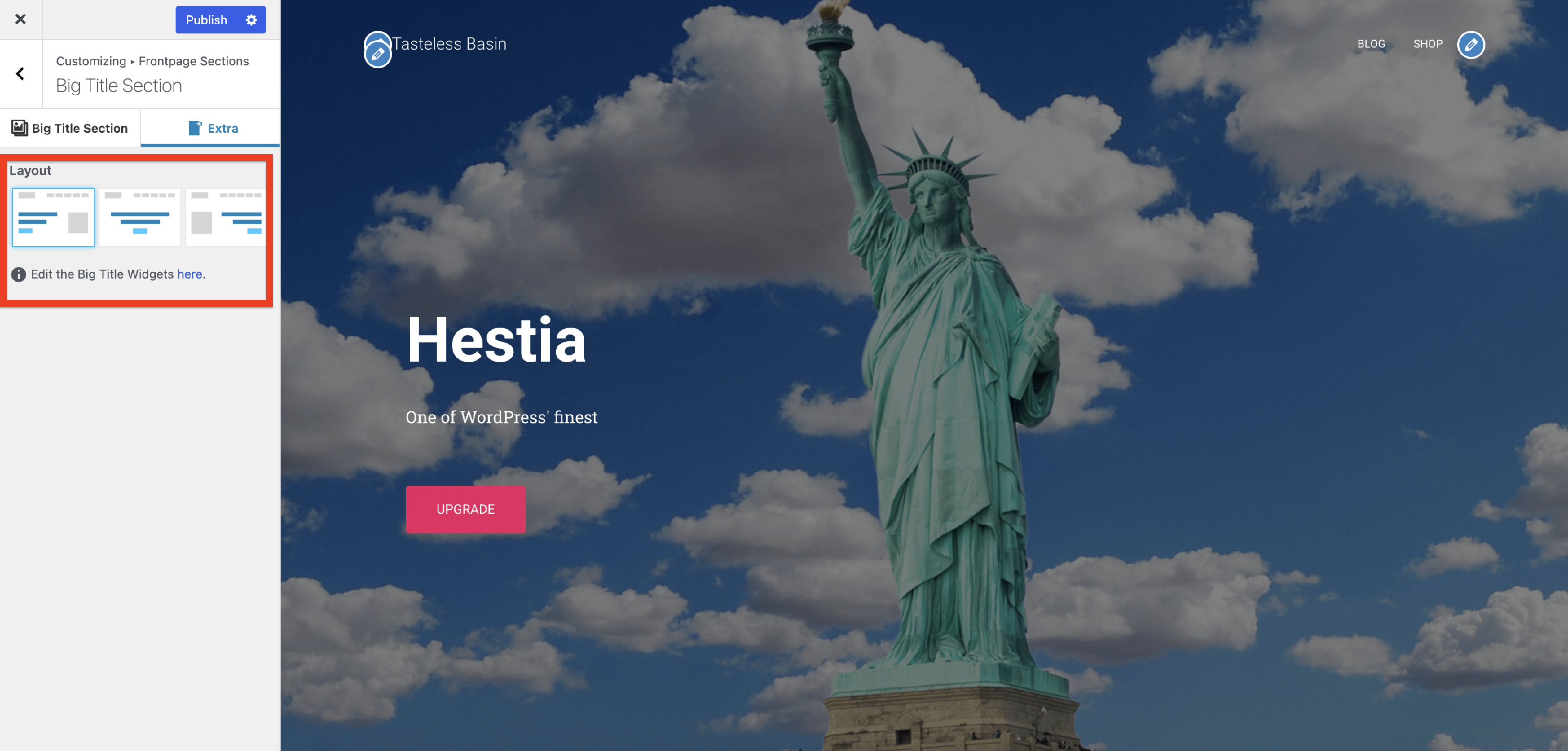
The Extra panel offers you the possibility of choosing one of the three layouts available for the big title section: Left, Center, and Right. Selecting Left or Right aligns the text to that side and activates the Big Title Section widget area on the opposite side. The Center layout (the default) centers the text and does not expose a widget area.
In this article
Image
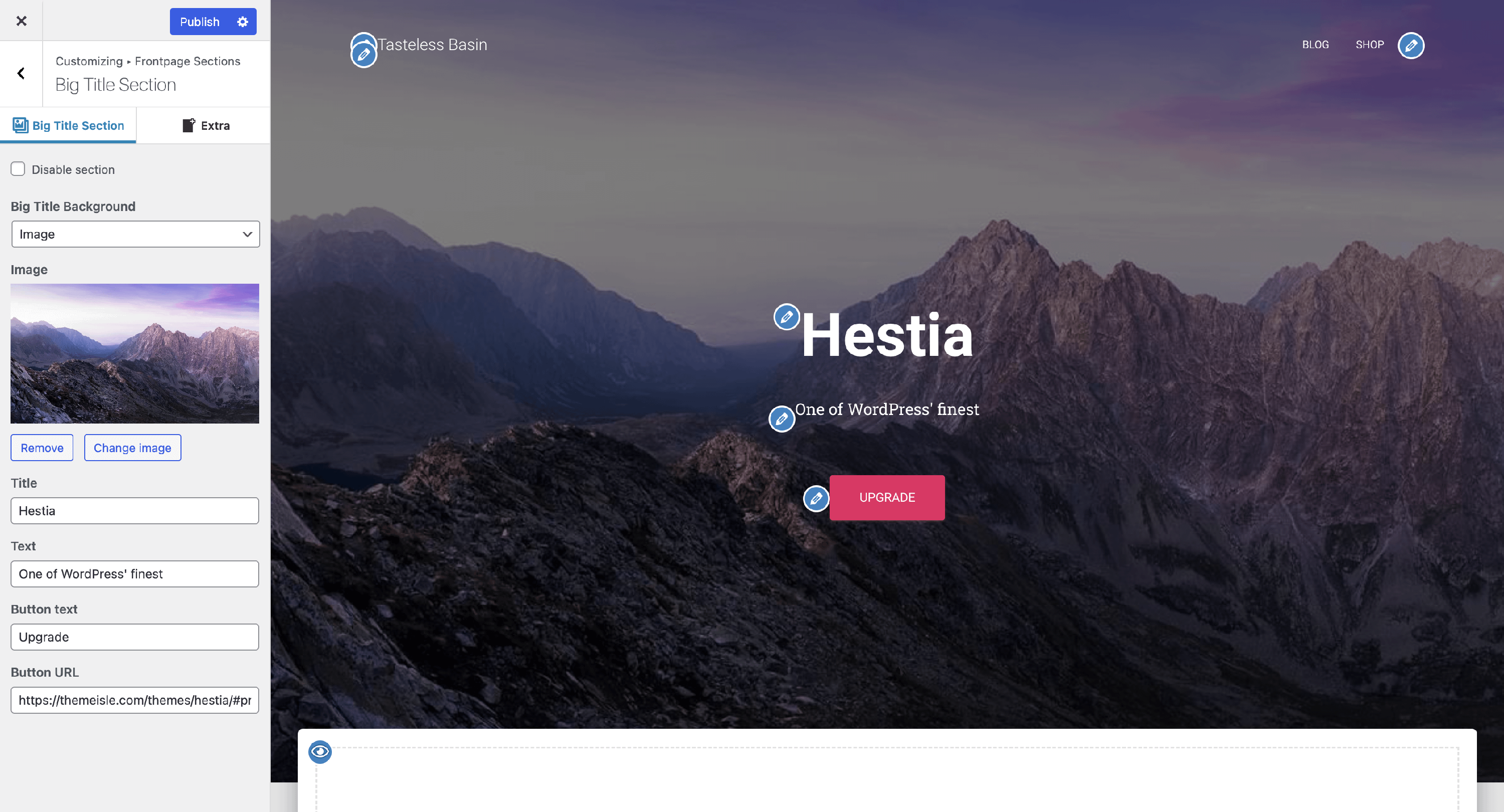
The image background can be used to create an appealing hero section for your website. You can configure the title, subtitle, button text, and URL.
Parallax
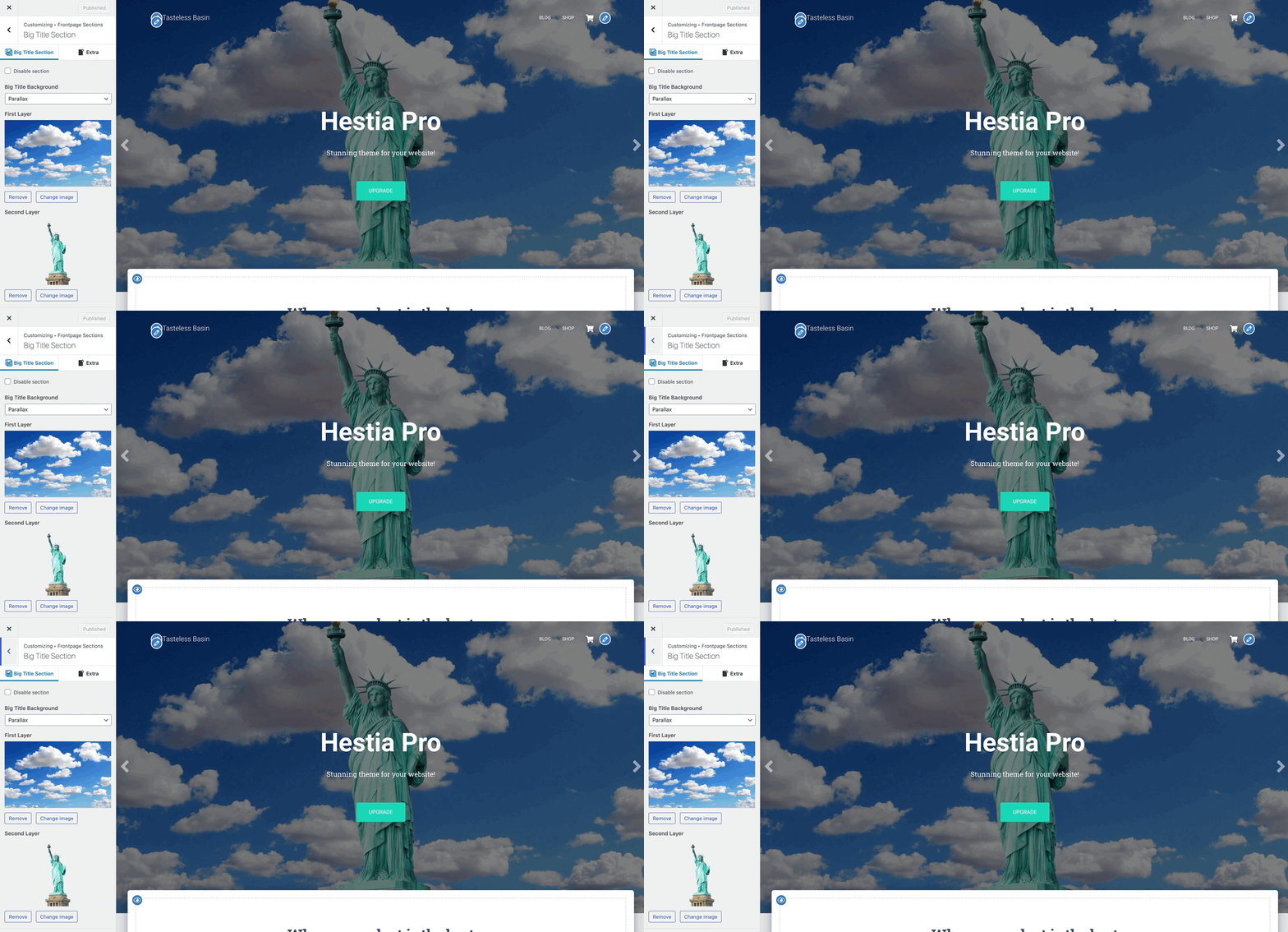
Boost the visual appeal of your website with the fascinating parallax effect that seamlessly combines two images and produces a captivating moving effect. The effect is achieved by overlapping two or more images with different depths, giving the impression of a 3D-like animation.
For this, you will have to configure the first and second layers, which will move at different speeds as the user scrolls down the webpage. The first layer, typically the foreground, will move at a slower speed, while the second layer, usually the background, will move at a faster speed.
Video
📝 Note: This is part of Hestia Pro, which you can get from here. Learn more about Hestia Free vs. Pro.
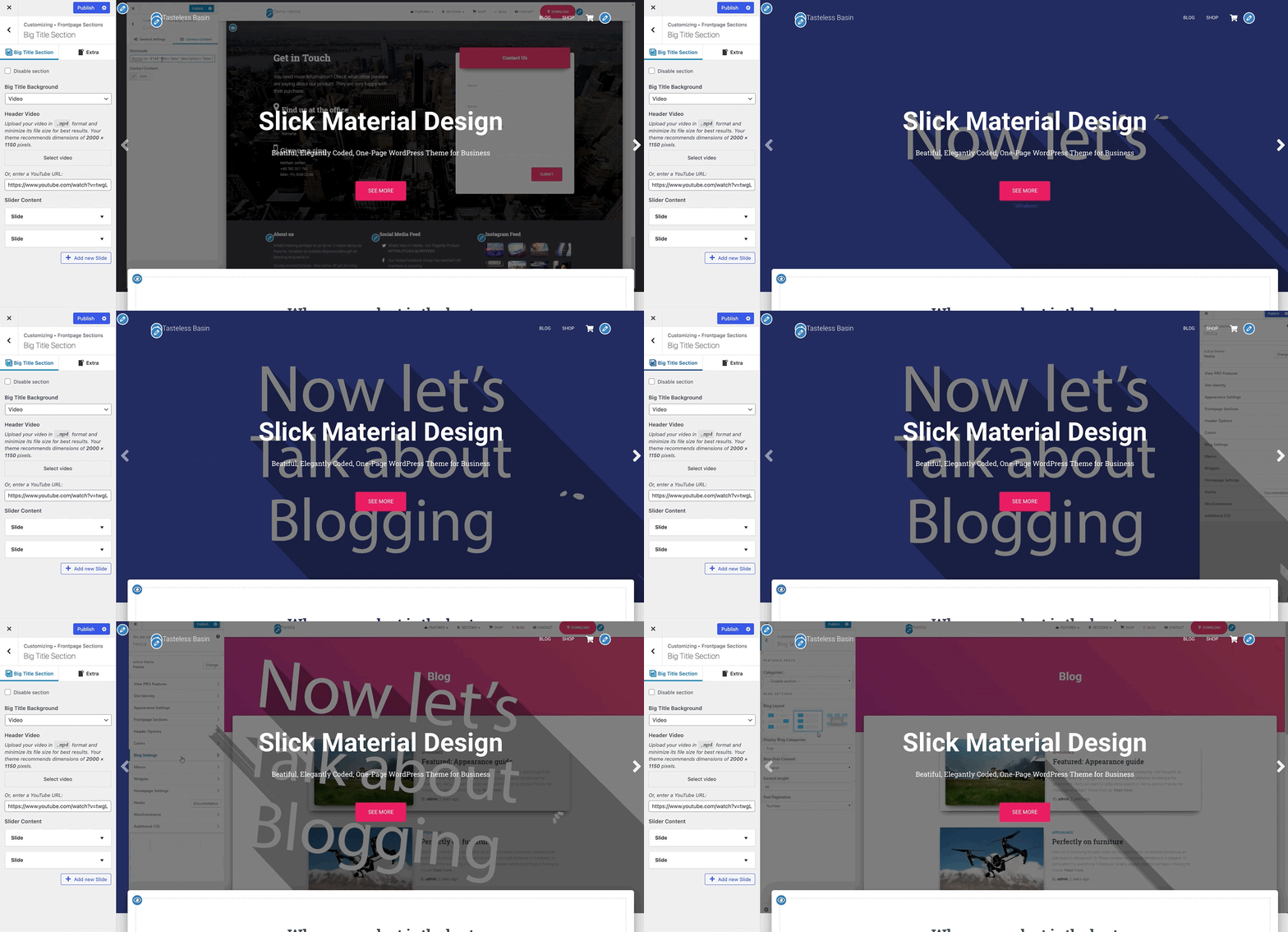
Apart from the image and parallax, you can also easily add a video background for the hero area. You can either select a .mp4 video from your computer or enter a YouTube URL.
Slider
📝 Note: This is part of Hestia Pro, which you can get from here. Learn more about Hestia Free vs. Pro.
The image background is enhanced by the possibility of adding multiple images inside the hero area through the slider content. For each of the images in the slider, you can configure a button and second button color, text, and link, as well as a title and subtitle, including a second line in the subtitle.
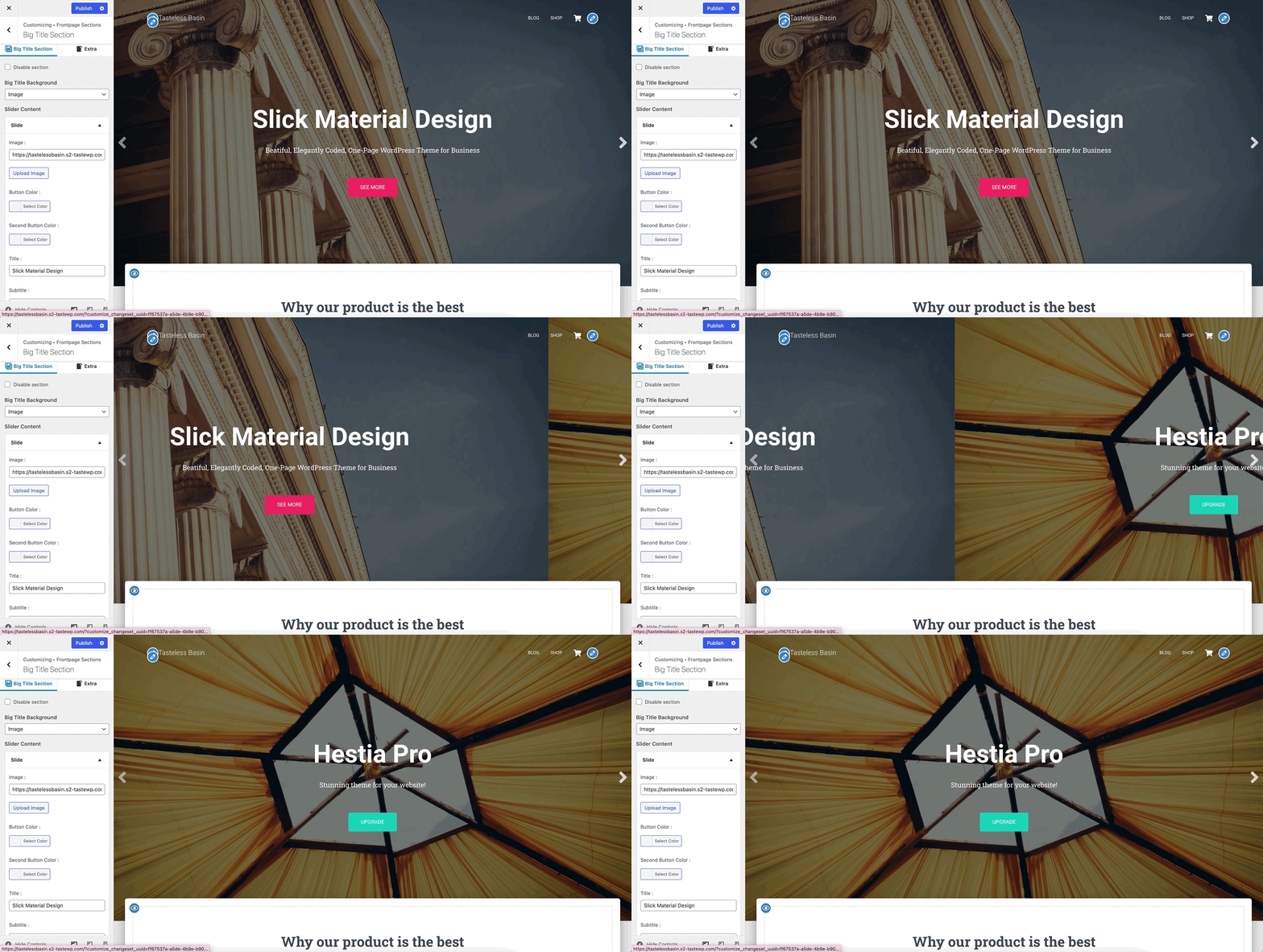
Format the slider subtitle on multiple lines
To add another line below the main slider title, edit the slide's Subtitle field in:
Appearance > Customize > Frontpage Sections > Big Title Section > Slider Content
Then open the slide you want to change and add this example in the Subtitle field:
<strong>An Autograph Brand</strong><br>Existing subtitle text<strong>makes the first phrase bold.<br>moves the following text to a new line.
Replace both example phrases with your own text, preview the section, and click Publish when everything looks right.
After publishing, open your live homepage and check the slide to confirm the bold line and second subtitle line display correctly.
📝 Note: This guidance is verified for <strong> and <br> in the Subtitle field. If you want to use other HTML tags, test them first before publishing.
The slider effect is also available for the parallax and video background types so that you can configure the title, subtitle, and buttons' text and color.
Add a video as content in the Big Title section
The Video option above replaces the section background with a looping video. To display a standard embedded video that visitors can watch — such as a product demo or brand clip — use the Big Title Section widget area instead.
📝 Note: The Big Title Section widget area is available in both Hestia and Hestia Pro. In Hestia Pro, the Edit the Big Title Widgets shortcut link also appears in the Customizer's Extra tab. Learn more about Hestia Free vs. Pro.
The widget area only becomes accessible when the Extra layout is set to Left or Right. Follow these steps:
- Go to Appearance > Customize > Frontpage Sections > Big Title Section and open the Extra tab.
- Under Layout, select Left or Right.
- Click the Edit the Big Title Widgets link that appears below the layout options, or go to Appearance > Widgets > Big Title Section.
- Add a Video block to display an uploaded video file, or an Embed block to display a YouTube or Vimeo URL.
- Click Publish.
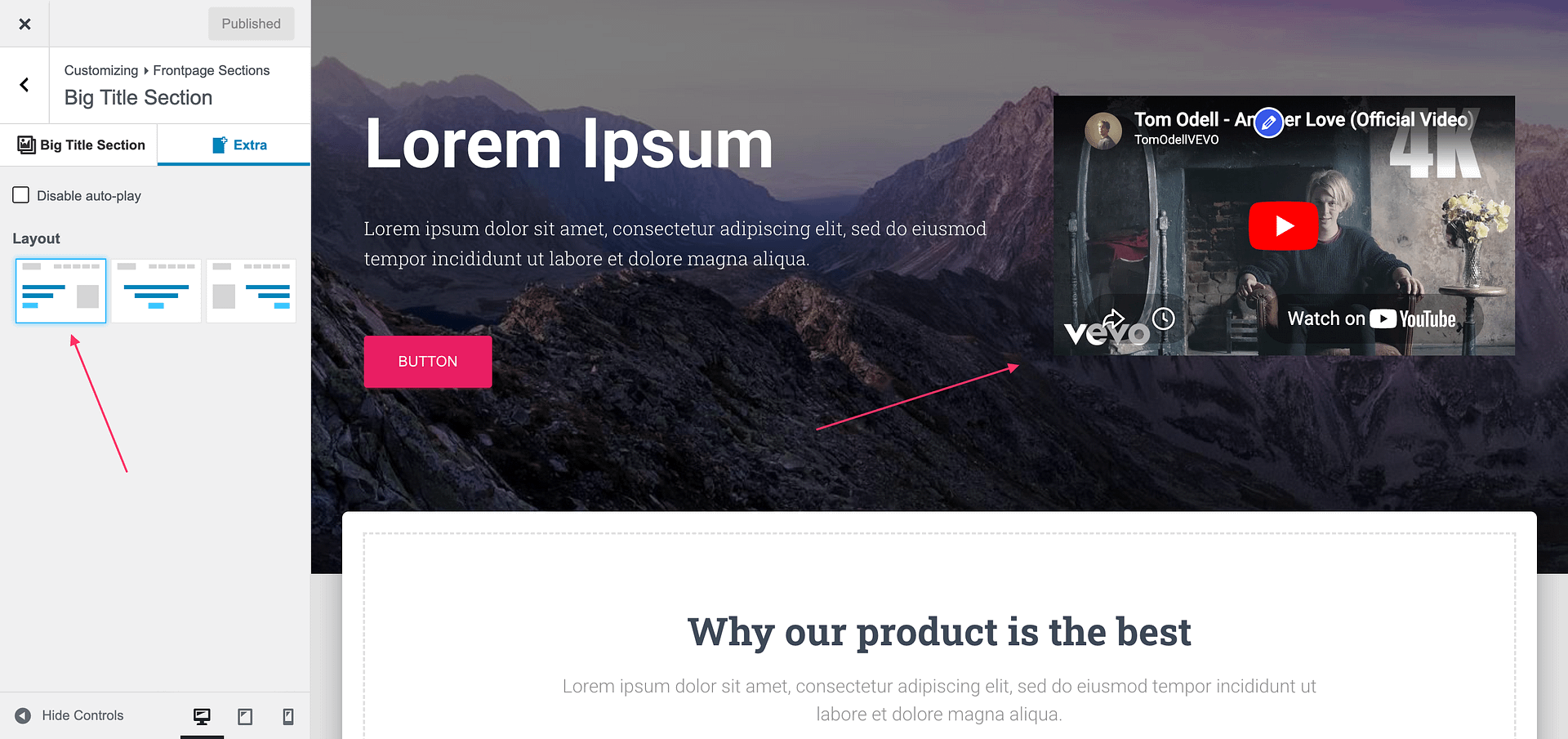
📝 Note: When you select Left layout, the text shifts to the left and the widget area appears on the right side of the section, and vice versa.
📝 Note: Custom hooks are not required for this use case. Hooks and custom layouts are only needed when you want to place content entirely outside the built-in Big Title layout. For those advanced scenarios, see Custom Layouts in Hestia Pro.