
How to Manage LightStart with an AI Assistant
Connect an AI assistant to LightStart through Easy MCP AI to check maintenance mode, update its settings, or review captured subscribers.
In this article
What you need
- LightStart with AI assistant support.
- Easy MCP AI, the free WordPress plugin that connects AI clients to your site. The LightStart setup wizard can install and activate it for you.
- An AI client connected to your WordPress site with a user account that has permission to manage the relevant LightStart settings or view subscribers.
Install Easy MCP AI from the LightStart setup wizard
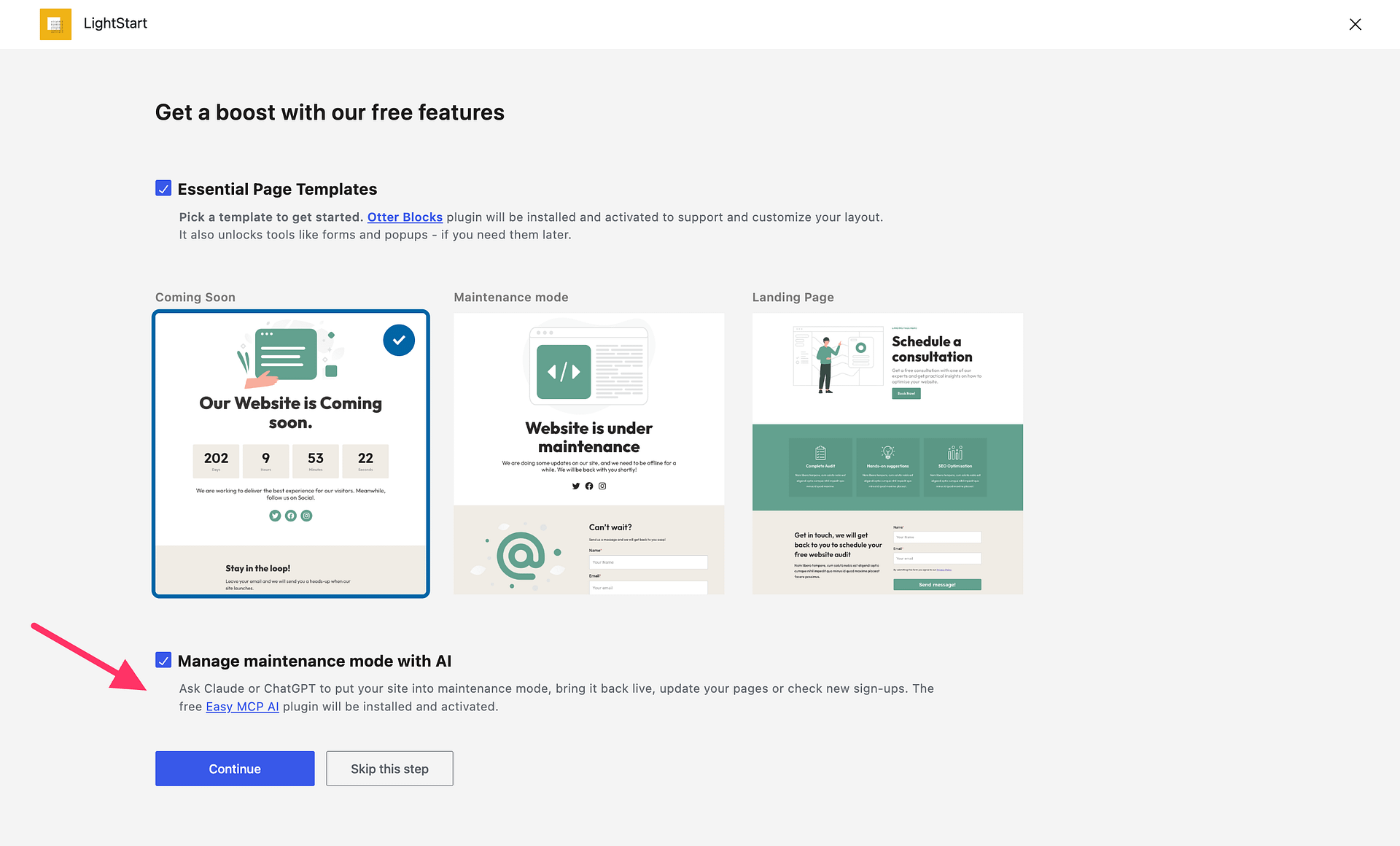
- Open the LightStart setup wizard in your WordPress dashboard.
- Leave Manage maintenance mode with AI selected to install Easy MCP AI, or clear the checkbox if you do not want the integration.
- Click Continue. When the checkbox is selected, LightStart installs and activates Easy MCP AI.
- Follow the Easy MCP AI getting-started guide to connect an AI client. For client-specific connection steps, use the guide for ChatGPT, Claude.ai, Claude Desktop, Claude Code, or Cursor.
Connect your AI client and enable LightStart's abilities
In your WordPress dashboard, open Easy MCP AI > Dashboard. In the Connect your AI client area, choose your AI client and follow the on-screen steps to connect it to your site. If you use another compatible connector, follow its connection instructions.
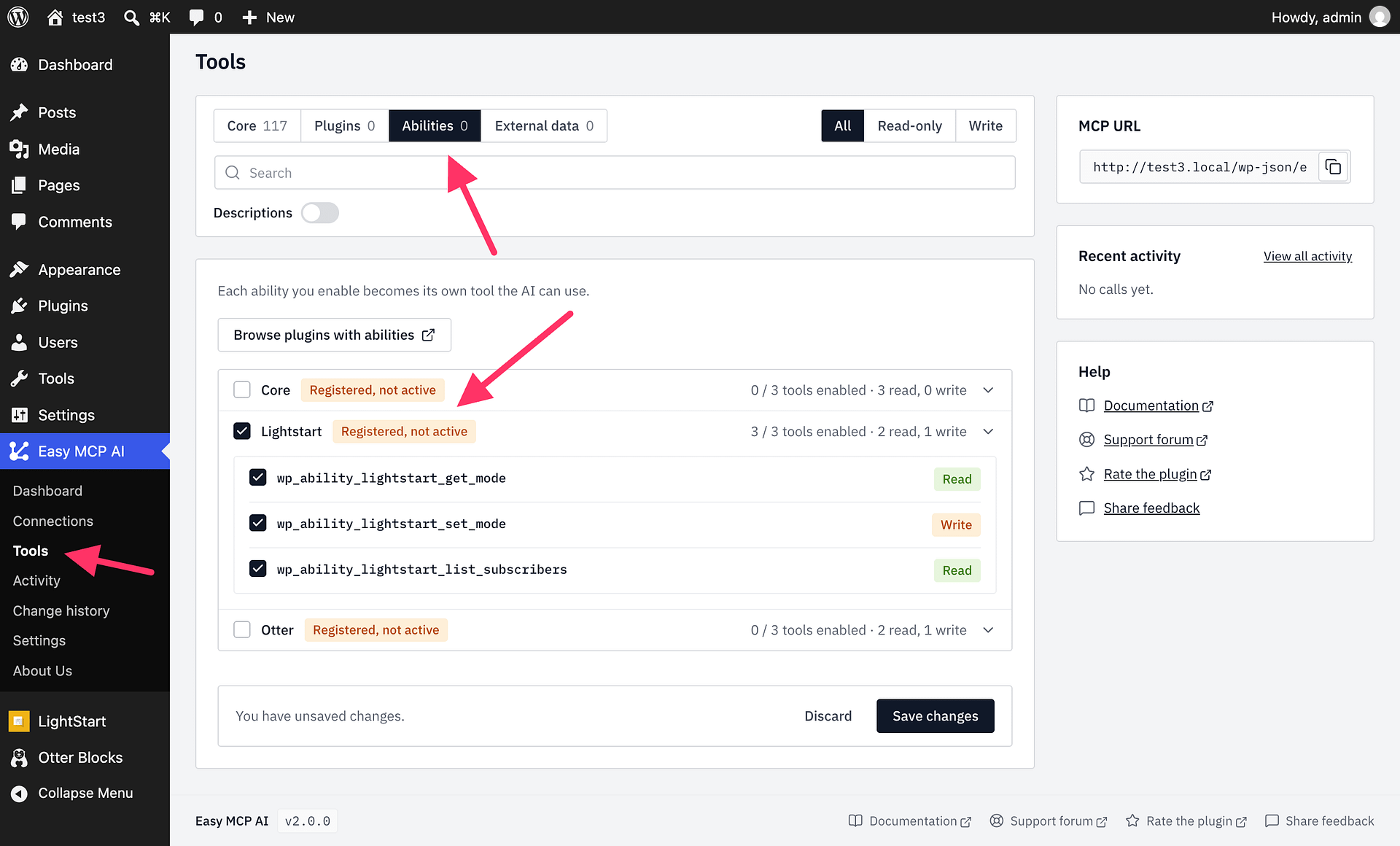
Open Easy MCP AI > Tools, then select Abilities.
All abilities are off by default. In the LightStart group, enable all abilities.
Click Save changes to make them available to connected clients.
What your assistant can do
After you connect an AI client, ask it to:
- Check whether maintenance mode is on or off and read the selected maintenance page, frontend and backend role bypasses, exclusions, and search-bot bypass setting.
- Turn maintenance mode on or off, or change the selected maintenance page, frontend and backend role bypasses, exclusions, and search-bot bypass setting.
- List the email addresses captured by the LightStart subscription form.
For example, ask:
- “Is LightStart maintenance mode on, and which roles can bypass it?”
- “Turn on maintenance mode and let editors access the frontend.”
- “Exclude
/sales/from maintenance mode.” - “Show me the subscribers collected by LightStart.”
Safety and permissions
The assistant performs actions as the WordPress user connected through Easy MCP AI. That user must have the capabilities required for each requested action. Setting changes are treated as destructive operations, so review the proposed values before approving them. Reading the current mode and listing subscribers do not change LightStart settings.
To check a proposed settings change without saving it, ask the assistant to run a dry run. A dry run validates the change but does not save it.
Only existing pages with a Published or Private status can be selected as the maintenance page. The connected user must also be able to edit the page.
On a multisite network, you cannot change a site's maintenance mode individually while network mode controls it.