
How to import the Demo Content
Themes give you everything you need to customize a website, and many free WordPress themes come with Demo Content. There are 2 scenarios you can follow to access demo content: Starter Sites or an XML file import.
First Scenario - using Starter Sites
Neve and Hestia are some of the most used themes. Their ready-made Starter Sites simplify the whole process of creating a website.
You can find everything you need to know about Starter Sites for Neve in the Neve Starter Sites guide.
For Hestia, Starter Sites are available only in the Pro version. Read more in the Hestia Pro Starter Sites documentation.
Second Scenario - importing an XML file
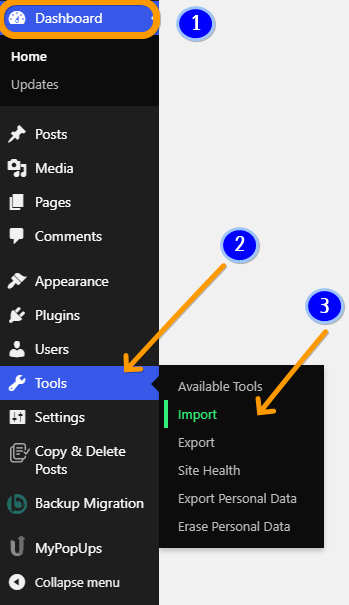
Log into your site Dashboard (1). Make sure the theme for which you want to import the .xml file is activated.
Go to Tools (2) > Import (3).
Choose “WordPress” from the list.
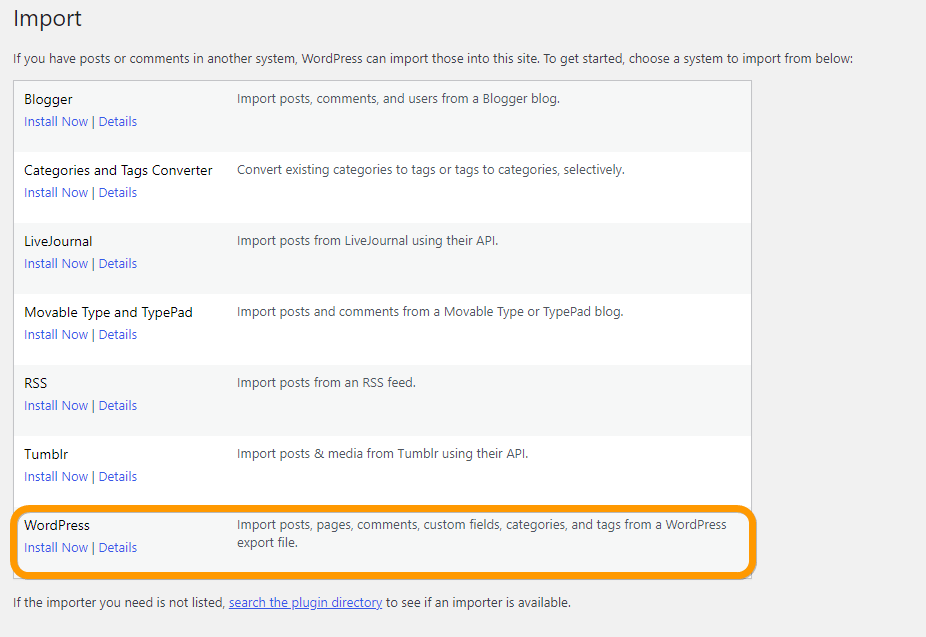
If you haven't done this before, click Install Now.
After installing, click Run the importer now.
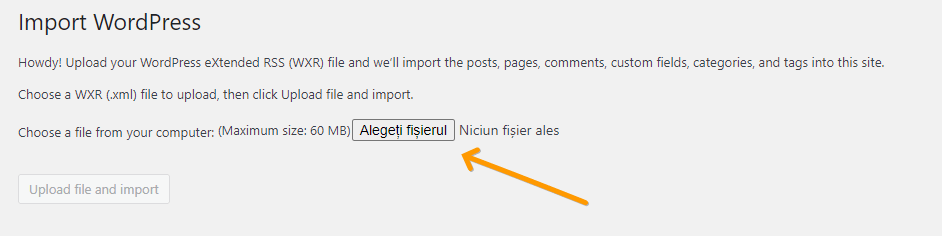
Upload the demo content .xml file using the form on that page, and click Update file and import.
You are asked to map the authors in this export file to users on the site. For each author, you can map to an existing user or create a new user.
To import attachments, select the Download and import file attachments box.
Posts, Pages, Projects, and Menus are imported. You then need to assign the menu to a theme location and configure your widgets.
📝 Note: This is a limitation of the WordPress import system.