
Styling Breaks, Invalid JSON Errors, or Failed Widget Saves (HTTP/HTTPS Mismatch)
If your site's layout appears scrambled, stylesheets stop loading, or you receive an "invalid JSON response" error when saving or removing a widget or block — the cause is often a mismatch between how WordPress stores your site URLs and how your server actually serves the site.
This article explains how to identify and fix an HTTP/HTTPS protocol mismatch in WordPress General Settings, which is one of the most common reasons for styling failures and editor save errors.
In this article
Symptoms of the Issue
You may be experiencing this problem if:
- Your site's styling looks broken or scrambled after duplicating a section or saving changes in the editor.
- Clearing the cache does not resolve the issue.
- The styling appears correctly in the editor preview but breaks on the front end, or vice versa.
- Your browser's developer tools show stylesheet or asset requests being blocked or failing to load.
- Saving or removing a widget or block in the WordPress editor returns the error: "The response is not a valid JSON response" (or its equivalent in other languages).
- A widget save, block update, or content removal fails repeatedly without a clear error message.
- REST API requests made by the editor fail or return unexpected redirects.
📝 Note: This issue is not limited to one specific theme. It can affect any WordPress site where the WordPress Address (URL) and Site Address (URL) settings do not match the protocol your server uses.
Why a Protocol Mismatch Breaks Saving
WordPress uses REST API and AJAX requests to save widgets, update blocks, and perform other editor actions. When your WordPress Address (URL) or Site Address (URL) is stored as http:// but your server delivers the site over HTTPS, these requests can be redirected or blocked before they reach the server. The editor receives a redirect page or an error response instead of the expected JSON data, causing the "invalid JSON response" message.
Correcting both URL settings to match the protocol your server enforces (https://) ensures that REST API and AJAX requests are sent to the right destination and return valid responses.
Verify the Site Protocol
Before making any changes, confirm whether your site is actually running over HTTPS:
- Open your site in a browser and look at the address bar — if there is a padlock icon and the URL starts with
https://, your site is using HTTPS. - Go to WordPress Admin > Settings > General.
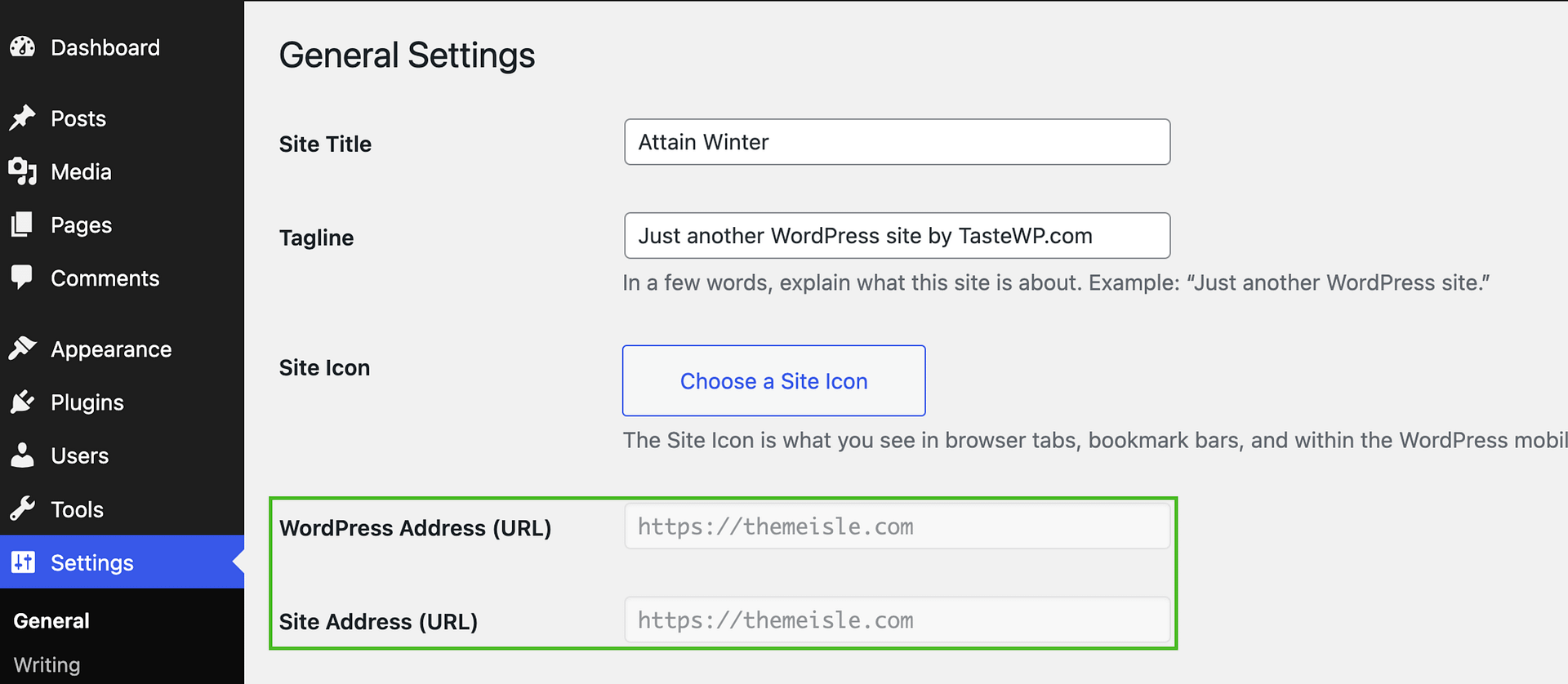
- Check the values of WordPress Address (URL) and Site Address (URL).
If both URLs start with http:// but your site loads over https://, there is a protocol mismatch that can prevent stylesheets and other assets from loading correctly, and can also cause REST API or AJAX requests to fail with an invalid JSON error.
📝 Note: If both URLs already start with https://, a protocol mismatch is not the cause of your invalid JSON error. This error can also happen when WordPress cannot route or complete the editor REST API request, and it should not be treated on its own as evidence of a Neve or Beaver Builder compatibility issue.
To check REST API availability:
- Open
https://yourdomain.com/wp-json/in your browser (replaceyourdomain.comwith your real domain). - If you see JSON output, the base REST API is reachable. In this case, if the editor save request is still denied or blocked, review your security plugin, WAF, or hosting firewall logs and ask your provider to allow the specific failed REST request. If the specific request is
/wp-json/batch/v1and returns403, follow the widget-saving 403 troubleshooting guide. - If
/wp-json/returns a 404 error, go to Settings > Permalinks and click Save Changes, then testhttps://yourdomain.com/wp-json/again. - If
/wp-json/still returns 404, ask your hosting provider to verify WordPress rewrite rules and REST API routing (for example, Apache.htaccessor Nginx rewrite configuration).
Fix the WordPress URLs
To resolve the mismatch, update both URL fields to use HTTPS:
- Go to WordPress Admin > Settings > General.
- In the WordPress Address (URL) field, change
http://tohttps://(keep the rest of the URL unchanged). - In the Site Address (URL) field, change
http://tohttps://(keep the rest of the URL unchanged). - Click Save Changes.
Your site may briefly redirect after saving. Once it reloads, the URLs will be updated.
⚠️ Important: If the URL fields are greyed out and cannot be edited, the URLs are hardcoded in the wp-config.php file. In that case, you can add or update the following lines in wp-config.php, just above the line that reads That's all, stop editing! Happy publishing:
define( 'WP_HOME', 'https://yourwebsite.com' );
define( 'WP_SITEURL', 'https://yourwebsite.com' );
Replace yourwebsite.com with your actual domain. If you are not comfortable editing wp-config.php directly, contact your hosting provider for assistance.
Test and Verify
After saving the updated URLs:
- Clear your site's cache if you are using a caching plugin (for example, go to Settings > WP Super Cache or your caching plugin's dashboard and clear all cached files).
- Open your site in a browser and verify the layout looks correct.
- Return to the editor and repeat the action that previously caused the styling break — for example, duplicate a section or save a change — then check the front end again to confirm styles load correctly.
Retry the Failed Editor Action
If the original problem was a failed widget save, block update, or invalid JSON error:
- Reopen the widget area or block editor where the error occurred.
- Retry the save, update, publish, or removal that previously failed (for example, update or publish the post/page that returned the invalid JSON error).
- For block-based widgets, open the block's options menu (the three-dot icon on the block toolbar) and select Remove block, then save the widget area again.
If the issue persists after completing these steps, temporarily deactivate your caching plugin and test again to rule out a stale cache.
💡 Tip: If your hosting provider or .htaccess file forces HTTPS redirects, make sure these WordPress URL settings also use HTTPS to avoid conflicts. Both settings should always match the protocol your server enforces.