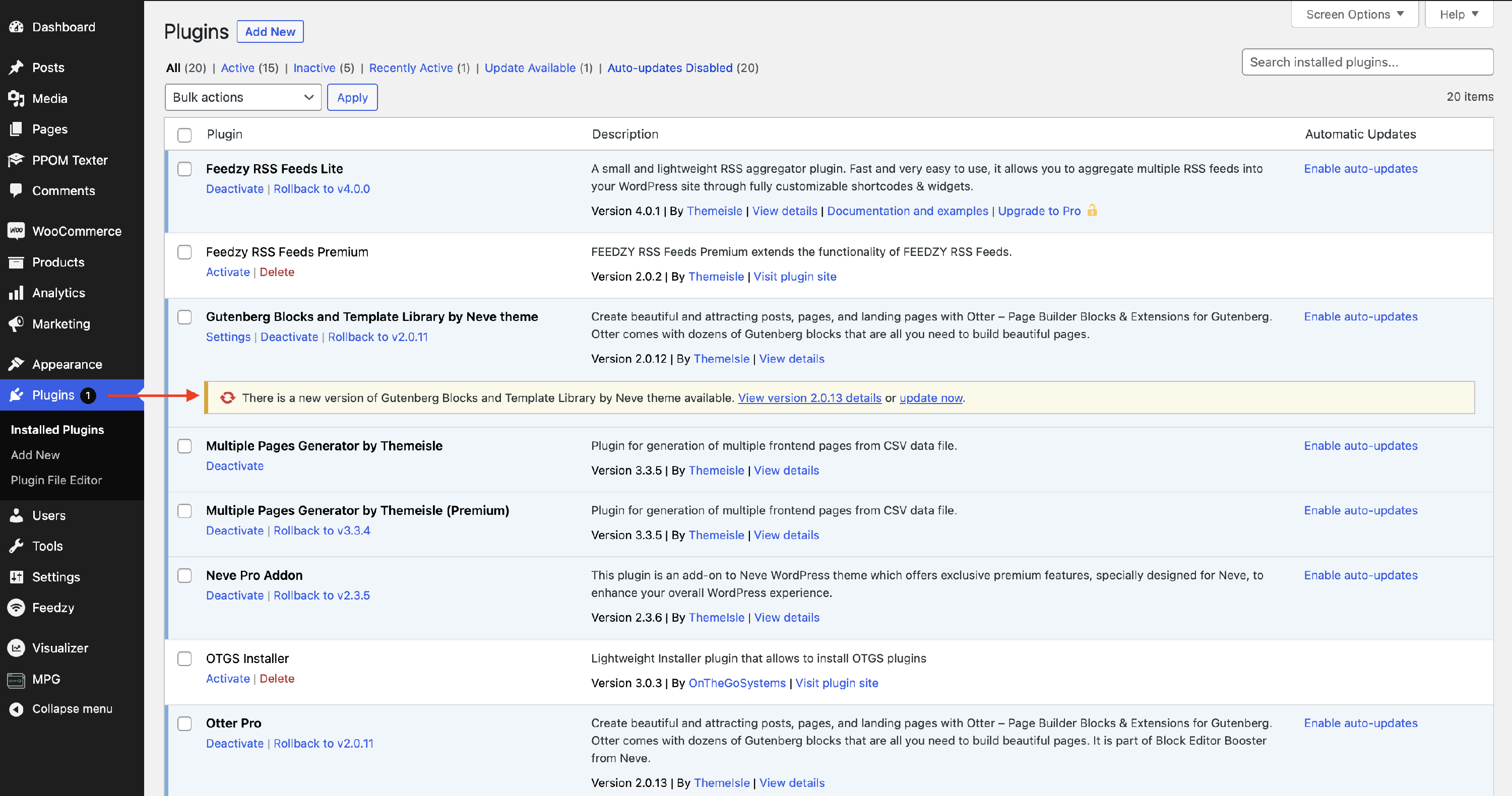
How to rollback your theme and plugin?
Rolling back your theme or plugin returns it to the previous version with one click. This is useful if you find a bug in a Themeisle theme or plugin: you can use the previous version of the product while you wait for a bug fix.
How to get the previous version of a theme?
This example uses the Neve theme. Follow these steps if you have the latest version of Neve installed, or have just updated it, and run into issues:
Navigate to Dashboard > Appearance > Themes and click the theme's thumbnail.
In the bottom left corner, find the Rollback button.
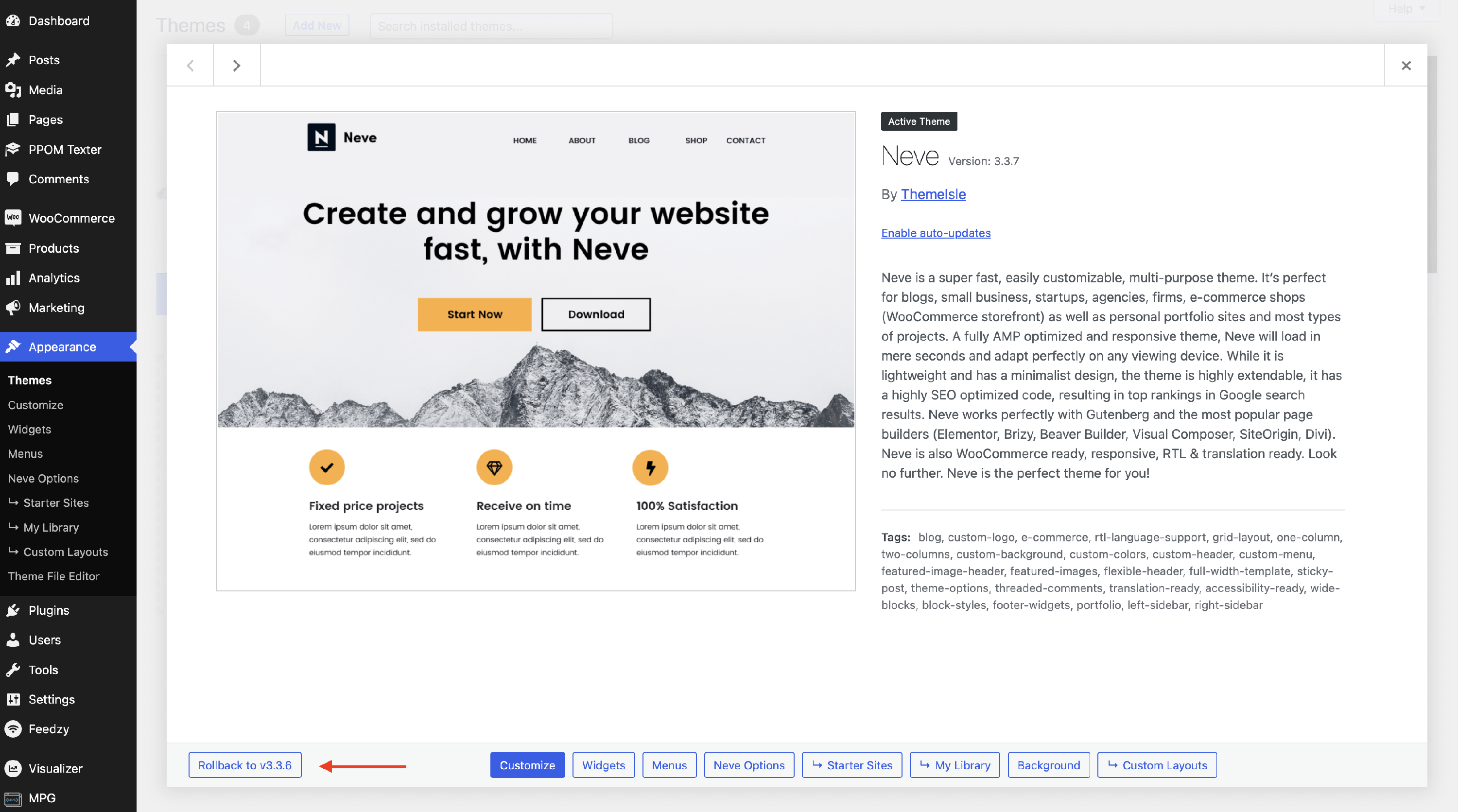
📝 Note: The button shows the previous version of the theme.
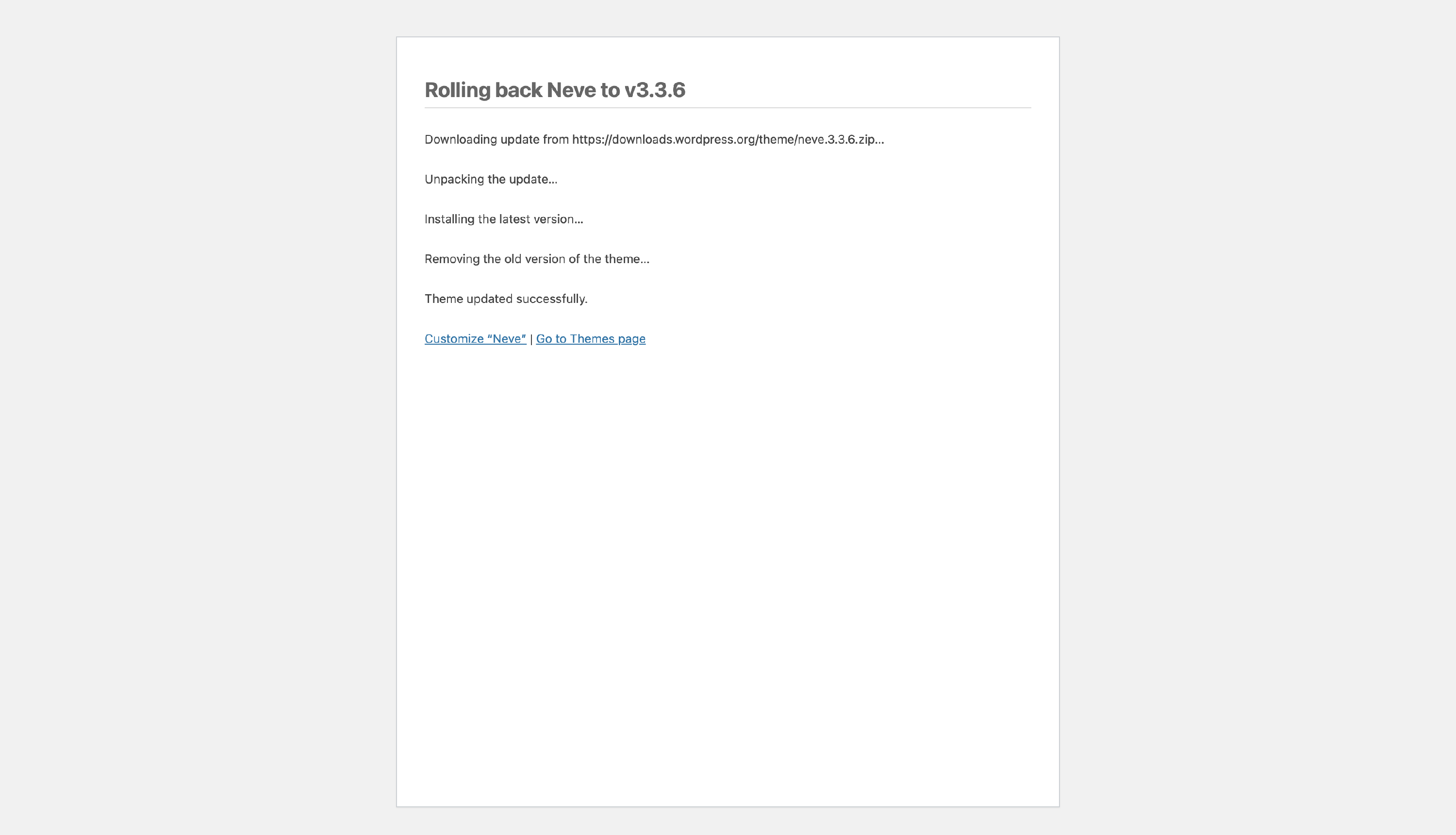
Click the button. A notification confirms that the previous version of the theme was installed.
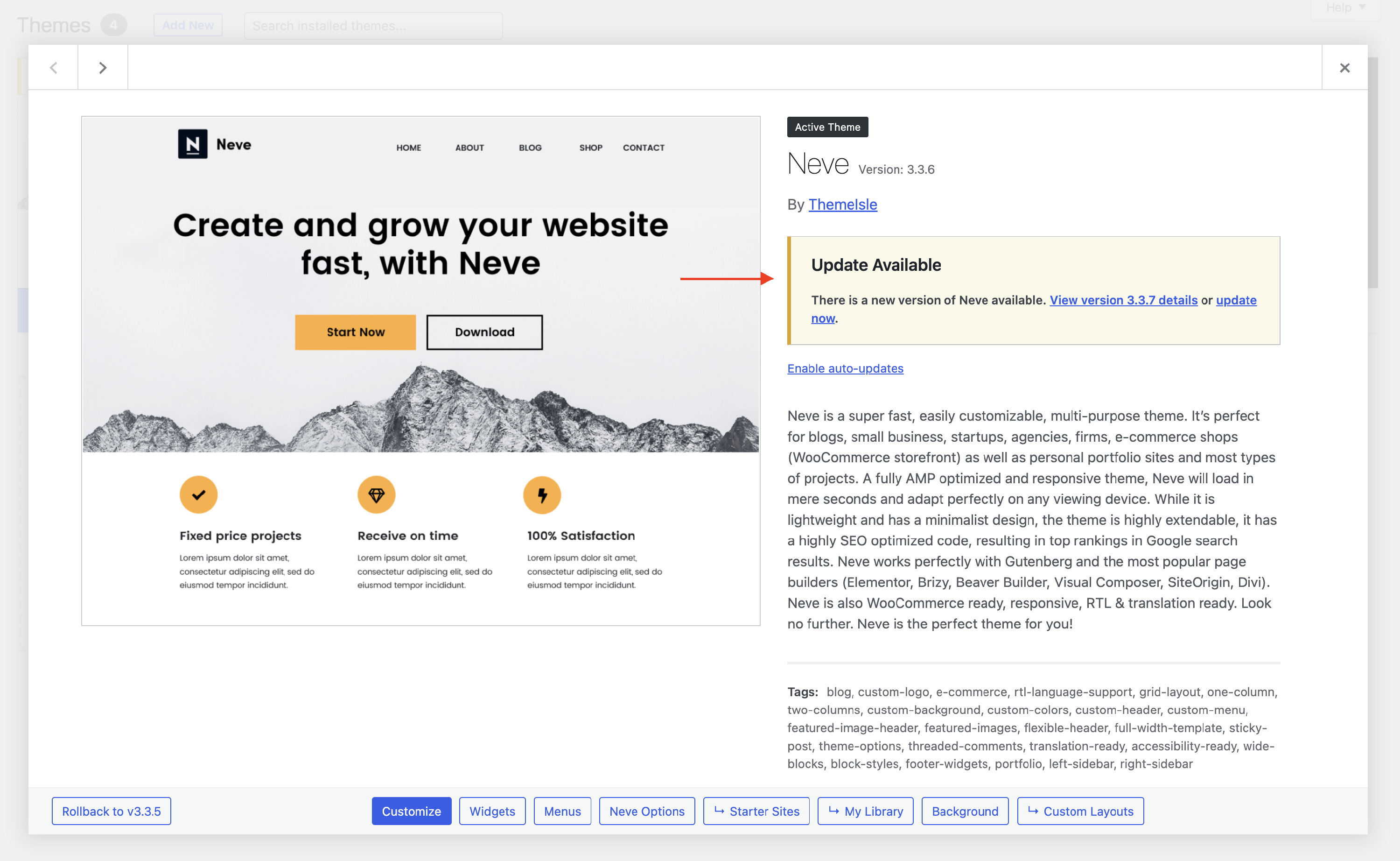
If you return to the themes page, you see a notification that you don't have the latest version of the theme.
How to get the previous version of a plugin?
This example uses the Otter Blocks plugin. Follow these steps if you have the plugin installed, or have just updated it from the previous version:
Next to the action buttons (Activate/Deactivate, Delete), find the Rollback button.
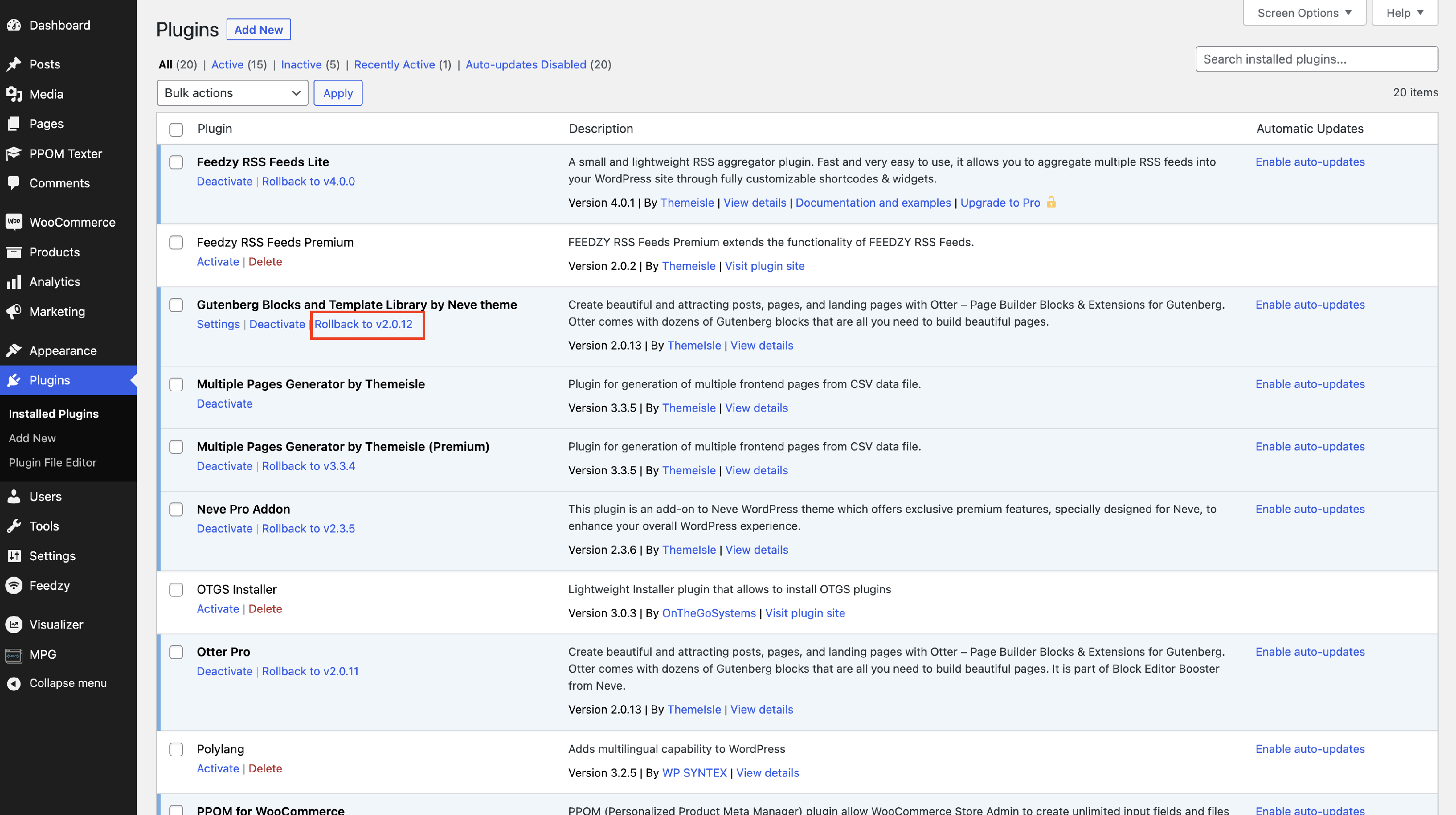
📝 Note: The button shows the previous version of the plugin.
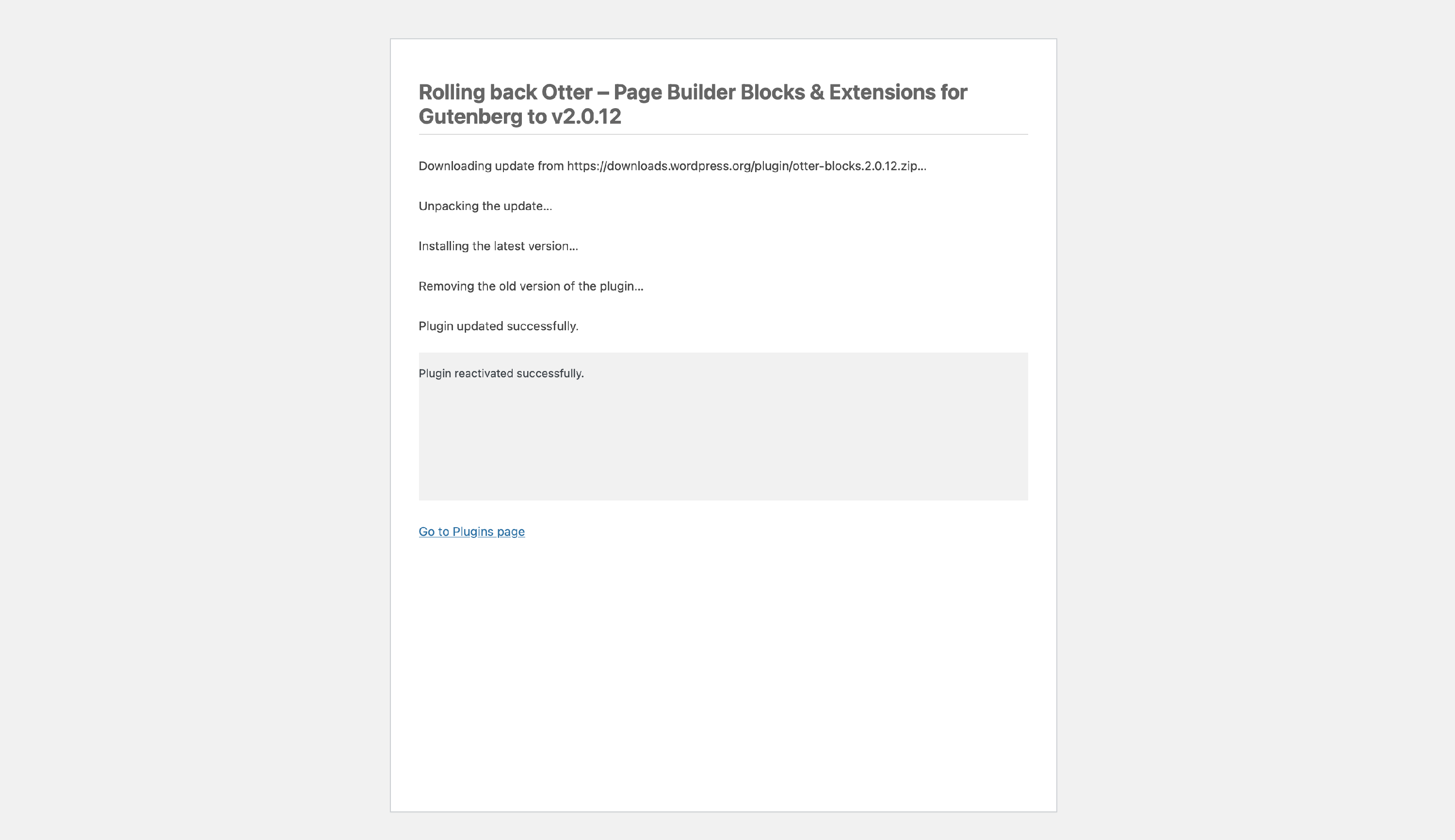
Click the button. A notification confirms that the previous version was installed.
If you return to the plugins page, you see a notification that you don't have the latest version of the plugin.