How to Link Menu to Sections in Elementor Pages?
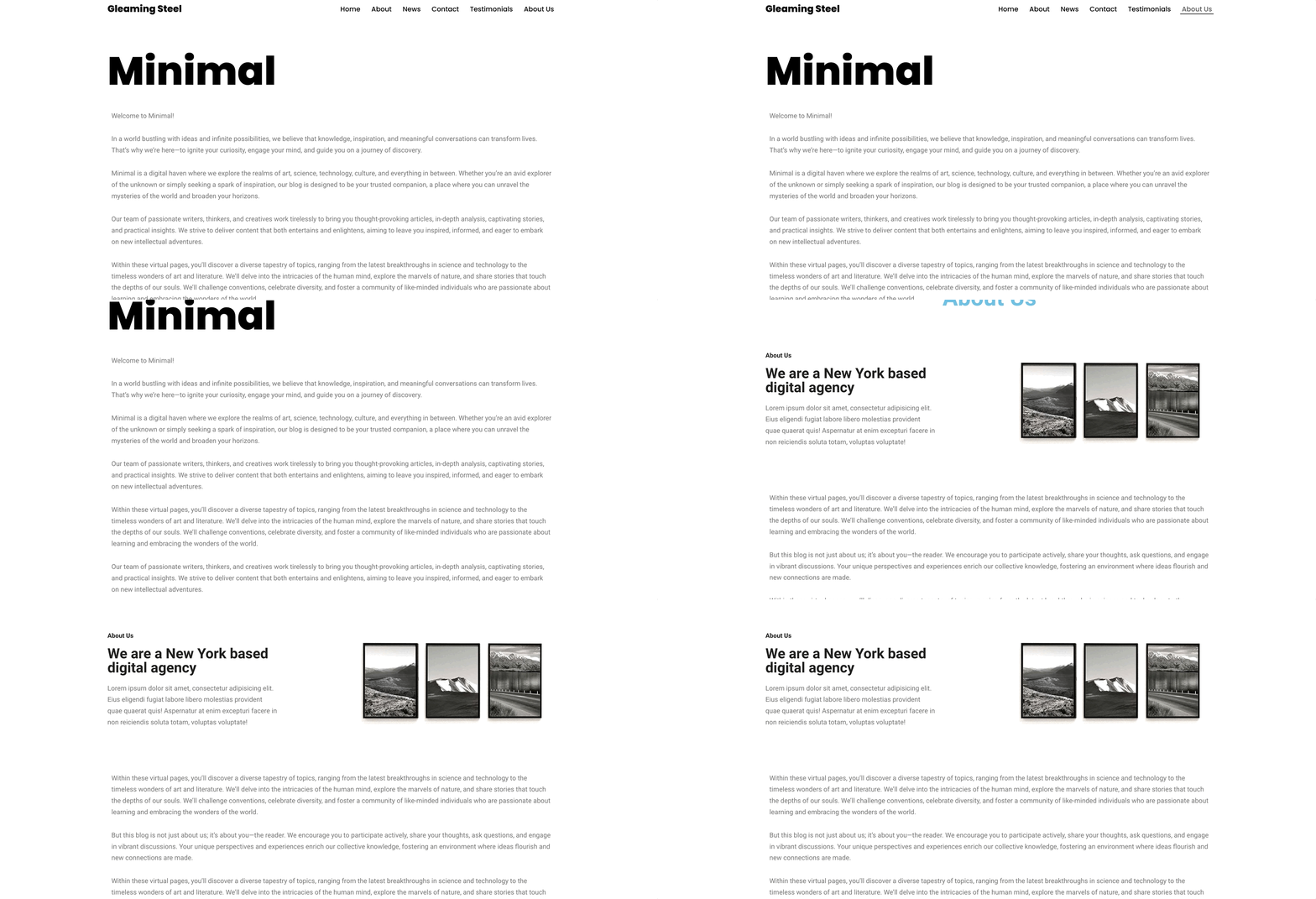
Menu items can be linked to sections in Elementor pages so that when you click on a menu item, the page will scroll to a certain section.
There are two ways to achieve this:
Elementor Menu Anchor
1. Open the page with Elementor where you want to make the changes.
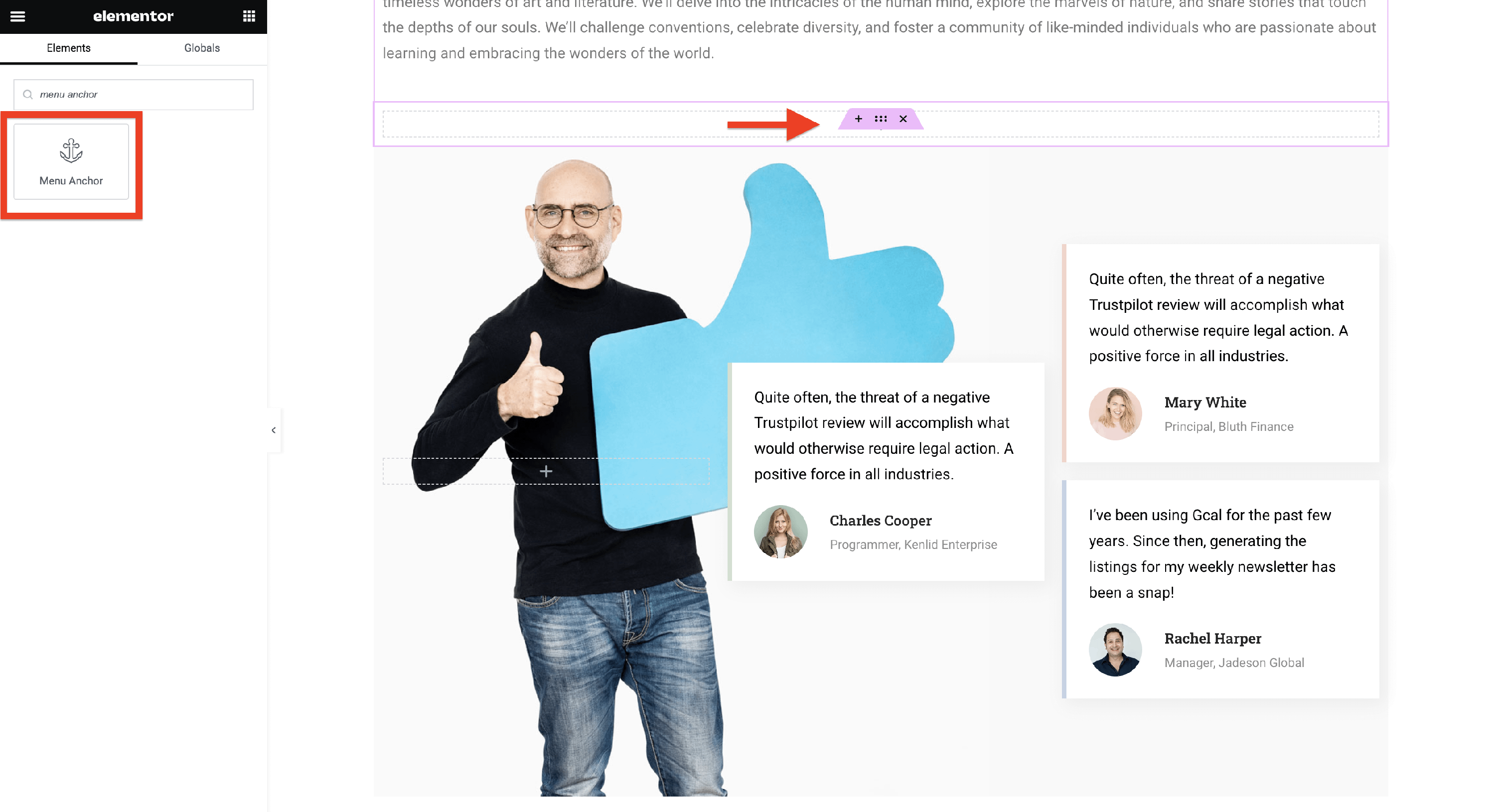
2. Click on the plus button to add a Menu Anchor widget in the place where you want the page to be scrolled.
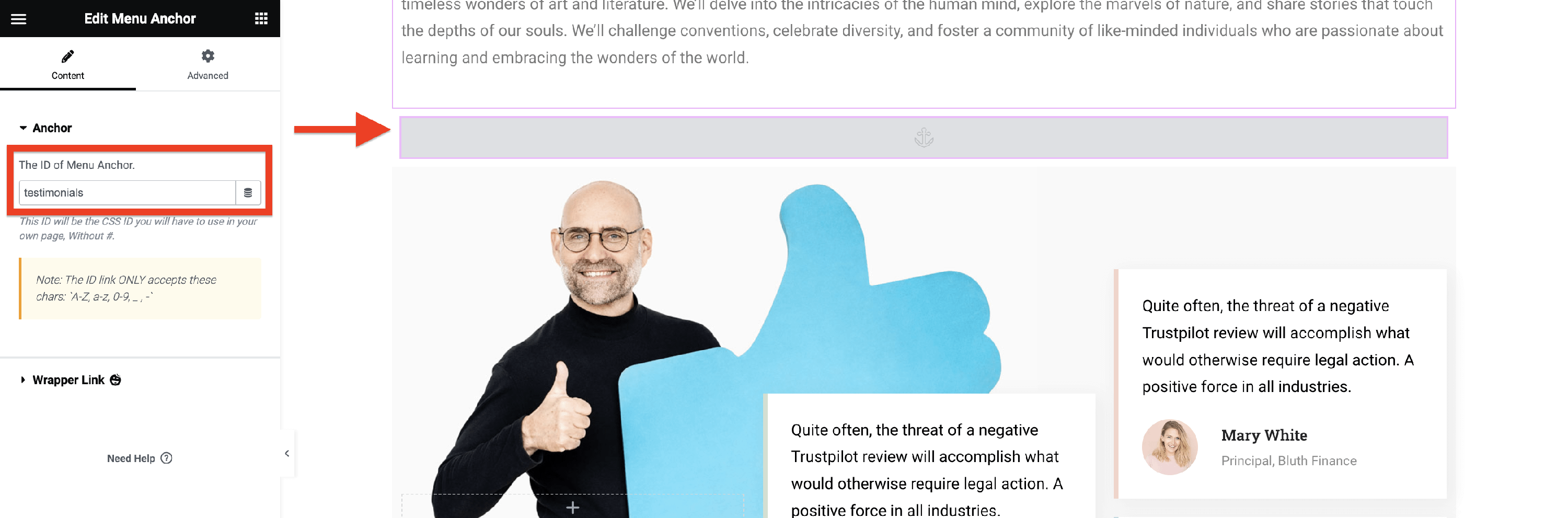
3. Assign an ID to the Menu Anchor that will be used in the menu item link.
4. Click to Update the page and exit to Dashboard.
5. Navigate to Dashboard > Appearance > Menus.
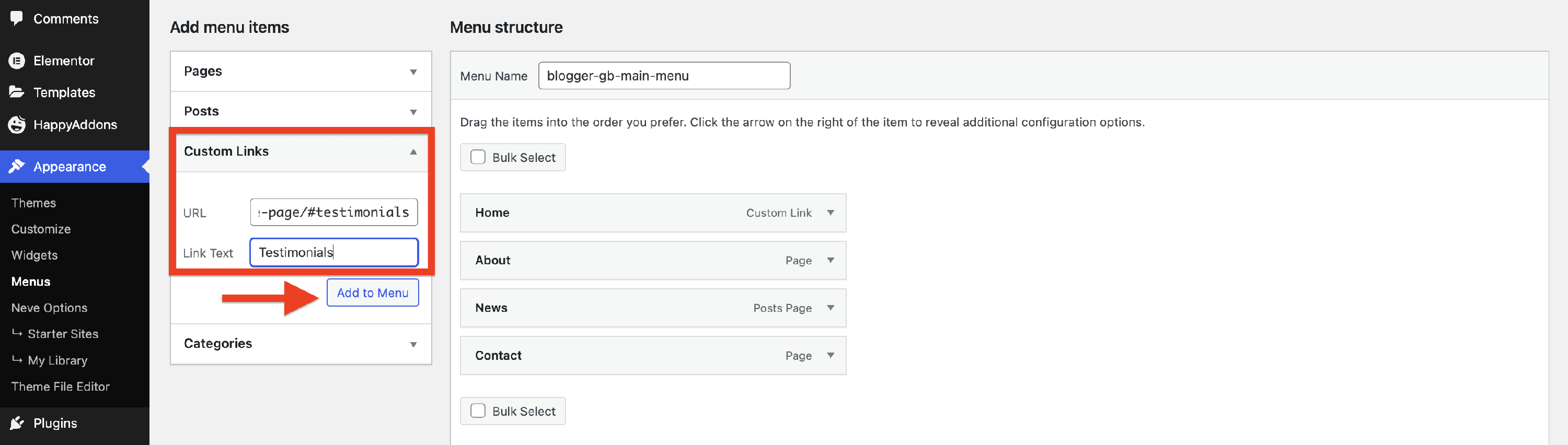
6. From the Add menu items, expand the Custom Links accordion.
7. Paste the URL of the page where the section is.
8. Add at the end of this URL #ID, where ID is the one set to the menu anchor (e.g. testimonials).
9. Click on the Add to Menu button, then Save Menu.
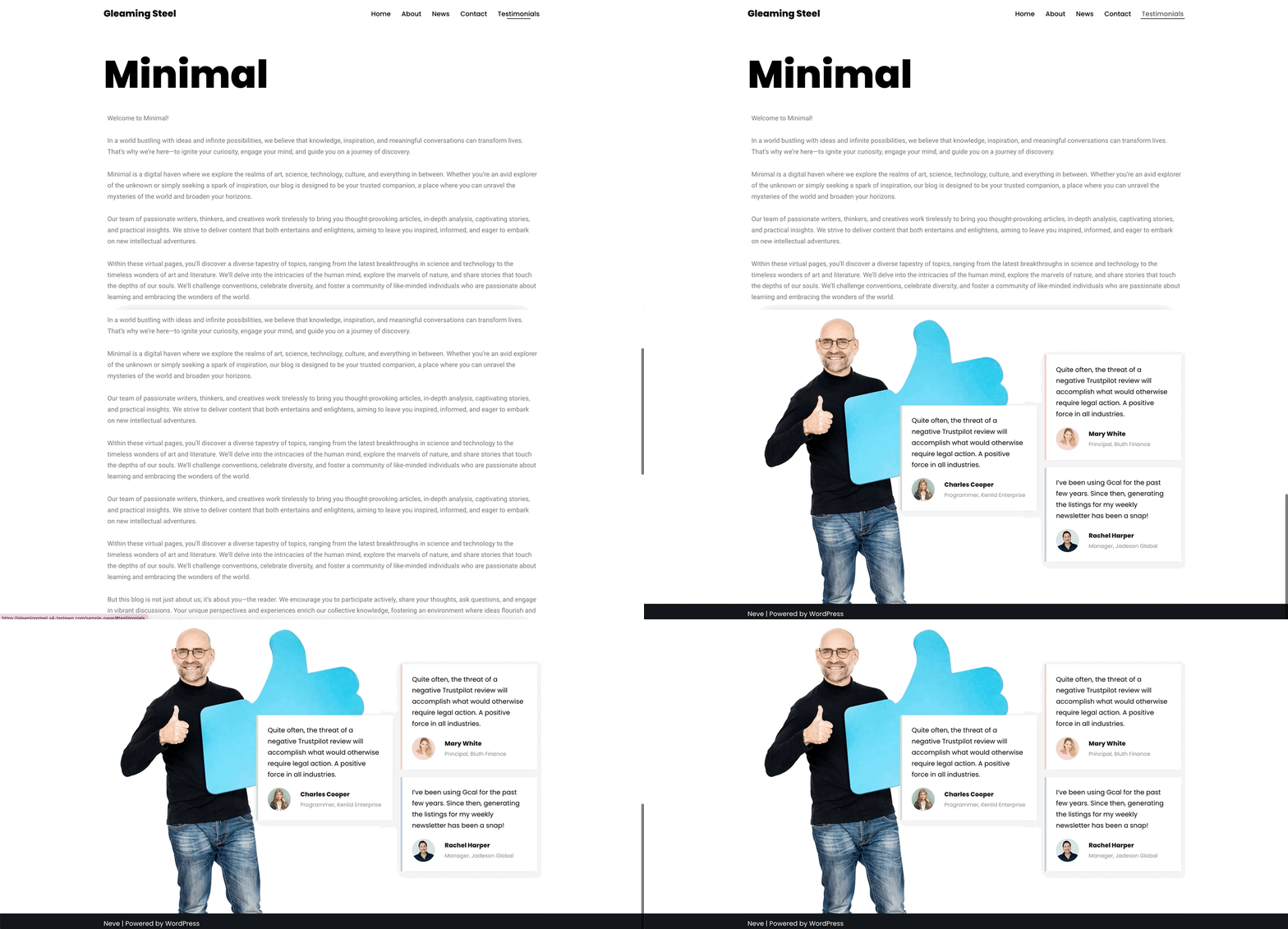
Result
Section ID
Another approach is by using the section ID option of Elementor.
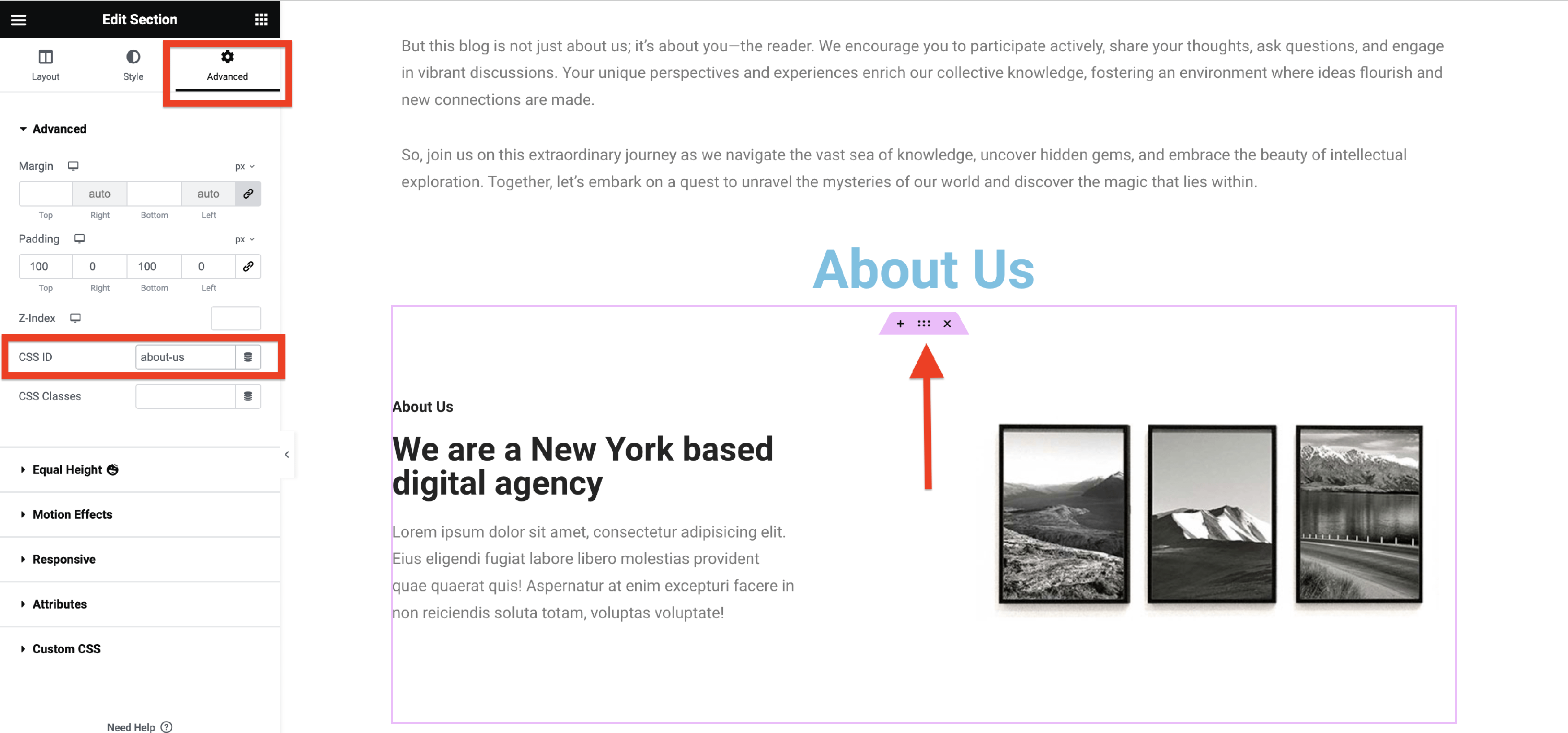
1. While editing a section, switch to the Advanced tab on the left sidebar.
2. Add an ID in the CSS ID field, which will be used as an anchor.
3. Click to Update the page and exit to Dashboard.
4. Navigate to Dashboard > Appearance > Menus.
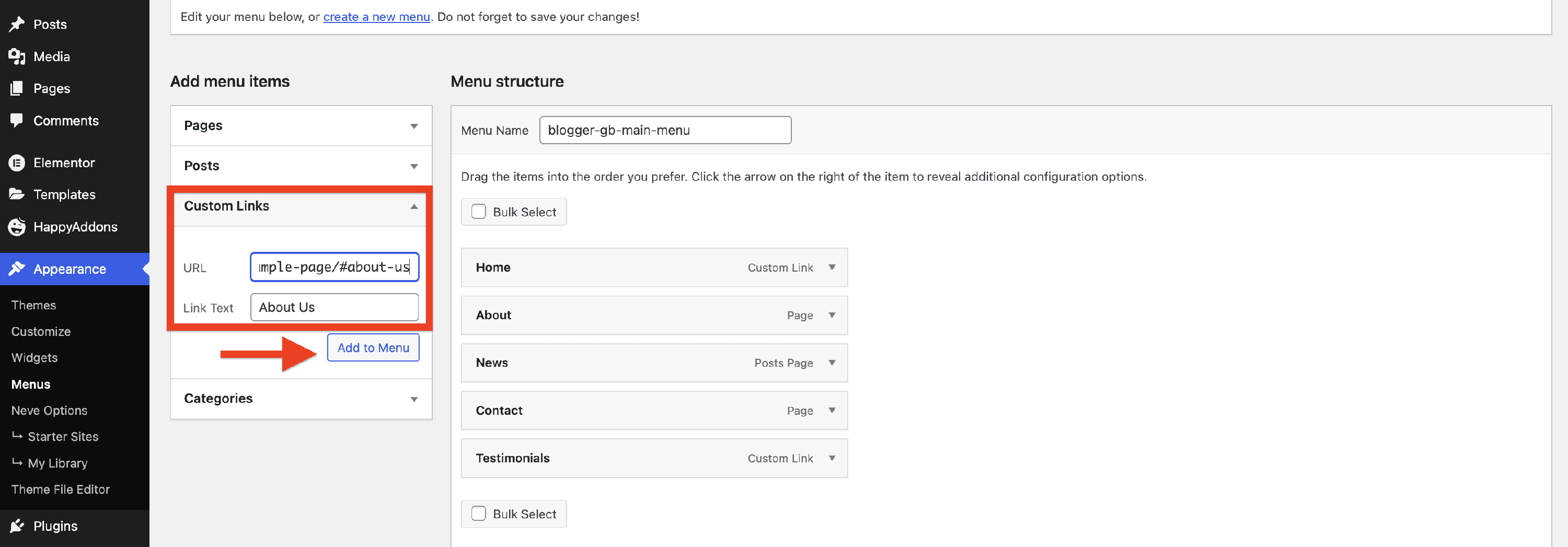
5. From the Add menu items, expand the Custom Links accordion.
6. Paste the URL of the page where the section is.
7. Add at the end of this URL #ID, where ID is the one set to the menu anchor (e.g. testimonials).
8. Click on the Add to Menu button, then Save Menu.
Result