How to hide elements in the print mode?
When you print your website, some elements are not very useful on paper, such as the sticky header or certain images. To remove them from the print mode, you can add some CSS code that hides them temporarily.
Add the CSS code in Appearance > Customize > Additional CSS.
📝 Note: The elements will remain active on the website, they are just hidden from the print mode.
In this article
Hiding the header
The header is not very useful when it comes to printing the page, and it is also not very appealing.
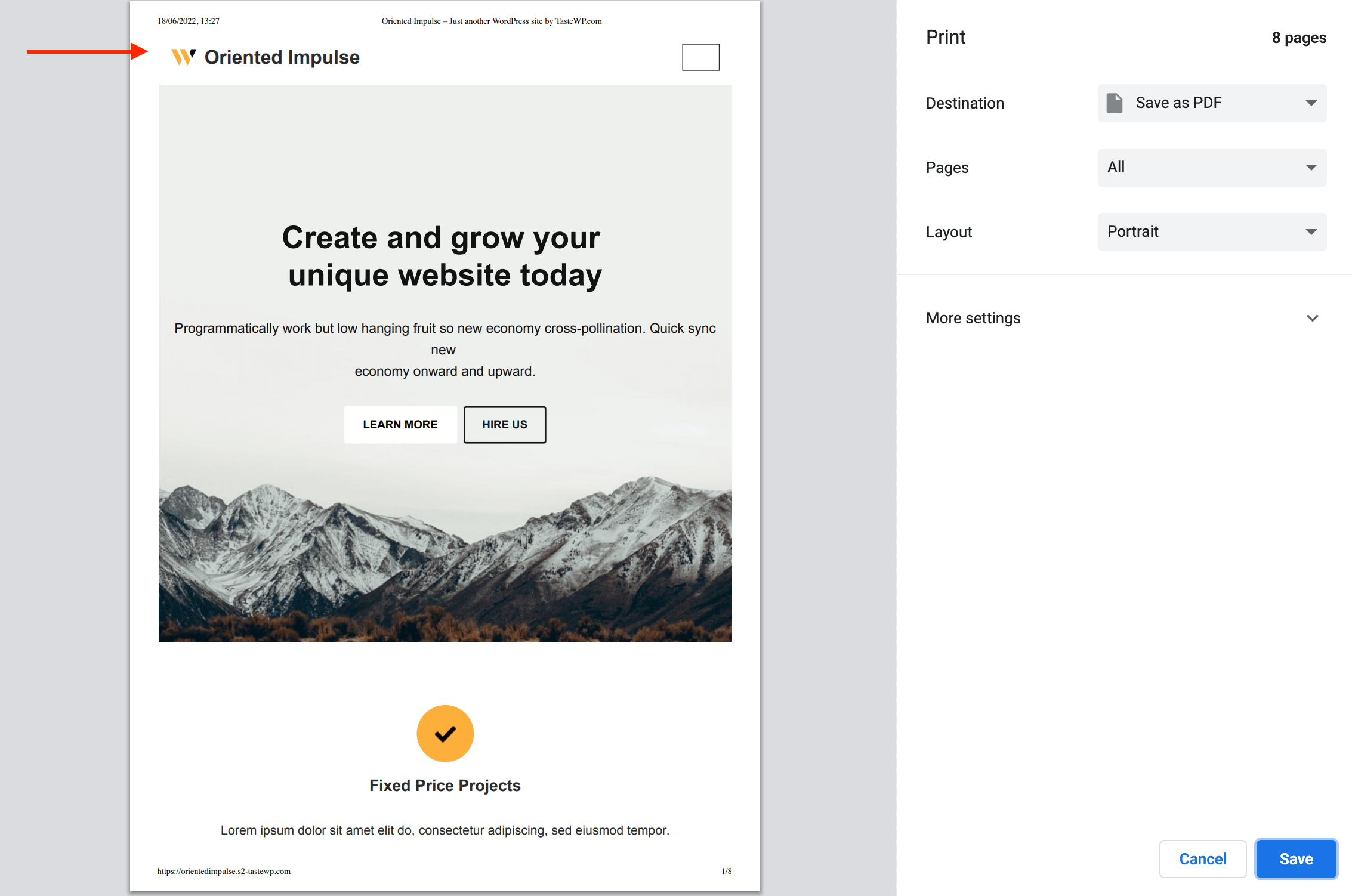
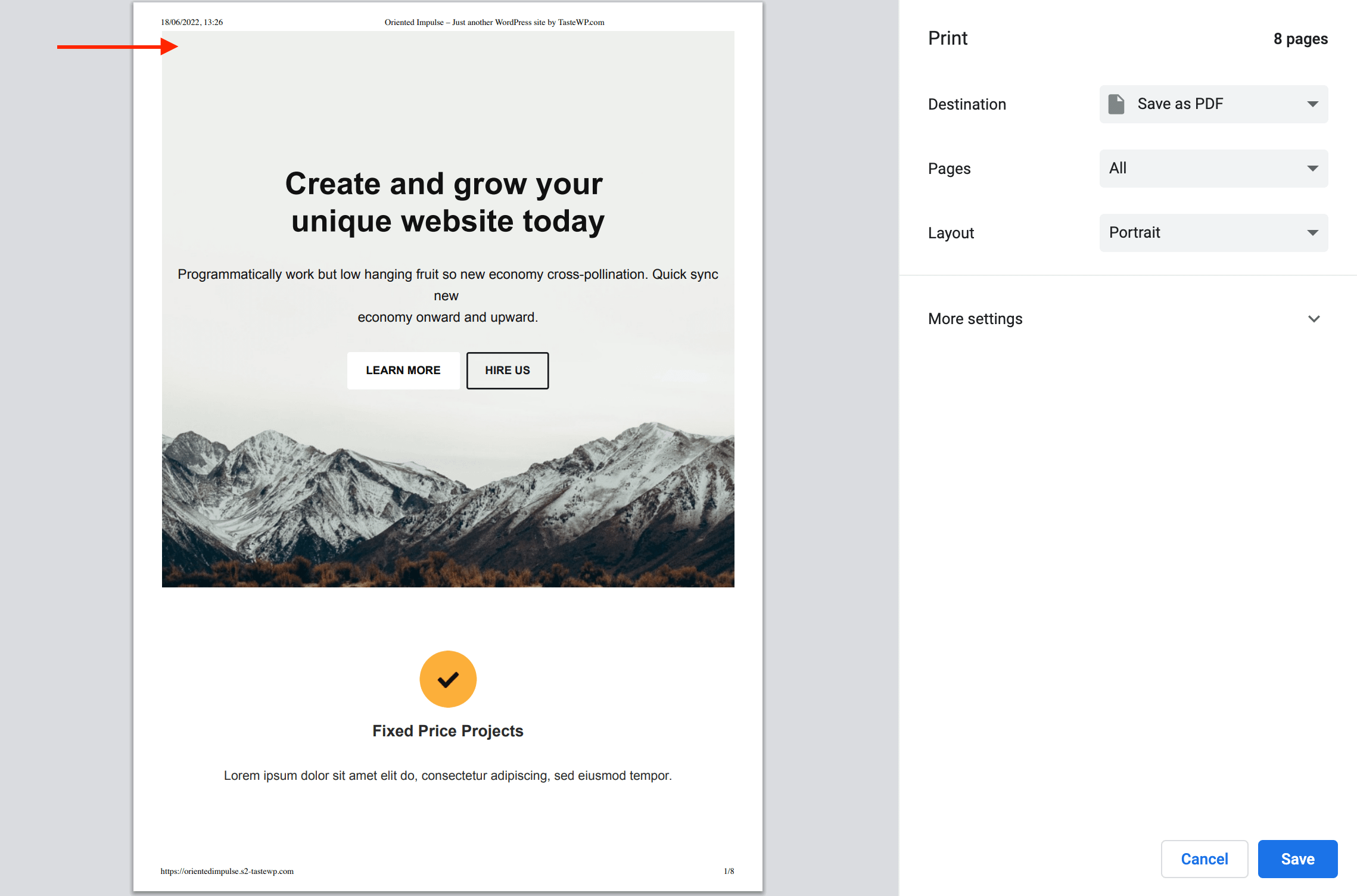
To hide the header from the print mode, go to Appearance > Customize > Additional CSS and paste the following code:
@media print {
.site-header {
  display: none!important;
 }
}
Result
Hiding the footer
Similar to the header, the footer can be hidden from the print mode using this code:
@media print {
.site-footer {
  display: none!important;
 }
}
Hiding the images
This refers to the images added to certain pages, not featured images or images added in blocks.
@media print {
img {
  display: none;
 }
}
General case of hiding elements
You can hide any other element that is not relevant when printing the website's content. To do this, follow these steps:
While you're navigating on your website, right-click the element that you want to hide.
Click the Inspect option, at the bottom.
Identify the class or the ID of the element that you want to hide from the print mode.
Add the identified class or ID inside the @media print{}, along with the "display: none" option.