
How to verify your PHP version
PHP is the programming language that powers WordPress, themes, and plugins. Running an outdated PHP version can cause compatibility issues, broken layouts, or fatal errors. This guide explains how to find the minimum PHP version a theme or plugin requires and how to verify the PHP version your web server is actually running.
In this article
Check the minimum PHP version required by a theme or plugin
Every theme and plugin hosted on WordPress.org lists its minimum requirements in the right sidebar of its product page. To find the required PHP version:
- Go to the product's page on WordPress.org — for example, the Neve theme page.
- Look at the right-hand sidebar under the product version number.
- Find the Requires PHP field — this shows the minimum PHP version needed to run that theme or plugin.
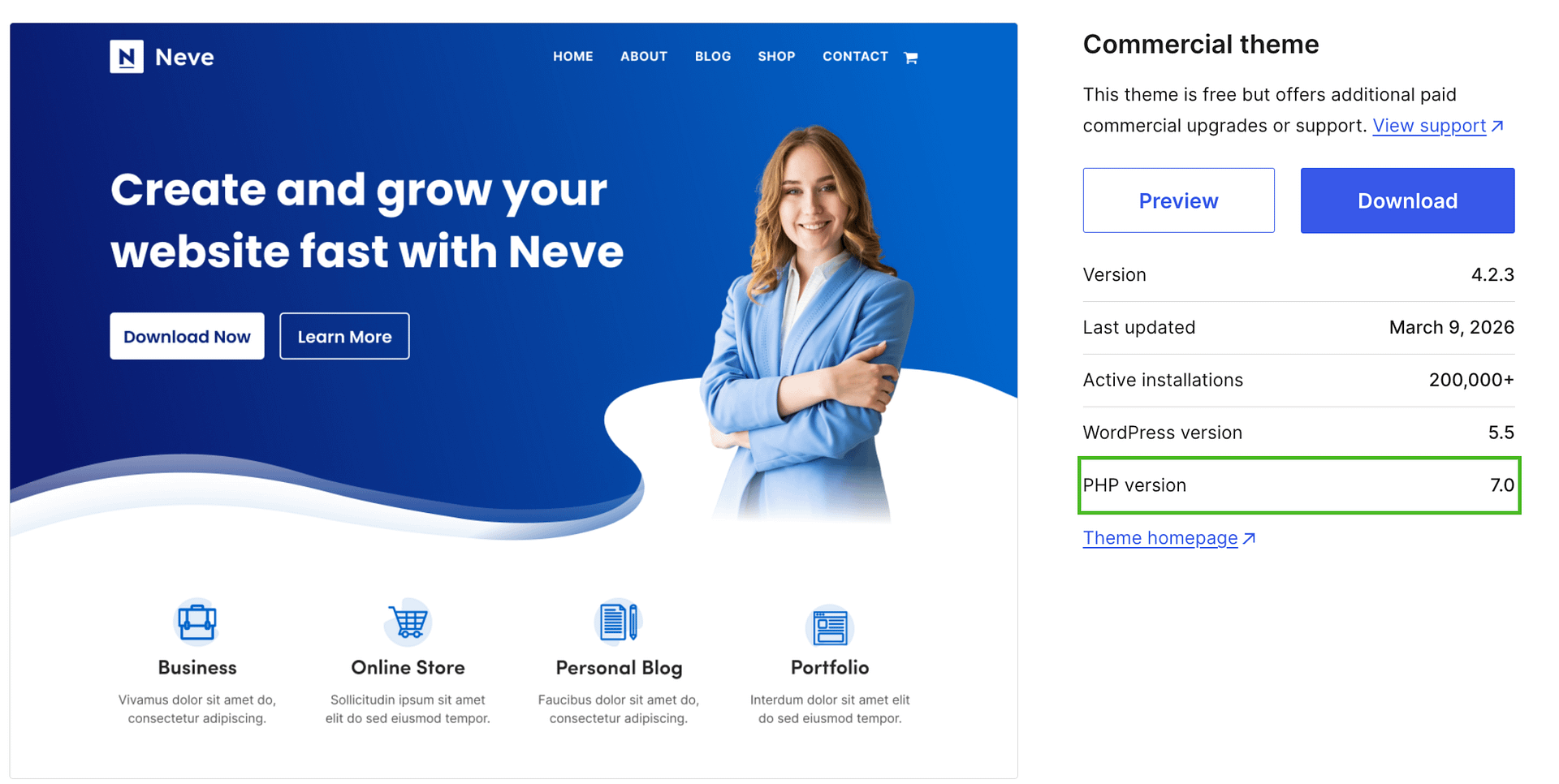
📝 Note: If a theme or plugin is not hosted on WordPress.org (for example, a premium product), check the product's official documentation or the developer's website for its PHP requirements.
Verify your web server's PHP version
The most reliable way to check your site's actual PHP version is through the WordPress Site Health tool. This reads the PHP version your web server uses to run WordPress — which is the version that matters for compatibility.
- Log in to your WordPress Dashboard.
- Navigate to Tools > Site Health.
- Click the Info tab.
- Expand the Server section.
- Find the PHP version entry — this is the version your server is running for WordPress.
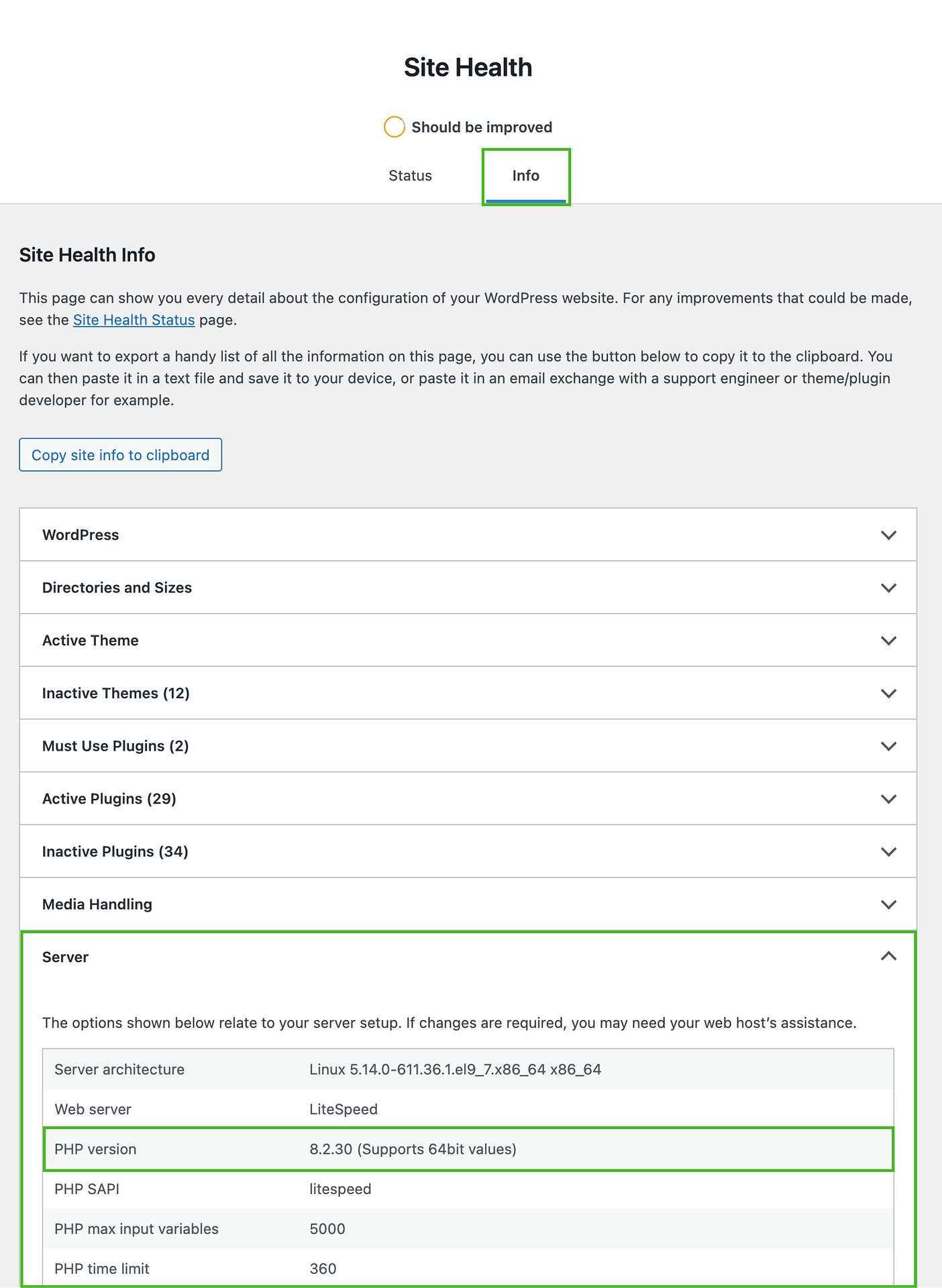
⚠️ Important: The PHP version shown in Site Health is the correct one to use when checking compatibility. Do not rely on other methods such as running php -v in a terminal (see the section below for why).
Why php -v may show a different version
If you use a terminal (command line) to check your PHP version with php -v, you may see a different version than what WordPress actually uses. This is because servers often have multiple PHP versions installed:
- The CLI (command-line) version is used by terminal commands and scripts.
- The web server version is the one used by WordPress and your browser requests.
These two versions can differ. For example, your terminal might report PHP 8.4, while your web server is still running PHP 7.4. Only the web server PHP version affects how your themes and plugins behave — so always use Site Health to confirm the version in use.
What to do if your PHP version is outdated
If your PHP version is lower than required by your theme or plugin:
- Create a complete site backup first. Back up both your files and your database so you can restore your site if anything goes wrong.
- Update WordPress and all active components. Update WordPress core, your active theme, and all active plugins to their latest available versions before changing PHP.
- Test the PHP change on a staging site if possible. Ask your host for a staging copy, change PHP there first, and use the same target PHP version you plan to use on your live site.
- Verify the staging site before updating production. Check both your site's front end and your WordPress dashboard, then confirm the active PHP version in Tools > Site Health > Info > Server.
- Apply the same PHP change on production. If the staging tests are successful, change PHP on your live site through your host's panel or with your host's support team.
- Clear your site's cache after upgrading, so WordPress serves fresh content with the new PHP version.
- Verify the upgrade in Site Health. Go to Tools > Site Health > Info > Server again and confirm the PHP version now shows the updated version.
⚠️ If you get a fatal error or lose dashboard access: Ask your host to temporarily restore the last working PHP environment so you can access the site again. Then check the newest fatal-error log entry to identify the theme or plugin named in the error, update that component, and retry the newer PHP version on staging. For example, an error like Attempt to modify property "response" on false can point to an outdated component that needs updating. Restoring the previous PHP environment is a temporary recovery step, not a long-term fix.