
Use AI Assistants with Otter Forms
Connect a compatible AI client to WordPress to list Otter Forms, review submissions, and update forms through the WordPress Abilities API. WordPress 6.9 or later is required.
In this article
Requirements
Latest version of Otter Blocks and WordPress 6.9 or later. Otter's abilities are available only when the WordPress Abilities API is available.
You also need a compatible connector, such as Easy MCP AI, and an AI client connected to your WordPress site. For setup instructions, see Getting Started with Easy MCP AI.
Connect your AI client and enable Otter's abilities
In your WordPress dashboard, open Easy MCP AI > Dashboard. In the Connect your AI client area, choose your AI client and follow the on-screen steps to connect it to your site. If you use another compatible connector, follow its connection instructions.
Open Easy MCP AI > Tools, then select Abilities.
All abilities are off by default. In the Otter Blocks group, enable all three abilities:
otter/list-formsotter/update-formotter/list-form-submissions
Click Save changes to make them available to connected clients.
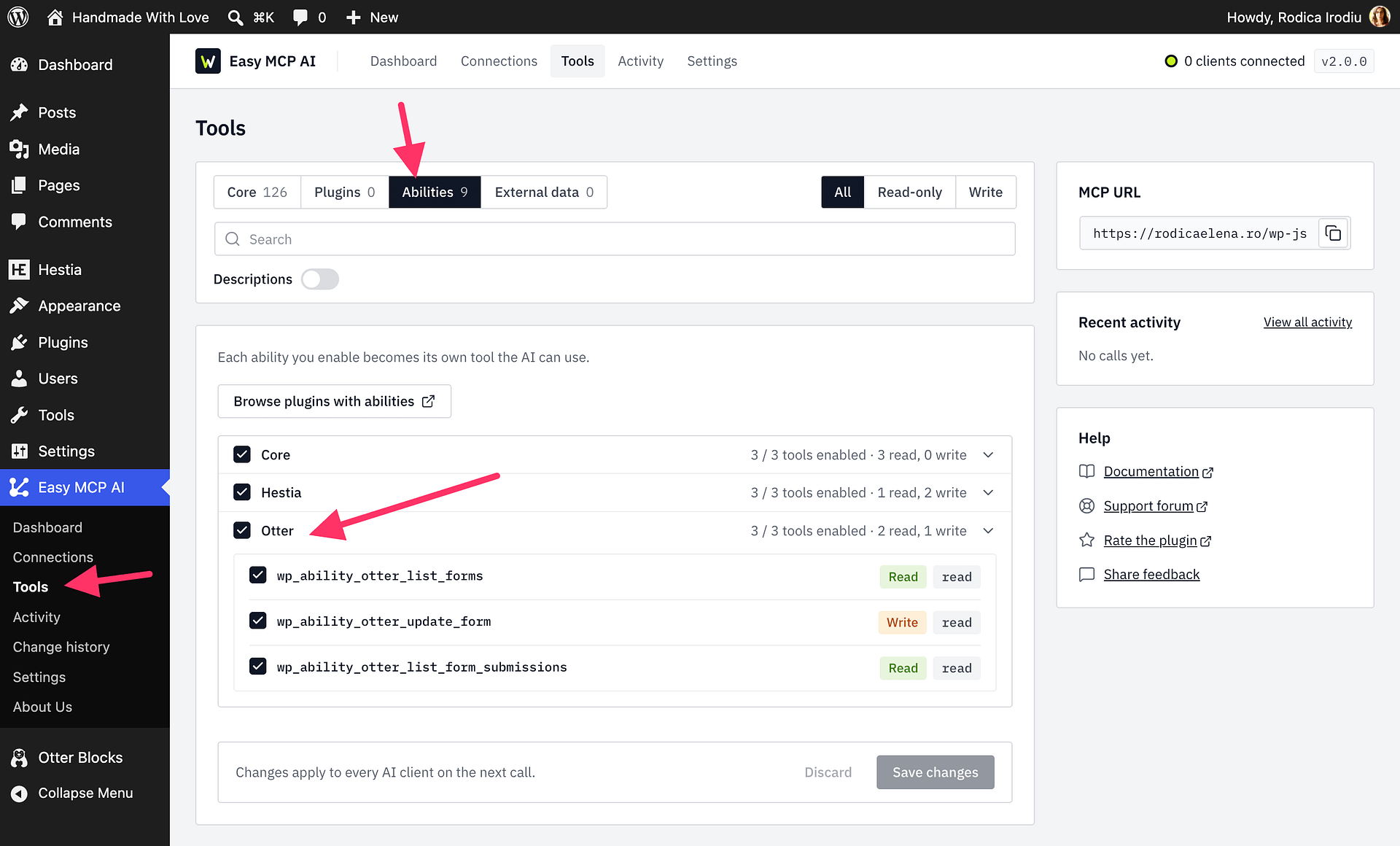
Available abilities
- List forms lists Otter Forms with their fields, delivery settings, and information about connected integrations.
- Update form changes standard form settings, including recipients, subject, sender details, messages, redirects, notifications, and connected integration settings. A marketing integration must already be connected in the form editor before the AI client can work with it.
- List form submissions lists submission records or returns one submission in full. You can request any status or narrow results to read, unread, or trash, and request results a page at a time.
Example prompts
After enabling the abilities, ask your AI client to:
- List the forms on your site: “List my Otter Forms.”
- Review recent unread submissions: “Show me recent unread Otter Forms submissions.”
- Update a form: “Update [form name] to [describe the change you want].”
- Change a webhook setting: “Change the webhook settings for [form name] to [describe the requested settings].” (Requires Otter Pro.)
- Run a dry run for a delivery change: “Run a dry run for changing the Contact form’s notification email to support@example.com. Show the change you would make, but do not save it.”
The dry-run request reports the proposed change without saving it. Review the response, then send a separate request asking the AI client to make and save the change.
Otter Free and Pro
Otter Free supports listing forms, changing standard delivery settings, and listing submissions. Otter Pro is required to filter submissions by a specific form or to change autoresponder, AI autoresponder, or webhook settings.
For instructions on connecting a marketing integration in the form editor, see How to Manage Marketing Integration in Otter Forms.
Permissions and privacy
The connected WordPress account must be an Administrator or have equivalent permission to manage site settings. Updating a form also requires permission to edit the page or post that contains it. Listing submissions requires permission to access submission records and edit each record individually. Enabling an ability does not bypass these checks, and the AI client's connection must also be allowed to use it.
Submission privacy: The submission ability can return information stored in Otter Forms to your connected AI client. Submissions may contain personal or confidential information. Only enable access for trusted clients and accounts that should be able to view those submissions. Otter's abilities never return API keys.