
How to Create a Download PDF button?
Otter Blocks brings in a wide palette of features that you can use to create appealing buttons. To create a Download PDF button follow these steps:
1. Open the page where you want to add the button.
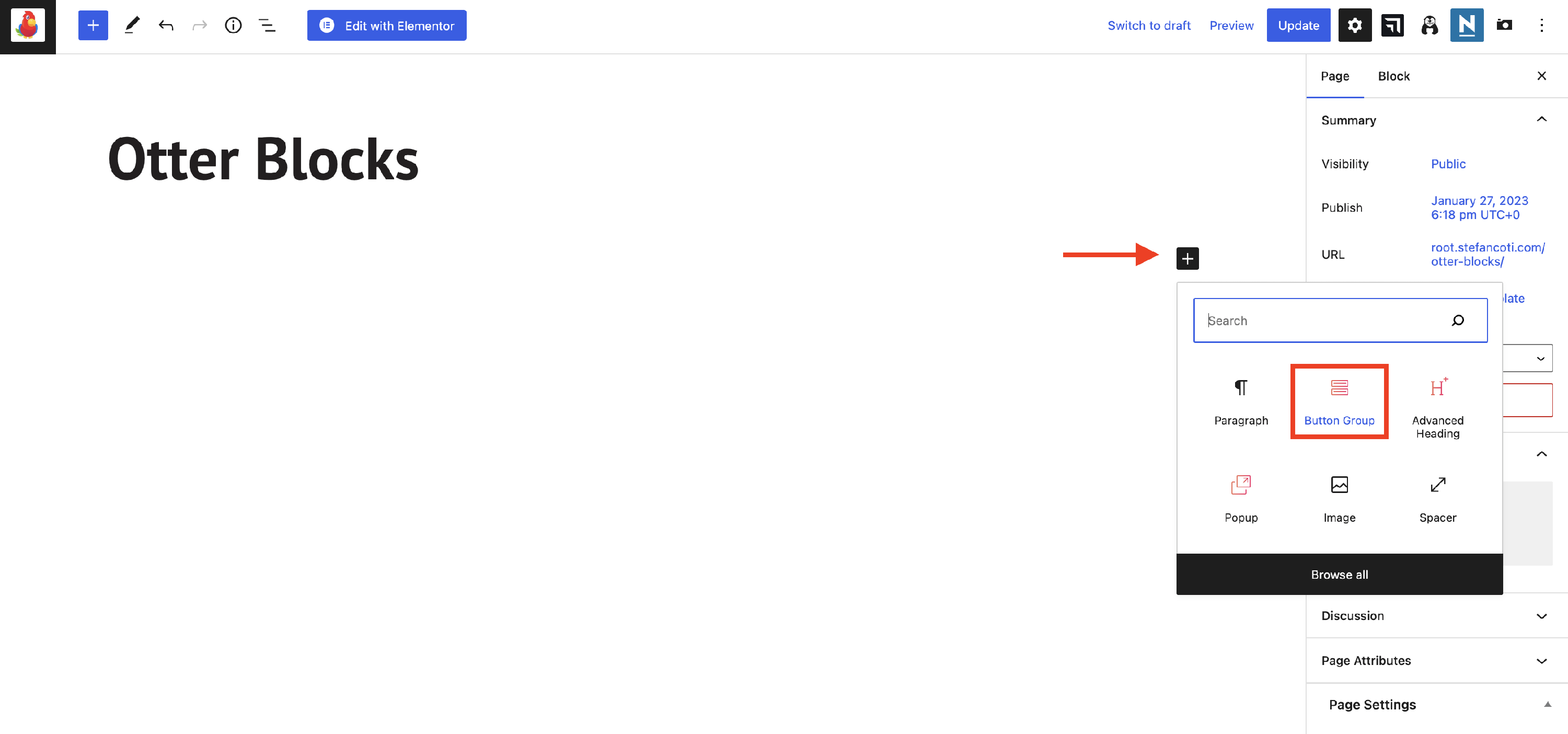
2. Click on the plus sign to add new blocks, and select the Button Group block.
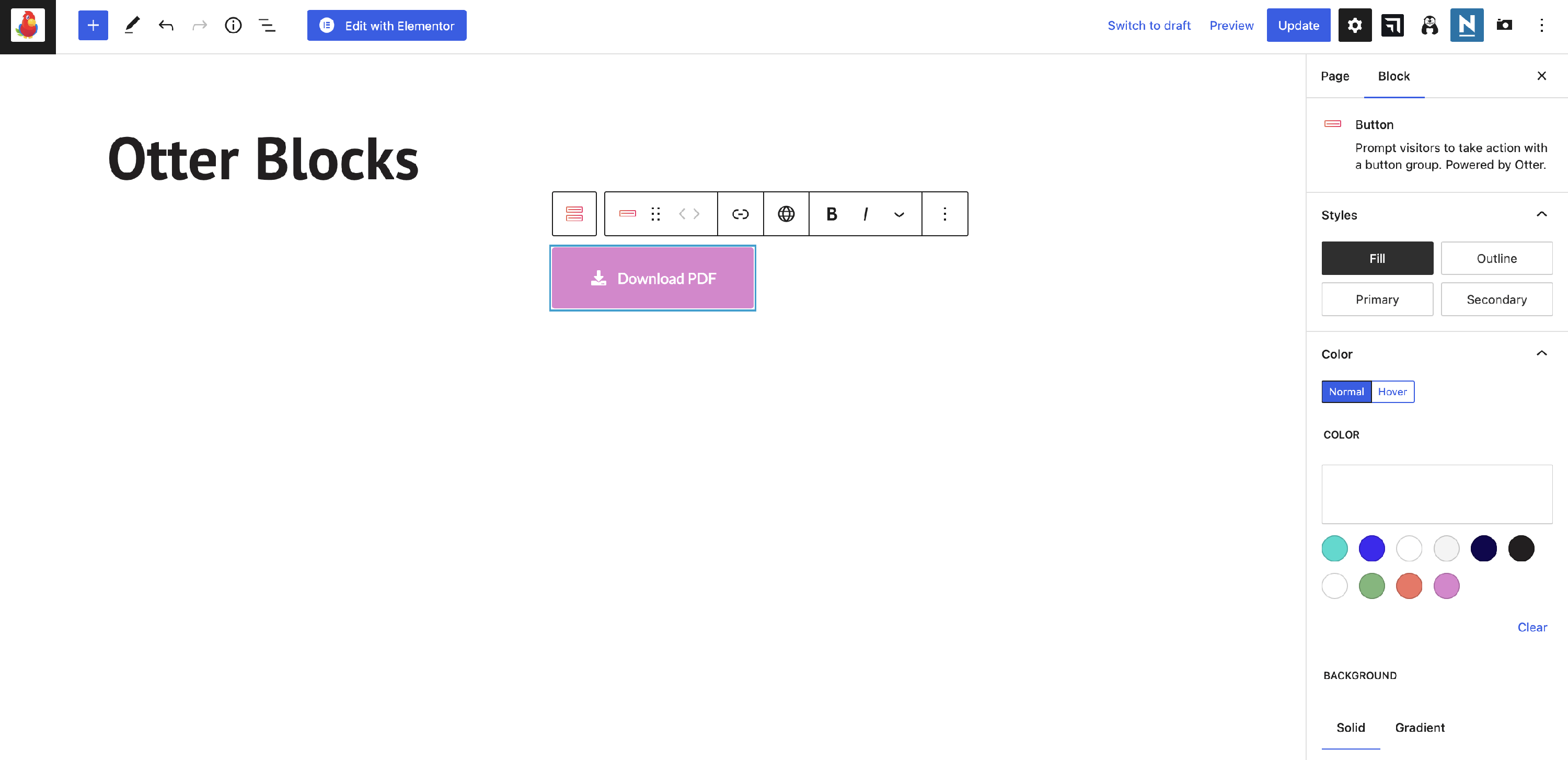
3. Customize the button; here we have added a background color, box shadow, and a suggestive icon from the sidebar.
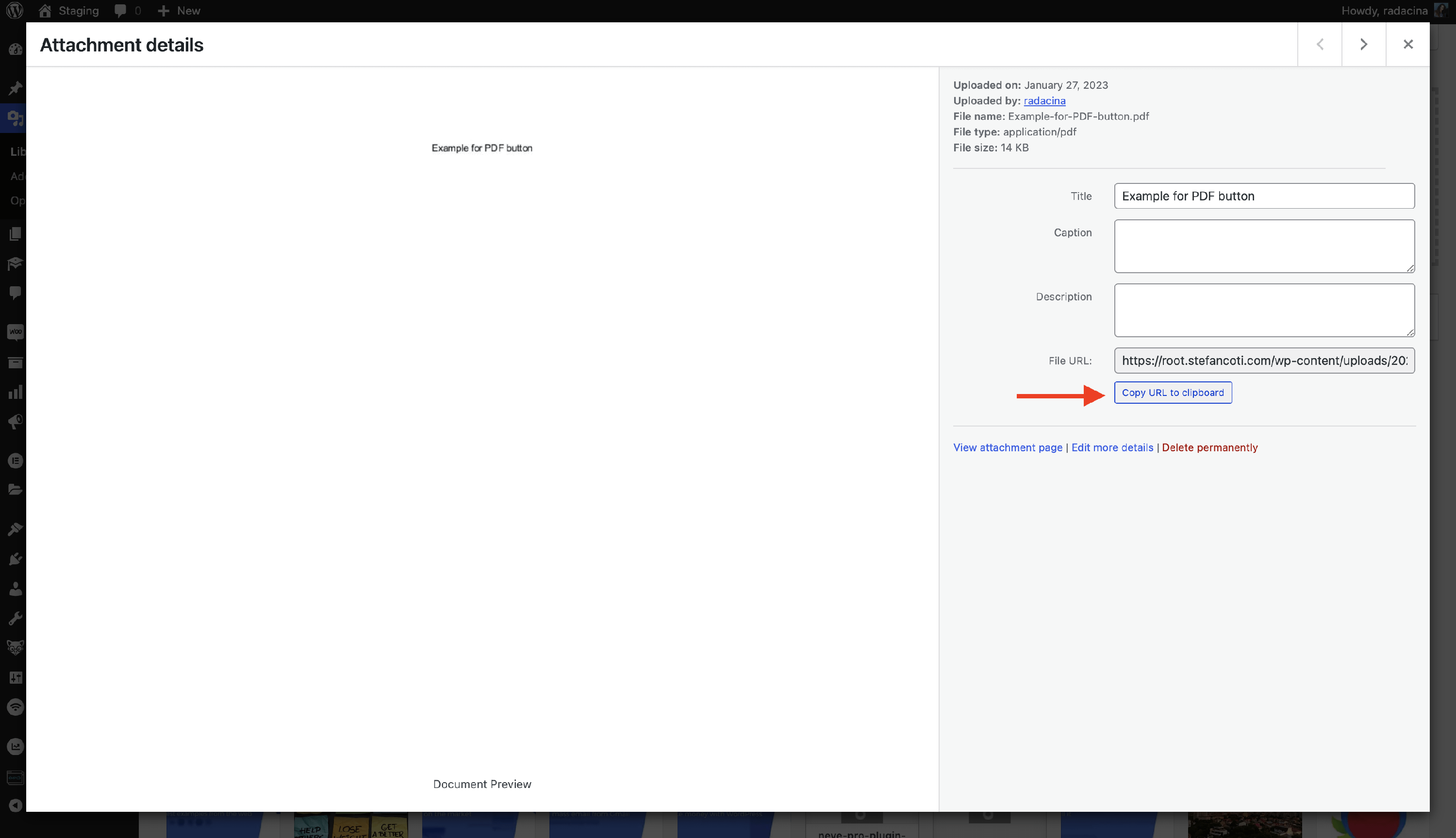
4. The last step is to add a link that will enable the downloading process. For this, save the page, and go to the Dashboard.
5. Go to Media Library, upload the PDF file, and copy the URL of the file.
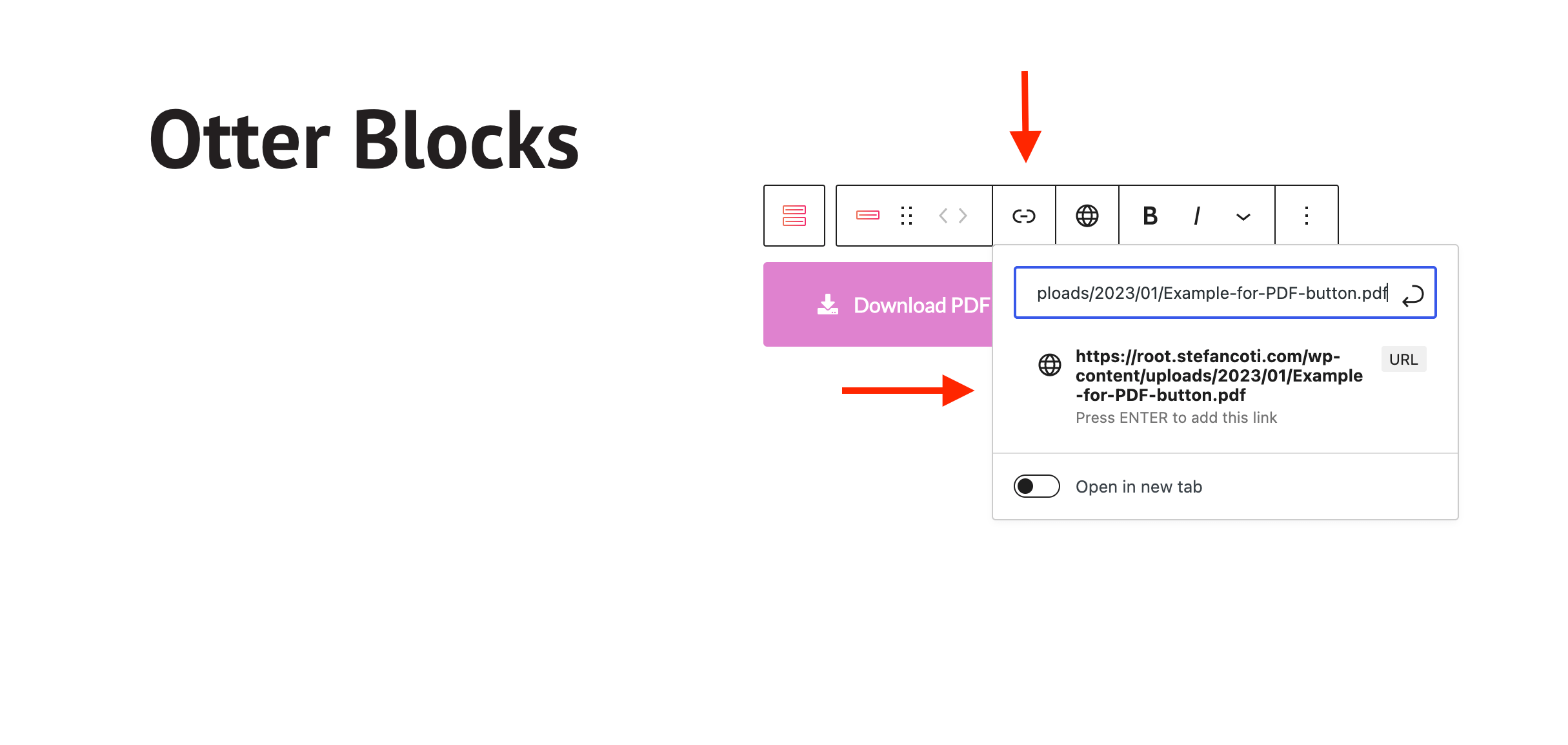
6. Go back to the page with the button, click on the link icon, and paste the URL of the file.
Publish the changes and check the result!