
Content Slider Block - Otter Blocks Library
The Content Slider block lets you create a slider where each slide can contain regular WordPress blocks or Otter blocks. You can use it for testimonials, feature highlights, pricing sections, mixed image-and-text layouts, or any other content that needs to rotate inside a single area.
If you are using Neve and want a swipeable overview that links to separate detail pages, see Can Visitors Swipe Between Pages on Mobile in Neve?.
📝 Note: This block is part of the Otter Blocks plugin, which you can install from WordPress.org.
Add a Content Slider
- Open the page or post where you want to use the slider.
- Click the + inserter and search for Content Slider.
- Insert the block into the editor.
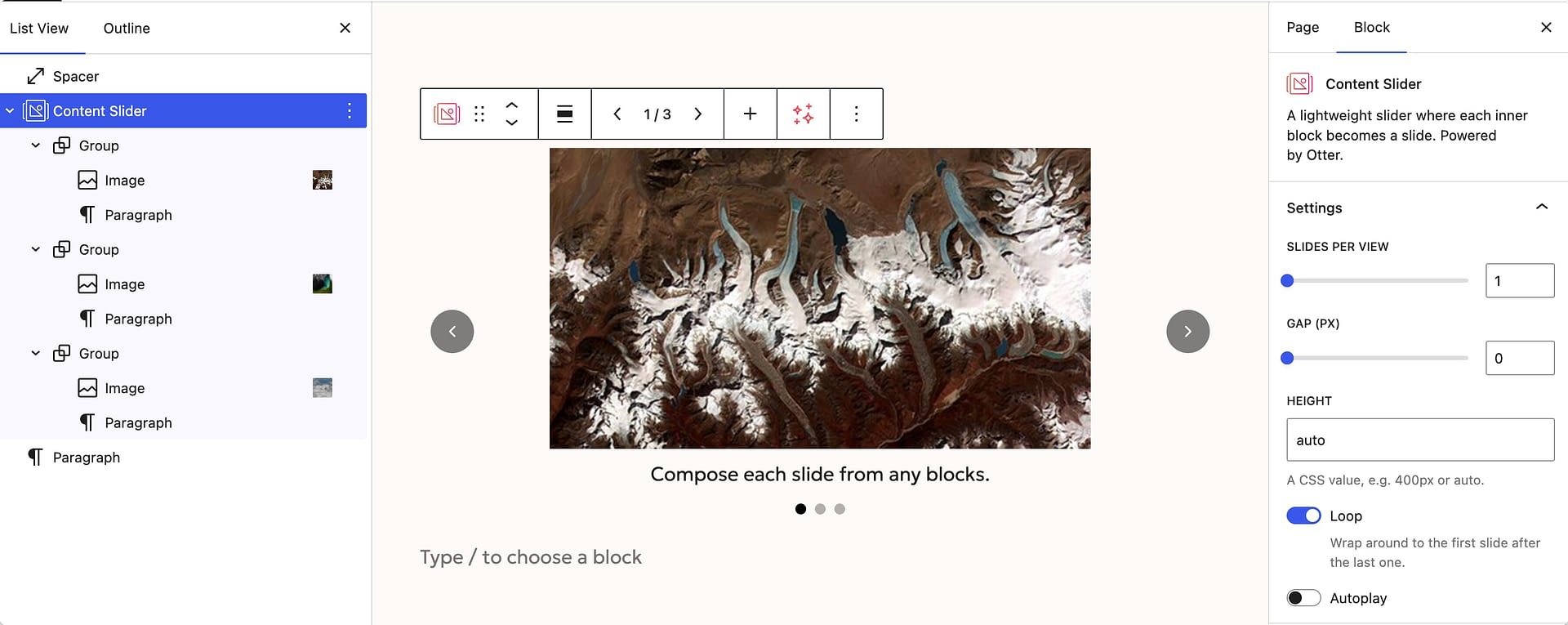
- Edit the sample slides that are added automatically, or click Add slide in the block toolbar to create another one.
- Click inside each slide and add the blocks you want to show, such as headings, paragraphs, images, buttons, lists, or other supported blocks.
- Use Previous slide and Next slide in the toolbar to move between slides while editing.
Each direct child inside the Content Slider becomes a separate slide.
Customize the slider
Use the block toolbar and the settings sidebar to control how the slider works.
Toolbar controls
When the block is selected, the toolbar helps you work through your slides:
- Previous slide and Next slide move between slides in the editor.
- Slide x of y shows which slide you are editing.
- Add slide appends a new slide to the slider.
- The standard alignment controls let you use Wide width or Full width when your theme supports those layouts.
Slider options
In the block settings, the options are organized across the Settings, Navigation, and Slider Chrome panels:
- Turn autoplay on or off.
- Adjust the delay between slides when autoplay is enabled.
- Show or hide arrows and dots.
- Enable or disable looping.
- Set the number of slides per view.
- Adjust the gap between slides.
- Set the slider height.
- Choose colors with the Arrow Color, Arrow Background, Dots Color, and Active Dot Color controls.
📝 Note: The Content Slider is different from the image-only Image Slider block. Use the Content Slider when you want each slide to hold full block layouts instead of just images and captions.
Check how the slider works on the front end
After you finish editing the block:
- Save or update the page.
- Preview the page on the front end.
- Confirm that the arrows, dots, autoplay, slide height, and visible slides match what you expect.
- Test the slider on desktop and mobile views if you are showing more than one slide at a time.
Because each slide contains normal blocks, your text, images, buttons, and other content keep their usual styling inside the slider.
Accessibility and troubleshooting tips
Keep these points in mind when building your slider:
- Use clear headings and descriptive button text so each slide is easy to understand.
- Avoid very short autoplay delays, especially when slides contain more than a simple image.
- Keep slide heights consistent when possible so the layout feels stable while visitors move through the slider.
- If a slide feels crowded, reduce the number of blocks inside it or show fewer slides at the same time.
If the slider does not look right on the front end, review the block settings again and make sure the content inside each slide fits the height and spacing you selected.