
How to add a Captcha to Otter Forms?
A captcha protects your forms from bots, spam, and other forms of abuse. Otter Forms do not integrate with hCaptcha. Instead, spam protection is added with a dedicated Captcha block that supports two providers: Google reCaptcha and Cloudflare Turnstile.
In this article
Adding a Captcha block to your form
1. Open the page or post that contains your Form block.
2. Click the + button inside the form and search for Captcha.
3. Insert the Captcha block inside the form.
4. In the Captcha block settings, choose a Captcha Provider, either Google reCaptcha or Cloudflare Turnstile.
Adding the site and secret keys
The captcha only appears on the published form once the selected provider's site key and secret key are saved. You can enter the keys in two places:
- Directly in the Captcha block settings.
- On the Integrations tab, under Otter Blocks > Settings > Integrations.
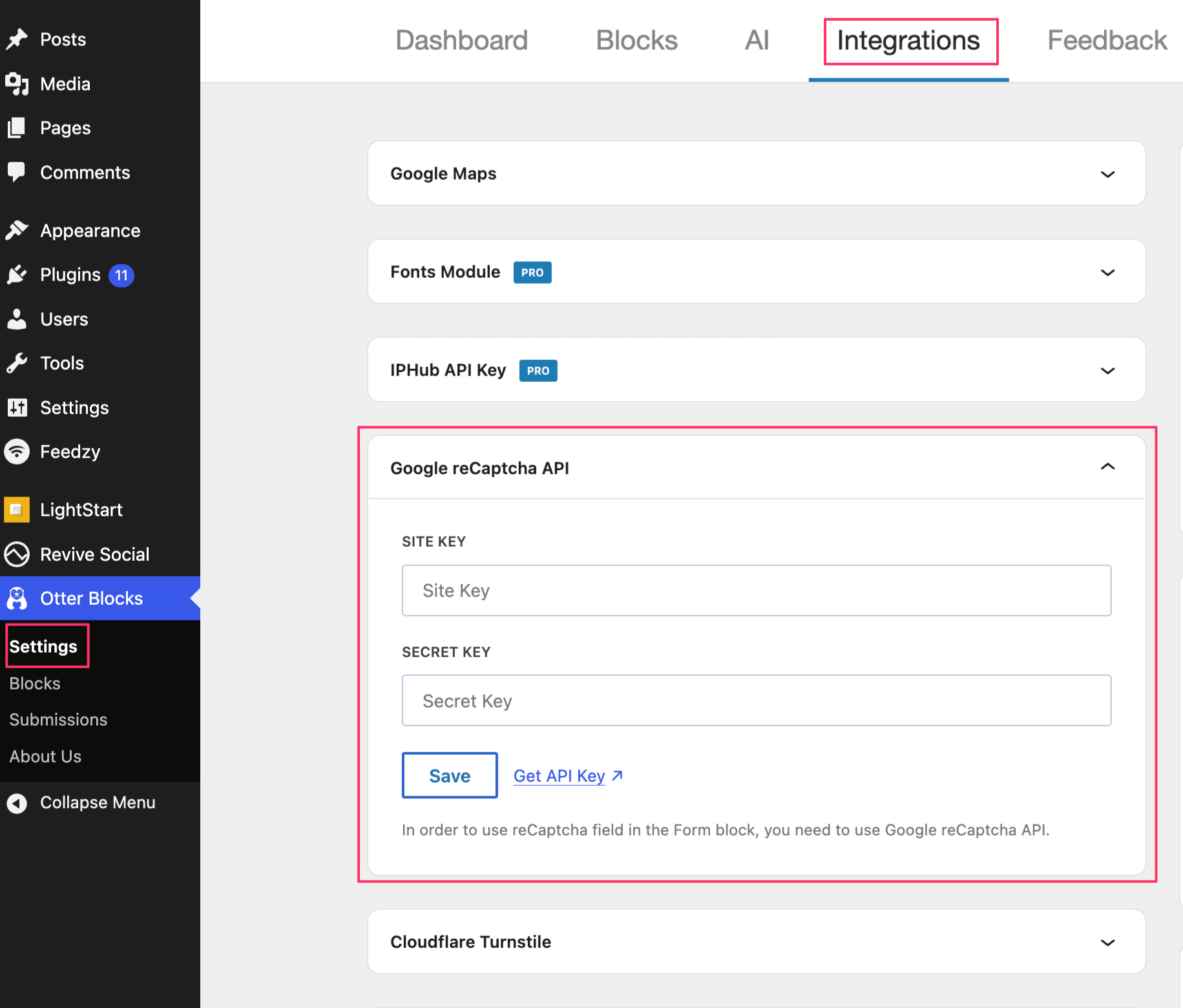
📝 Note: Bot protection is no longer a checkbox in Form Options. Add the Captcha block inside the form instead.
Use Case - Subscribe Form inside a Popup
You can combine the Captcha block with any form. In this example, a subscribe form is displayed on each post using a Custom Layout:
1. Using the Neve theme, go to Appearance > Neve Options > Custom Layouts.
2. Create a new Custom Layout > Template > Global.
3. Configure the conditional logic to appear for Post Type is Posts.
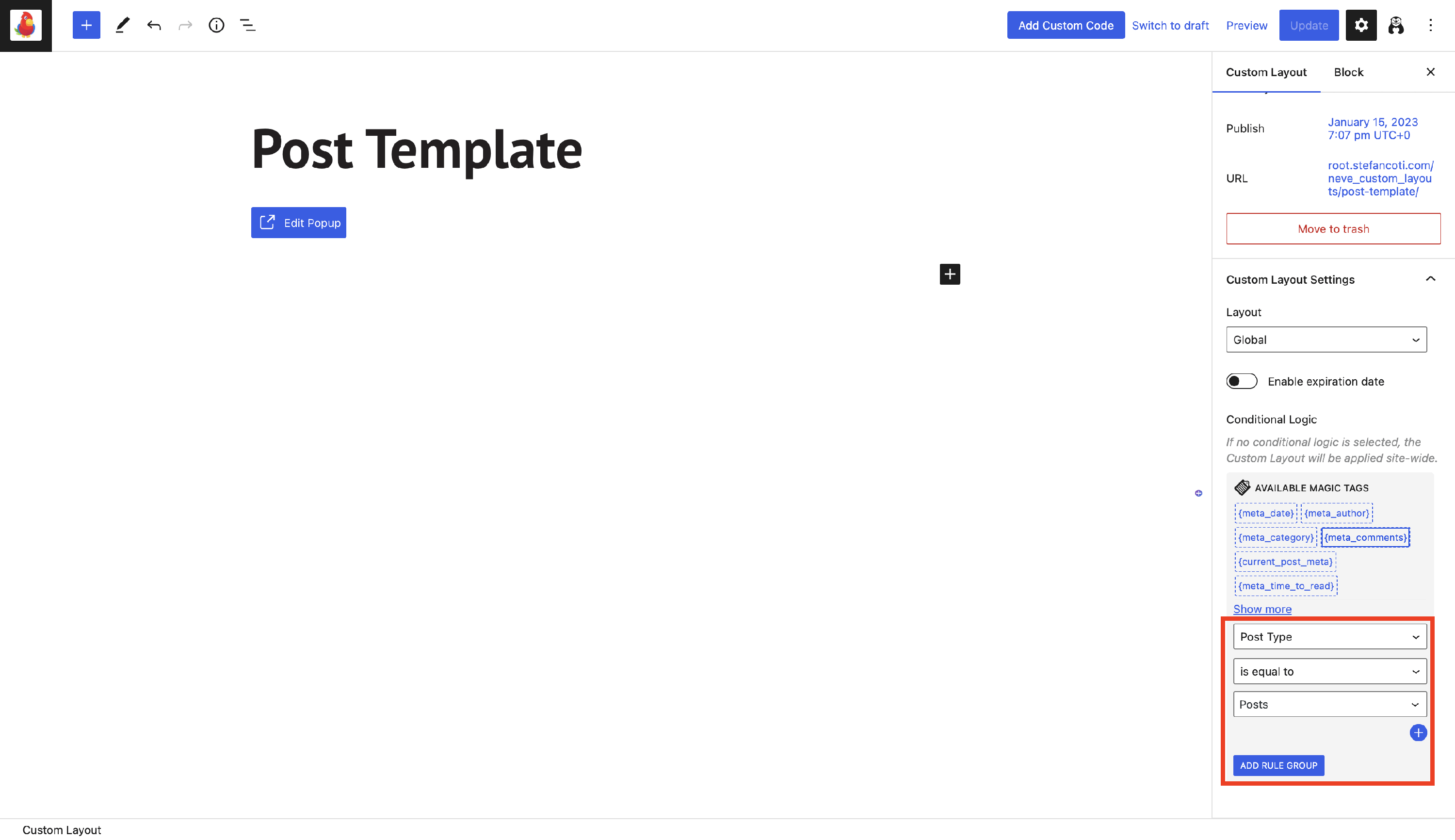
4. Open the editor, insert a Popup block, and then a Subscribe Form block inside.
5. Click the + button inside the form, search for Captcha, and insert the block.
6. Choose a Captcha Provider and add the matching site key and secret key.
Publish the changes, then go to the page to check how it looks.