
How to Display Blocks Based on Cookies?
Otter's Visibility Conditions let you show or hide blocks based on PHP cookies stored in the visitor's browser, using the Cookie condition in Otter PRO to personalize content.
📝 Note: This is part of the Otter PRO features library, which you can get from here.
In this article
Enabling the Panel
Blocks visibility can be controlled using the Visibility Conditions that Otter brings in. These can be found under Block Tools, and clicking on them to create a separate panel.
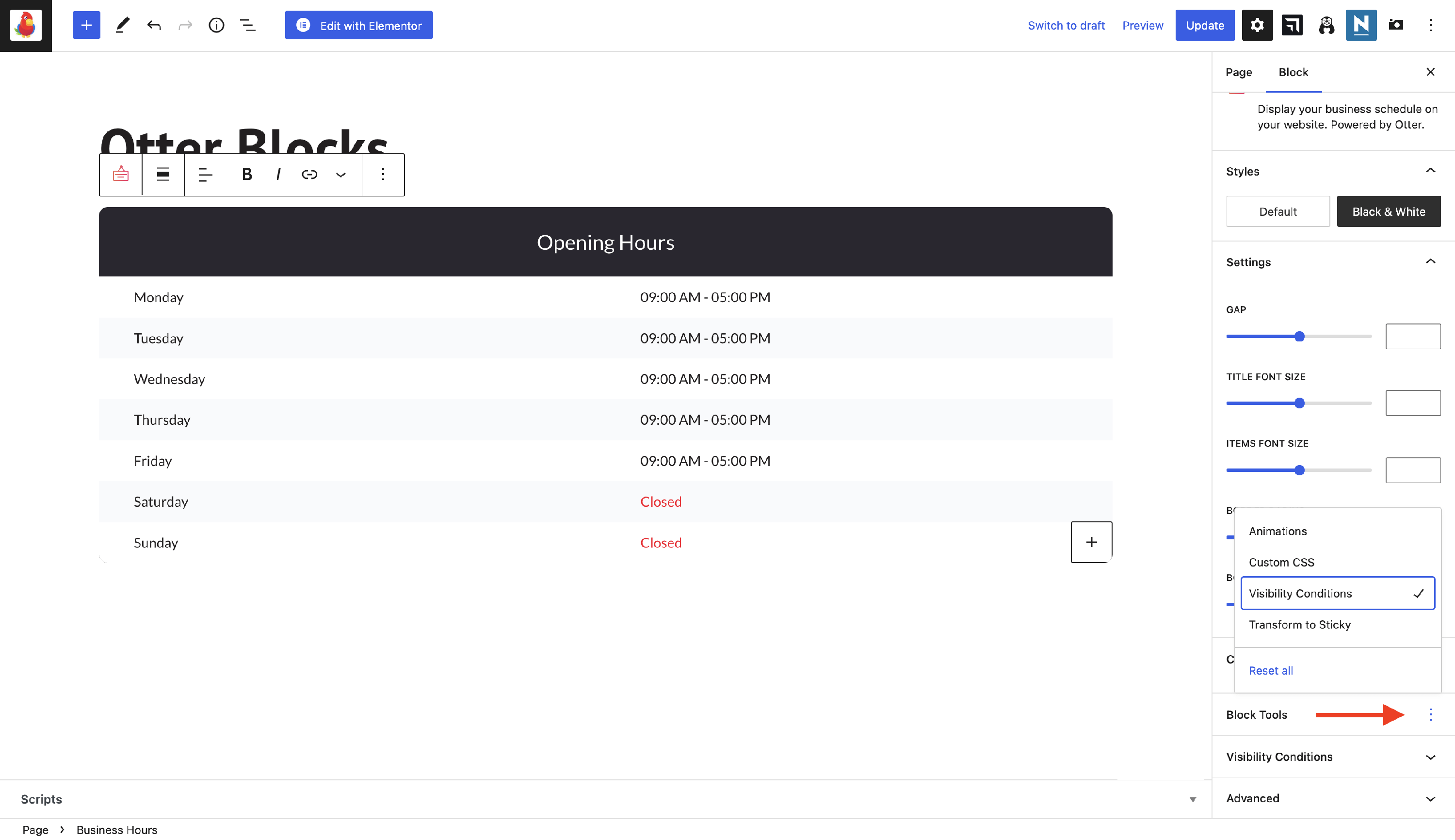
After enabling the panel, open it to insert conditions. This article will present an example of Cookie-based visibility conditions:
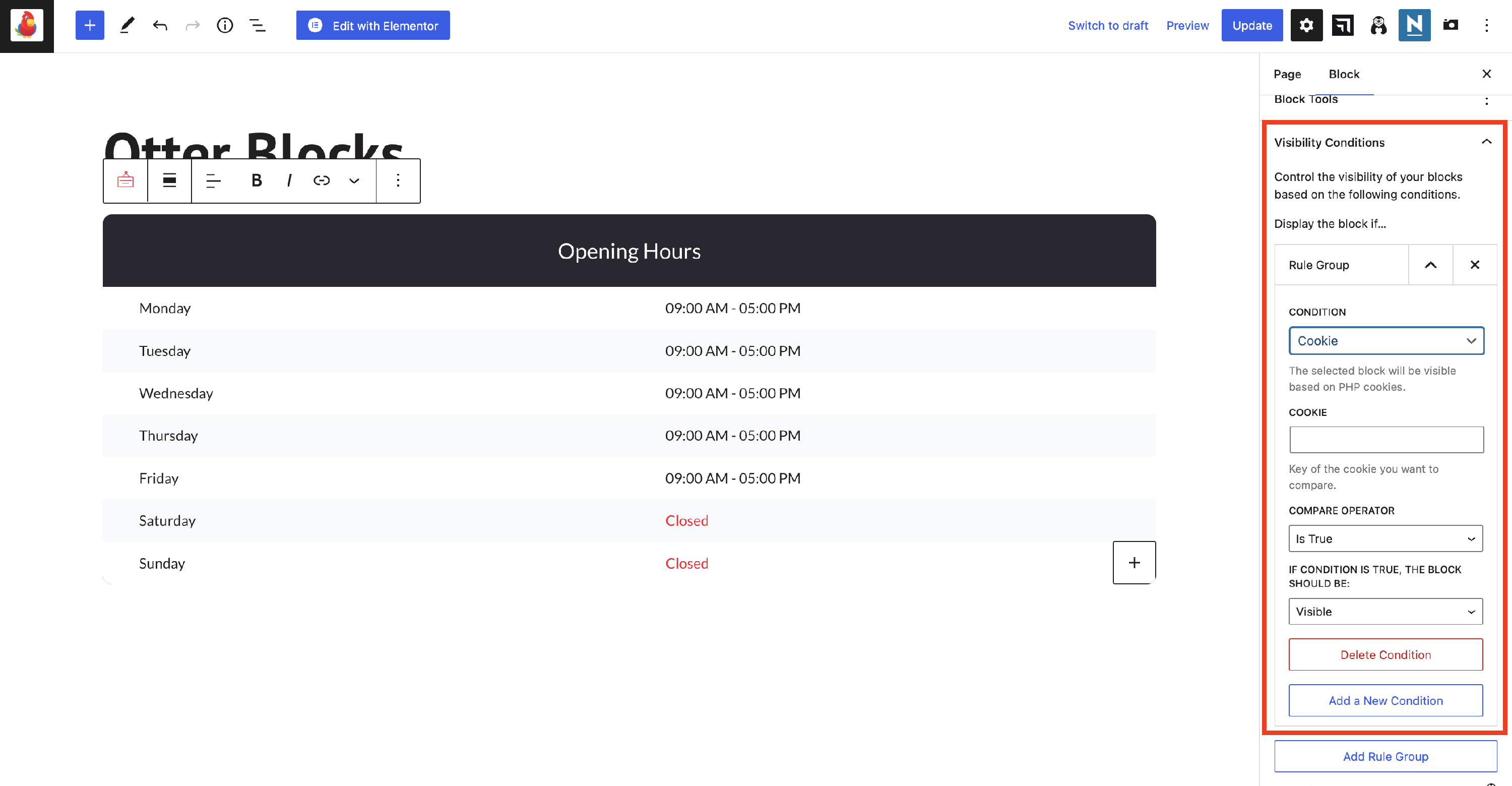
This condition is based on the PHP cookies. These cookies are small fragments of data stored on a client browser, which makes the user recognizable.
Using the Condition
Using this condition, the website will recognize the user using the cookies and display / not display the blocks anymore.
1. First, pick the Cookie condition from the dropdown.
2. Insert the cookie's key in the field. This is equal to the cookie's name.
3. Pick the compare operator. It can be is True/False/Empty or if Equals/Contains.
📝 Note: Based on the operator, other fields may appear.
4. Select the block's behavior if the condition is met (Visible/Hidden).
Example
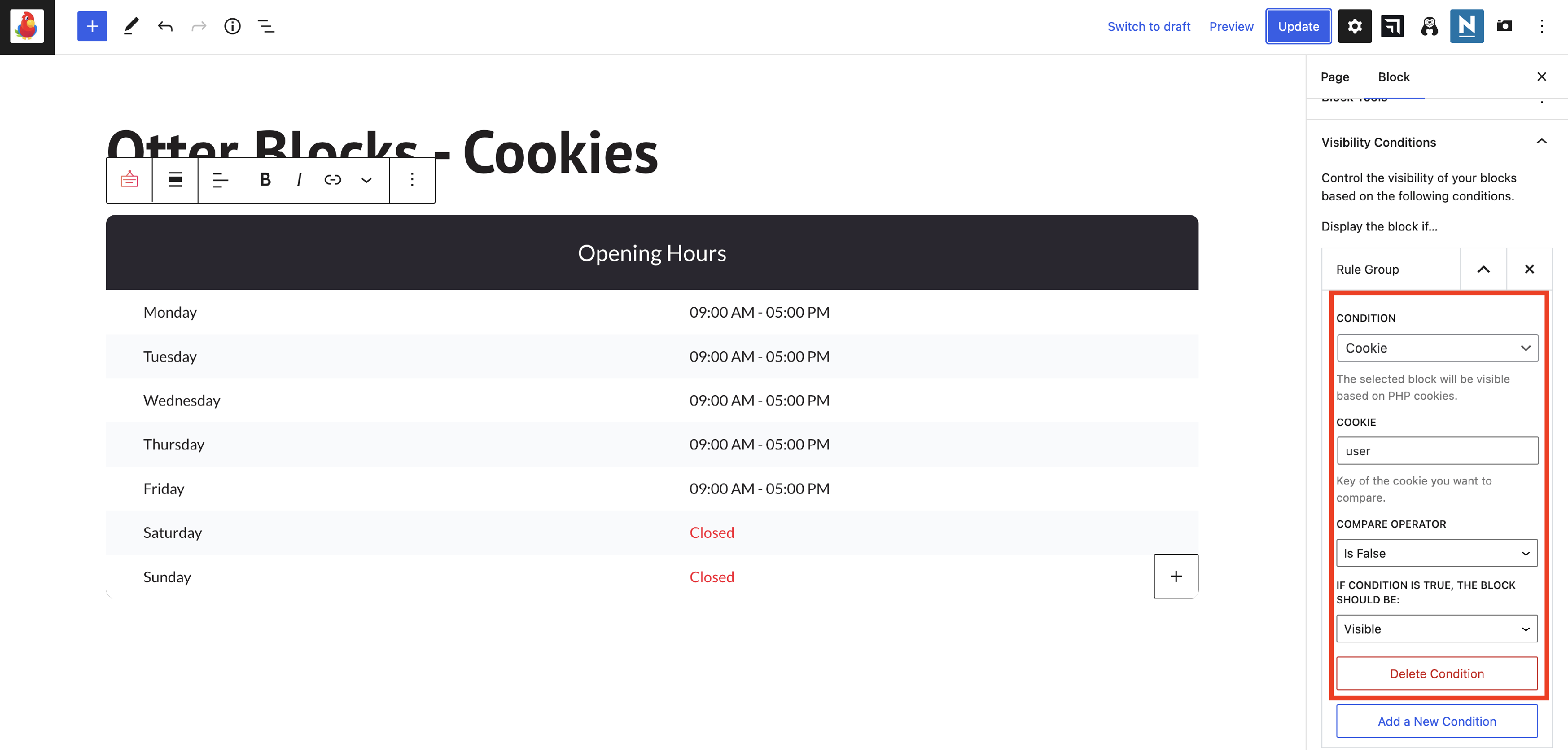
In the example below, we have created a cookie named user and added the key inside the field. Add the cookie code to your theme's (or child theme's) functions.php file or a custom site-specific plugin, rather than editing the plugin's otter-blocks.php file directly, since plugin files are overwritten on every update.
Result
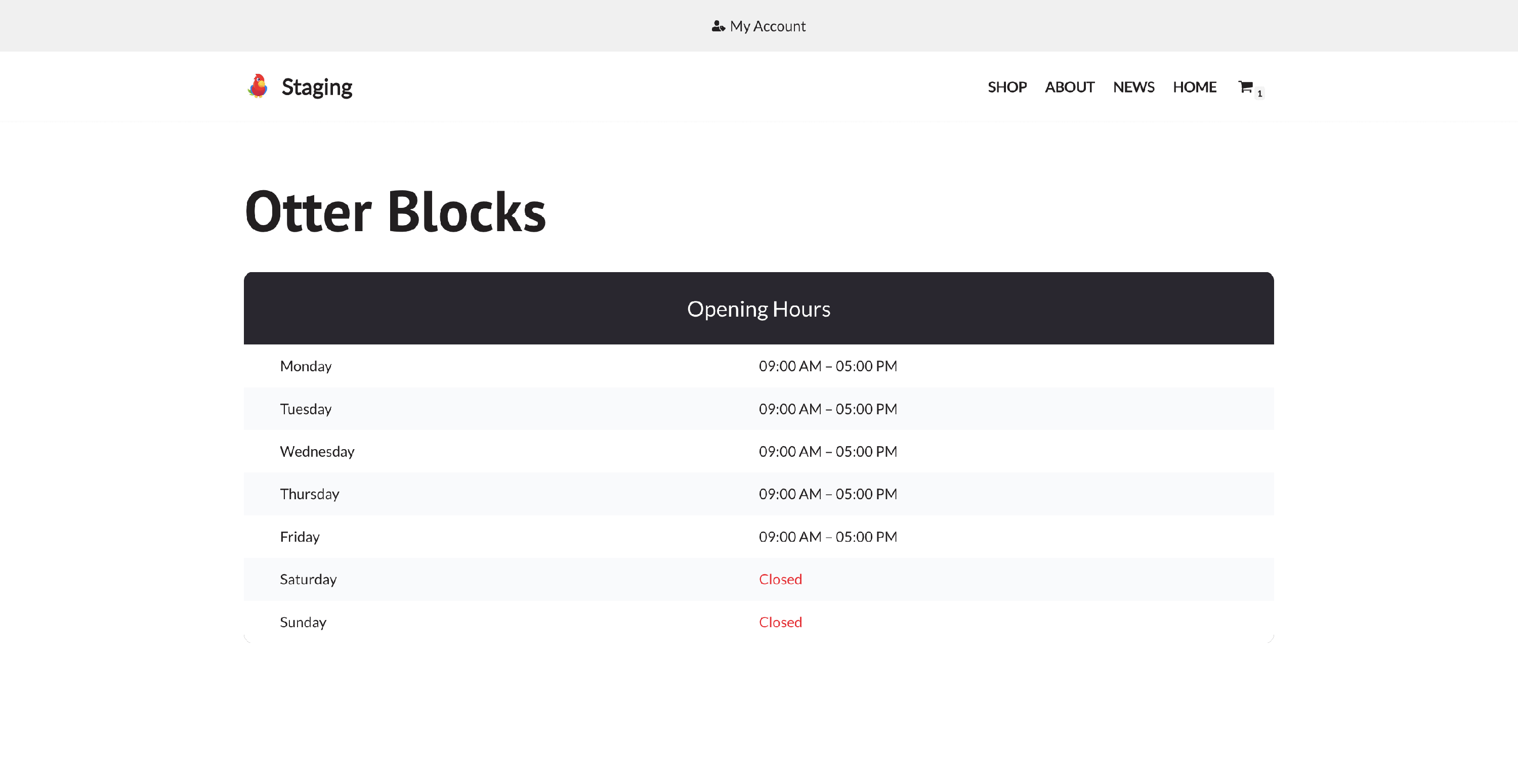
When the condition is met
When the condition is not met