
Maps - Related Blocks
Increase your website's utility by using Otter's location blocks:
In this article
📝 Note: These blocks are part of the Otter Blocks plugin, which you can get from here.
📝 Note: The blocks' appearance can be improved using the Otter features, such as Transform to Sticky, Visibility conditions, Dynamic Values or Images, as well as Counting / Typing / Loading animations, and 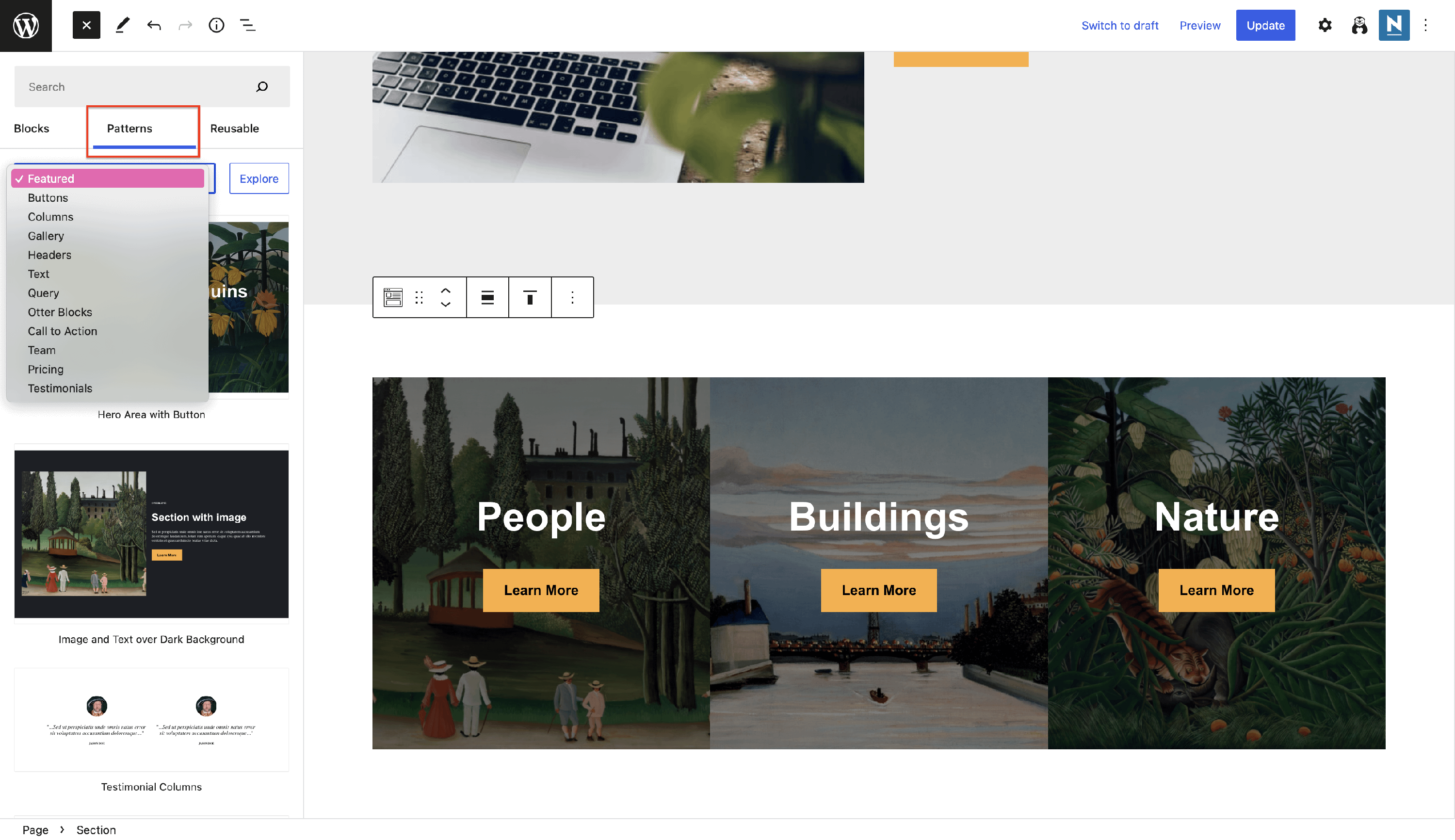 Patterns.
Maps
As expected from the name, this block generates a map on your website.
📝 Note: If an existing Maps block shows a 403, Access blocked, or missing tiles, update Otter Blocks to the latest version, then reload the editor and the published page.
The specific customizations available for this block cover four areas:
Location - insert the location that you want to highlight on the map, it will automatically generate latitude and longitude, or directly add these coordinates.
Positioning & Zooming - adjust the Map Zoom Level and Map Height, to create a nice appearance on the website.
Controls - from here, you can enable the draggable Map so that users can move the map, show the zoom control, and control Scroll to Zoom. When Scroll to Zoom is enabled, visitors can zoom the map by holding Ctrl (or ⌘ on Mac) and scrolling with the mouse wheel or trackpad. Maps already added to your site keep Scroll to Zoom enabled until you turn it off.
Markers - can be added by clicking on the 📌 icon, adding a title, and location details, for a better search.
Use cases for the Maps block
- offer a dynamic location of your company
Google Maps
Create a more interactive website using Google Maps. Unlike the OpenStreetMap-based Maps block, this block requires a Google Maps API key:
- Insert the Google Maps block and set the location you want to display.
- Add a valid key in the Google Maps API field at Otter Blocks > Integrations:
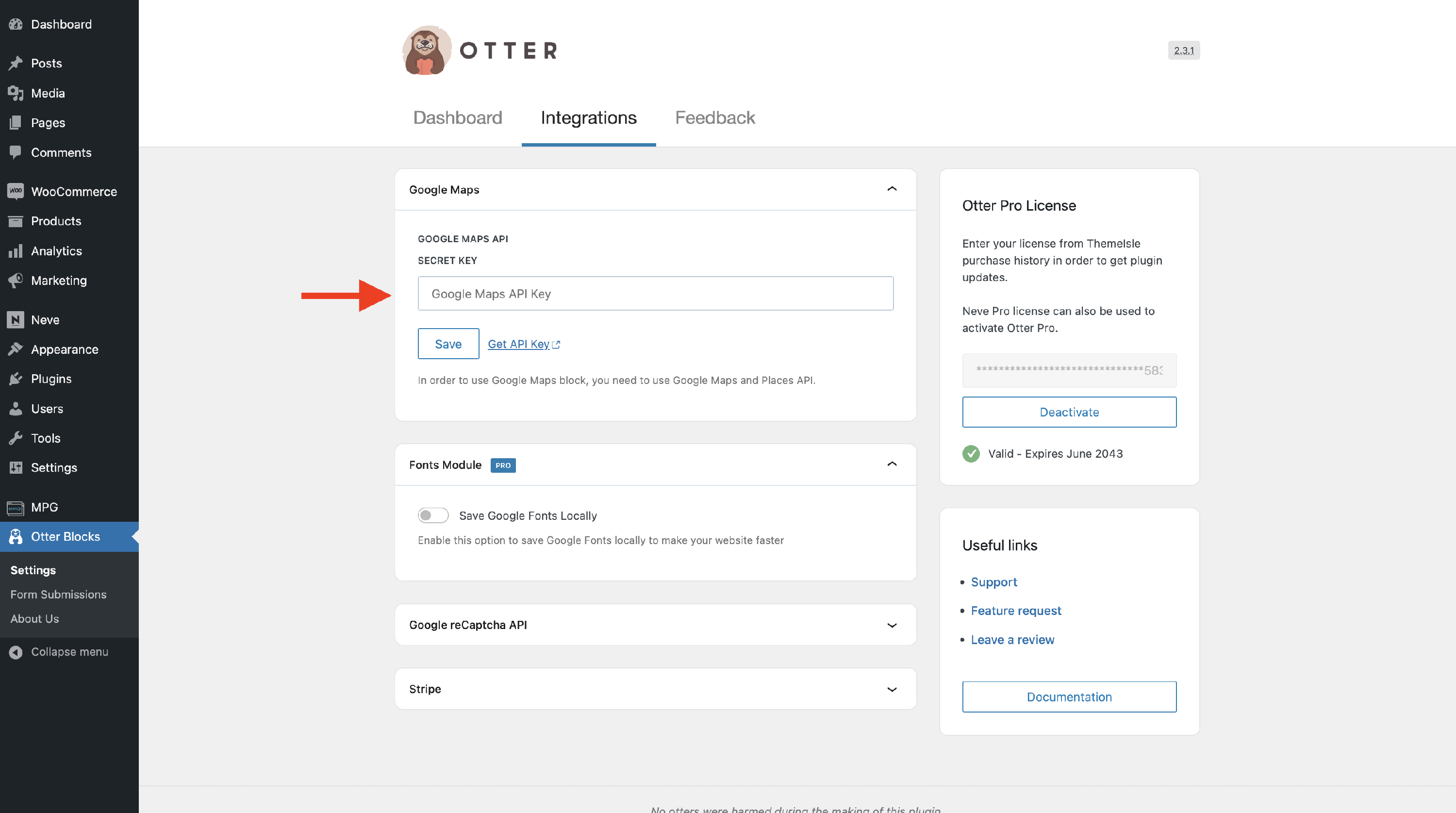
- Make sure the key has both the Maps JavaScript API and Places API enabled, then follow the key-creation and restriction guidance available inside the block.
- Update the page and check the public view to confirm the map renders correctly.
Google Maps' settings offer more design enhancements, so besides the usual map's settings, you can find:
- Map Type - from the Style tab, choose the suitable type from the dropdown, including Road Map, Satellite View, Hybrid, and Terrain.
- Enable Full Screen Control and Street View Control from the Controls accordion, allowing your user to take full advantage of accessibility.
- Pick different colors for the Marker while editing it.
Use cases for the Google Maps block
- create a more authentic view of a location
📝 Note: Unlock more features using the PRO version of the plugin.