
Use Visualizer with AI Assistants
You can connect an authenticated AI assistant to your WordPress site to manage Visualizer charts through the WordPress Abilities API. An ability is an action that a plugin makes available to a compatible connector.
In this article
Requirements
- WordPress 6.9 or later. On older versions, Visualizer does not register its abilities.
- Visualizer installed and activated.
- A compatible Abilities API or MCP (Model Context Protocol) connector, such as Easy MCP AI, to connect your assistant to WordPress.
- A connected WordPress user with permission to manage the requested charts.
Connect an assistant
- Connect your AI client to WordPress using the Easy MCP AI getting-started guide, or follow your connector's instructions. The client must authenticate as a WordPress user.
- In your WordPress dashboard, open Easy MCP AI > Tools and select Abilities.
- Find the Visualizer group, enable all five abilities, and click Save changes. Abilities are off by default; enabling the group makes its tools available to connected clients, subject to their access permissions.
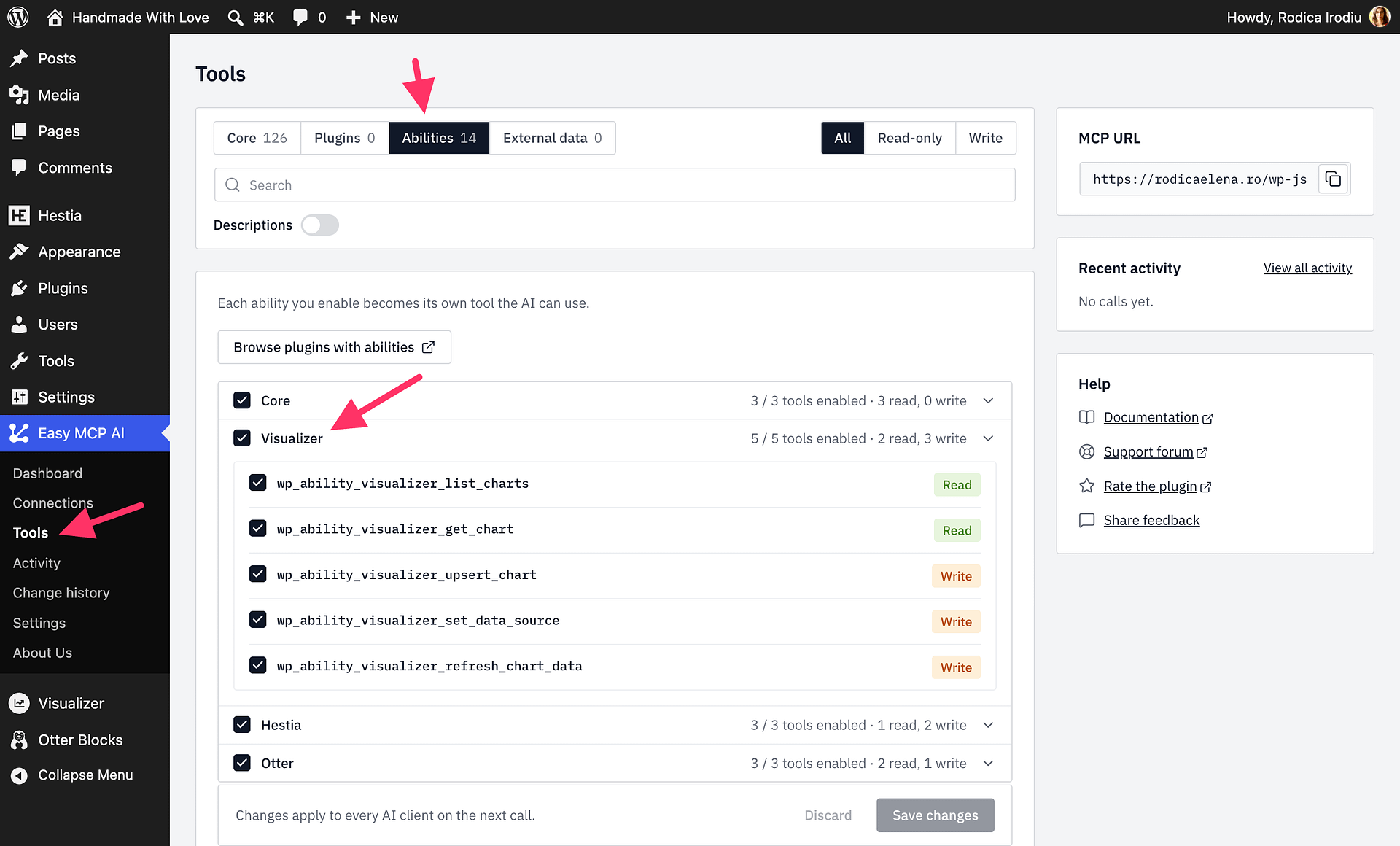
- Refresh the available tools in your AI client. You should see five Visualizer tools; if you granted the client read-only access, it cannot use the write abilities. Ask the assistant to list your charts to check the connection.
Available abilities
| Ability | What it does |
|---|---|
visualizer/list-charts | Lists charts the connected user can manage; filter by chart type or search by title. |
visualizer/get-chart | Returns a chart's type, columns, rows, options, source description, shortcode, and block markup. Saved source credentials are not returned. |
visualizer/upsert-chart | Creates a chart or updates an existing chart's data, type, title, library, and options. |
visualizer/set-data-source | Imports a remote CSV/XLSX file, JSON endpoint, or WordPress database query and can save an allowed refresh interval. Available source types and schedules depend on your active Visualizer plan; enabling an ability does not unlock plan-restricted features. |
visualizer/refresh-chart-data | Refreshes a chart from its saved remote CSV/XLSX, JSON, or database source. |
Permissions and safe usage
The assistant acts with the connected WordPress user's permissions. Listing charts requires the edit_posts capability (permission to edit posts); reading or changing an existing chart also requires permission to edit that chart. Setting a WordPress database query requires an administrator who is also a super admin. Grant write-tool access to the connector only when you want the assistant to change charts.
Before creating or changing a chart with visualizer/upsert-chart or visualizer/set-data-source, ask the assistant to use dry_run=true. A dry run validates the request and previews the parsed data without saving changes. Review the preview, then ask the assistant to repeat the operation without the dry run if it looks right. Although saved source credentials are never included when reading a chart, only share source credentials with an assistant you trust.
Example prompts
- “List my Visualizer charts with ‘Traffic’ in the title.”
- “Create a pie chart named Traffic by channel with Organic 5400, Direct 2100, and Social 1300. First run a dry-run preview without saving, then wait for my approval.”
- “Show me the current data and settings for chart 42.”
- “Refresh chart 42 from its saved source.”