How to install and activate Visualizer PRO?
📝 Note: Visualizer PRO is a separate add-on that you install alongside the active free Visualizer: Tables and Charts for WordPress plugin. Installing PRO this way does not erase or replace your existing charts, and the free plugin must stay active for PRO features to work.
In this article, we will present to you how to download the pro version of the plugin, the steps to install and use the pro version of Visualizer, and also how to use the license key in case it is not automatically activated.
Download and Install
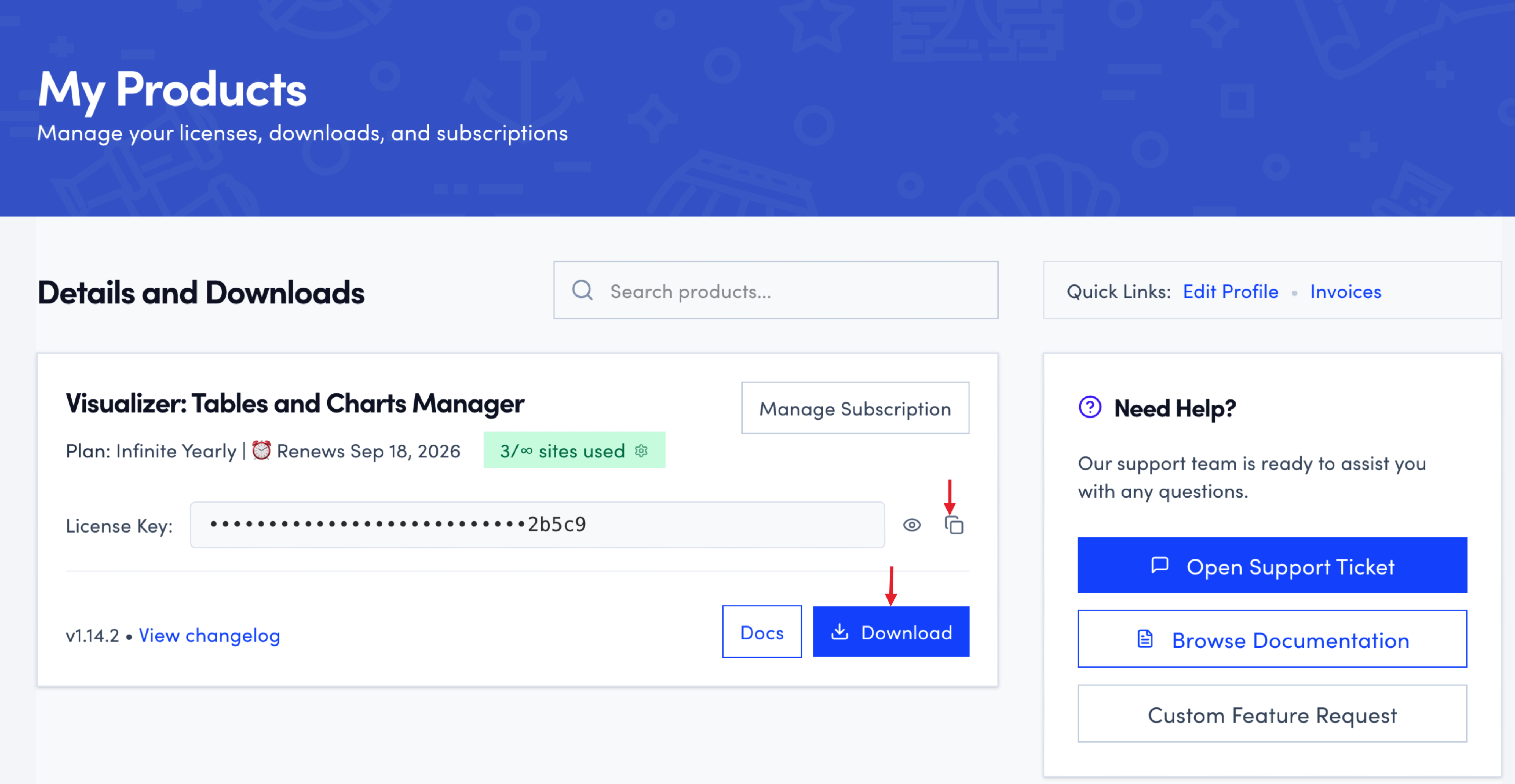
1. Navigate to Themeisle Purchase History and search for the Visualizer: Tables and Charts Manager, then click on the Download button.
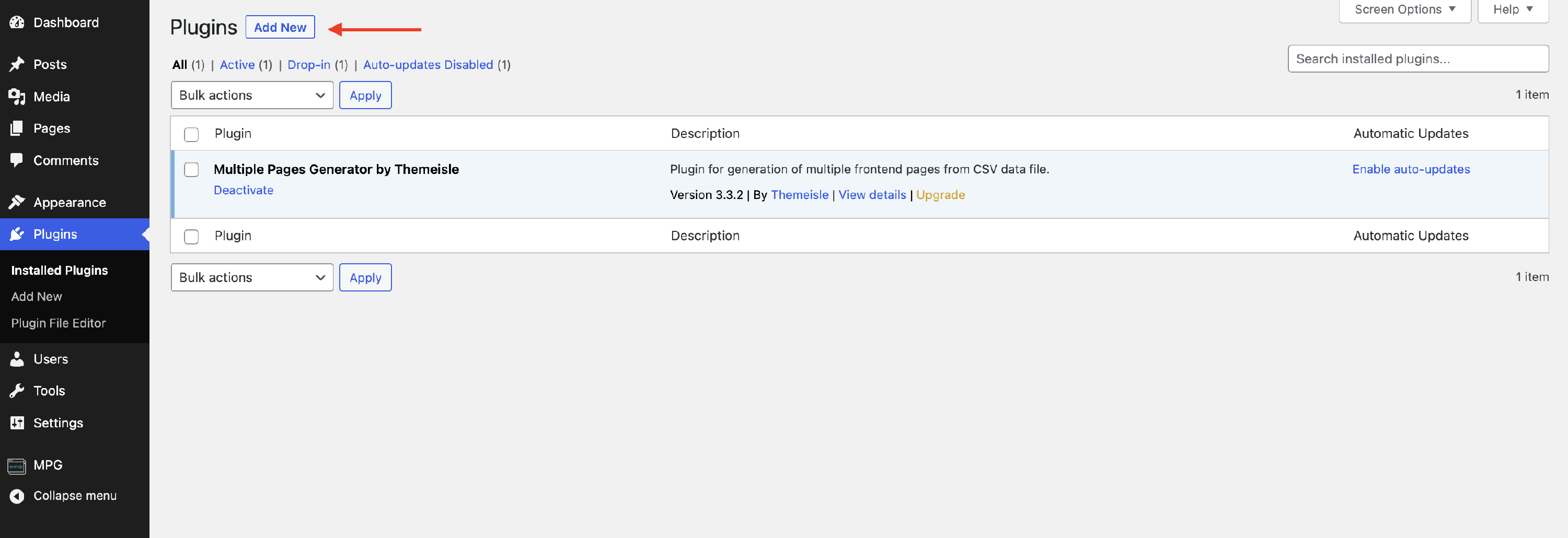
2. Open your WordPress Dashboard and visit Plugins > Add New.
3. Click on the Upload Plugin button.

4. Select the plugin from your File Explorer and click on Install Now.
5. If WordPress says that Visualizer PRO is already installed, click Replace current with uploaded. This replaces the expired PRO add-on files with the current package from your Themeisle account and keeps your existing chart records, so do not delete Visualizer Lite or recreate your charts.
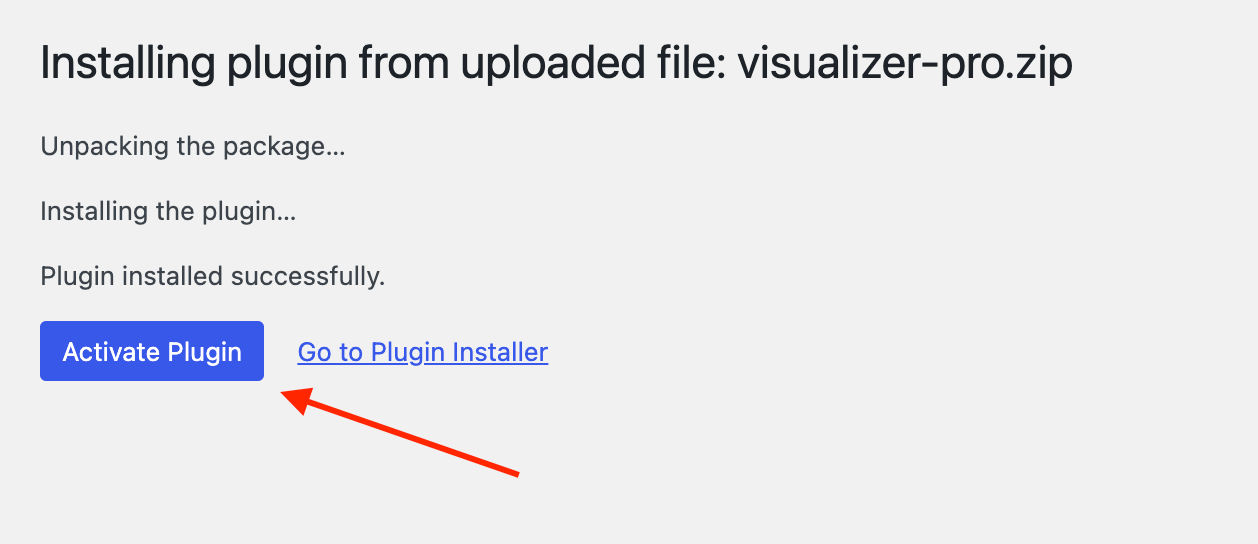
6. If prompted after uploading, click on Activate Plugin.
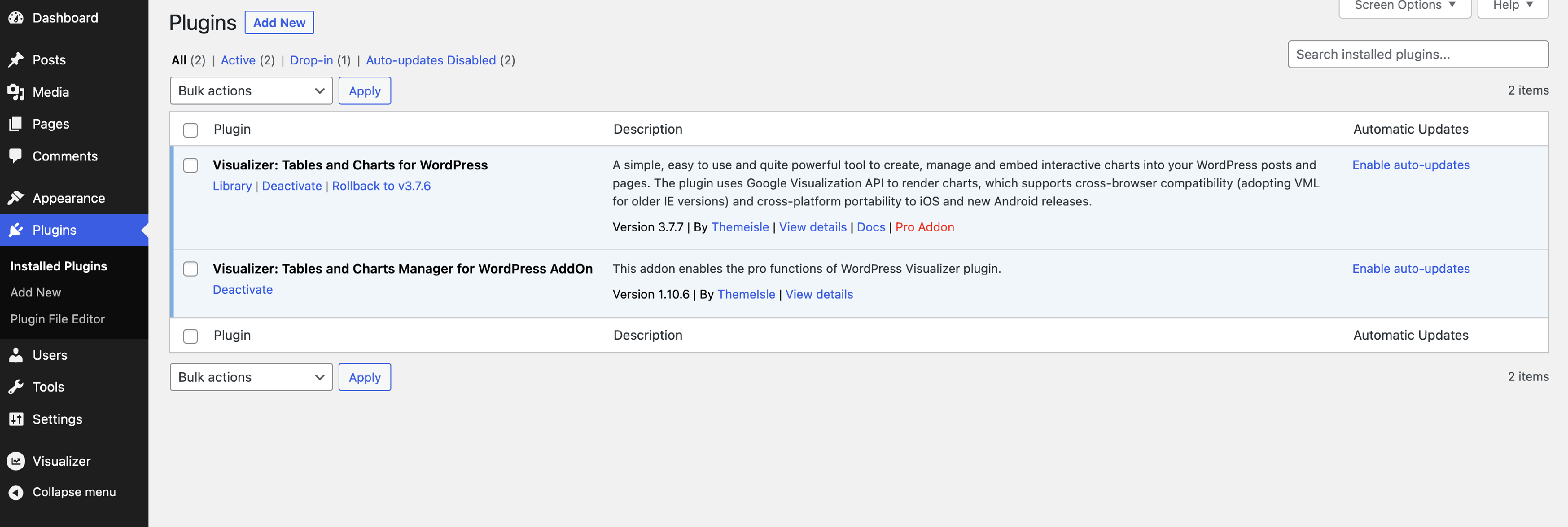
Now you will be able to see both free and pro versions in the Plugins area:
Find your license key
Usually, the license key is automatically activated once you download the pro version of the plugin. However, sometimes it may not. In this section, we will present where you can get your license key and how to use it.
If an expired PRO add-on does not show an editable license key field, complete the ZIP replacement first, confirm that both Visualizer plugins are active, and then follow the Settings > General steps below.
The license from your Themeisle account is the same one you use on your WordPress site, so you do not need a second purchase through an in-plugin prompt.
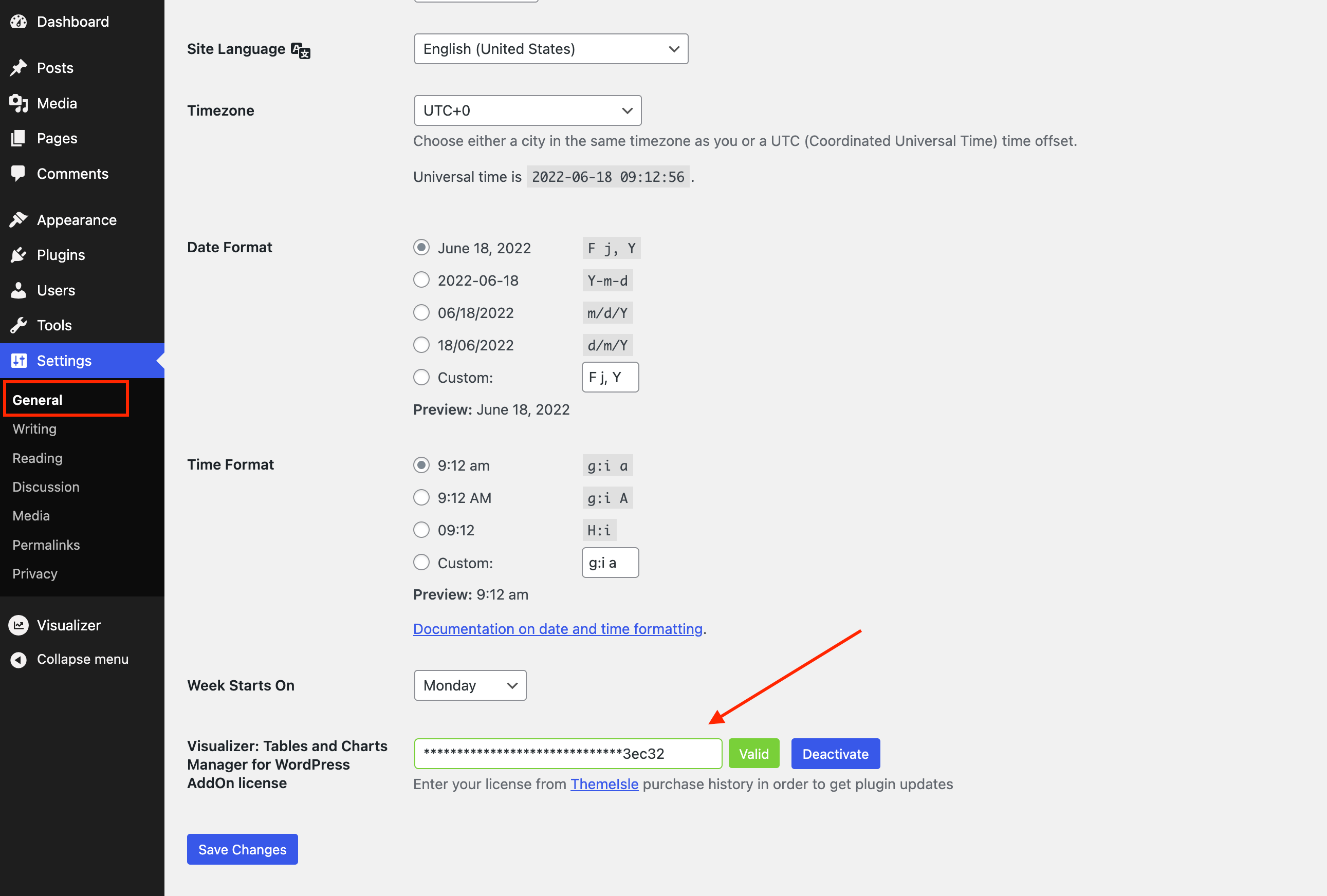
1. Navigate to the Themeisle store.
2. Enter the Visualizer name in the search field.
3. Once it appears, click to copy the license key.
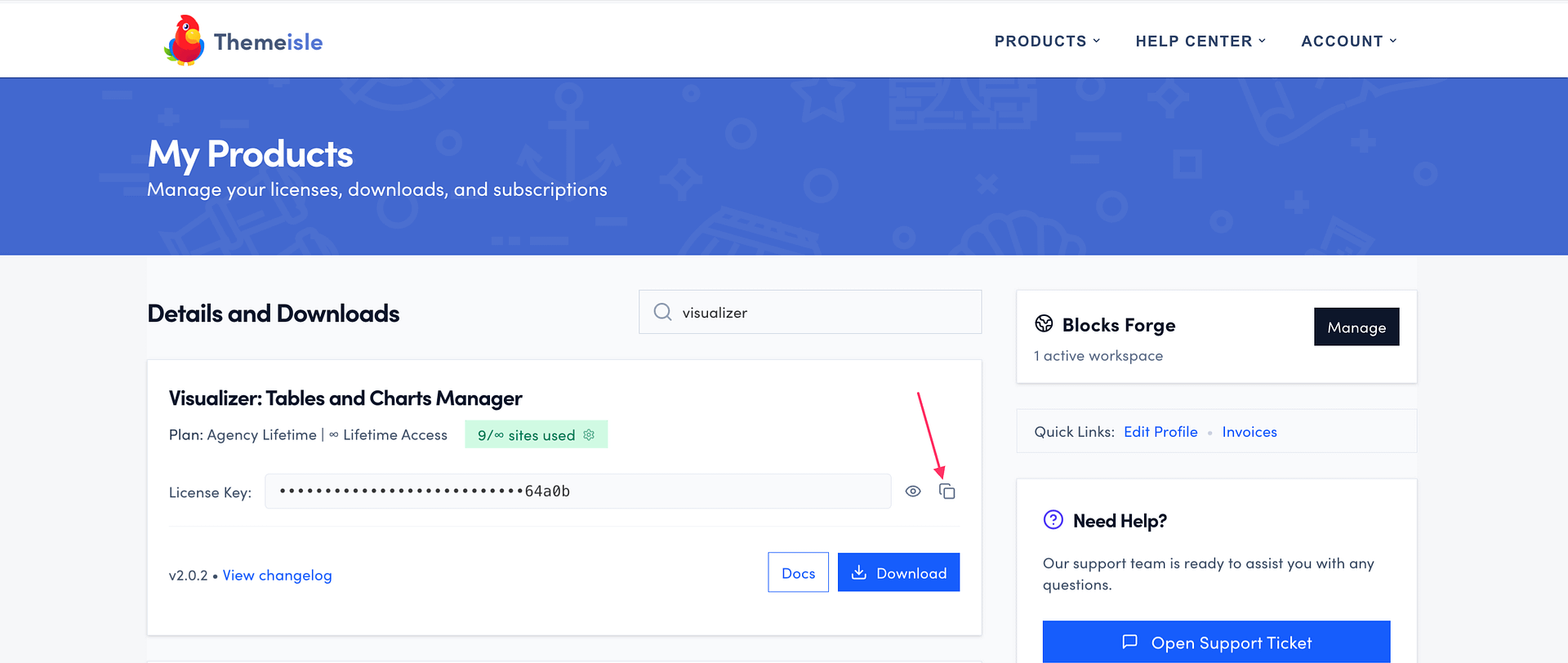
4. Navigate to your website, to Settings > General.
5. Scroll down until the license key field and paste it.