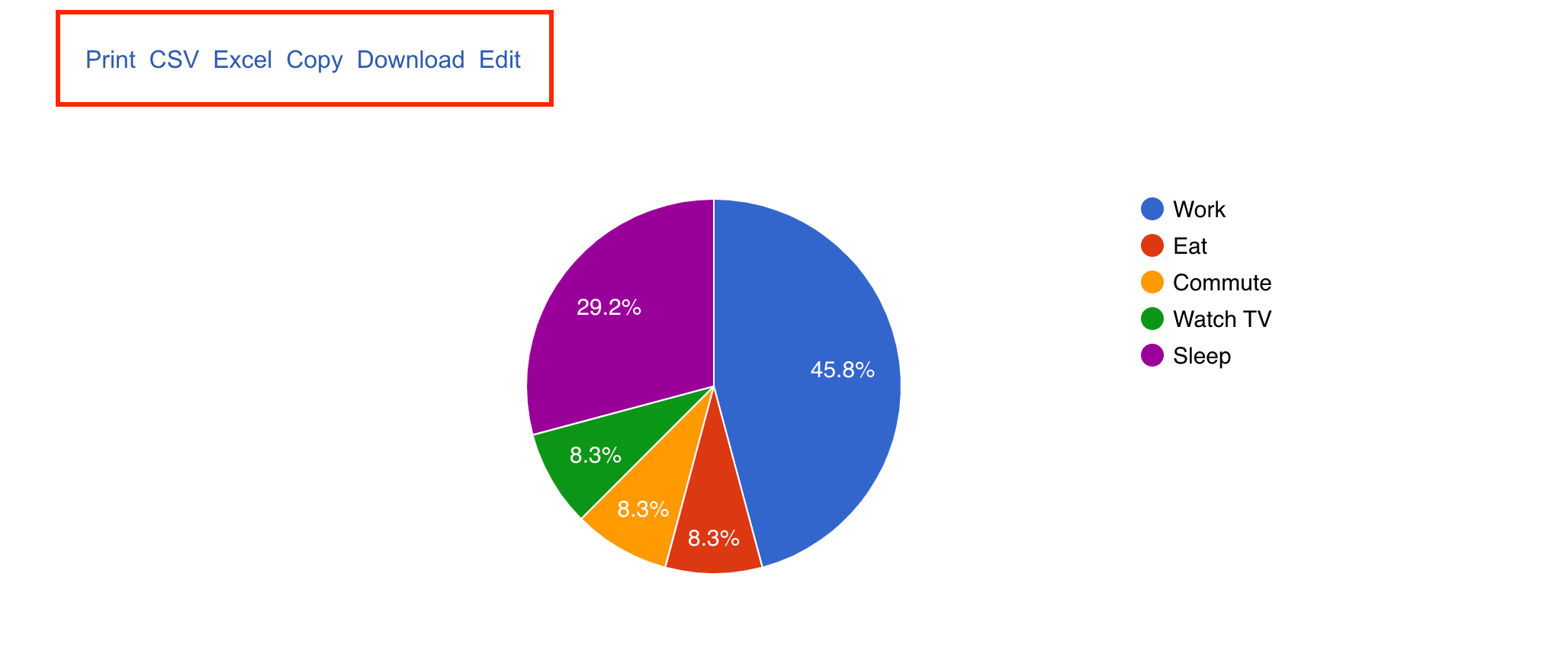
How to enable frontend action buttons
📝 Note: This is a part of Visualizer's PRO features, which you can get from here.
The frontend actions are very useful when it comes to engaging your visitors, and they can be easily configured; just follow the steps below:
1. Make sure you have installed and activated the PRO version of the plugin.
2. Navigate to Visualizer > Chart Library.
3. Click to edit an existing chart or add a new one and go to the Settings tab.
4. Click on the Frontend Actions option and enable the desired ones.
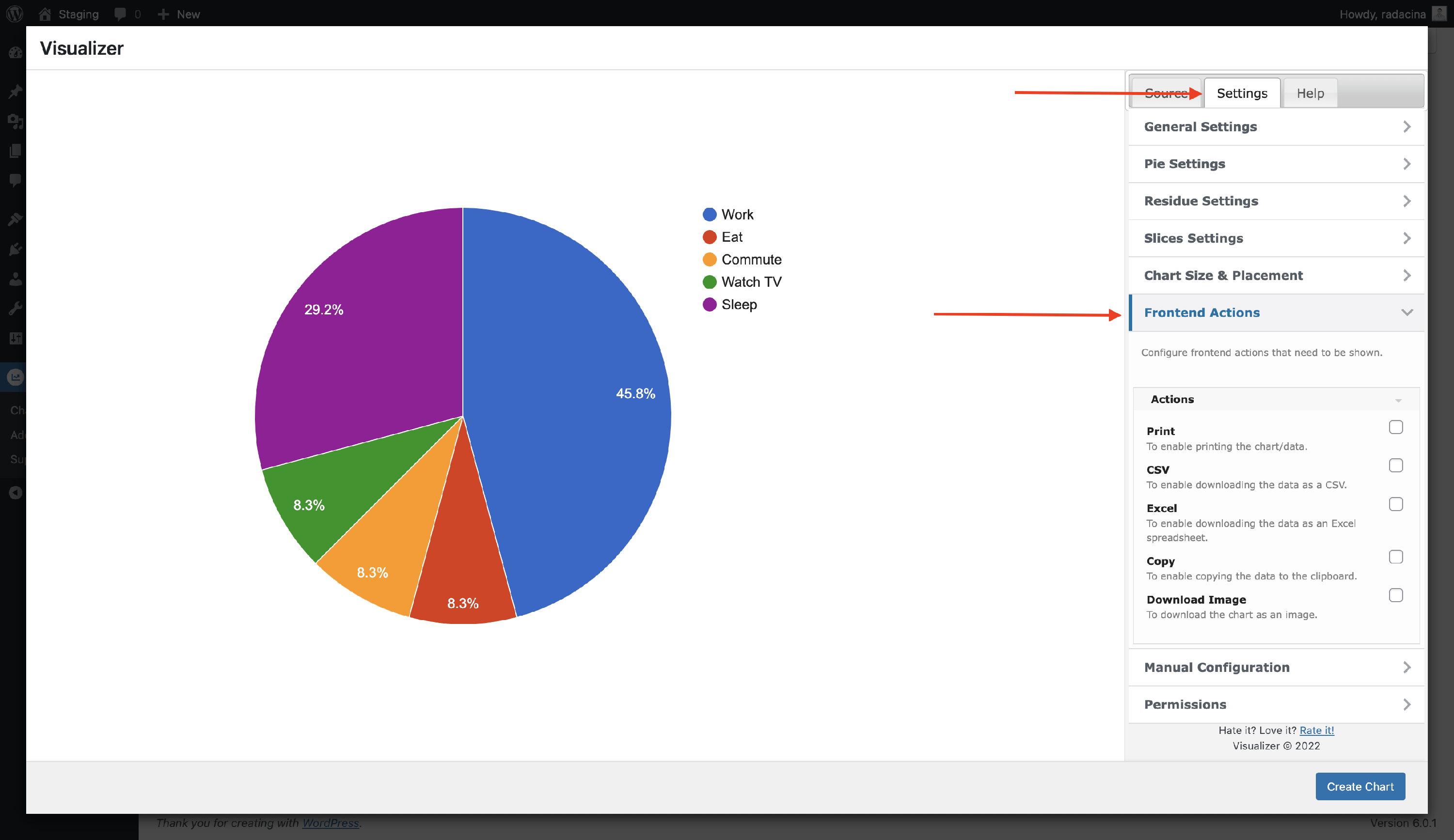
Available Frontend Actions
- Print - allows the visitor to print the chart or the data set.
- CSV - allows the visitor to download the data as CSV file.
- Excel - allows the visitor to download the data as an Excel spreadsheet.
- Copy - allows the visitor to copy the data set to the clipboard.
- Download Image - allows the visitor to download the chart as an image.
💡 Result - how it appears to the visitors of your website