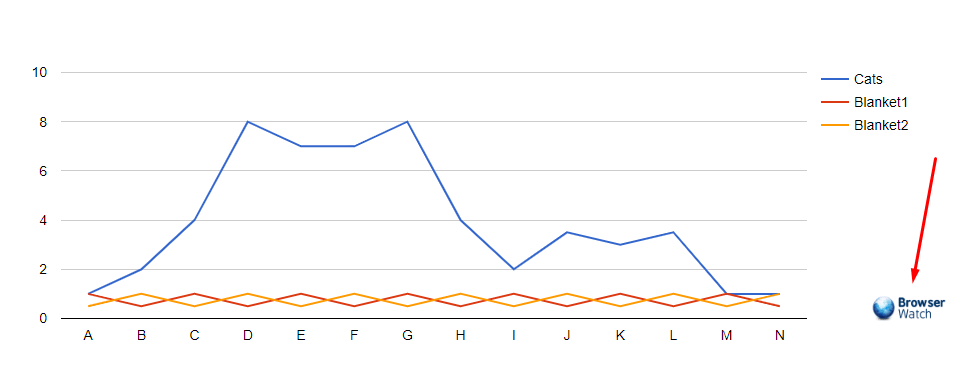
Adding logo / image into charts
This guide is made for the purpose of teaching one to insert a logo or an image into the charts created with Visualizer. Also, make sure you're using the latest version of the plugin available. Please follow the steps below:
1. Before doing anything else, we strongly recommend backing up your files first.
2. Once the backup is complete, please navigate to -> wp-content/plugins/visualizer/js and you should see a file called customization.js. Copy the customization.js file and paste it inside -> wp-content/uploads/visualizer/. If the visualizer folder does not exist, you would need to create it first.
3. Add the code below inside the existing (function ($) { ... })(jQuery); wrapper in the customization.js file, within the $(document).ready block:
setTimeout(function(){
    $('.visualizer-front').prepend($('<div class="vim"><img src="URL to your image"></div>')).css('position','relative');
}, 1000);
You may replace the link inside <img src="URL to your image"> with the path or link of your desired logo.
Save the changes and reload the page. That's all!