
How to Prevent Duplicate Images in the Media Library with Feedzy
📝 Note: The Feed to Post import feature is available in both the free and Pro versions of Feedzy. The Use external images option described in this article is available in both versions.
If you notice your WordPress Media Library filling up with duplicate images every time Feedzy runs an import job, or if imported featured images look smaller or lower quality than the originals, this article explains why that happens and how to fix it.
In this article
Understanding Image Duplication in Feedzy Imports
By default, when Feedzy imports posts from a feed, it downloads each post's featured image from the original source URL and saves it as a new file in your WordPress Media Library. Each time the import job runs and encounters the same feed item, Feedzy may re-download and re-save the image, creating duplicate entries.
This behavior can cause:
- Bloated Media Library with many copies of the same image
- Increased storage usage on your server
- Slower Media Library browsing
- Featured images that appear smaller or lower quality than the original source, because WordPress automatically resizes images when they are added to the Media Library
The simplest way to prevent this is to tell Feedzy to keep images external — that is, to load them directly from the original source URL instead of copying them into your Media Library.
Enable External Images to Prevent Duplicates
To stop Feedzy from importing images into the Media Library, enable the Use external images option in your import job settings:
- In your WordPress admin panel, go to Feedzy > Import Posts.
- Click Edit on the import job you want to update, or click New Import to create a new one.
- Proceed through the import wizard to Step 3: Map content.
- Click the Advanced Options tab within Step 3.
- Check the Use external image URL, Ignore feature post thumbnail option.
- Click Save to save the import job settings.
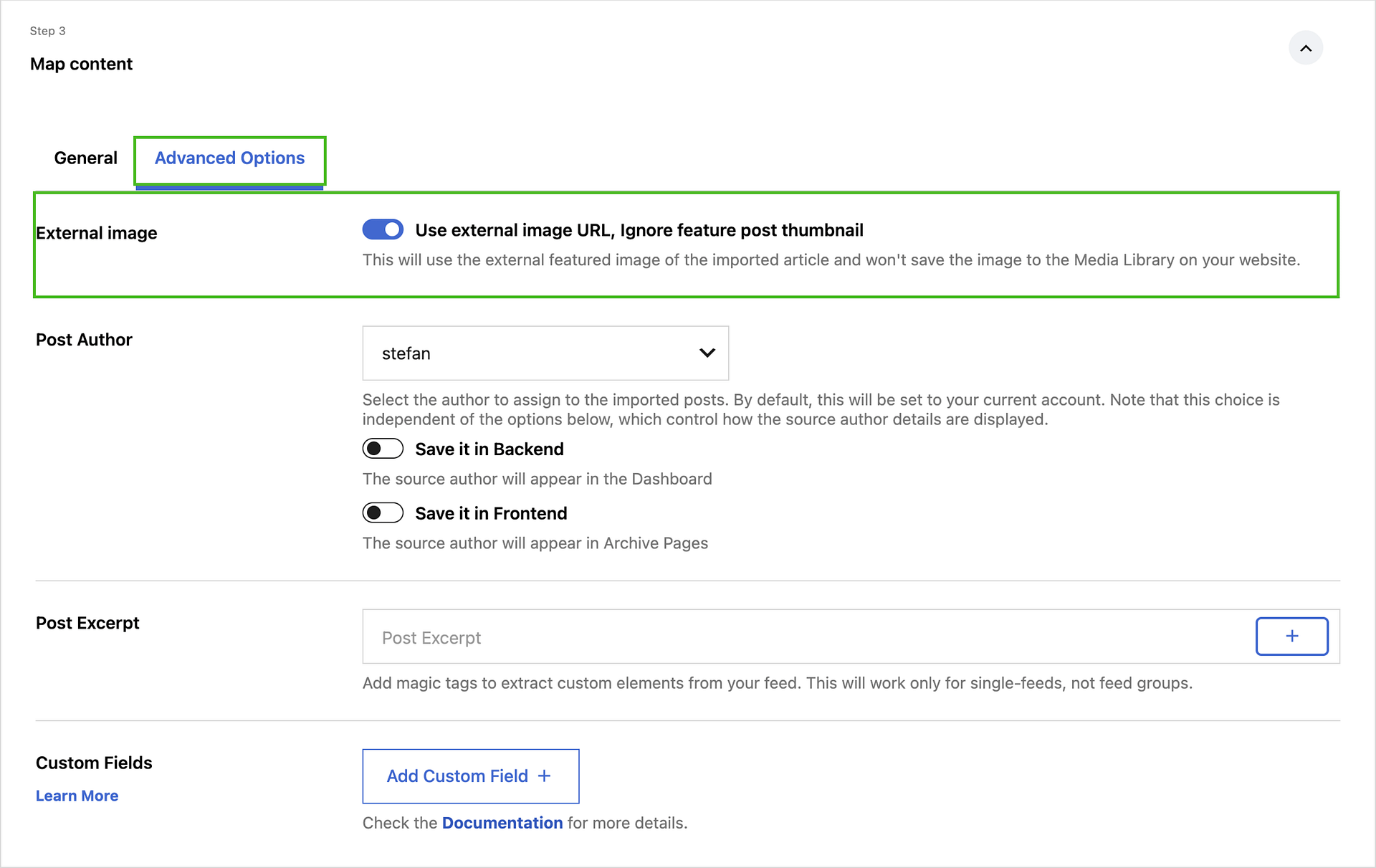
Once enabled, Feedzy will reference the images at their original URLs instead of downloading them. No new Media Library entries will be created for those images on future import runs.
Verification and Best Practices
Verifying the fix
After saving the import job, run it manually:
- Go to Feedzy > Import Posts.
- Click Run Now on your import job.
- Once the job finishes, go to Media > Library and confirm that no new image entries have been added.
If new entries still appear, double-check that the external image checkbox is saved correctly in Step 3 > Advanced Options.
Things to keep in mind
⚠️ Important: When using external images, the images are loaded directly from their original source. If the source website removes or changes the image URL in the future, the image will no longer display on your imported posts. Consider this trade-off when deciding whether to use external images.
- Existing duplicates: Enabling this setting does not remove images already in your Media Library. Use a media cleanup plugin to identify and remove duplicate or unused media files.
- When to still import images locally: If you need images to remain available even if the source website goes offline, keep the default behavior and import images locally. In that case, avoid re-running the same import job unnecessarily to reduce duplicates.
- Fallback images: If your feed items sometimes lack an image, you can configure a fallback image in Feedzy. See Fallback Image in Feedzy RSS Feeds for instructions.