
Feedzy MCP abilities
Feedzy exposes abilities through the WordPress Abilities API so compatible MCP clients can inspect and operate Feedzy feed sources, import jobs, and status data.
Feedzy registers these abilities when the WordPress Abilities API is available (WordPress 6.9 or later). To use them from an AI assistant, you also need a connector such as Easy MCP AI and a connected MCP-compatible client. feedzy/get-ai-status and some import options require Feedzy Pro. If you have not connected an AI client yet, follow Getting Started with Easy MCP AI.
In this article
Ability category
Feedzy registers abilities under the feedzy category. Ability names are exposed as feedzy/<ability-name>.
Available ability groups
Each ability is marked as either read-only or able to make changes. Easy MCP AI shows this as a Read or Write badge next to each ability.
Read-only abilities inspect your site without changing it:
feedzy/list-feed-sourcesfeedzy/get-feed-sourcefeedzy/list-importsfeedzy/get-importfeedzy/list-imported-items— lists the posts an import job created.feedzy/dry-run-import— previews what an import job would import, skip as a duplicate, or filter out, without importing anything.feedzy/get-ai-status(Feedzy Pro)feedzy/get-import-statusfeedzy/get-feed-health
Abilities that change data or run imports:
feedzy/create-feed-sourcefeedzy/update-feed-sourcefeedzy/delete-feed-sourcefeedzy/create-importfeedzy/update-importfeedzy/update-import-templatefeedzy/delete-importfeedzy/run-import
If you only want an assistant to report on your feeds and imports, do not grant the abilities that change data or run imports.
Use Feedzy abilities with Easy MCP AI
Follow these steps to give an AI assistant read-only access to Feedzy.
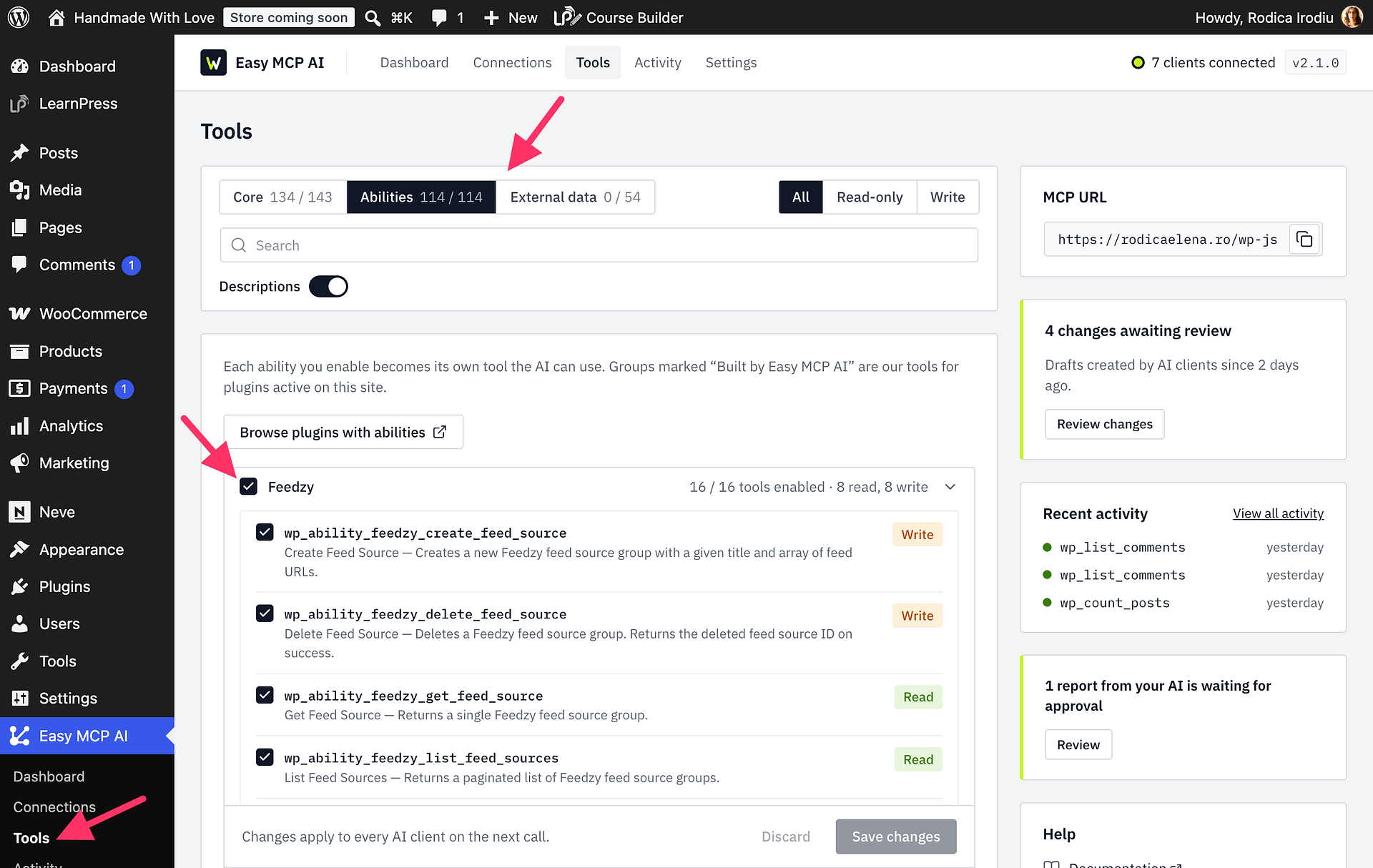
- In your WordPress dashboard, open Easy MCP AI > Tools, then select Abilities.
- Find the Feedzy group. Set Show to Read-only to list only the abilities with a Read badge.
- Enable the read-only abilities you need, and make sure the abilities that change data or run imports are turned off.
- Click Save changes. The enabled abilities become available to connected clients, subject to each user's permissions.
- Limit the connection itself. For an OAuth connection, open Easy MCP AI > Connections, click Edit scope for the client, and choose Read-only or Custom with only read access. For an API token, set its Access level to Read-only, or to Custom with only the Feedzy read abilities selected.
Starter prompts
Use these prompts to test the connection safely:
- "Use the Feedzy tools to list my import jobs and summarize the current status of each one. Do not run, create, update, or delete anything."
- "Check the health of my Feedzy sources and report any inaccessible or unhealthy feeds. Do not make changes."
- "Check Feedzy AI status and import status, then recommend diagnostic steps without changing settings or running an import."
The third prompt uses feedzy/get-ai-status, which requires Feedzy Pro.
Confirm the connection works
Run one of the starter prompts. The assistant should return data from your site, such as your import job names or feed health results, without asking to use a tool that changes data.
If the Feedzy tools do not appear in your AI client, see Enabled Tools Not Showing in Your AI Client.
Notes
Each ability provides its own input and output schema. Inspect these schemas directly from your MCP client or Abilities API client before implementation.
Each ability checks the connected WordPress user's permissions. Connecting an AI assistant or enabling an ability does not bypass these checks.