
How to Prevent Duplicate Imports in Feedzy Pro Using Duplication Key
If you have enabled Remove Duplicate Items in your Feedzy import job but are still seeing duplicate posts being imported, the issue is usually with how Feedzy identifies duplicates. This guide explains why duplicates slip through and how to fix it using the Duplication Key setting.
📝 Note: The Duplication Key feature requires Feedzy RSS Feeds Pro.
In this article
Understanding Duplicate Detection in Feedzy Pro
By default, Feedzy identifies duplicate feed items by comparing both the item title and the item URL. An item is only treated as a duplicate when both values match a previously imported post.
This works well for single-source feeds, but it fails when the same article appears in multiple feeds with different URLs. For example:
- Feed A provides:
https://source-a.com/article-title - Feed B provides:
https://cdn-source.com/article-title
Because the URLs differ, Feedzy treats these as two separate items and imports both — even though they represent the same article.
Feedzy Pro addresses this with the Duplication Key setting, which lets you define exactly which fields are used to identify a duplicate. Setting the key to [#item_title] means Feedzy will skip any item whose title matches an already-imported post, regardless of the URL.
Configuring the Duplication Key
Follow these steps to switch from URL-based to title-based duplicate detection:
- In your WordPress admin, go to Feedzy > Import Posts.
- Click Edit on the import job that is producing duplicates.
- In the import job editor, open Step 4: General Feed Settings.
- Scroll down to the Advanced section.
- Make sure Remove Duplicate Items is enabled.
- In the Duplication Key field, enter
[#item_title].
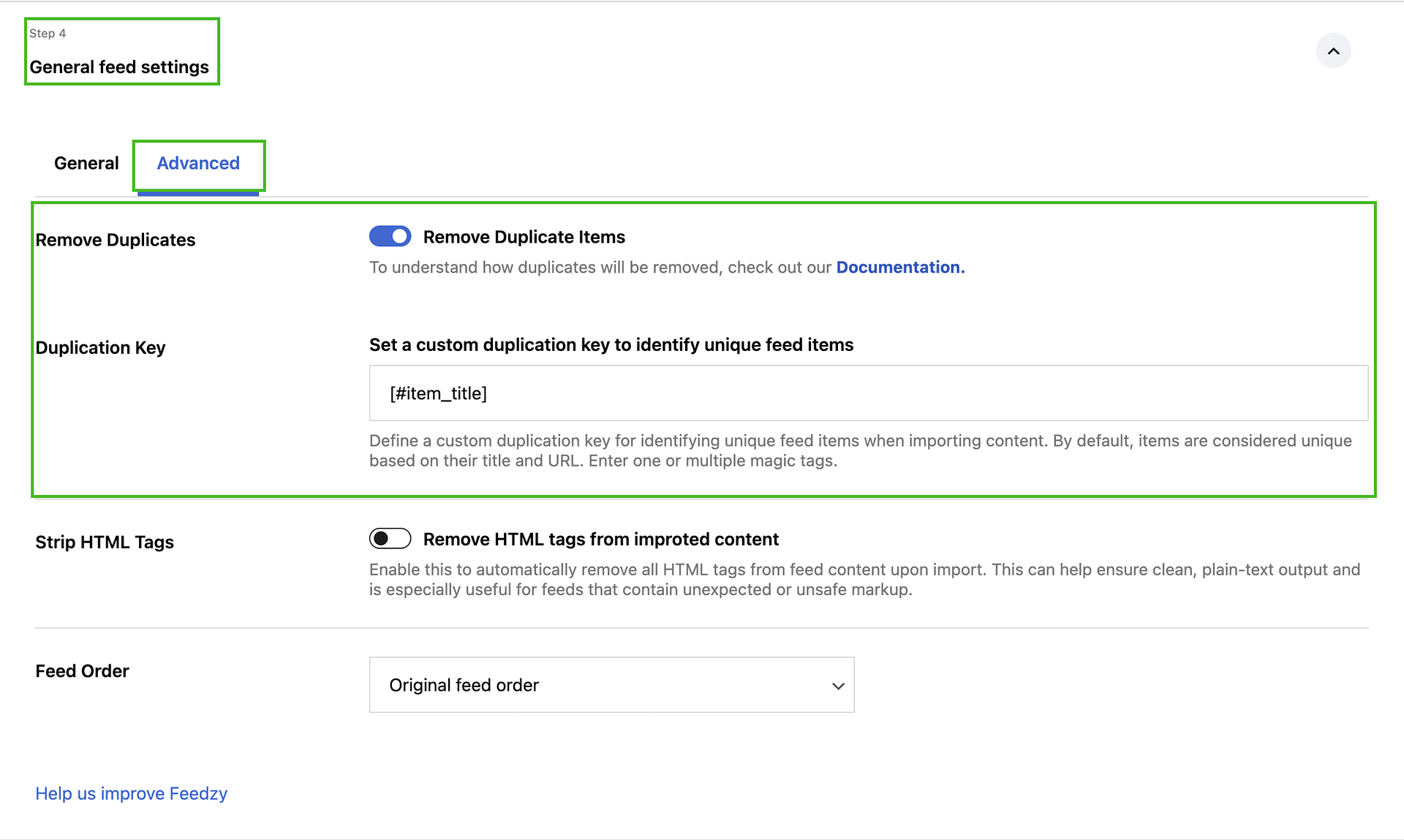
- Click Save to apply the changes.
From this point forward, Feedzy will treat any new item whose title exactly matches an already-imported post as a duplicate and skip it.
💡 Tip: You can combine multiple magic tags to create a stricter duplication key. For example, using [#item_title][#item_date] means an item is only treated as a duplicate if it shares both the same title and the same publication date with an existing post.
Cleaning Up Existing Duplicates
Changing the Duplication Key only affects new imports going forward. Posts that were already imported before the key was configured are not automatically detected or removed.
To clean up existing duplicate posts:
- Go to Posts > All Posts in your WordPress admin.
- Search or filter for the duplicated post titles.
- Select the duplicate posts and move them to the trash, or delete them permanently.
- After deleting the old duplicates, manually trigger the import job or wait for the next scheduled run to confirm no new duplicates appear.
⚠️ Important: Delete only posts you are certain are duplicates. Feedzy does not track which posts were imported as duplicates, so review carefully before bulk-deleting.
Troubleshooting Tips
Duplicates are still being imported after changing the Duplication Key
- Confirm that Remove Duplicate Items is toggled on in the same Advanced section where you set the Duplication Key. Both settings must be active.
- Check that the Duplication Key field is saved correctly. Edit the job again to verify the value is still
[#item_title](or your custom key). - Keep in mind that the key uses an exact match. If the same article appears with slightly different titles across feeds (for example, one feed truncates the title), Feedzy will not detect it as a duplicate. In that case, contact support for further assistance.
I don't see the Duplication Key field
The Duplication Key field is only available with Feedzy Pro. If the field is not visible in the Advanced section, verify that your Pro license is active. See How to Install and Activate Feedzy Pro for instructions.
I want to verify the duplicate detection is working
After saving the Duplication Key setting:
- Wait for the next scheduled import run, or trigger a manual run by clicking Run Now on the import job.
- Check the Duplicates count shown in the import job summary — this number should increase as Feedzy identifies and skips matching items.
- Review your Posts > All Posts list to confirm no new duplicate posts were added.
For additional troubleshooting with import jobs, see the Feedzy Troubleshooting Guide.