
How to Paraphrase using AI in Feed to Post?
Feedzy's Rewrite with AI feature lets you automatically paraphrase, summarize, or rewrite imported RSS content using OpenAI or OpenRouter during the Feed to Post import process.
📝 Note: The "Rewrite with AI" feature, which combines "Paraphrase", "Summarize" and similar actions, is part of the Feed To Post import method in Feedzy RSS Feeds, and it is available in the Developer and Agency plans. Additionally, the feature supports OpenRouter as an alternative to OpenAI for text generation.
In this article
Requirements:
- Feedzy Pro with one of these AI setup options:
- Manage AI by Themeisle: Enable Manage AI by Themeisle under Feedzy > Settings to use Feedzy AI credits without adding your own API key.
- API Key (when Managed AI is disabled): You can use either:
- OpenAI API Key: Generate one here. Follow this guide for instructions. Ensure you have a PRO OpenAI license.
- OpenRouter API Key: Generate it via OpenRouter's API portal.
If you use your own API key, navigate to Feedzy > Integration and select either the OpenAI or OpenRouter tab. Paste the key into the corresponding field.
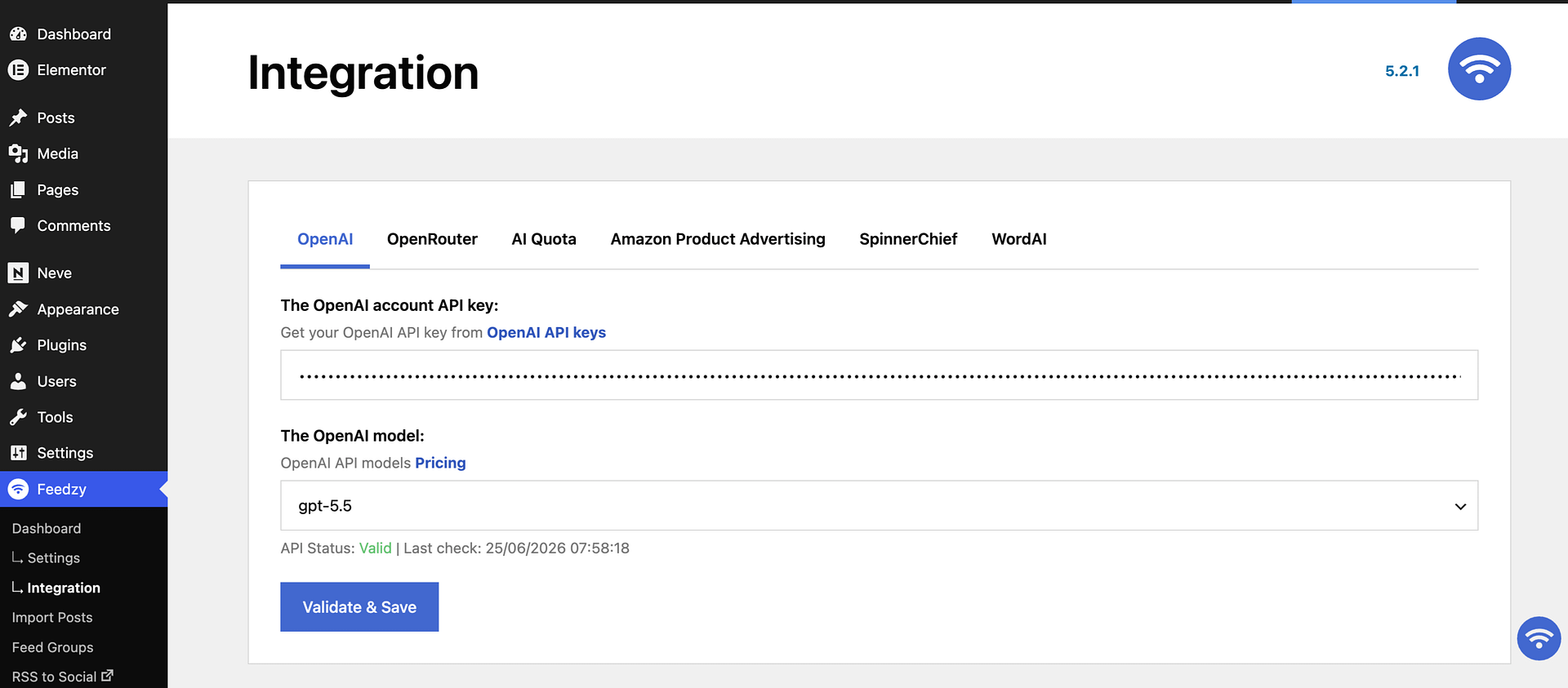
For the model field, you can consult the list of available models for OpenAI here. Make sure you validate the connection and then save the settings.
Using the feature
1. In the Import wizard, open the Map Content tab.
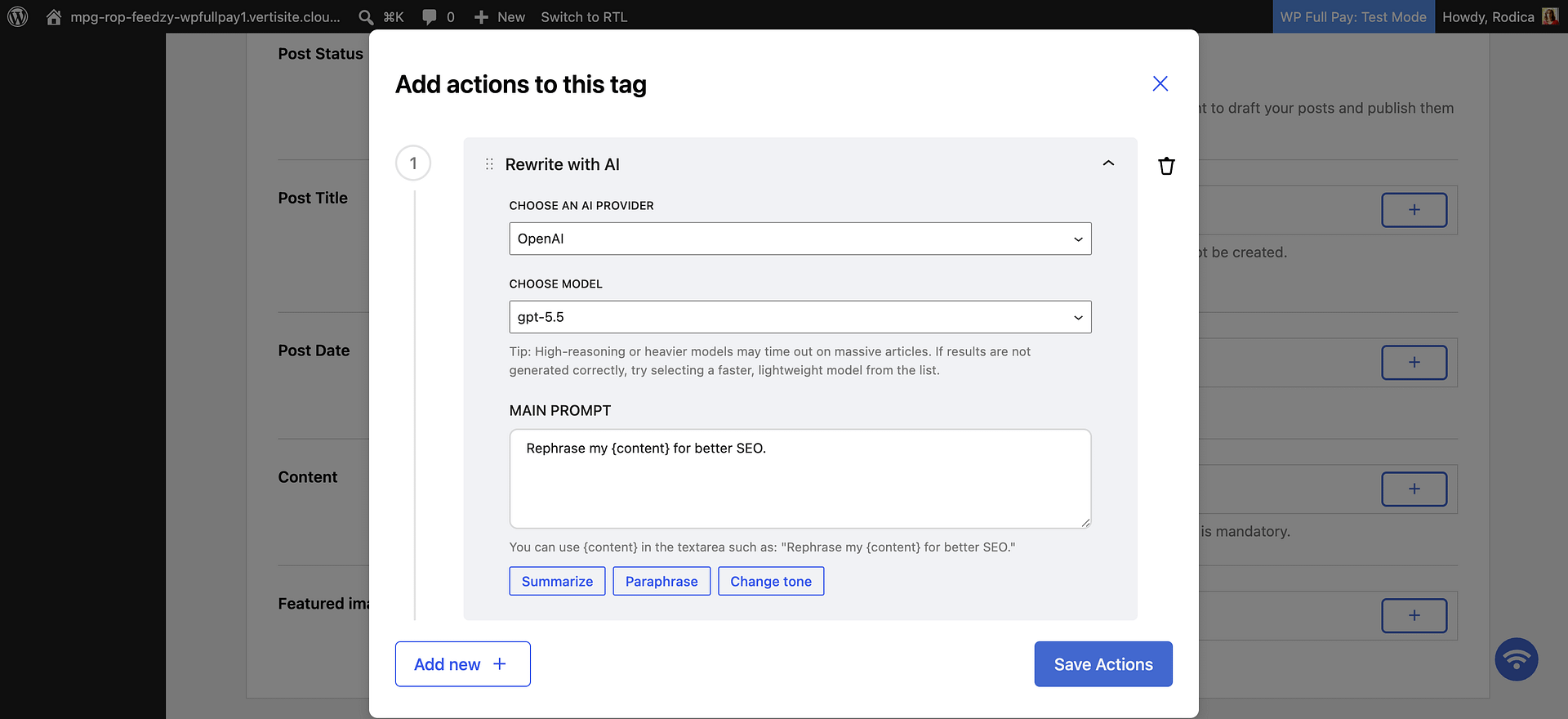
2. In the Content field, click on the ➕ sign and select the Rewrite with AI action from the dropdown.
3. In the Actions modal, click on Add new.
4. Configure the desired prompt in the text area. If Managed AI by Themeisle is disabled, also choose the AI provider and model. If Managed AI is enabled, Feedzy uses Themeisle-managed credits and the provider/model controls are not shown.
5. Customize the prompt for specific needs, such as rephrasing, summarizing, or tone adjustment. Examples:
- Summarize {content} for social media. You must only respond with the modified content.
- Rephrase {content} in a formal or creative style. You must only respond with the modified content.
- Add branding or source text (e.g., "Created by your website"). You must only respond with the modified content.
- Change tone of my title "{content}" for a more friendly approach. Keep the content length about the same. You must only respond with the modified content.
It's essential to use {content} tag, which represents the source content that Feedzy sends together with your prompt.
📝 Note: How much content the {content} tag sends depends on your AI setup.
- With Manage AI by Themeisle enabled, Feedzy sends the complete article text, so rewritten, translated, and summarized items are based on the whole source. If the rewrite fails, Feedzy imports the original content and keeps its formatting.
- With your own API key, for either OpenAI or OpenRouter, Feedzy sends only the first 3,000 bytes of the article text by default. That is roughly 3,000 characters in English and fewer in scripts that use multi-byte characters, such as Greek, Cyrillic, or Chinese. Feedzy always cuts the text between whole characters, so accented and non-Latin characters are never broken.
📝 Note: We recommend adding a note "You must only respond with the modified content." or similar in the end of the sentences as in some cases the response my content AI's words not related to the content. This ensures you only get your rephrased content back without any other conversation with the AI..
6. Click on Save Actions.
Use Cases
- Rephrase for social media sharing with a friendly tone.
- Generate academic-style rephrased content.
- Create engaging, creative content for blogs or marketing.
- Append specific text for branding purposes.
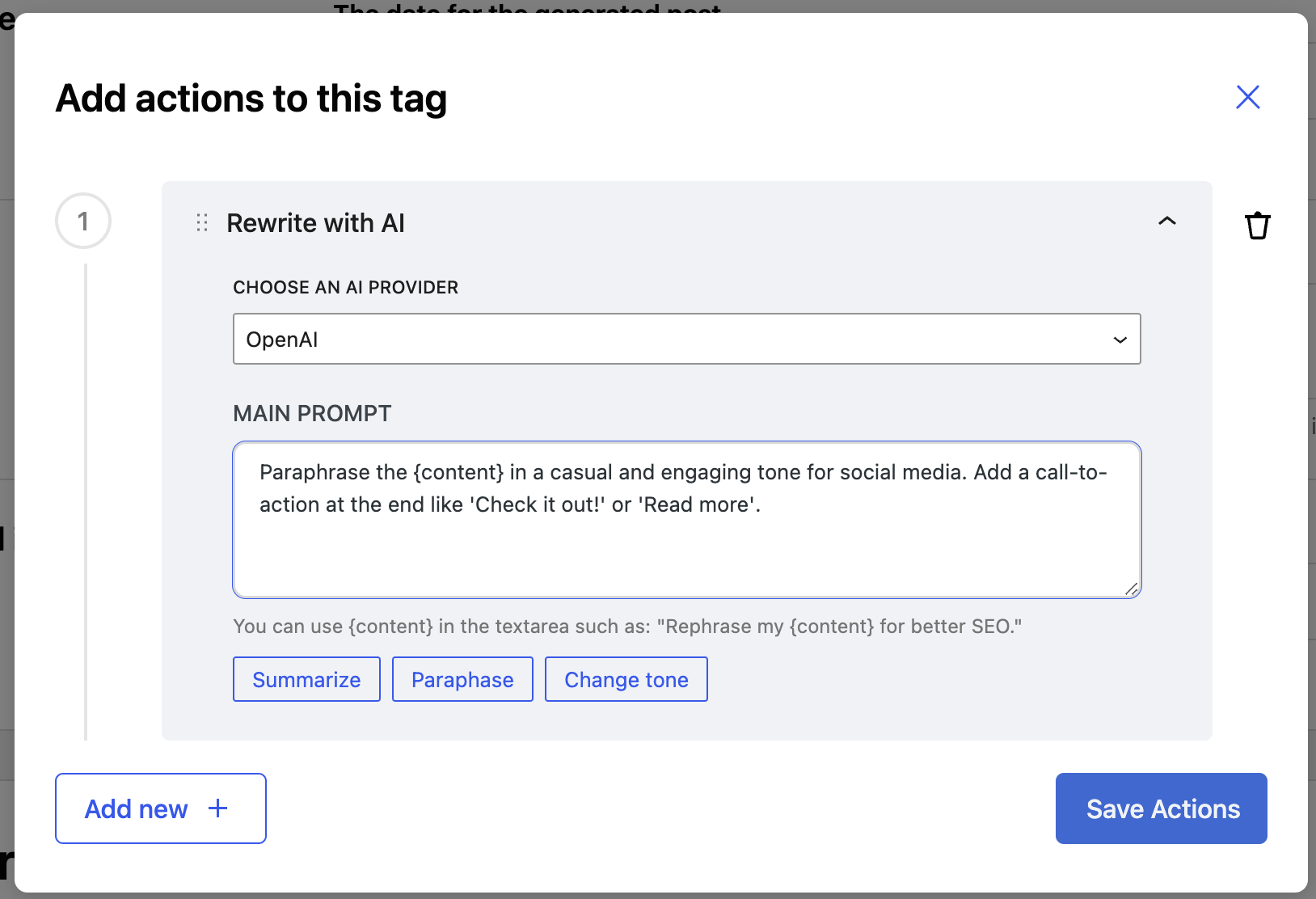 Rephrased content for social media sharing
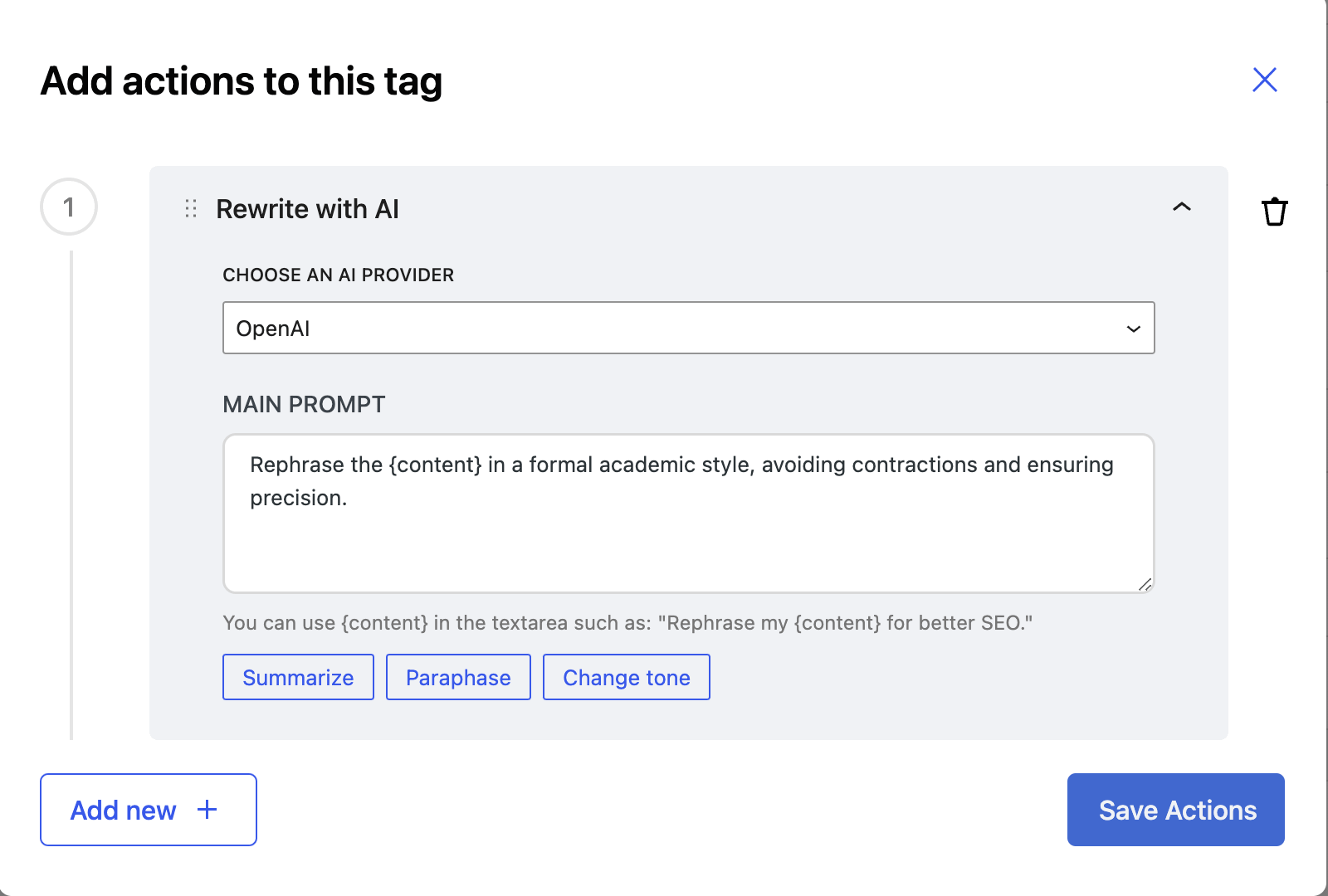 Rephrased content for academic websites
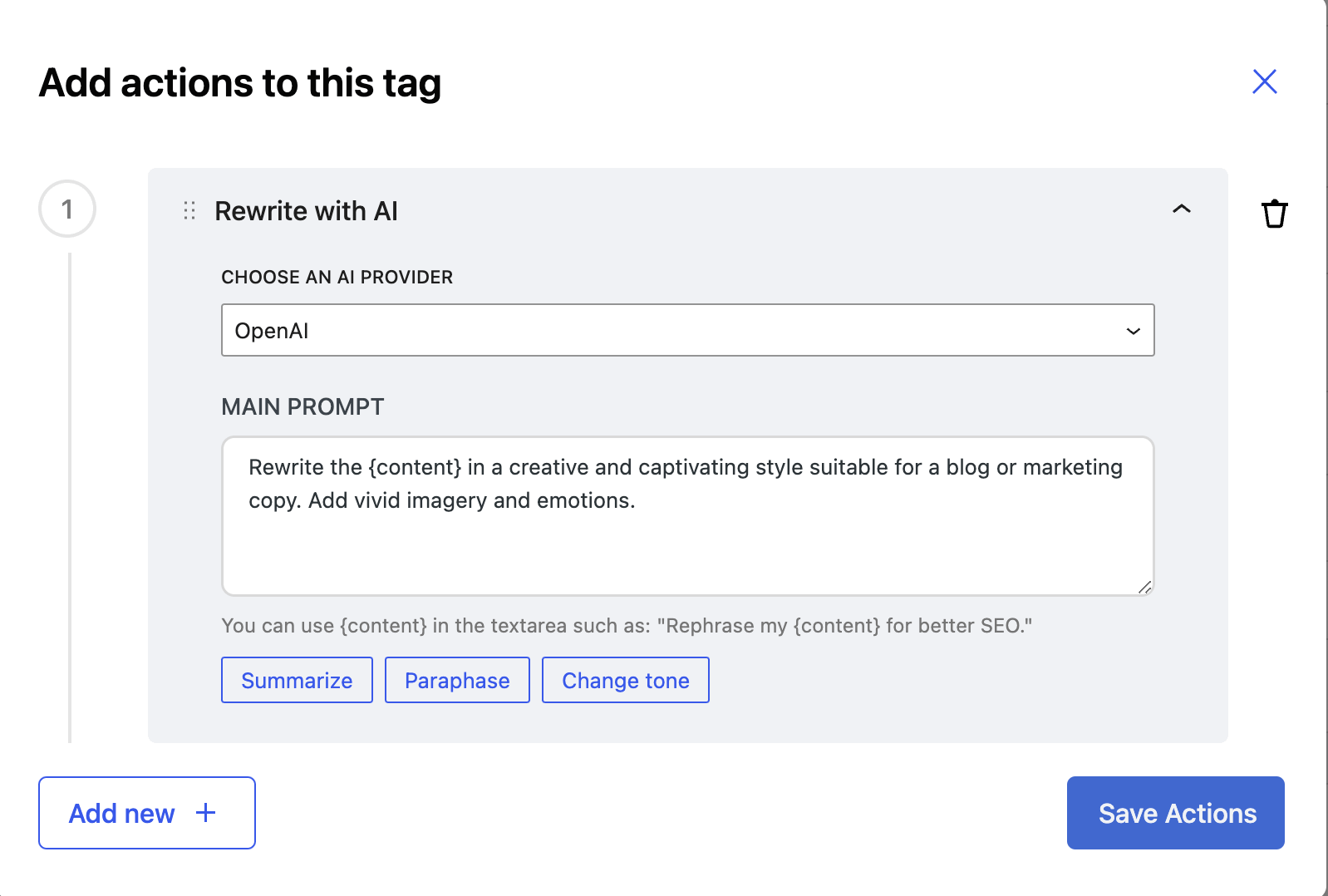 Rephrased content with a creative touch
Action-Supporting Tags
- [#item_content]
- [#item_full_content]
- [#item_description]
- [#item_title]
- [#item_image]
- [#item_categories]
Troubleshooting prompts that are not applied
If imported posts contain the original feed content instead of your rewritten version, work through these checks:
- Confirm that the prompt includes the
{content}tag and that you saved the action with Save Actions. - If Manage AI by Themeisle is enabled, go to Feedzy > Integration and open the AI Quota tab to check whether your remaining credits reached
0. When the managed quota is exhausted, Feedzy imports the original content without applying your prompt and shows no error. See How to use Themeisle-managed AI and AI Quota in Feedzy for the recovery steps. - If you use your own API key, go to Feedzy > Integration and confirm that the OpenAI or OpenRouter key still validates and that your provider account has available credit.
- Test with a fresh feed item after every change, so you are checking the current configuration instead of an older import result.
Image Generation Updates
For image generation, users can now provide specific instructions to customize the generated images. For example, you can specify styles like "realistic," "artistic," or "comic-style."
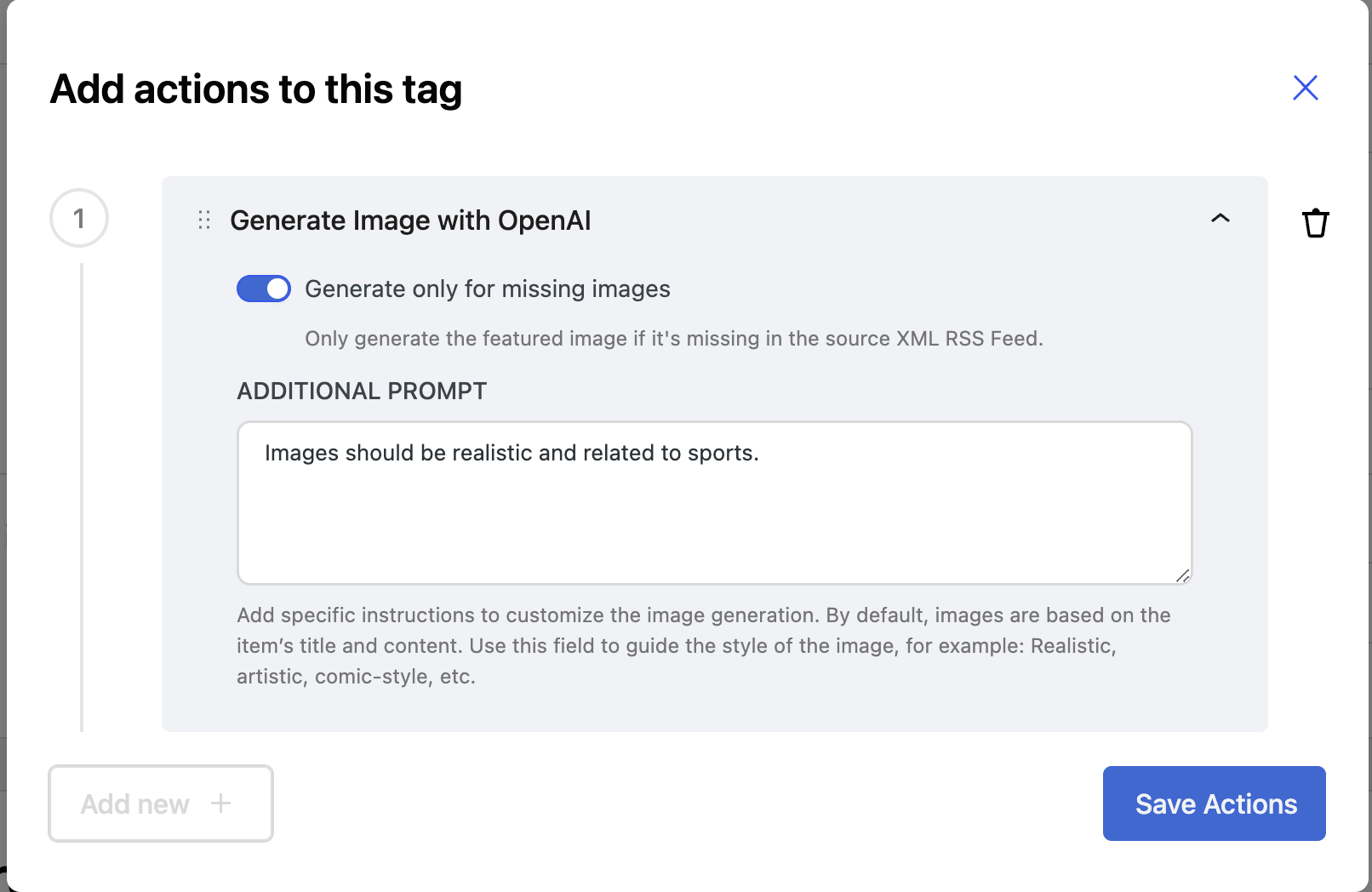 Enhanced Image Generation Prompt
Video Resources
Watch our video on how to rewrite RSS content with AI and publish it in WordPress using Feedzy RSS Feeds.