
How to use proxy settings in Feedzy
Feedzy allows you to fetch content from external RSS feeds. In some cases, these feeds might be geo-restricted, blocked by firewalls, or protected by anti-bot mechanisms. If you're encountering issues fetching certain feeds, using a proxy server can help route requests through a different IP address or region.
For example: A news feed only available in the US might return a 403 Forbidden error in your location. By using a US-based proxy, Feedzy can successfully fetch it.
In this article
When Should You Use a Proxy?
Use the proxy settings in Feedzy if:
- Feed content fails to load or update
- You're seeing timeout or 403/503 errors
- The feed provider blocks requests from your server IP
- You need to access geo-restricted feeds
If Feedzy is working fine without proxy settings, it's best to leave them empty.
How to Configure Proxy Settings
1. To use proxy settings, navigate to Feedzy > Settings. 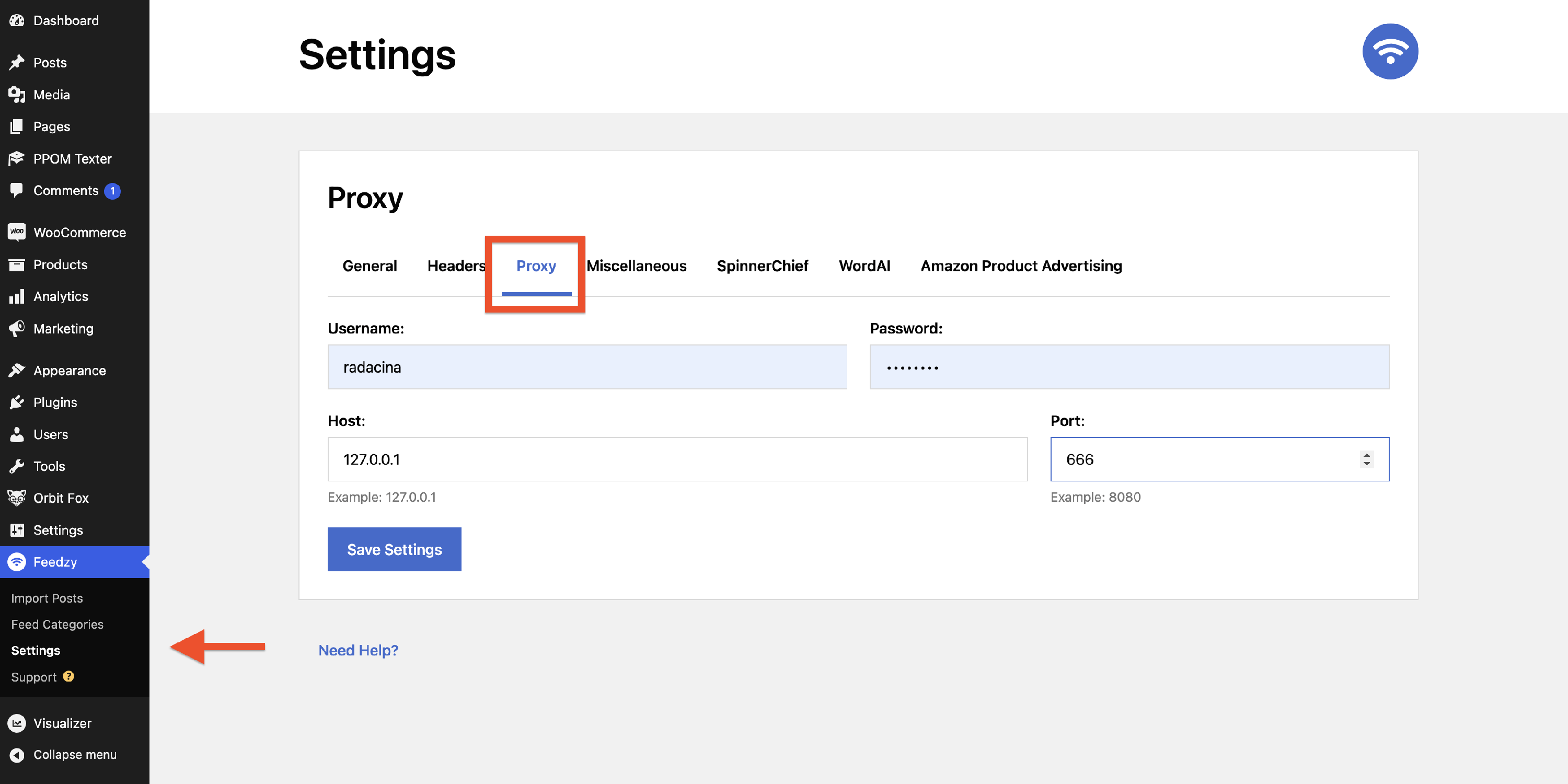
2. In the Proxy tab, enter the details of the proxy server you want to fetch the feed from:
- Username: Enter the authorized username.
- Password: Enter the password for the authorized user.
- Host: Enter the IP address or Domain name of the proxy server. (Eg. 127.0.0.1)
- Port: Enter the port which is used to access the proxy server. (Eg. 8080)
3. Click on Save Settings to save the proxy server details.
Still Need Help?
Reach out to our support team if you're unsure how to set this up or if your proxy isn't working. We’re happy to help.