
How to Generate Featured Images using OpenAI in Feedzy?
Feedzy RSS Feeds can automatically generate featured images for imported posts using OpenAI, saving you from manually sourcing visuals.
📝 Note: The Featured Image generation feature, now enhanced with custom prompts, is part of the Feed To Post import method in Feedzy RSS Feeds. This feature is available in the Developer and Agency plans.
Requirements:
Feedzy Pro powers featured image generation with one of two AI setups:
- Manage AI by Themeisle: Enable Manage AI by Themeisle under Feedzy > Settings to use Feedzy's AI credits without adding your own API key. New installations have this enabled by default. See How to use Themeisle-managed AI and AI Quota in Feedzy for details.
- Your own OpenAI API key (when Managed AI is disabled): Generate a key on the OpenAI API keys page, and make sure your OpenAI account has API access with billing or credits enabled. Follow this guide for assistance. A ChatGPT subscription on its own does not provide API access.
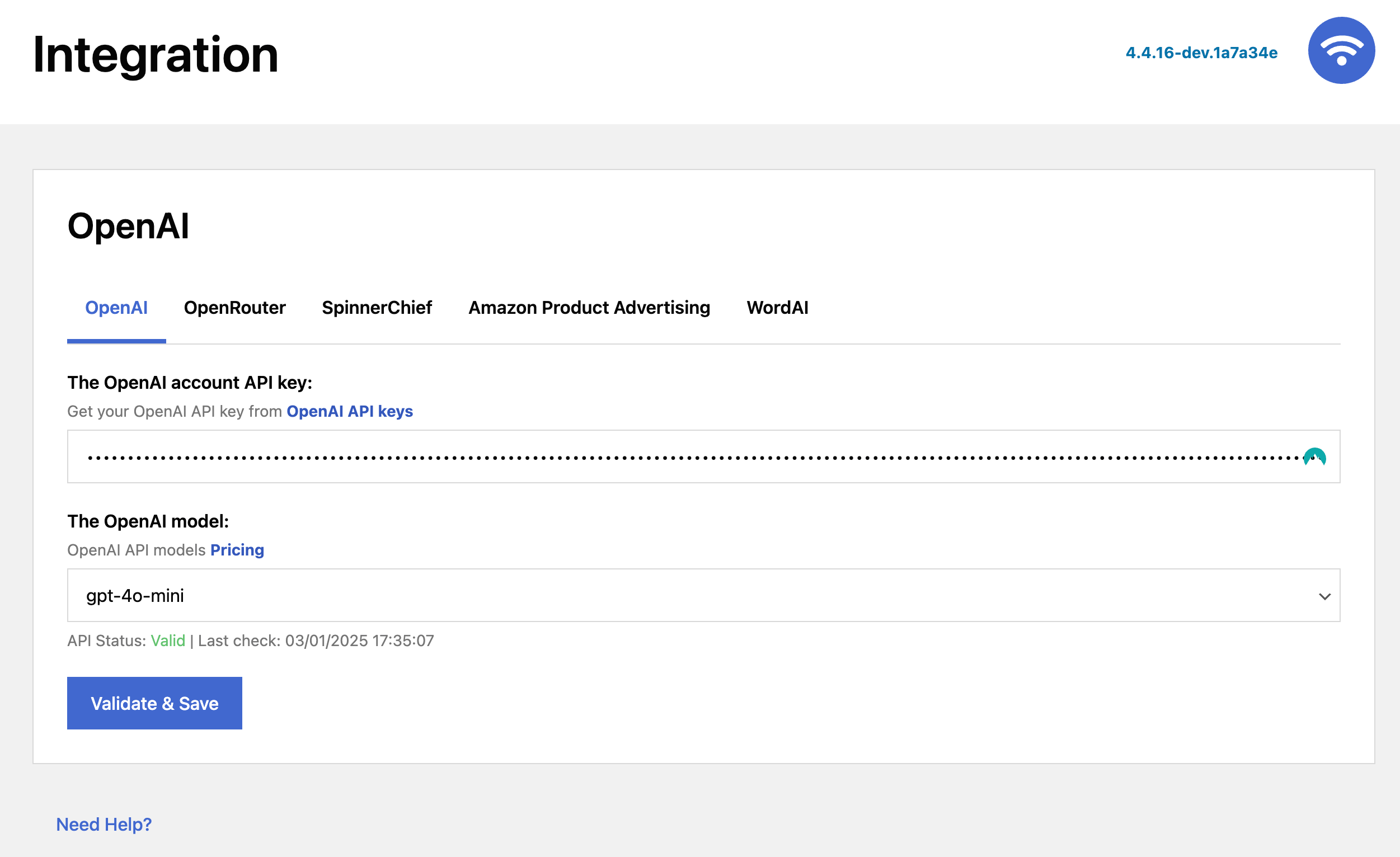
To use your own key, navigate to Feedzy > Integration and open the OpenAI tab. Paste the key into the corresponding field, then validate the connection and save the settings. If Manage AI by Themeisle is enabled, Feedzy uses the managed credits instead of any key you add here, so disable it first if you want to use your own OpenAI account.
Using the Feature
1. In the Import wizard, open the Map content tab.
2. In the Featured Image field, click on the ➕ sign and select the Item Image tag.
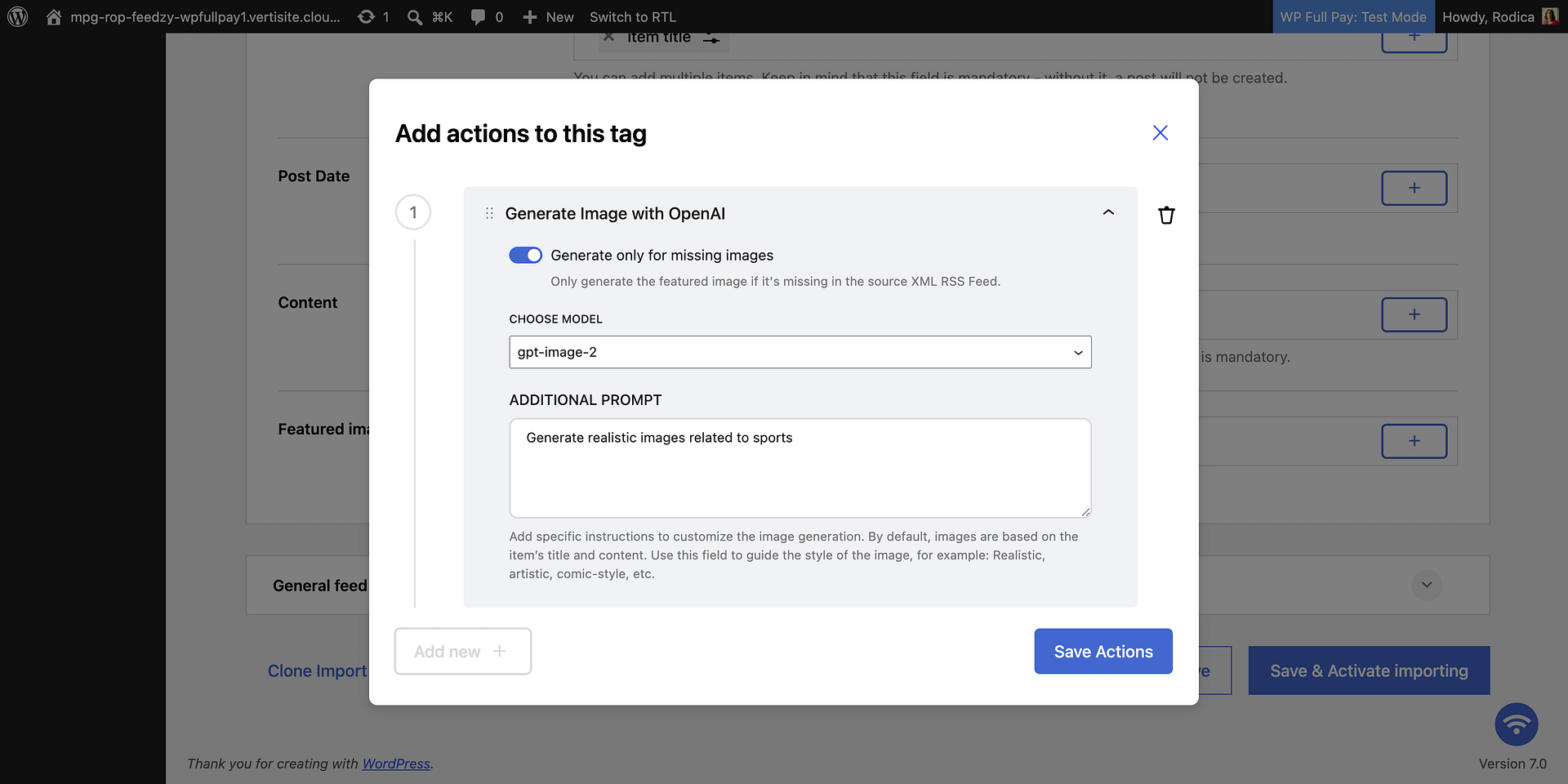
3. Click on the settings icon next to the Item Image, and in the Actions modal, click on Add new.

4. From the dropdown, select the action called "Generate with OpenAI".
5. Use the toggle to specify if the image generation should occur for all posts or only where the image is missing. When you keep it set to missing images only, Feedzy skips the OpenAI image request for any feed item that already includes an image. If you want Feedzy to generate a new image even when the source feed provides one, choose all posts instead.
6. If you are using your own OpenAI API key, select the image generation model from the Choose Model dropdown. This option is hidden when Manage AI by Themeisle is enabled, because Feedzy then uses Themeisle-managed AI credits instead of your own key.
7. In the Additional Prompt field, provide specific instructions for generating the image, such as style, mood, or visual details. Enter plain-language instructions only; Feedzy sends whatever you type to the image generator as literal text and does not replace variables or placeholders (see Supported prompt syntax below). Feedzy combines this text with the feed item title when building the image request. It does not send the full article content, description, or #item_full_content to the image generator. For example:
- "Generate realistic images related to sports"
- "Create a vibrant, artistic representations"
- "Generate a comic-style illustrations"
8. Click on Save Actions.
Action-Supporting Tags
The tag below shows which mapped field supports this action — in this case, the Featured Image field. It is not prompt syntax, so you do not type it into the Additional Prompt field.
- [#item_image]
[#item_image] is the field mapping that lets this action populate the Featured Image field. It is not a prompt variable, so do not type it into the Additional Prompt field.
How Feedzy builds the image prompt
Feedzy sends the image generator two pieces of context:
- the feed item title
- the text you add in the Additional Prompt field
It does not include the post description, the imported article body, or #item_full_content in the image request.
For example, if your feed item title is Local team wins regional final and your Additional Prompt is Create a dramatic stadium illustration with blue and gold confetti, Feedzy builds the request from those two inputs together. The generated image follows the title and your extra instructions, not the full article text.
Supported prompt syntax
The Additional Prompt field expects plain-language instructions that describe the image you want. Type your instructions directly — Feedzy sends the text to the image generator exactly as you enter it.
This field works differently from Feedzy's Rewrite with AI prompts, which use the {content} tag. In the Additional Prompt field:
- Do not use the
{content}tag. - Do not type placeholders such as
[Item title]or[Additional Prompt]. Feedzy does not replace them, so they reach the image generator as literal text and can distort the result. - Do not add the feed item title yourself. Feedzy already adds it automatically.
For example:
- Avoid:
[Item title] — Create an illustration using [Additional Prompt] - Use:
Create a high-quality editorial news illustration in a realistic style, without text or logos.
When image generation is skipped
The Generate only for missing images option is meant to preserve source images that already come from the feed. When that option is enabled and a feed item already has an image, Feedzy keeps the existing image and skips the OpenAI image-generation request entirely.
If you want Feedzy to replace source images with newly generated ones, switch the action to generate images for all posts and then test with a fresh import item.
Troubleshooting images that were not generated
If no AI image was generated, go through these checks in order:
- Check whether the feed item already includes an image. If it does and the action is set to Generate only for missing images, Feedzy will skip generation for that item.
- If you want Feedzy to create a new image even when the feed provides one, switch the action to generate images for all posts.
- Remove any placeholders or variables from the Additional Prompt field, such as
[Item title],[Additional Prompt], or{content}. Enter only plain-language instructions, save the action, and test with a fresh feed item. - Verify your AI setup. If Manage AI by Themeisle is enabled, make sure your site still has available AI quota. If it is disabled, confirm your Feedzy > Integration > OpenAI connection is valid and that you selected the expected image model in the action.
- Run the import again with a fresh feed item after changing the settings so you can test the current configuration instead of an older import result.
- Open Feedzy > Settings > Logs and look for recent API or image-generation errors for the affected import job.