
How to change user agent in Feedzy
When Feedzy fetches an RSS feed, it makes a server-to-server HTTP request and sends a User-Agent header — a short string that identifies the software making the request. By default this string identifies WordPress, and some feed providers use bot-protection or firewall rules to block requests that look automated. The result is a 403 Forbidden response even though the exact same feed URL opens without any problem in a browser.
This article explains when changing the User Agent helps and how to update it in Feedzy settings.
When changing the User Agent helps
A 403 Forbidden error from an RSS feed typically means the feed provider has identified Feedzy's request as automated traffic and denied access. Common signs that a custom User Agent will fix the problem:
- The feed URL works normally in your browser.
- The feed displays correctly on sites that access it directly (for example, another feed reader on your own computer).
- The Feedzy shortcode, block, or import job returns an error or shows no items.
- Clearing the cache and retrying does not help.
Opening the feed in a browser does not prove the provider permits requests from your WordPress server. Browsers send a human-looking User-Agent header; WordPress sends one that identifies it as an automated client.
Change the User Agent in Feedzy
Before changing the User Agent, confirm the URL is a valid RSS or Atom feed by opening it in a browser and checking that the page displays XML content (a list of <item> or <entry> elements). If the URL redirects to a login page or returns HTML, the feed itself may not be publicly accessible.
If the URL returns proper RSS/XML content in a browser, follow these steps:
In the WordPress admin, navigate to Feedzy > Settings.
Switch to the Miscellaneous tab.
In the User Agent field, enter
Mozilla/5.0.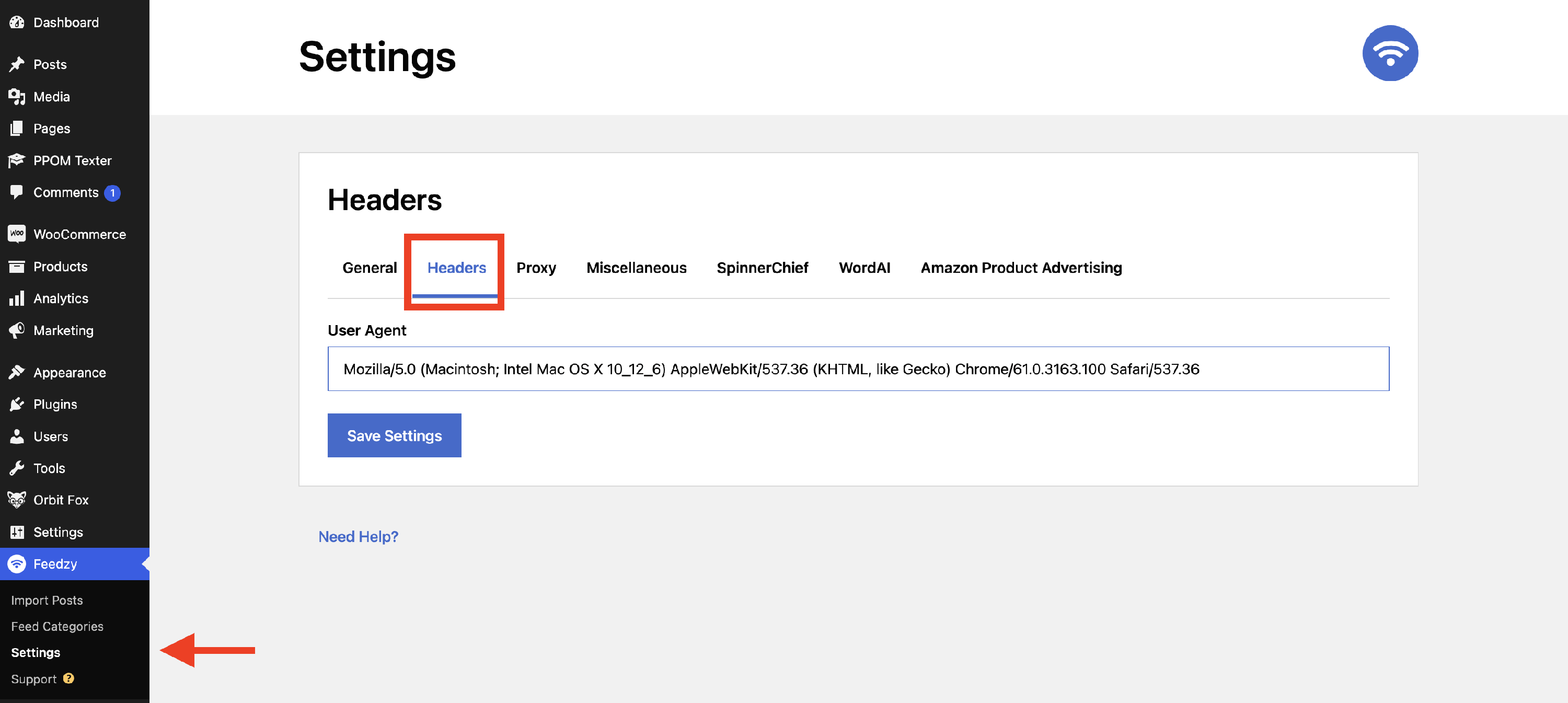
Click Save Settings.
Clear any feed caches and retest the shortcode, block, or import job that was returning the 403.
📝 Note: Mozilla/5.0 is the recommended first value to try. For a full list of user agent strings, see udger.com. To parse what each part of a user agent means, use the user agent analyzer.
Related troubleshooting guides
If the feed continues to return 403 after setting a browser-like User Agent, the provider may be blocking the IP address or geographic region of your WordPress server rather than the User-Agent header. In this case, routing requests through a proxy can help.
Navigate to Feedzy > Settings > Proxy and enter your proxy server credentials (Host, Port, and optionally Username and Password). See How to use proxy settings in Feedzy for the full setup steps.
⚠️ Important: The source feed provider ultimately controls whether automated access is permitted. If the provider's terms of service do not allow programmatic retrieval, you should seek an authorized data source rather than working around the block.
Feed 403 versus featured-image 403
The User Agent and proxy settings described above apply only to the request Feedzy makes to fetch the RSS feed. Downloading featured images is a separate request that these settings do not affect.
If your posts import correctly but their featured images are missing, and your logs show an error such as Unable to download image: ... "errors":["Forbidden"], that is an image-level 403 — not a feed-level one. To resolve it, use the Use external images / Use external image URL option in the import wizard (Step 3 > Advanced tab). See Feedzy troubleshooting guide for full details.
Unrelated shortcode limits
The max attribute in the Feedzy shortcode controls how many feed items to display. Even so, the max value is a local shortcode setting, so it never causes the remote feed server to return a 403.
- If you get a feed-level 403 after setup, follow Fix a 403 Forbidden response from an RSS feed in Feedzy.
- If your logs show rate limiting, follow Fix a 429 Too Many Requests response from an RSS feed in Feedzy.