
Use WP Full Pay with AI Assistants
WP Full Pay makes selected tools available to compatible AI assistants through the WordPress Abilities API. A connected assistant can read forms, create forms with default settings, and review payment and subscription records.
In this article
Requirements
- WordPress 6.9 or later, which includes the WordPress Abilities API.
- WP Full Pay installed and active.
- A compatible Abilities API or MCP connector, such as Easy MCP AI, connected to your WordPress site.
- An authenticated WordPress administrator account for reading payment and subscription records.
For connection instructions, see Getting Started with Easy MCP AI.
Connect your AI client and enable WP Full Pay abilities
- In your WordPress dashboard, open Easy MCP AI > Dashboard. In the Connect your AI client area, choose your AI client and follow the on-screen steps to connect it to your site. If you use another compatible connector, follow its connection instructions.
- Open Easy MCP AI > Tools, then select Abilities.
- Find the Full Pay group, enable these abilities, and click Save changes:
fullpay/list-formsfullpay/get-formfullpay/upsert-formfullpay/list-paymentsfullpay/list-subscriptions
- Refresh the available tools in your AI client so it can use the enabled abilities.
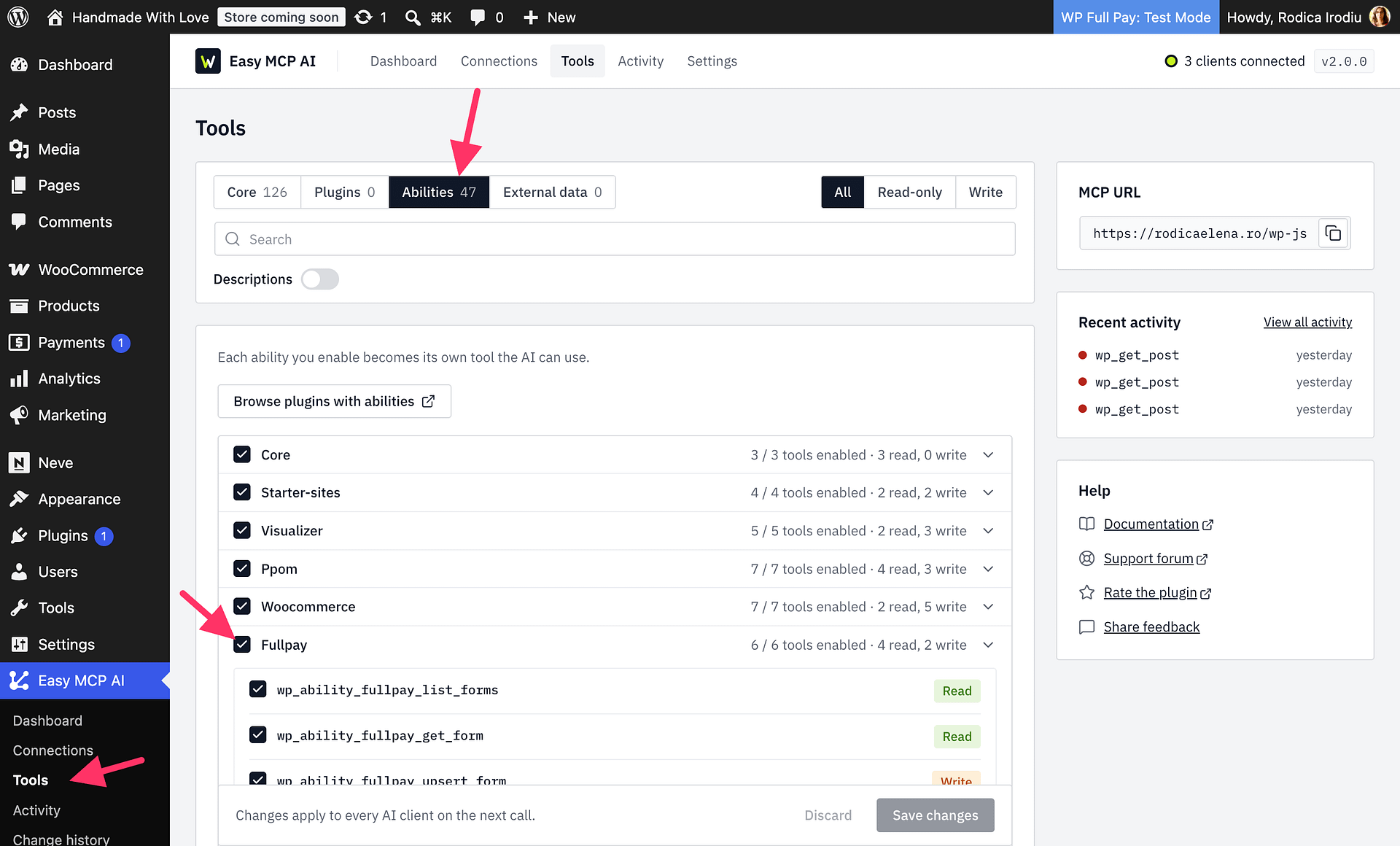
Available abilities
| Ability | What it does |
|---|---|
fullpay/list-forms | Lists payment, subscription, donation, and save-card forms. |
fullpay/get-form | Reads a form's stored configuration. Webhook header values are redacted. |
fullpay/upsert-form | Creates a form with default settings. If a matching form already exists, it returns that form unchanged; it does not edit the existing form. |
fullpay/list-payments | Lists payment records or retrieves a payment. Results may include personal data. |
fullpay/list-subscriptions | Lists subscription records or retrieves a subscription. Results may include personal data. |
Permissions and safe usage
The connected user must be a WordPress administrator to read payment or subscription records. The assistant acts through the authenticated connection, and enabling abilities does not bypass the user's permissions.
Payment and subscription records can include customer names, email addresses, postal addresses, and Stripe identifiers. Enable these abilities only for assistants and connectors you trust, and only when the connected account should be able to access this information.
Stripe keeps test-mode and live-mode data separate. Specify the mode you want when asking the assistant to review payments or subscriptions; use test mode for test data and live mode only when you intend to access real transaction records. For more information, see Configuring the Stripe API keys.
To validate a new form before saving it, ask the assistant to use dry_run=true. Review the proposed result before asking it to create the form. Form creation uses default settings; these abilities cannot change an existing form's settings or global WP Full Pay settings.
The fullpay/cancel-subscription ability is available through the REST-visible API but is not exposed through AI Connect because cancellation is destructive. Cancel a subscription through the WP Full Pay admin interface instead.
Example prompts
- “List my inline donation forms.”
- “Validate a new inline donation form called Spring fundraiser without saving it.”
- “List failed live-mode payments from this month.”
- “Show subscriptions that failed to renew in test mode this month.”